
Net Speed Meter
See live download and upload speed on your desktop, always on top.
See your internet speed live, plus 22 lightweight tools for Windows 11 & 10.
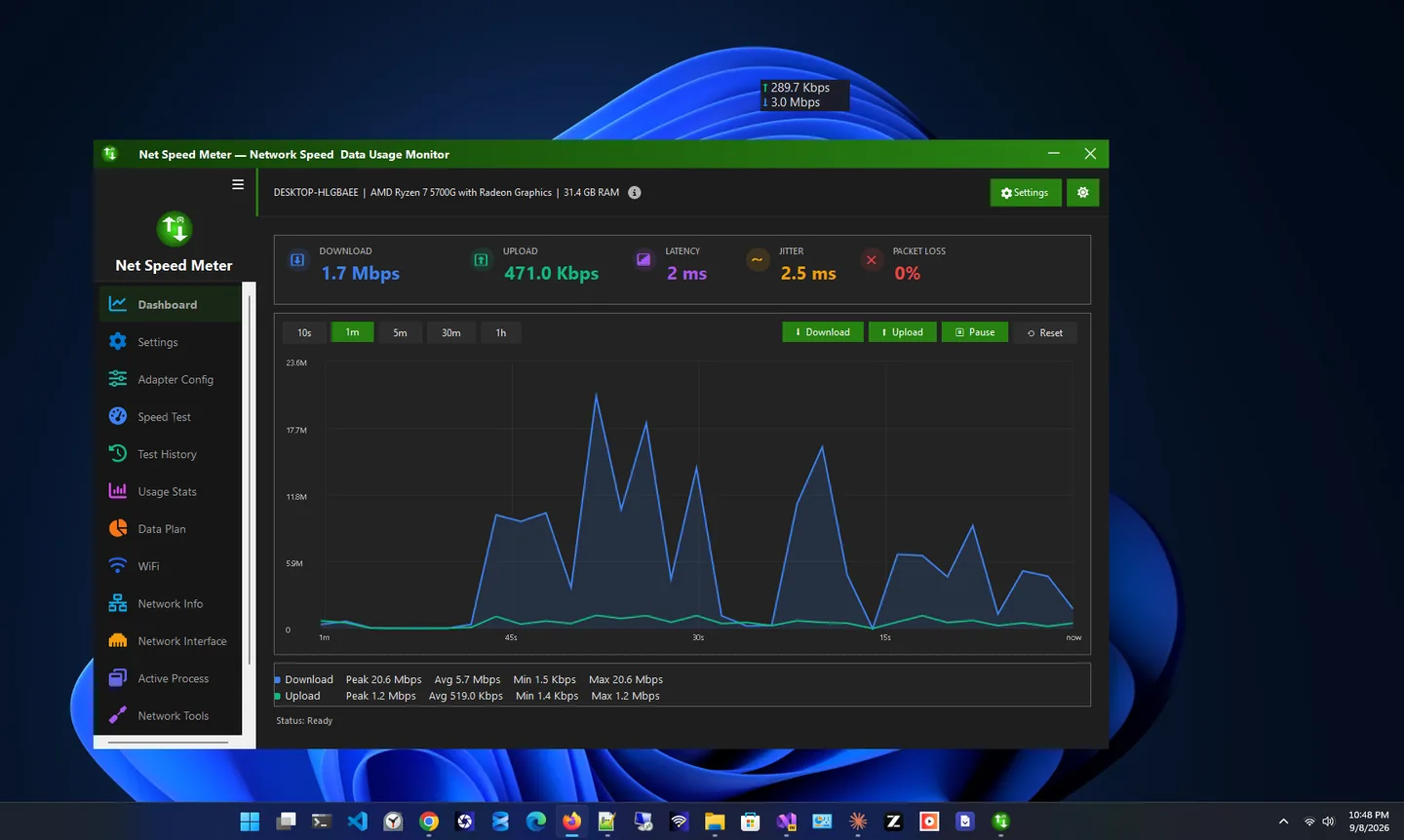
Four ways to watch your connection, from a simple free widget to full network monitoring.
See live download and upload speed on your desktop, always on top.

Speed widget, speed test, usage stats and per-app bandwidth monitor.

Always-on-top speed widget with data plan tracking and usage stats.

Full network monitoring: live speed, usage history and per-app connections.
Most apps are free to download from the Microsoft Store. Some offer optional Pro or Premium upgrades; apps marked Paid are bought in the Store.
See live download and upload speed on your desktop, always on top.
Speed widget, speed test, usage stats and per-app bandwidth monitor.
Always-on-top speed widget with data plan tracking and usage stats.
Full network monitoring: live speed, usage history and per-app connections.
Internet speed test with ping, jitter, saved history and network tools.

Your public IP, ISP, location and network tools like ping and DNS lookup.
See saved Wi-Fi passwords and share networks with a QR code.
Live CPU, RAM, storage, motherboard and system information.

Hardware info plus GPU, temperature sensors, BIOS details and alerts.

Health score, junk cleaner, startup manager and registry fixer.

Monitor CPU, RAM, drive health, GPU and temperatures in one place.
Check laptop battery health, wear, charge cycles and history.
Find and remove duplicate files safely; every delete goes to the Recycle Bin.

Fast, private screenshots with annotation, blur and on-device OCR.

Resize one photo or hundreds at once with presets and instant export.

Remove hiss, hum and background noise from video without touching the picture.

Paste a video link, pick a resolution and download in one click.

Find any file on your PC in milliseconds, right as you type.
Merge, split, compress, watermark and protect PDFs, fully offline.
Save everything you copy and reuse any item with one click.
Read and edit Markdown with GitHub-style rendering, tabs and outline.
Offline invoicing with PDF export, stock, payments and sales reports.
No apps match.
Small, focused tools that start fast and stay out of your way.
Checked by Microsoft before release and updated automatically.
No sign-up to start, no ads in most apps, and your data stays on your PC.
Native apps with dark and light themes that also run on Windows 10.

100% disk usage on Windows 11 freezing your PC? Find the process, then fix SysMain, Search, updates, paging and drive problems. 10 fixes, easiest first.

2.4 GHz vs 5 GHz Wi-Fi explained: speed, range and interference, how to see which band your Windows PC uses, and when to pick each one (plus 6 GHz).
Are registry cleaners safe, and do they speed up Windows 11? What they really do, the risks, when a registry fix helps and how to back up first.

The best net speed meter apps for Windows 11 & 10 compared: live widgets, speed tests, data plans and per-app bandwidth. Which one fits you?

Find the best Wi-Fi channel for 2.4 GHz and 5 GHz: see which channels your neighbours use from Windows, pick the quietest one and change it on your router.
C drive full on Windows 11? Find what is using the space: hibernation file, restore points, WinSxS, Windows.old, temp files and hidden app caches.
Popular topics: Network System Media Productivity Developer Business
A net speed meter is a small app that shows how fast your internet connection is working right now: how much data is coming in (download) and going out (upload) every second. Instead of running a one-off speed test in a browser, you get a live reading that stays on screen while you browse, stream, game or work.
That live view answers everyday questions quickly. Is the video buffering because the connection is busy, or because the site is slow? Is a big download still moving? Is a cloud backup eating your upload speed during a call? A glance at the meter tells you, without opening Task Manager or a website.
Our flagship, Net Speed Meter for Windows, is a free always-on-top widget that shows download and upload speed on your desktop and in the system tray. You choose the adapter to watch (Wi-Fi, Ethernet or VPN), place the widget anywhere and lock it in place. If you want more, optional Premium adds a speed test, usage statistics, a data plan manager and network tools.
It is the internet speed meter for PC that more than a million people already use, and it is a free download from the Microsoft Store for every Windows 11 and Windows 10 laptop or desktop. No account is needed, and updates install automatically.
Windows 11 and Windows 10 do not show internet speed on the taskbar by themselves. The quickest way is a widget:
The full walkthrough, with screenshots, is in our guide to showing internet speed on the taskbar in Windows 11.
Want deeper numbers? Net Speed Meter Plus adds a speed test and per-app bandwidth, DU Net Meter focuses on data usage, and Net Monitor covers full network monitoring.
Beyond speed meters, Zero Byte publishes a growing set of free Windows apps on the Microsoft Store. Each one does a single job well and keeps your data on your PC.
Every app here installs from the Microsoft Store. Microsoft checks apps before they are published, installs them cleanly without bundled extras, and keeps them updated automatically. Paid upgrades are handled by the Store too, so you never type card details into an unknown website, and you can restore purchases on another PC with the same Microsoft account.
Most of our apps are completely free. Some have an optional Pro (one-time) or Premium (subscription) upgrade for advanced features; the free version always stays useful on its own. See Pro & Premium for what each upgrade adds.
Almost all of them. Most apps are free to download, and many are completely free. Apps marked Pro or Premium offer an optional upgrade for advanced features, and the free version stays useful on its own. Apps marked Paid are bought upfront in the Microsoft Store.
Yes. Microsoft reviews apps before they are published in the Store, installs them without bundled extras and keeps them updated automatically.
Free is the full core app at no cost. Pro is a one-time purchase that unlocks extra features for good. Premium is an optional subscription with the most advanced tools. All purchases go through the Microsoft Store.
Net Speed Meter. Its free always-on-top widget shows live download and upload speed, and you can place it on or above the taskbar.
Yes. The apps are built for Windows 11 and also run on Windows 10.
Use the contact page. We read every message, and many features in our apps started as user requests.
