
Image Resizer App
Resize one photo or hundreds at once with presets and instant export.
 Screen Capture Plus
Press Print Screen. Capture, mark up, share.
Region, window and full-screen capture in under a second, a full annotation editor, blur for private data and offline OCR. No account, no cloud.
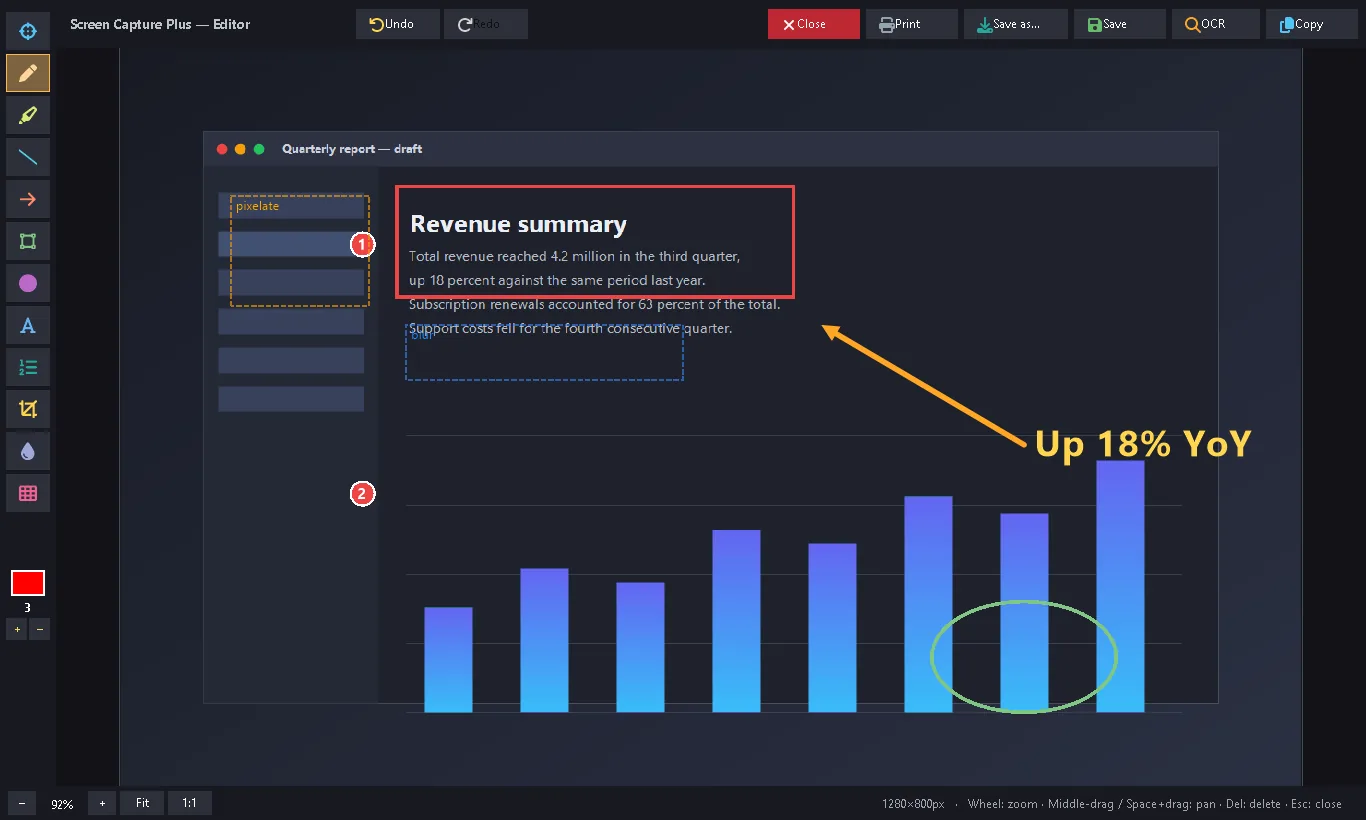
Screen Capture Plus is a fast, private screenshot tool for Windows. Press Print Screen, drag to select, and your capture is ready in under a second.
It is inspired by the speed of simple capture tools but built for modern Windows 10 and 11, with on-device OCR, a full annotation editor with blur and pixelate, a searchable local history and remappable hotkeys.
Developers capture UI bugs, support agents annotate tickets and students pull text from slides, all without an account. Your screenshots never leave your machine unless you share them.
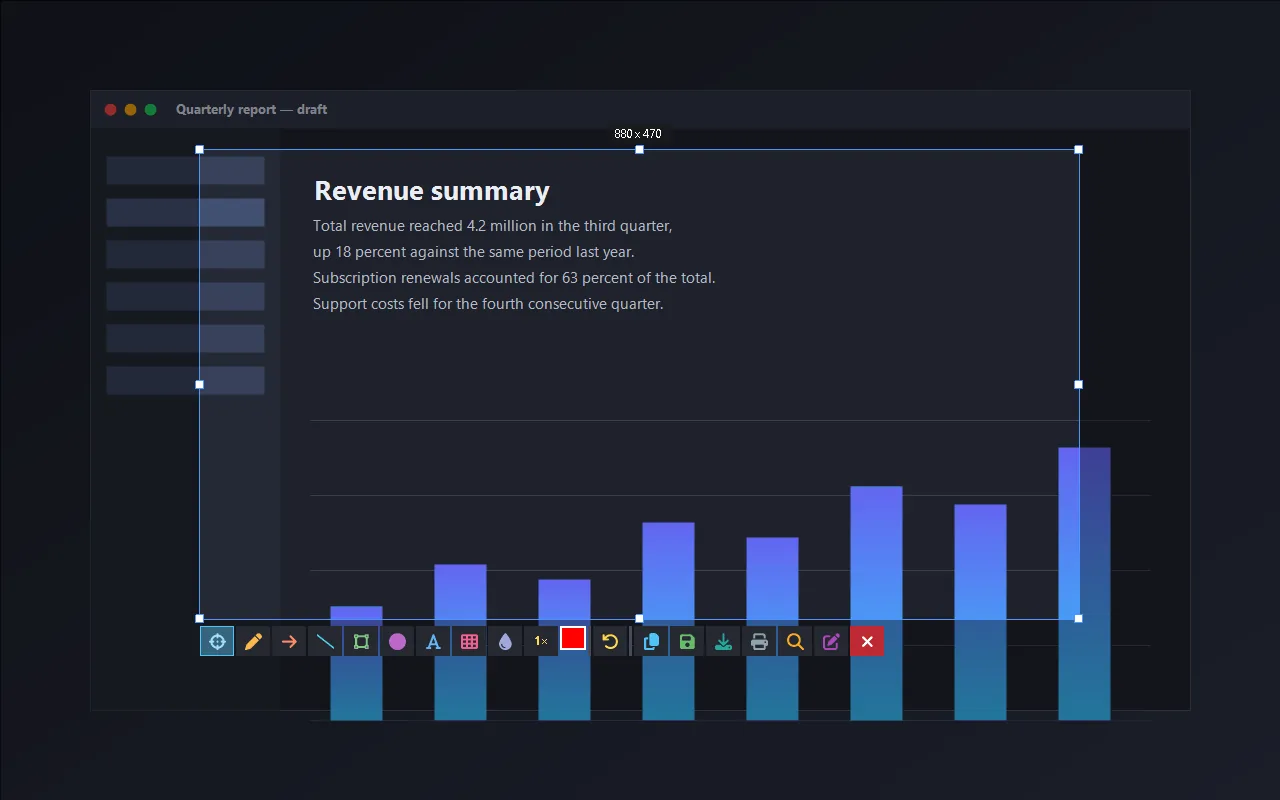
Region capture
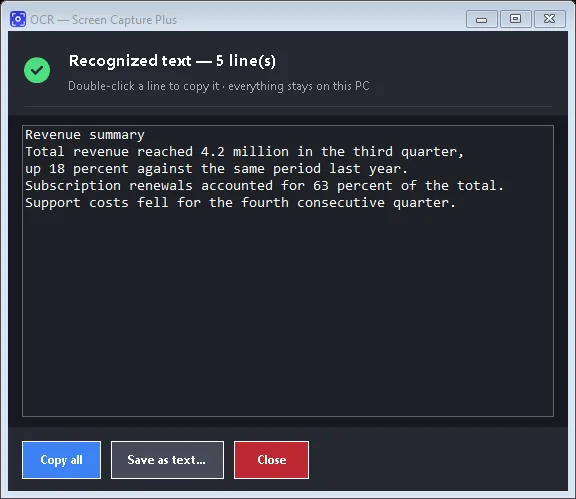
OCR text extraction
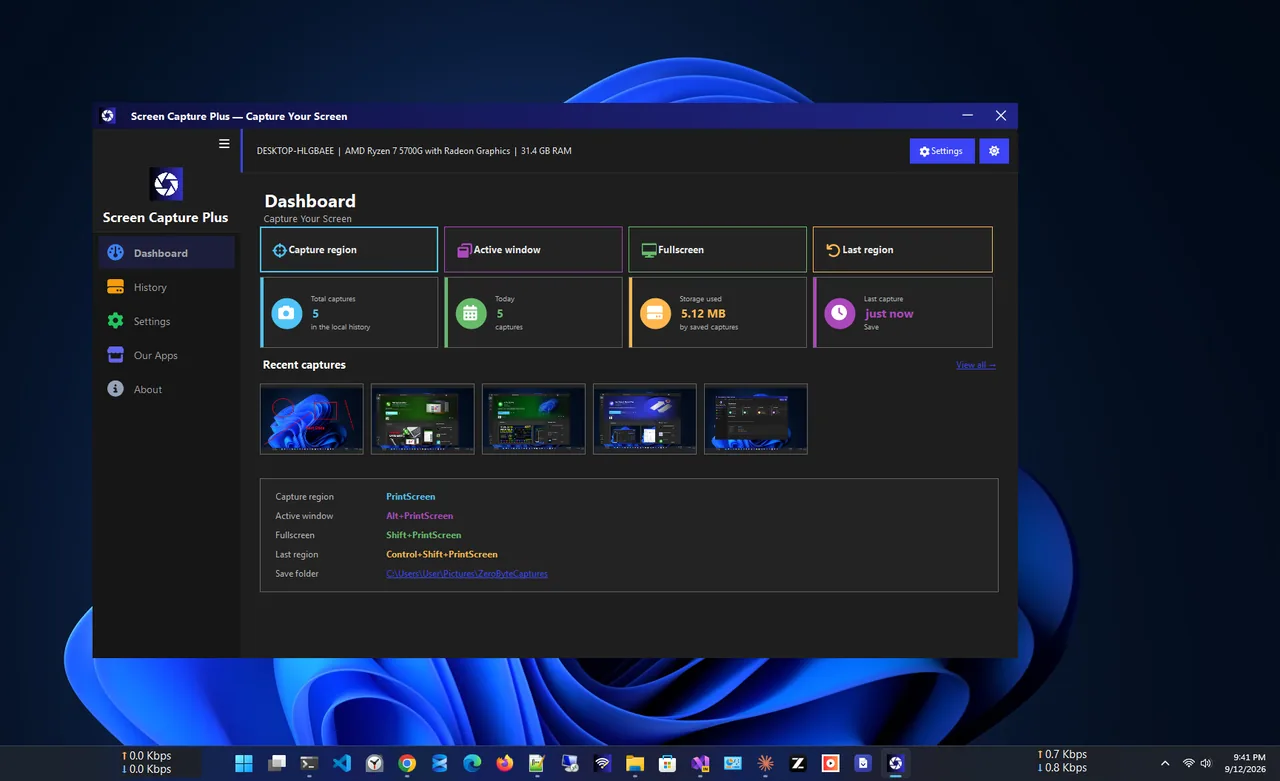
Dashboard
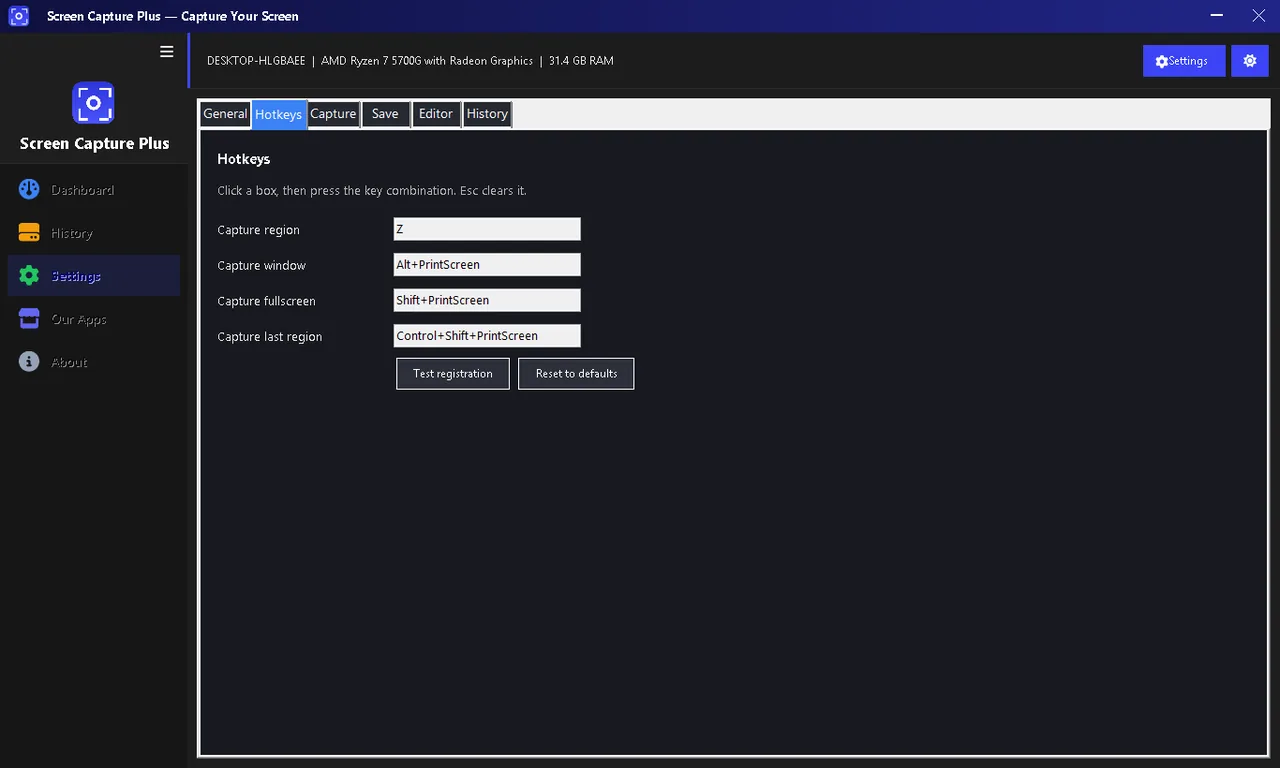
Hotkeys
Everything you need for screenshots, free.
Pixel-precise selection, single windows or all monitors.
Arrows, text, shapes, highlights and numbered steps with undo.
Hide passwords and personal info; originals are removed on export.
Copy text from any region, fully offline.
Every capture saved and searchable on your PC.
Sensible defaults, every action remappable.
Get Screen Capture Plus free from the Microsoft Store.
The screen dims; drag to select the area you want.
Add arrows, text or blur in the editor.
Copy to the clipboard or save; it is also kept in your history.
Windows includes the Snipping Tool, and it is fine for occasional use. If you take screenshots every day, speed and editing matter: Screen Capture Plus opens a capture in under a second, keeps every shot in a searchable history, and adds OCR and destructive blur, so hidden details are really gone when you share the image.
Need to resize screenshots for the web? Try Image Resizer App. More help is coming in our Windows guides.
Yes. It is free, with no account and no ads.
No. There is no cloud upload unless you choose it, and no telemetry. Screenshots stay on your PC.
Yes. On-device OCR uses the Windows OCR engine to copy text from any region, fully offline.
Yes. Print Screen, Alt+Print Screen and Shift+Print Screen are defaults, and every action can be remapped.
Yes. Blur and pixelate are applied destructively on export, so the original pixels are gone.
Yes, with DPI-aware rendering across mixed-monitor setups.
Resize one photo or hundreds at once with presets and instant export.

Remove hiss, hum and background noise from video without touching the picture.
Save everything you copy and reuse any item with one click.
Merge, split, compress, watermark and protect PDFs, fully offline.
