
Net Speed Meter
See live download and upload speed on your desktop, always on top.
 DU Net Meter
Live speed on screen, data usage under control.
A free always-on-top speed widget, with optional Premium tools for data plans, speed tests and usage history.
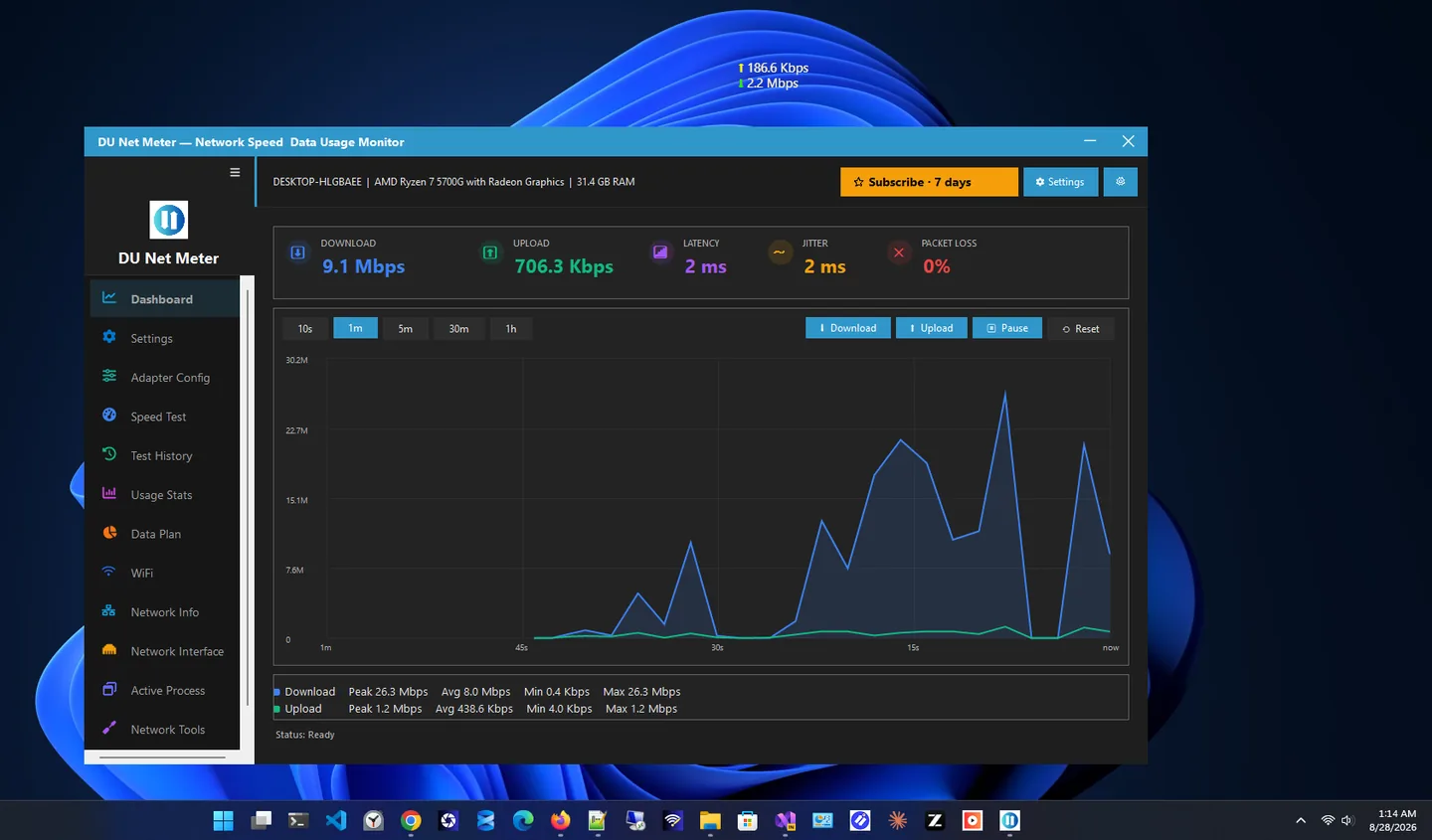
DU Net Meter is a data usage meter for Windows that keeps your real-time internet speed on screen. A live download and upload widget floats above every window and sits in the system tray, so you always know what your connection is doing. In the Microsoft Store it is listed as Speed Meter Plus.
The free edition includes the widget with drag-anywhere positioning that survives restarts and monitor changes, always-on-top mode, a tray icon with connection notifications, adapter selection for multi-adapter and VPN setups, and dark and light themes.
Premium, billed through the Microsoft Store and cancellable anytime, adds a data plan tracker for capped and metered connections, a speed test with saved history, daily and monthly usage stats, Wi-Fi and network details, a per-app monitor and network tools.
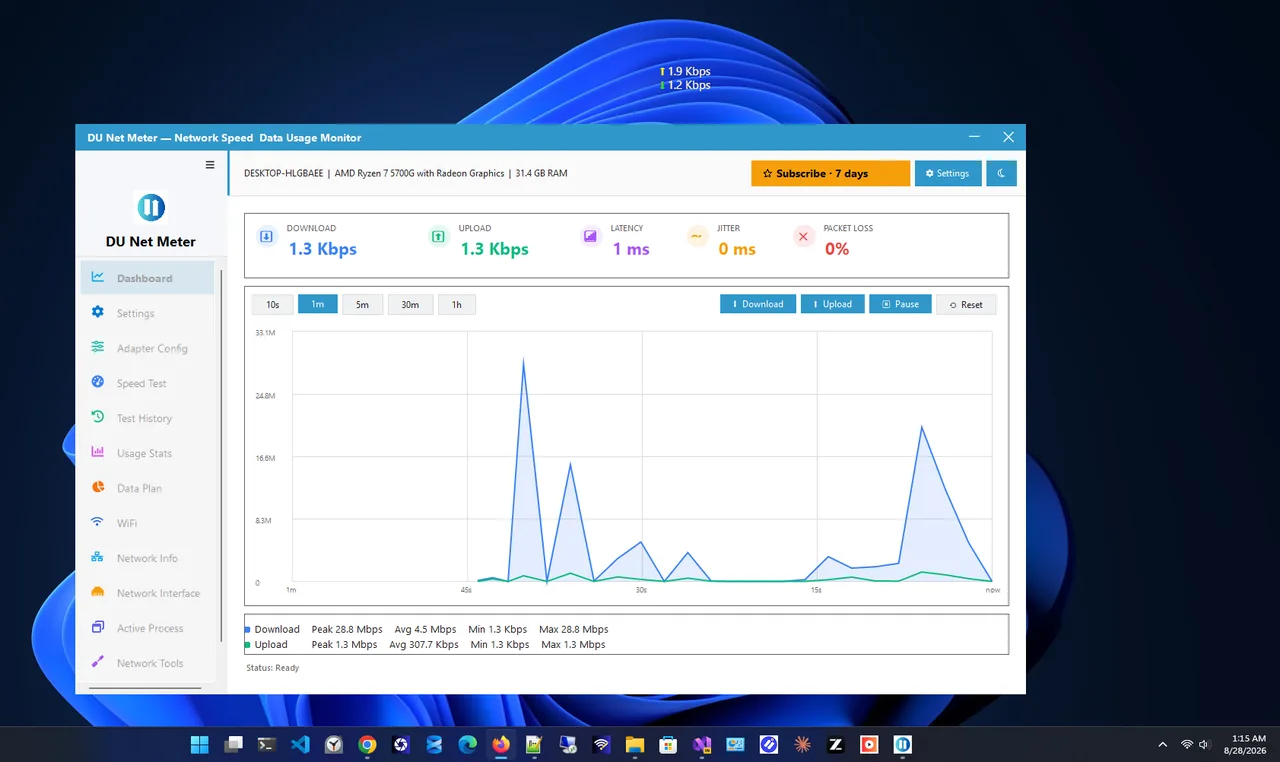
Light theme
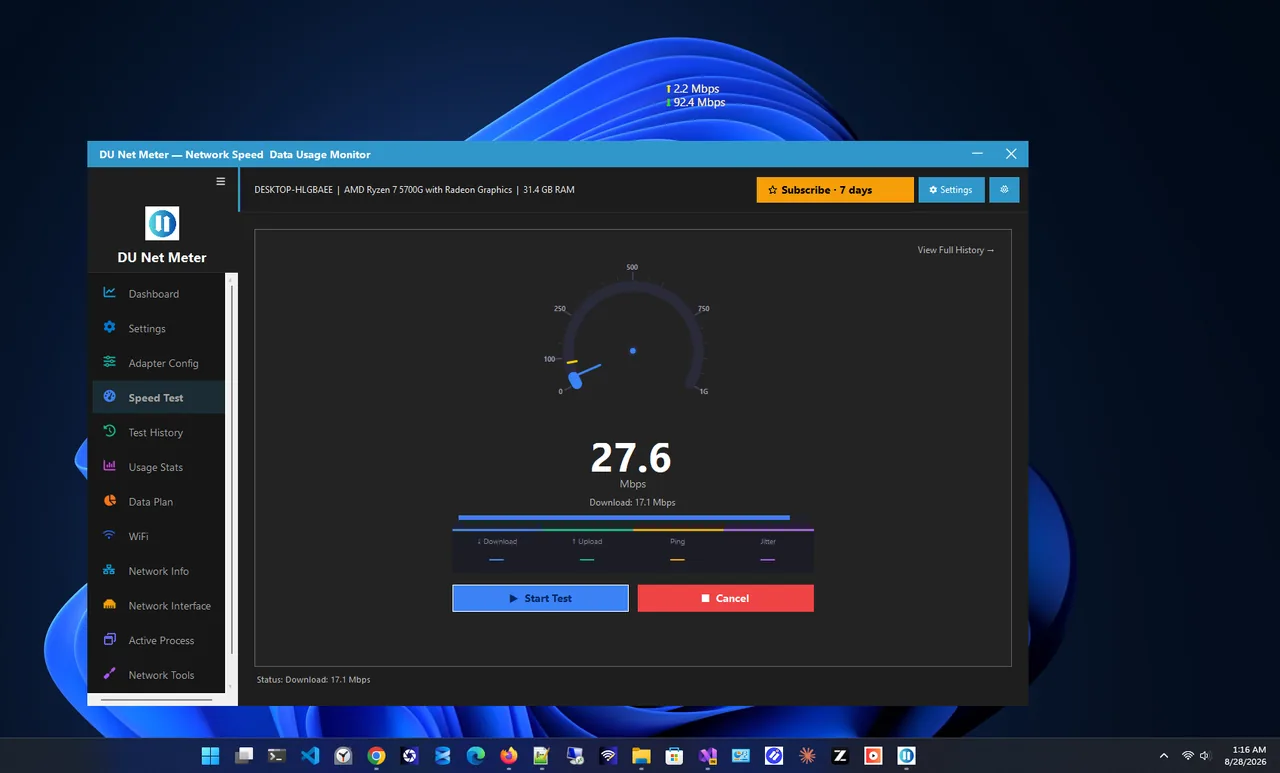
Speed test (Premium)
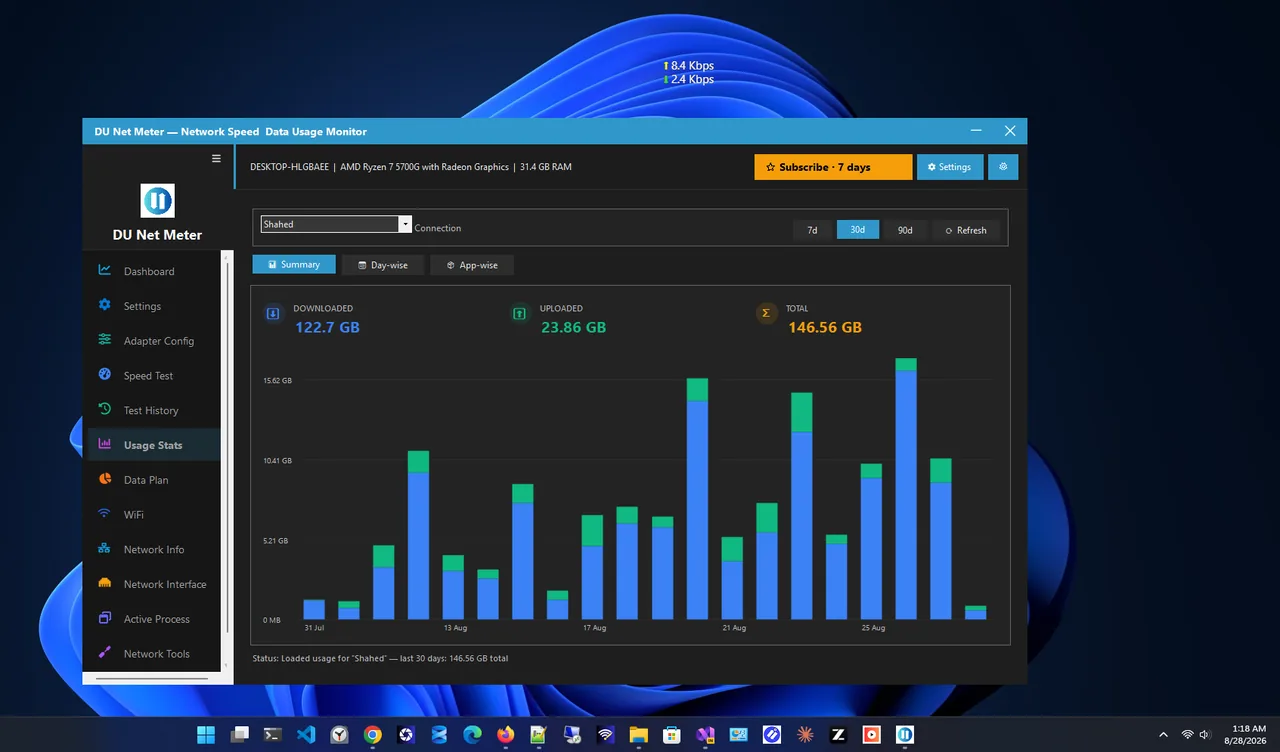
Usage stats (Premium)
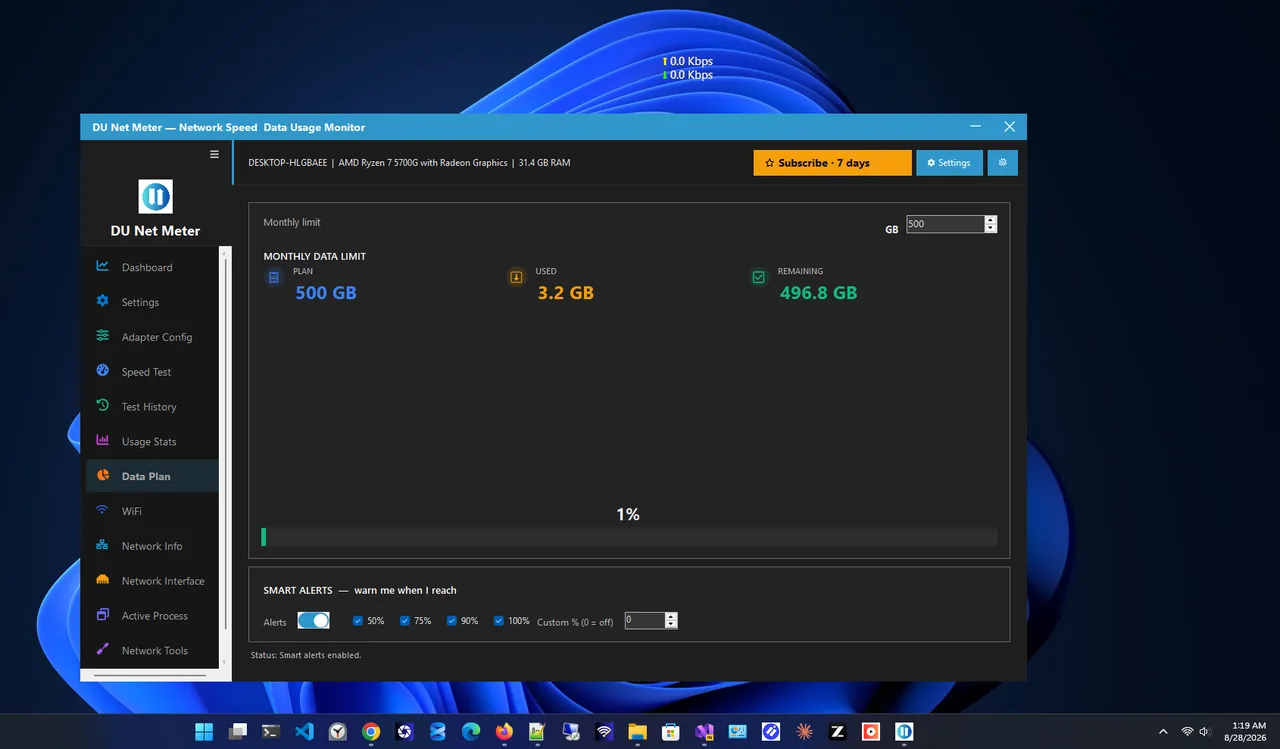
Data plan tracker (Premium)
The core meter is free in every install, with no account and no ads.
Compact download and upload speed that stays where you put it, across restarts.
Floats above games, browsers, video calls and editors.
Live speed readout and notifications when your connection changes.
Choose the adapter to monitor: essential for VPNs and virtual interfaces.
Set update intervals, display format and UI preferences.
Follows Windows colour mode, or set it yourself.
| Feature | Free $0 | Premium $14.99/year |
|---|---|---|
| Live speed widget | ✓ | ✓ |
| Always-on-top and tray icon | ✓ | ✓ |
| Adapter selection | ✓ | ✓ |
| Dark and light themes | ✓ | ✓ |
| Data plan tracker | – | ✓ |
| Speed test and history | – | ✓ |
| Usage stats | – | ✓ |
| Per-app monitor | – | ✓ |
| Network tools | – | ✓ |
All purchases are handled by the Microsoft Store. Prices in USD; your Store may show local pricing.
Get DU Net Meter free from the Microsoft Store (listed as Speed Meter Plus).
Choose Wi-Fi, Ethernet or VPN so the meter counts the right traffic.
With Premium, enter your monthly allowance in the data plan tracker.
Watch usage grow and get a warning before you reach the limit.
Many connections still come with a monthly limit: mobile broadband, hotspots, satellite and some fibre plans. Windows can show data usage per app in Settings, but it does not warn you before you hit a cap and it does not show live speed. A data usage meter does both: the widget shows what is happening now, and the data plan tracker adds it up against your allowance.
DU Net Meter keeps everything on your PC. Readings come from Windows locally and are never transmitted; the speed test connects to Cloudflare only when you run it.
Prefer a different style of meter? See Net Speed Meter and Net Monitor, or browse our Windows guides.
Yes. The live speed widget, tray icon, adapter selection and themes are free. Premium is an optional subscription for data plan tracking, speed tests, usage history and network tools.
DU Net Meter is currently listed in the Microsoft Store under the name Speed Meter Plus. It is the same app.
Turn on Premium, open the data plan tracker and enter your monthly allowance. The app tracks usage against it and notifies you before you reach the limit.
No. Readings come from Windows on your PC and are never transmitted. There is no account and no telemetry. The speed test contacts Cloudflare only when you start it.
Yes. Premium is billed through the Microsoft Store and can be cancelled anytime from your Microsoft account.
Yes. It is DPI-aware from 100% to 200% scaling and supports dark and light themes.
See live download and upload speed on your desktop, always on top.

Speed widget, speed test, usage stats and per-app bandwidth monitor.

Full network monitoring: live speed, usage history and per-app connections.

Internet speed test with ping, jitter, saved history and network tools.
Check data usage on Windows 11 per network and per app, set a monthly data limit, and get warned before you go over your cap.
