
Net Speed Meter Plus
Speed widget, speed test, usage stats and per-app bandwidth monitor.
 Net Speed Meter
Your internet speed, always in sight.
Real-time download and upload speed in a small always-on-top widget. Free forever, no account, no clutter.
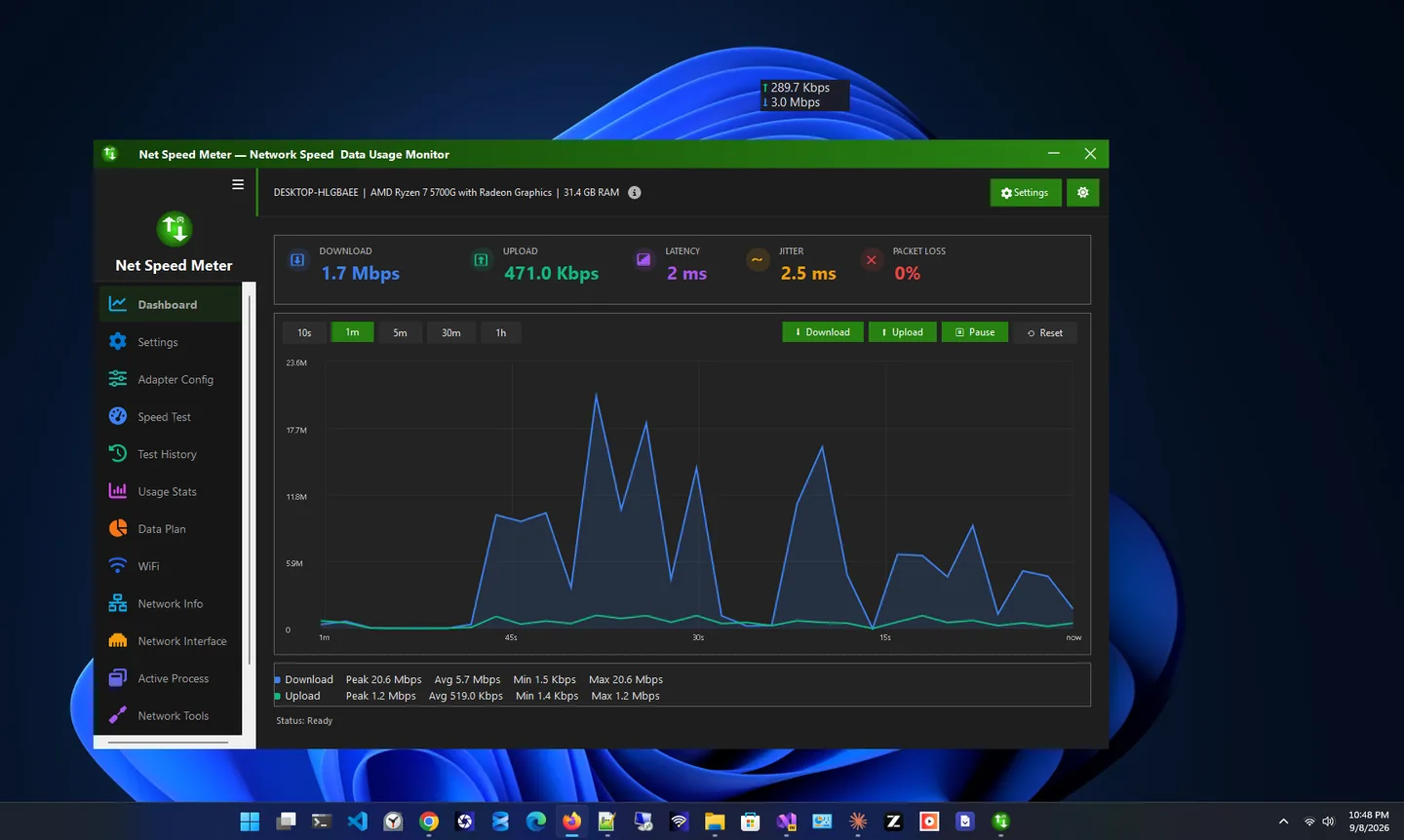
Net Speed Meter for Windows is a small, always-on-top widget that shows your real-time download and upload speed right on your desktop. Instead of opening Task Manager or a speed test website every time a video buffers or a call drops, you can glance at the corner of your screen and see what your connection is doing at that exact moment.
The widget floats above every window, so it stays visible in games, browsers and full-screen apps. You can drag it anywhere, lock it in place, and pick exactly which adapter to watch: Wi-Fi, Ethernet, a VPN or any other connected interface. A system tray icon shows the same live numbers and sends connection notifications.
The core meter is free forever. If you want more, an optional Premium subscription turns Net Speed Meter into a full network hub with a built-in speed test, usage statistics, a data plan manager, per-app bandwidth and network tools. It is built for Windows 11 and Windows 10 and installs from the Microsoft Store.
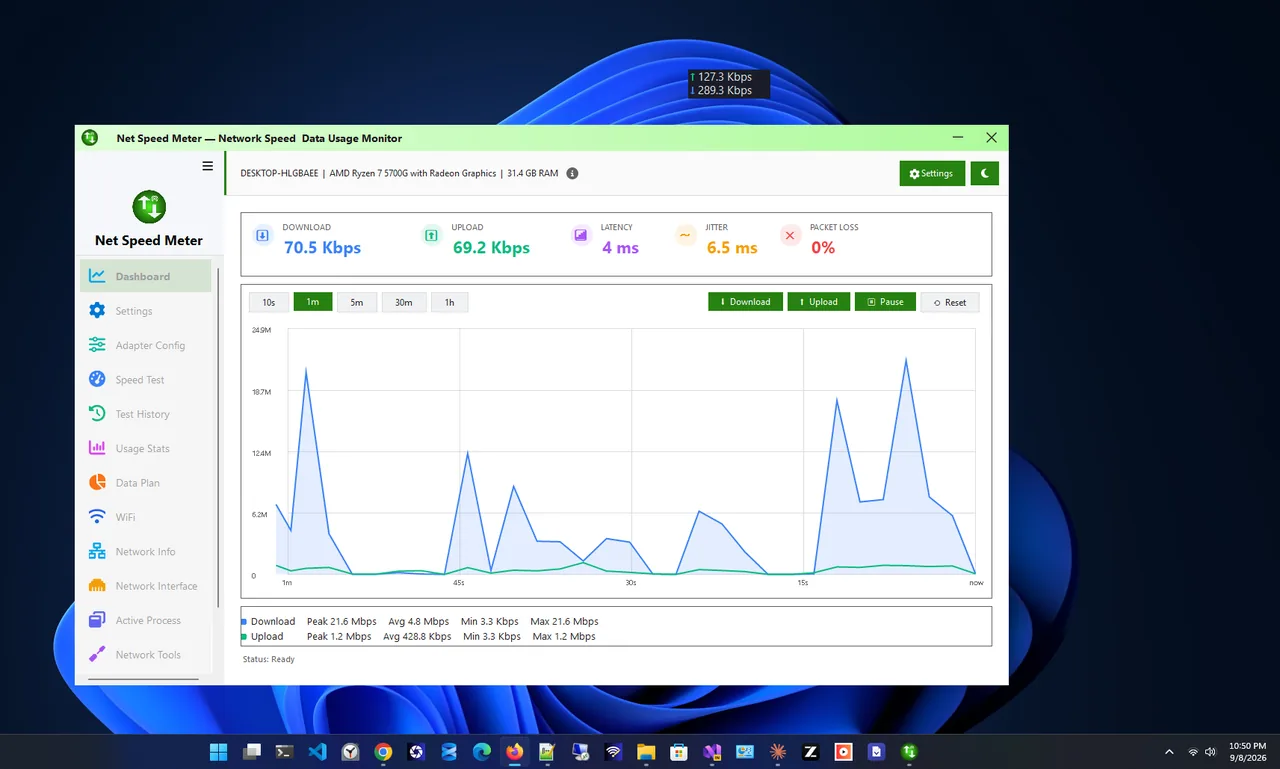
Light theme
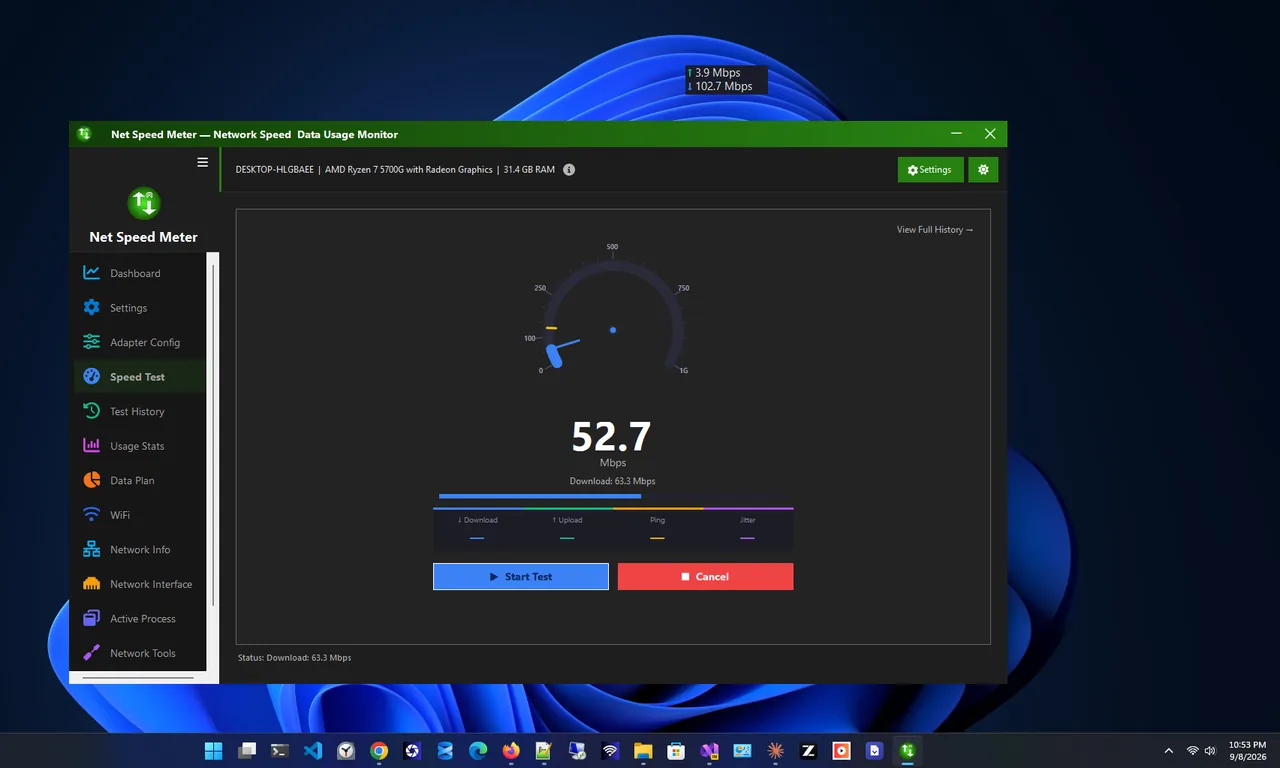
Speed test (Premium)
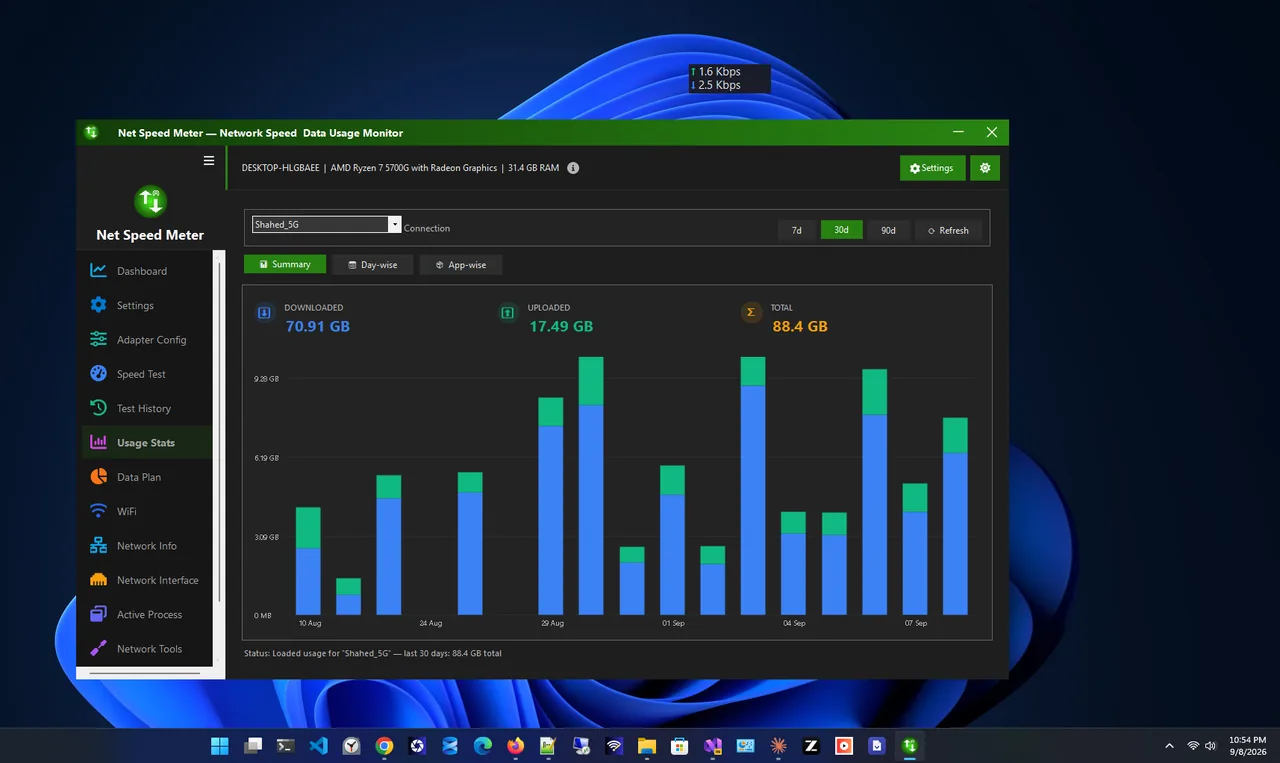
Usage statistics (Premium)
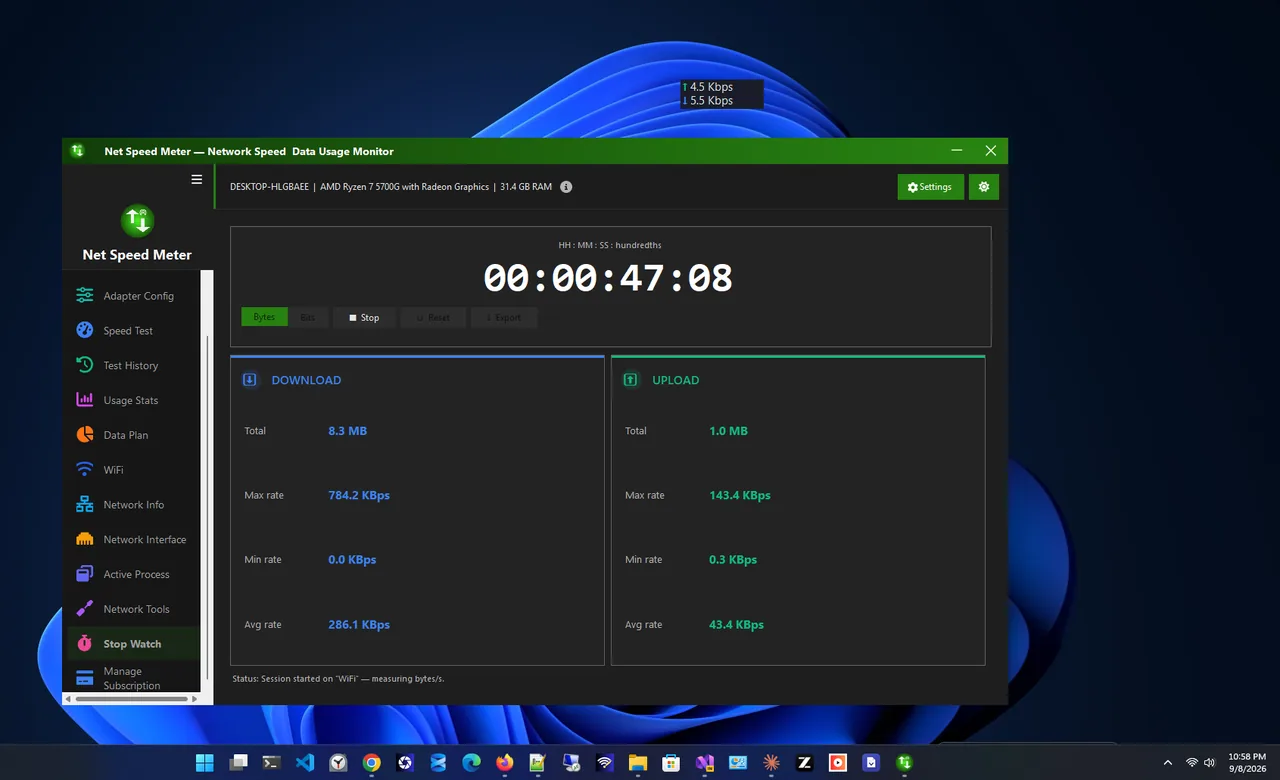
Stopwatch (Premium)
Everything you need to keep an eye on your connection, with no purchase and no account.
Download and upload speed on your screen, updated in real time.
A drag-anywhere widget that stays above every window and remembers its place.
Quiet tray presence with live speed and connection notifications.
Watch exactly the adapter you want: Wi-Fi, Ethernet, VPN or any interface.
Choose the display format, appearance and monitoring behaviour.
The meter is ready the moment your PC boots. Lock its position or pause it with power saver mode.
| Feature | Free $0 | Premium $14.99/year |
|---|---|---|
| Live speed widget | ✓ | ✓ |
| Always-on-top floating UI | ✓ | ✓ |
| Tray icon and notifications | ✓ | ✓ |
| Adapter selection and auto-start | ✓ | ✓ |
| Speed test and history | – | ✓ |
| Usage statistics | – | ✓ |
| Per-app bandwidth monitor | – | ✓ |
| Data plan manager and alerts | – | ✓ |
| Wi-Fi details and network tools | – | ✓ |
All purchases are handled by the Microsoft Store. Prices in USD; your Store may show local pricing.
Open Net Speed Meter in the Microsoft Store and select Get. It is free.
Start the app. The speed widget appears on your desktop and in the system tray.
In settings, choose the connection to watch: Wi-Fi, Ethernet or VPN.
Drag the widget anywhere, then lock its position and turn on auto-start.
A speed test tells you how fast your connection was for the 20 seconds it ran. An internet speed meter tells you how fast it is right now, all day. That difference matters when you want to know why a page is slow, why a game stutters or why a cloud backup is taking hours. Live numbers show you whether the connection is busy, idle or dropping, and which direction (download or upload) is the bottleneck.
Windows does show network activity, but it is buried: you have to open Task Manager, switch to the Performance tab and pick the right adapter. A network speed monitor for Windows 11 that floats on top of your apps gives you the same information at a glance, and it keeps watching while you work, play or stream.
| What you need | Net Speed Meter | Task Manager | Speed test site |
|---|---|---|---|
| Live speed while you work | Always visible widget | Only while open | No |
| Upload and download separately | Yes | Yes | Yes, once |
| Pick Wi-Fi, Ethernet or VPN | Yes | Yes | No |
| Maximum line speed | With Premium speed test | No | Yes |
| Usage history and data plan | With Premium | Limited | No |
Windows 11 and Windows 10 cannot show internet speed on the taskbar by themselves. The simplest way is a small always-on-top widget: install Net Speed Meter, drag the widget onto or just above the taskbar, and lock its position. The tray icon also shows the live speed, so you can keep the desktop clean and still see your numbers.
Net Speed Meter is a free download for any Windows 11 or Windows 10 PC, laptop or tablet (x64 and ARM64). Get it from the Microsoft Store: there is no separate .exe installer to hunt for, updates arrive automatically, and the Store checks every release. Install it once and the internet speed meter starts with Windows, so your download and upload speed is on screen every time you turn on your PC.
Step-by-step guides: how to show internet speed on the taskbar in Windows 11 (or in Windows 10), Mbps vs MB/s explained and the best net speed meter apps for Windows.
Yes. The live speed widget, tray icon, adapter selection, customization and auto-start are free forever. An optional Premium subscription adds a speed test, usage statistics, a data plan manager and network tools.
No. It is a lightweight widget that only reads your adapter's traffic counters. You can also pause it at any time with power saver mode.
Windows has no built-in option. Install Net Speed Meter, drag the always-on-top widget onto the taskbar area and lock its position. The tray icon shows the live speed too.
Yes. Adapter selection lets you watch exactly one interface, such as Wi-Fi, Ethernet or your VPN.
Premium adds a speed test with history, usage statistics, per-app bandwidth, network and Wi-Fi details, a data plan manager with alerts, network tools and a dashboard. It is an optional subscription; the current price is shown in the plans table above and in the Microsoft Store.
Download it free from the Microsoft Store using the button on this page. It installs on any Windows 11 or Windows 10 PC with no account, and the Store keeps it updated. Avoid .exe copies from other download sites.
Yes. Net Speed Meter runs on Windows 11 and Windows 10 and installs from the Microsoft Store, which keeps it updated.
Yes. It is published by Zero Byte in the Microsoft Store, which checks every app before release. It needs no account. Purchases are handled by the Microsoft Store.
Speed widget, speed test, usage stats and per-app bandwidth monitor.

Always-on-top speed widget with data plan tracking and usage stats.

Full network monitoring: live speed, usage history and per-app connections.

Internet speed test with ping, jitter, saved history and network tools.

The best net speed meter apps for Windows 11 & 10 compared: live widgets, speed tests, data plans and per-app bandwidth. Which one fits you?
Show live download and upload speed on the Windows 10 taskbar for free, plus the Task Manager trick and how to test your internet speed on Windows 10.
Show live upload and download speed on the Windows 11 taskbar in 2 minutes. A free method, step by step, plus the built-in alternatives.
