CPU ZX
Live CPU, RAM, storage, motherboard and system information.
 Resource Monitors
Live CPU, RAM and disk, right on your desktop.
A live dashboard, detailed hardware information and a compact always-on-top widget. Completely private; Premium adds drive health, GPU and temperatures.
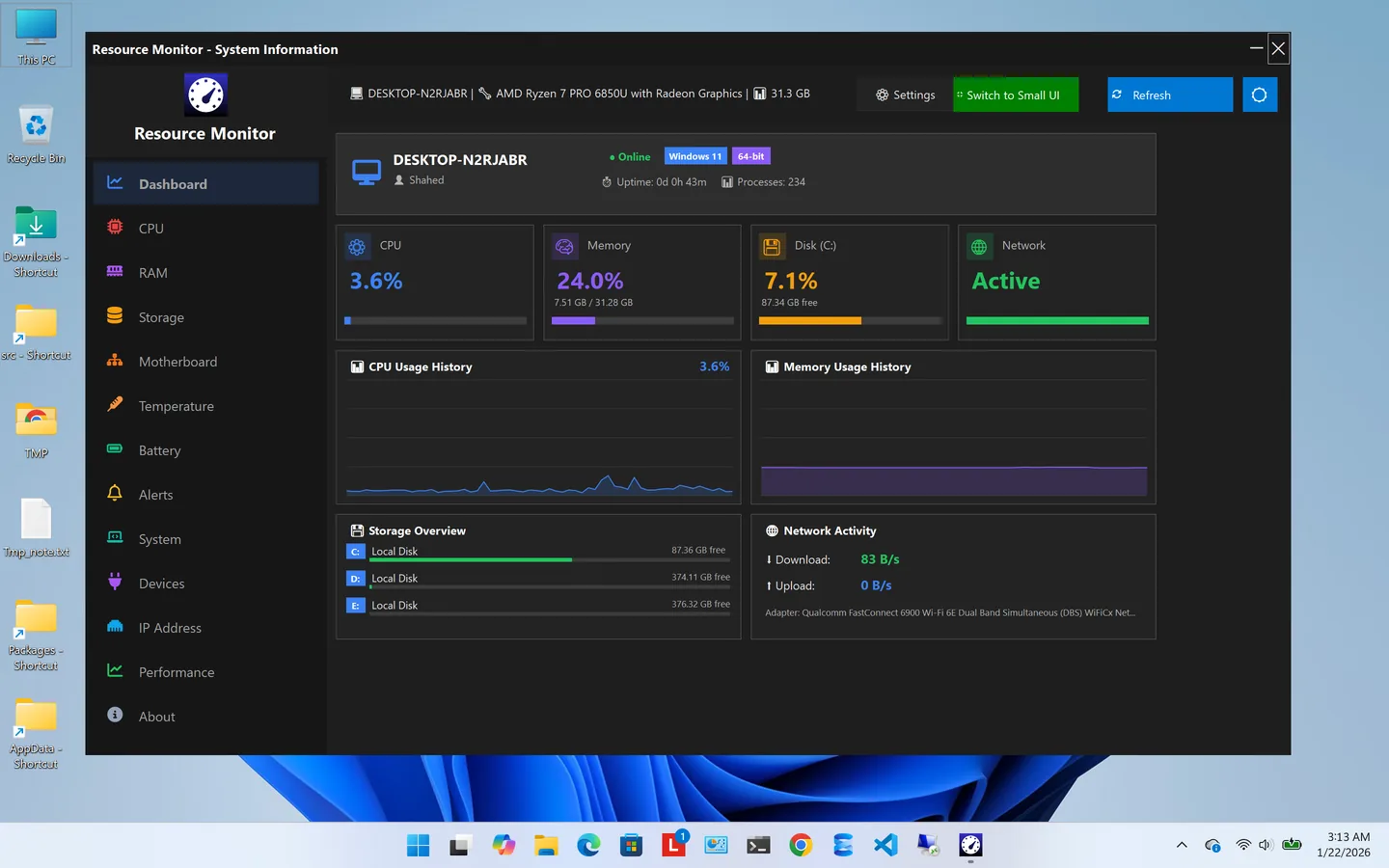
Resource Monitors is a system resource monitor for Windows that shows CPU, memory, disk and network usage on one clean screen. It is fast, private and built for both a quick glance and a detailed hardware breakdown.
The free edition covers the essentials: a live dashboard, CPU monitoring with per-core bars, RAM and storage details, motherboard and system information, and a compact always-on-top widget with live CPU, RAM and disk usage that is ideal while you work or play.
Premium unlocks the complete toolkit: S.M.A.R.T. drive health with failure prediction, GPU monitoring, temperature sensors, battery health, saved Wi-Fi passwords, power and uptime history, connected screens, smart alerts, IP details, BIOS info and system report export.
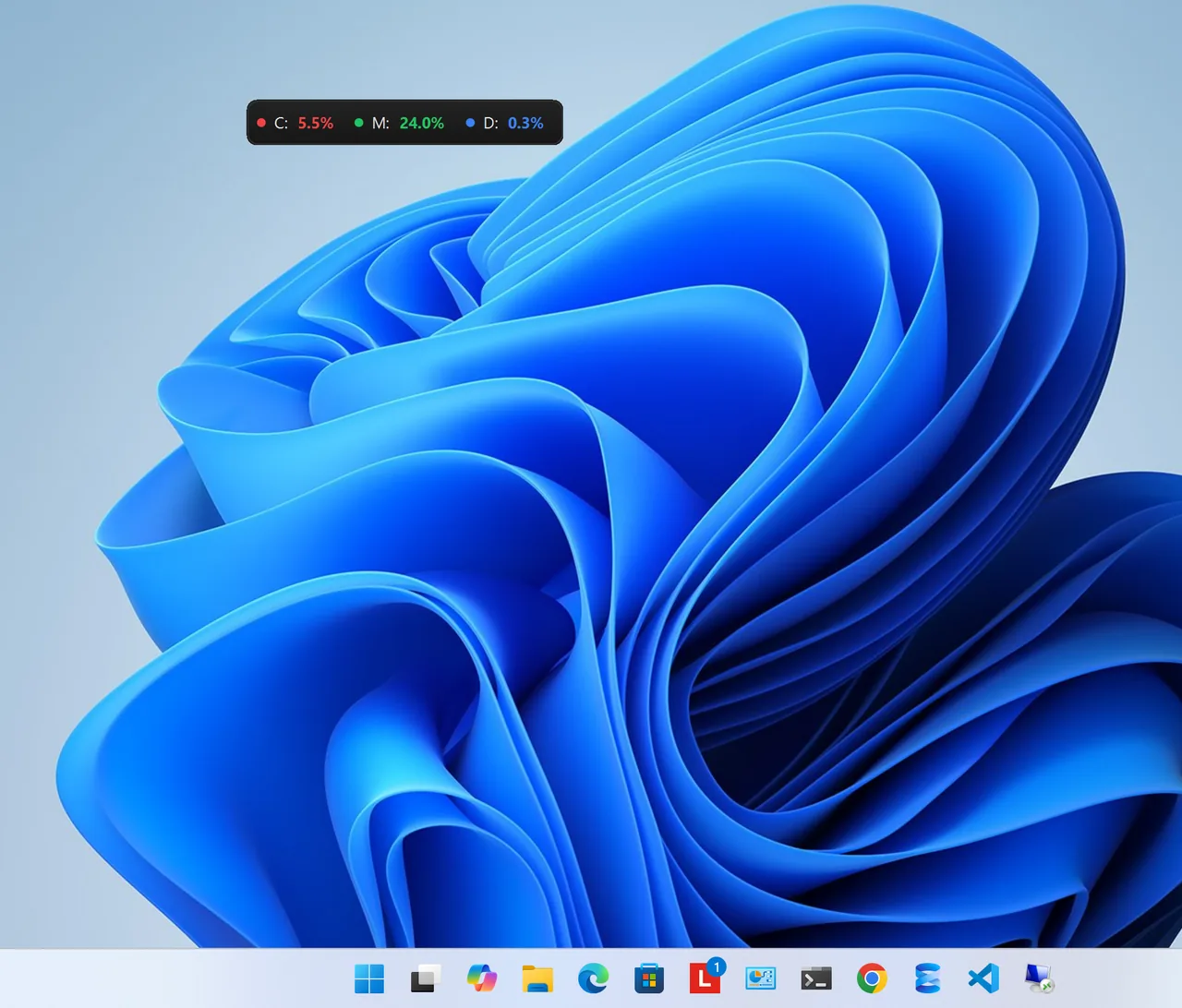
Desktop widget
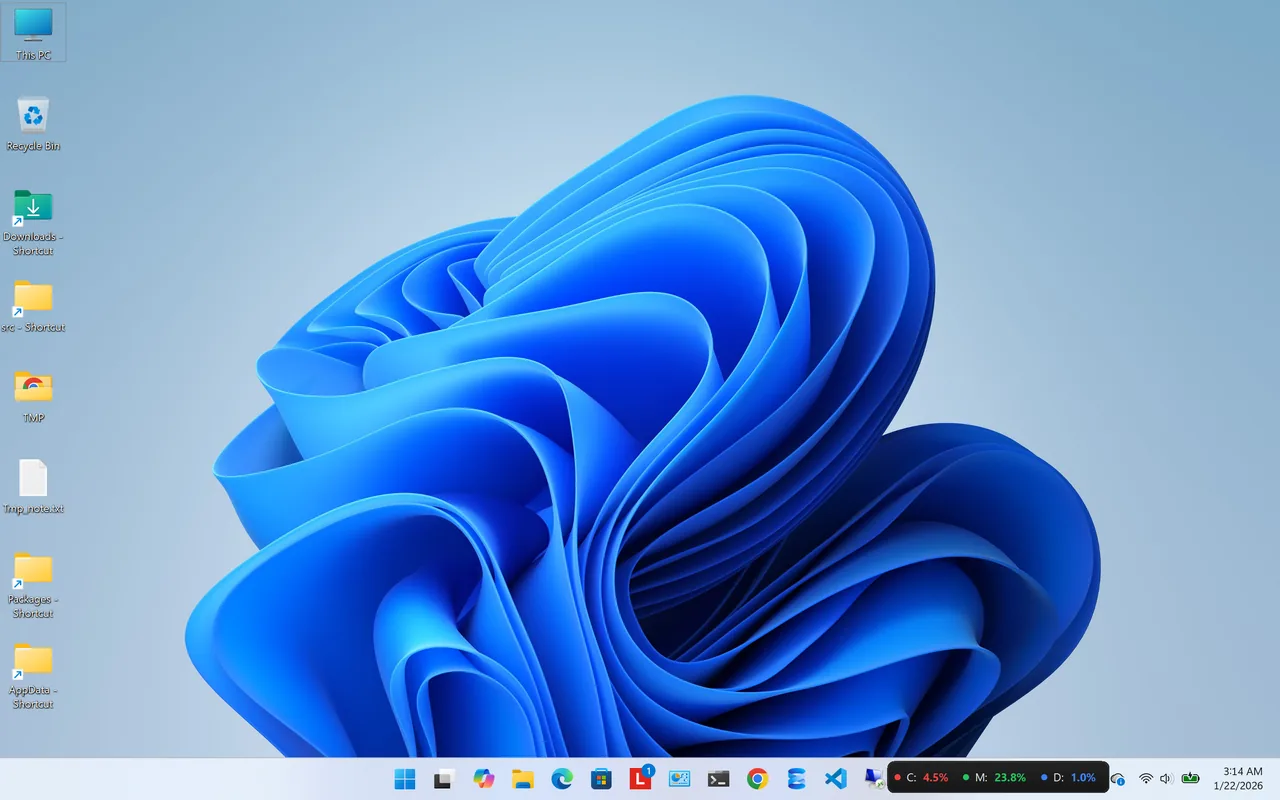
Taskbar widget
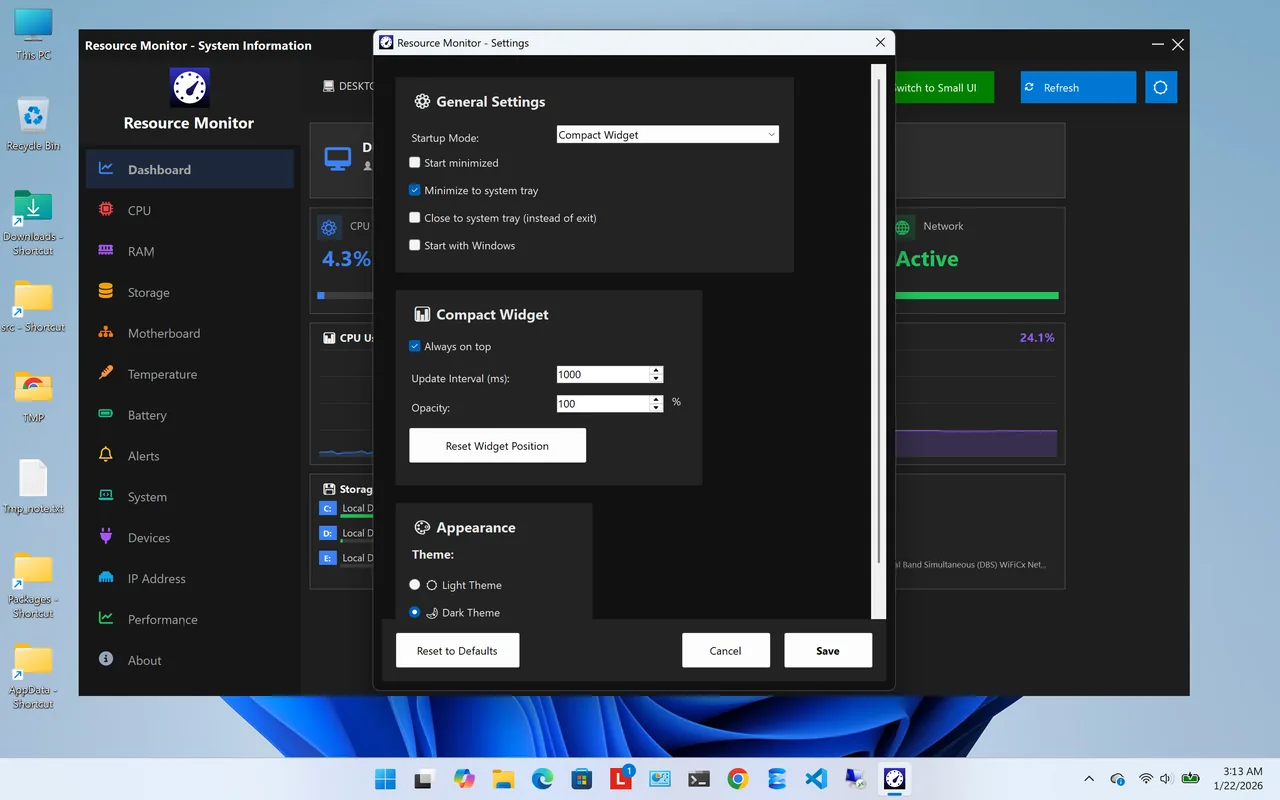
Settings
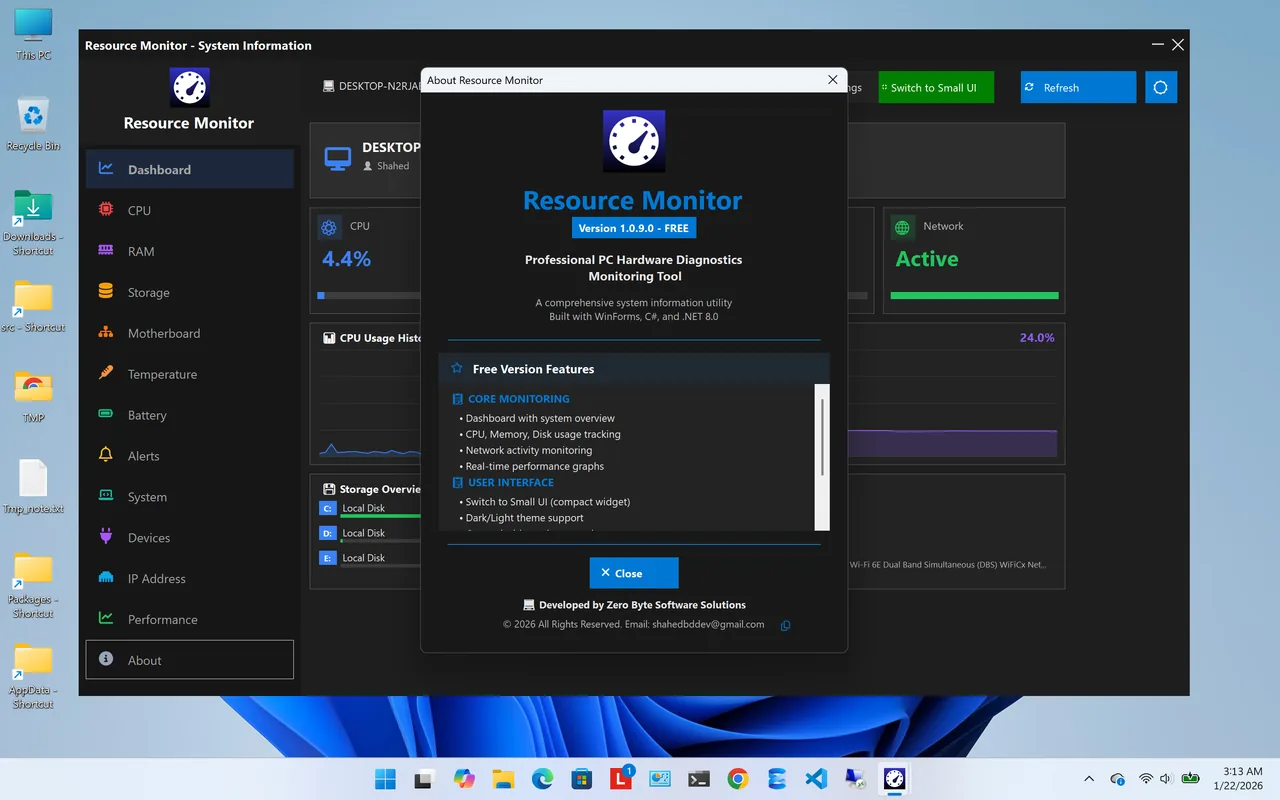
Features
Included at no cost, with no account.
CPU, memory, disk and network usage on one screen.
Name, architecture, clocks, cores, cache and per-core usage bars.
Capacity, usage, speed, form factor and installed modules.
Every drive with type, capacity, partitions and live read/write.
Compact always-on-top widget with live CPU, RAM and disk.
Board, chipset, firmware and full Windows details.
| Feature | Free $0 | Premium $14.99/year |
|---|---|---|
| Live dashboard and widget | ✓ | ✓ |
| CPU, RAM, storage details | ✓ | ✓ |
| Motherboard and system info | ✓ | ✓ |
| Drive health (S.M.A.R.T.) | – | ✓ |
| GPU and temperatures | – | ✓ |
| Battery health | – | ✓ |
| Smart alerts | – | ✓ |
| System report export | – | ✓ |
All purchases are handled by the Microsoft Store. Prices in USD; your Store may show local pricing.
Get Resource Monitors free from the Microsoft Store.
See CPU, memory, disk and network usage at a glance.
Show a compact always-on-top widget on your desktop or near the taskbar.
Open CPU, RAM or Storage for detailed numbers.
Task Manager is great for ending a frozen app, but it has to be open to be useful. A system resource monitor with a desktop widget keeps CPU, RAM and disk usage visible all the time, and adds hardware details that Task Manager does not show, such as memory module information and, with Premium, S.M.A.R.T. drive health.
Drives report their own health through S.M.A.R.T. attributes such as reallocated sectors and power-on hours. Resource Monitors Premium reads them and predicts failure risk, so you can back up and replace a drive before you lose data.
See also CPU ZX for specs and PC Health Optimizer for cleanup. More help is coming in our Windows guides.
Yes. The dashboard, hardware details and widget are free. Premium is an optional subscription.
No. There is no telemetry, no analytics, no ads and no account. Nothing leaves your device, and uninstalling removes all local data.
Yes, with Premium: S.M.A.R.T. drive health monitoring with predictive failure analysis.
Temperature sensors for CPU, GPU and other components are part of Premium.
No. Monitoring works without an internet connection.
Yes. It is fully DPI-aware on Windows 10 and 11 and has dark and light themes.
Live CPU, RAM, storage, motherboard and system information.

Hardware info plus GPU, temperature sensors, BIOS details and alerts.

Health score, junk cleaner, startup manager and registry fixer.
Check laptop battery health, wear, charge cycles and history.
Check battery health on Windows 11: create a battery report, read design vs full charge capacity and cycle count, and keep your battery healthy.
Find and remove duplicate files on Windows 11 and 10 safely: why File Explorer is not enough, how to scan, review and remove copies to the Recycle Bin.
Speed up Windows 11 safely: trim startup apps, free disk space, update drivers and tune power and visual settings. 10 steps, easiest first.
