
Net Speed Meter
See live download and upload speed on your desktop, always on top.
 Net Speed Meter Plus
Every speed tool you need, in one lightweight app.
A live speed widget plus a speed test, usage statistics, network details and a real-time per-app bandwidth monitor.
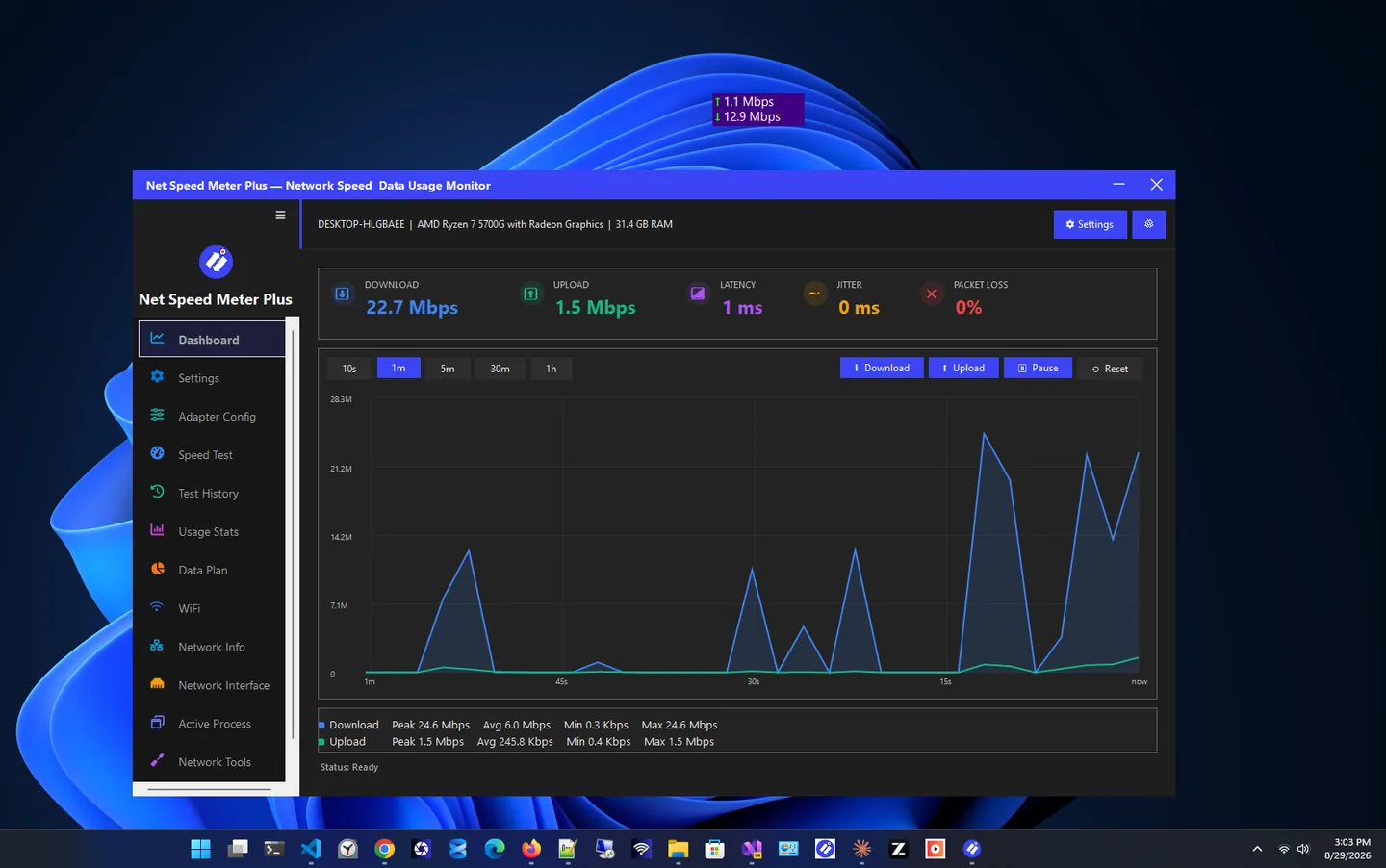
Net Speed Meter Plus is a network bandwidth monitor for Windows that puts your live download and upload speed on the desktop and adds the tools to understand it. It combines a drag-and-drop speed widget with a speed test, usage statistics, network details and a real-time monitor that shows which apps are using your connection.
It is the step up from the free Net Speed Meter: the tools that are Premium there are included here out of the box. Run a speed test without opening a browser, see how much data you used today, check per-interface statistics, or time a download with the built-in stopwatch.
An optional Premium subscription adds a unified dashboard with latency, jitter and packet loss, automatic test history, data plan tracking, saved Wi-Fi passwords with QR sharing, and network tools.
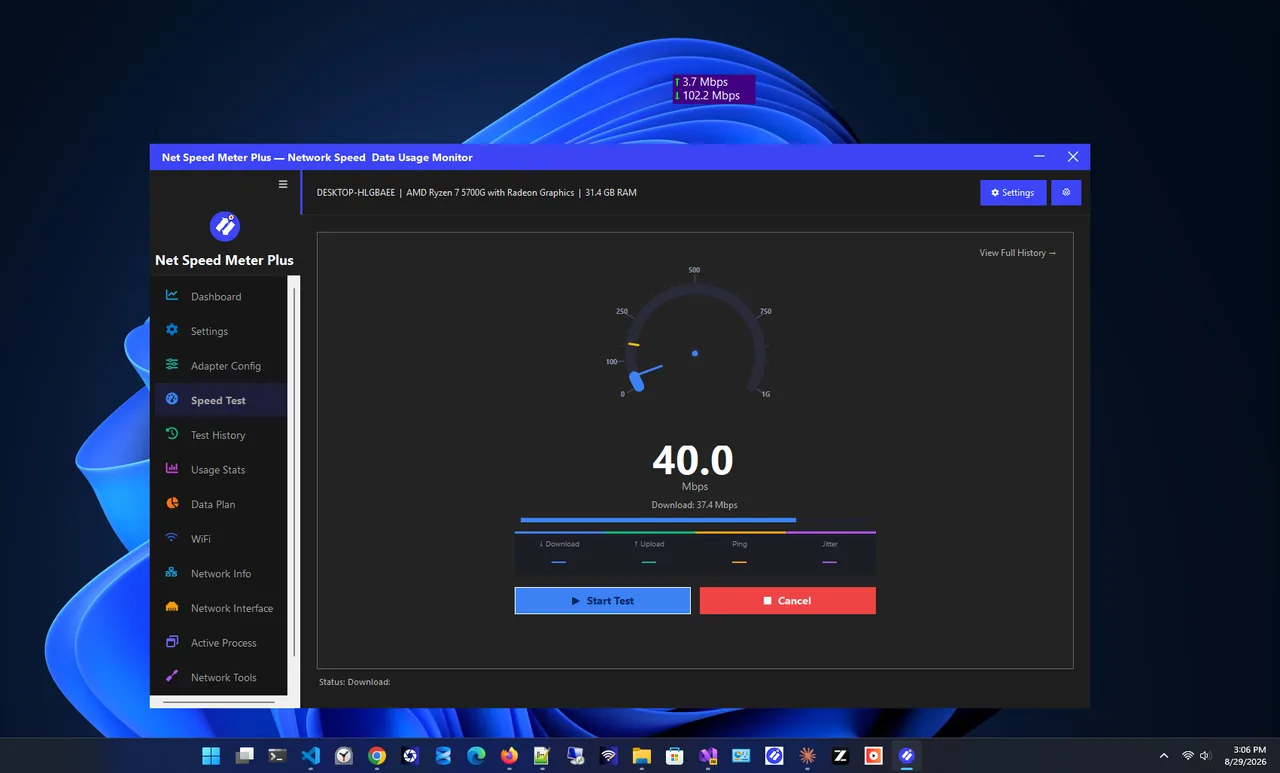
Speed test
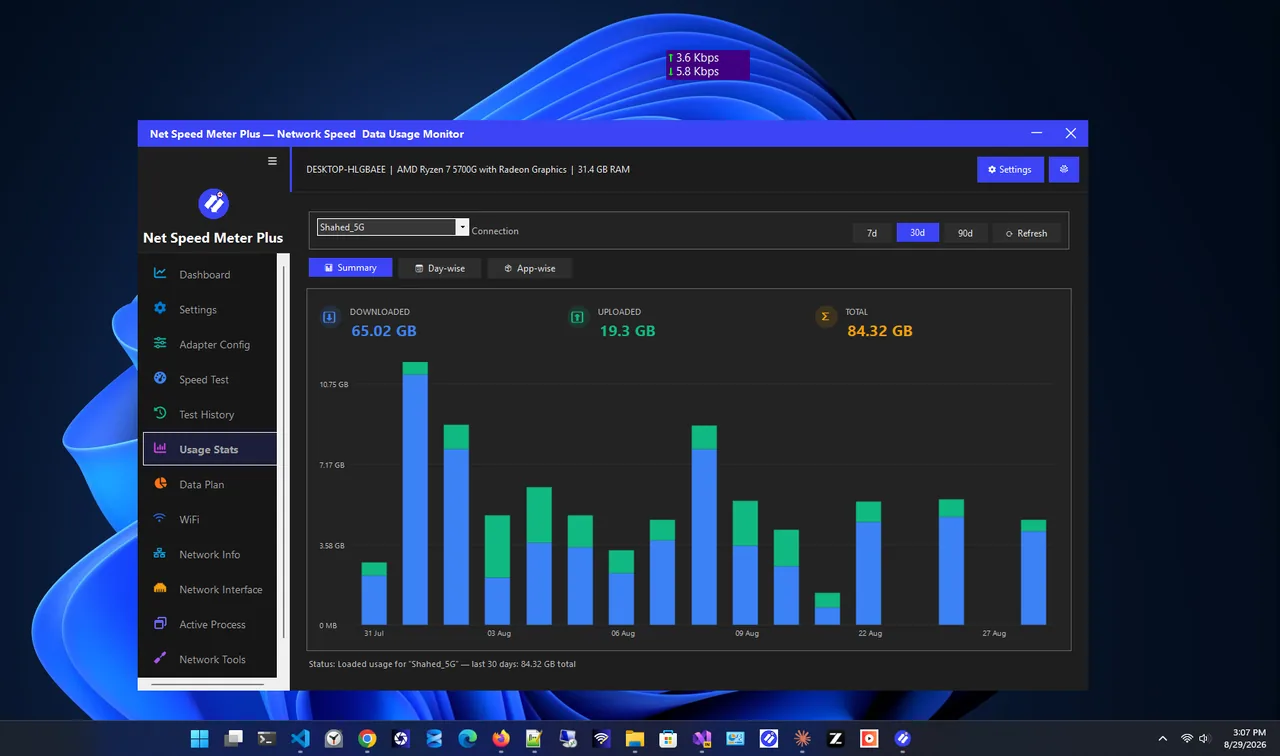
Usage stats
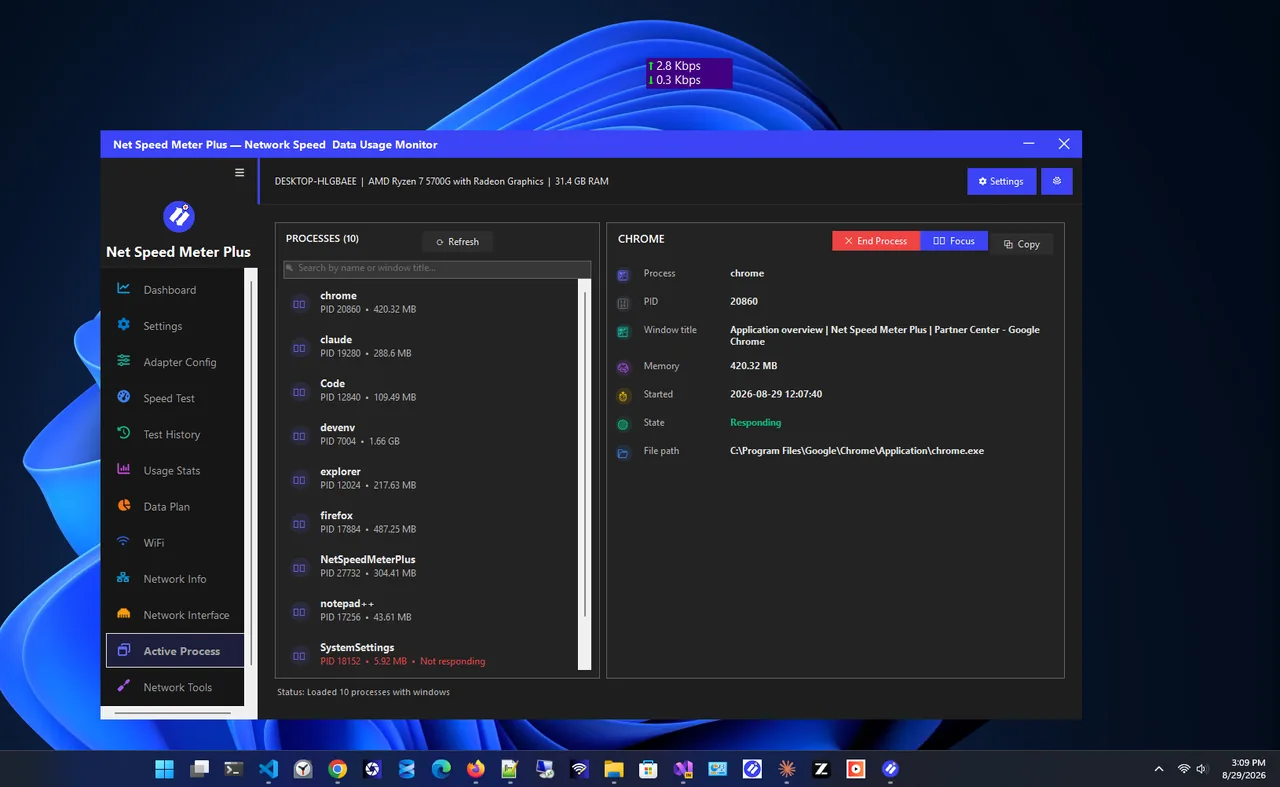
Active process monitor
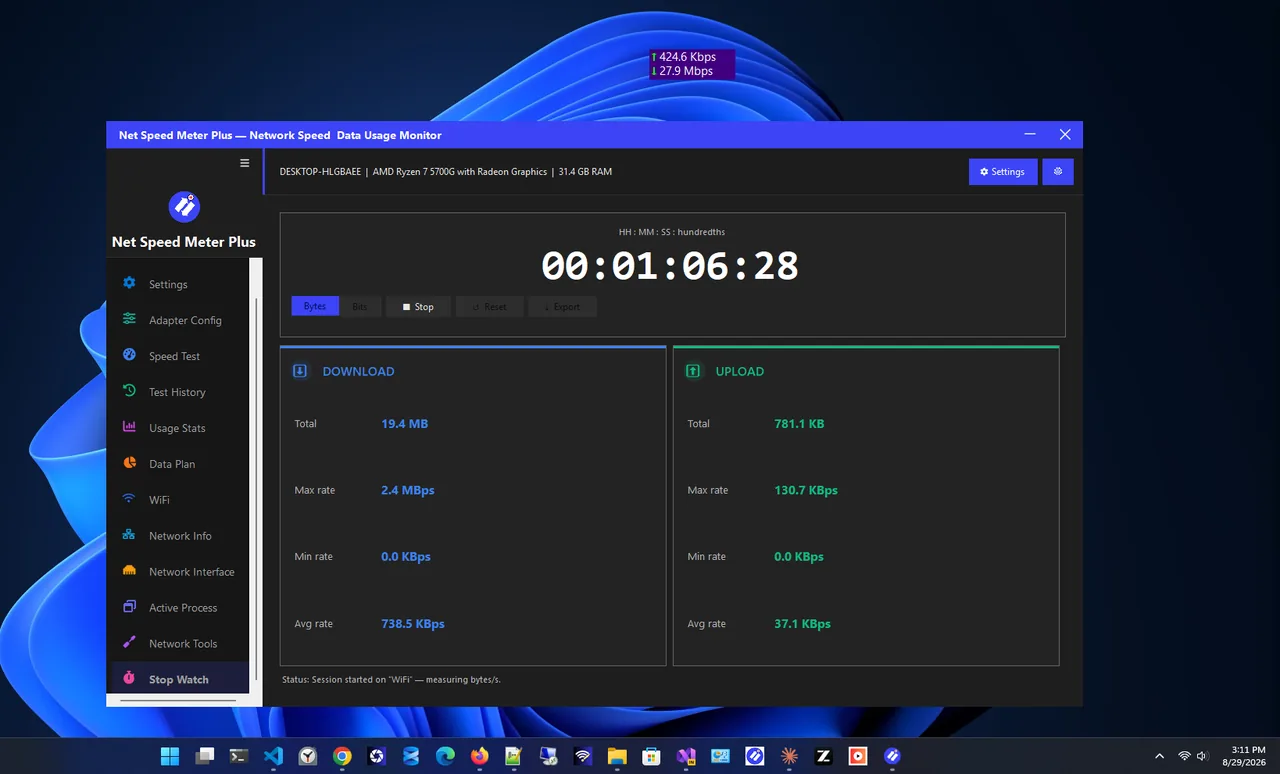
Stopwatch
Everything below comes with the app, no subscription needed.
Always-updating download and upload speed, placed anywhere with drag-and-drop.
Download, upload and ping results in seconds, without a browser.
A clear breakdown of how much data you use.
See which apps use your network right now and spot bandwidth hogs.
IP details, connection status and per-interface statistics.
Measure speed and data over a timed session or task.
| Feature | Pro $14.99 one-time | Premium $14.99/year |
|---|---|---|
| Live speed widget | ✓ | ✓ |
| Speed test | ✓ | ✓ |
| Usage stats | ✓ | ✓ |
| Per-app bandwidth monitor | ✓ | ✓ |
| Network info and interface stats | ✓ | ✓ |
| Stopwatch | ✓ | ✓ |
| Dashboard: latency, jitter, packet loss | – | ✓ |
| Speed test history | – | ✓ |
| Data plan tracking | – | ✓ |
| Wi-Fi passwords and QR sharing | – | ✓ |
| Network tools | – | ✓ |
All purchases are handled by the Microsoft Store. Prices in USD; your Store may show local pricing.
Buy Net Speed Meter Plus in the Microsoft Store and install it.
Launch the app. The live speed widget appears on your desktop.
Go to Active Processes to see each app and its current network speed.
Close or pause the bandwidth-hungry app, then watch the widget drop.
Your internet connection is shared by every app on your PC: browsers, game launchers, cloud backup, Windows Update and more. When things feel slow, the question is rarely "how fast is my internet?" but "what is using it?". A per-app bandwidth monitor answers that directly by listing each process with its live download and upload speed.
Net Speed Meter Plus combines that view with the always-visible speed widget, so you notice a spike first and find the cause second. Usage statistics then show whether today is unusual, and the speed test tells you whether the problem is your line or your apps.
The free Net Speed Meter gives you the live widget and keeps the extra tools in Premium. Net Speed Meter Plus is a one-time purchase that includes the speed test, usage stats, network details, process monitor and stopwatch, with Premium for the dashboard, history, data plan and Wi-Fi tools. Pick the free meter if you only want live numbers; pick Plus if you troubleshoot often.
More help is coming in our Windows guides.
No. Net Speed Meter Plus is a paid app with a one-time purchase in the Microsoft Store. An optional Premium subscription adds extra tools. If you only need the live widget, the free Net Speed Meter is available.
Open the Active Processes view. It lists the apps using your network with their real-time speeds, so you can spot bandwidth-hungry programs.
A dashboard with latency, jitter and packet loss, automatic speed test history, data plan tracking with alerts, saved Wi-Fi passwords with QR sharing, and ping, DNS lookup and traceroute tools.
Yes. The speed test is included with the app and measures download, upload and ping without opening a browser.
Yes. Net Speed Meter Plus runs on Windows 11 and Windows 10 and installs from the Microsoft Store.
Yes. Adapter configuration lets you pick which network interfaces the app watches.
See live download and upload speed on your desktop, always on top.

Full network monitoring: live speed, usage history and per-app connections.

Always-on-top speed widget with data plan tracking and usage stats.

Internet speed test with ping, jitter, saved history and network tools.
See which apps use internet on Windows 11 and 10 right now: Task Manager, Resource Monitor, data usage in Settings, and a live per-app monitor.
