Network How-to
How to Show Internet Speed on Taskbar in Windows 11
Show live upload and download speed on the Windows 11 taskbar in 2 minutes. A free method, step by step, plus the built-in alternatives.
On this page
Windows 11 has no built-in setting to show internet speed on the taskbar. Install the free Net Speed Meter app from the Microsoft Store, choose your Wi-Fi or Ethernet adapter, then drag its always-on-top widget onto the taskbar and lock it. Live download and upload speed stay visible all the time.
Time: 2 minutes · Cost: free · Works on: Windows 11 and Windows 10
If you want to show internet speed on the taskbar in Windows 11, you have probably noticed that the option simply is not there. Older Windows add-ons and some Android phones show a live speed counter next to the clock, but Windows 11 keeps network activity tucked away inside Task Manager.
A live speed readout is genuinely useful. It tells you whether a download is still moving, whether a video call is struggling because your connection is busy, and whether that game update is eating your bandwidth. In this guide you will set up a free taskbar speed meter in about two minutes, and you will also see the built-in Windows options and their limits.
What You Need
- A PC running Windows 11. On Windows 10? Follow our Windows 10 taskbar speed guide.
- A Microsoft account signed in to the Microsoft Store, or the Store app on your PC.
- About two minutes. No admin tools, registry edits or command lines are needed.
How to Show Internet Speed on the Taskbar (Step by Step)
-
Install Net Speed Meter
Open Net Speed Meter in the Microsoft Store and select Get. The core widget is free forever, with no account or trial.
-
Launch it once
Open the app from the Start menu. A small widget appears on your desktop showing live download and upload speed, and an icon appears in the system tray.
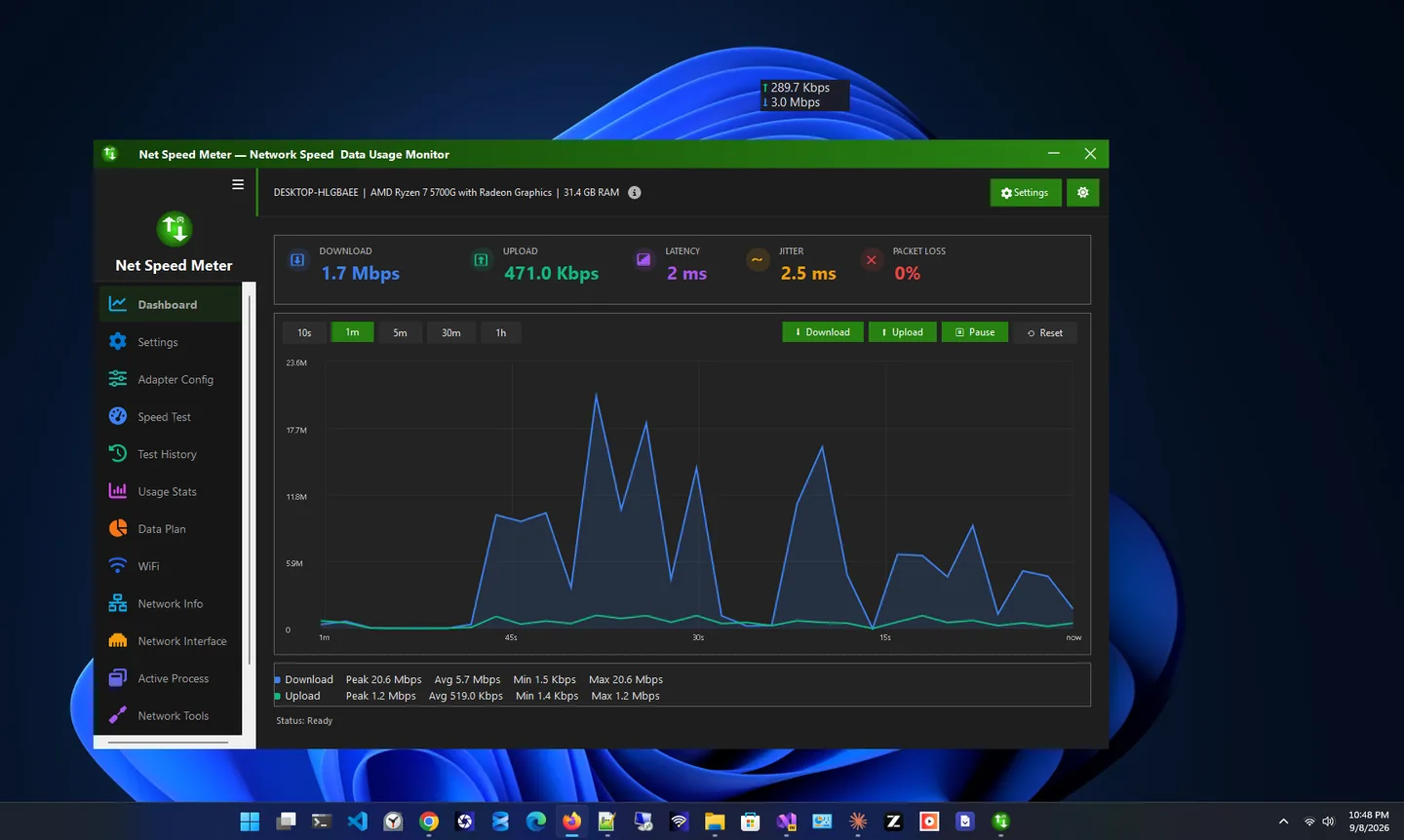
The Net Speed Meter window. The small always-on-top widget shows the same live numbers. -
Choose your network adapter
Open the app settings and pick the adapter you actually use: Wi-Fi, Ethernet or your VPN. If the widget shows 0 KB/s while you are online, the wrong adapter is selected.
-
Move the widget onto the taskbar
Drag the widget down onto the taskbar area, for example next to the clock, or just above it. Because it is always on top, it stays visible over the taskbar and over full-screen apps.
-
Lock it and start with Windows
Turn on Lock position so you do not move it by accident, and turn on auto-start so the meter is ready every time Windows starts.
Built-In Windows Alternatives (and Their Limits)
If you would rather not install anything, Windows 11 can show network speed in a few places. None of them sit on the taskbar, but they are worth knowing:
| Method | Live speed | Always visible | How to open |
|---|---|---|---|
| Task Manager | Yes | No | Ctrl + Shift + Esc, then Performance |
| Resource Monitor | Yes, per app | No | Type resmon in Start, then Network |
| Settings data usage | No (totals only) | No | Settings, Network & internet, Advanced network settings |
| Net Speed Meter widget | Yes | Yes | Always on screen |
Task Manager is the closest built-in option. On the Performance tab, select Wi-Fi or Ethernet to see a live graph with send and receive speeds. You can even shrink Task Manager to a compact view, but it is a full window, it does not stay above other apps reliably, and it closes when you are done with it.
Tips for Accurate Readings
Live speed shows how much bandwidth you are using right now, not the maximum your plan can deliver. To check your plan's top speed, run a speed test instead.
- Watch the units. Speeds can be shown in megabits (Mbps) or megabytes (MB/s). 1 MB/s is 8 Mbps. Our guide to Mbps vs MB/s explains the difference.
- Pick the VPN adapter when a VPN is on. Otherwise the meter may show traffic on the physical adapter only.
- Expect small numbers when idle. A few KB/s in the background is normal: Windows, sync apps and browsers talk to the internet all the time.
- Use power saver mode on a laptop if you want to pause the meter for a while.
Want More Than a Speed Widget?
If you also want a built-in speed test, usage history or a list of the apps using your connection, compare the options in our roundup of the best net speed meter apps for Windows, or browse all network apps for Windows.
Troubleshooting the Taskbar Speed Widget
- The widget disappears behind the taskbar. Make sure always-on-top is enabled in the app settings, then drag the widget again. Some taskbar tools that reposition the taskbar can cover it; move the widget just above the taskbar instead.
- It shows 0 KB/s. Select the adapter you are actually connected through. After switching from Wi-Fi to Ethernet, or turning a VPN on, pick the new adapter.
- The numbers look too high or too low. Check the display unit. Megabits (Mbps) look eight times bigger than megabytes (MB/s).
- It does not start with Windows. Turn on auto-start in the app, and check that it is not disabled in Settings, Apps, Startup.
- It sits on the wrong monitor. Drag it to the screen you want and lock its position; it remembers the place after a restart.
Why a Live Speed Readout Helps
A speed test answers "how fast can my connection go?". A live readout answers "what is my connection doing right now?", which is the question you actually have when something feels slow. If the meter shows heavy traffic while you are not downloading anything, a background app is busy. If it shows almost nothing while a page refuses to load, the problem is the website or your connection, not your bandwidth. That one glance saves a lot of guesswork.
FAQ
Does Windows 11 have a built-in network speed meter on the taskbar?
No. Windows 11 shows live network speed only inside Task Manager and Resource Monitor. To keep it visible on the taskbar you need a small widget app such as Net Speed Meter.
Will a speed meter slow down my PC?
No. A speed meter only reads the traffic counters Windows already keeps for each adapter. Net Speed Meter is lightweight and has a power saver mode if you want to pause it.
Why does the speed show 0 KB/s?
Usually the wrong adapter is selected. Open the settings and choose the adapter you are connected through, such as Wi-Fi, Ethernet or your VPN.
Does this work on Windows 10?
Yes. Net Speed Meter runs on Windows 10 and Windows 11. See the Windows 10 version of this guide for the Task Manager trick and Windows 10 tips.
Is the free version enough?
For a live taskbar speed readout, yes. The optional Premium subscription adds a speed test, usage statistics, a data plan manager and network tools.
Conclusion
Windows 11 cannot show internet speed on the taskbar by itself, but a free always-on-top widget fixes that in two minutes: install Net Speed Meter, choose your adapter, place the widget on the taskbar and lock it. From then on you can see at a glance whether your connection is busy, idle or struggling.