System How-to
How to Speed Up Windows 11: 10 Safe Steps
Speed up Windows 11 safely: trim startup apps, free disk space, update drivers and tune power and visual settings. 10 steps, easiest first.
On this page
To speed up Windows 11, restart it, disable startup apps you do not need (Settings, Apps, Startup), free up disk space with Storage Sense, install updates and drivers, and set the power mode to Best performance when plugged in. These safe steps fix most slow PCs without reinstalling Windows.
A PC that once felt instant can slow down over months: more apps start with Windows, the drive fills up, and updates pile up. The good news is that you can speed up Windows 11 safely with settings that are already built in, plus one free tool for the cleanup Windows does not do well.
The steps below go from quickest to most involved. Do them in order and check how the PC feels after each one.
What You Need
- Windows 11 (most steps also apply to Windows 10).
- About 30 minutes, and your PC plugged in if it is a laptop.
- A recent backup of important files, which is good practice before any cleanup.
How to Speed Up Windows 11 (Step by Step)
-
Restart properly
Use Start, Power, Restart rather than Shut down. Fast Startup means Shut down does not fully reset Windows, while Restart clears memory and finishes pending updates.
-
Disable unneeded startup apps
Open Settings, Apps, Startup, and switch off apps you do not need the moment Windows starts, such as chat apps, launchers and updaters. This is usually the biggest win for boot time.
-
Free up disk space
Go to Settings, System, Storage, open Temporary files and remove what you do not need, then turn on Storage Sense. Keep at least 15 to 20 percent of the system drive free.
-
Uninstall apps you never use
In Settings, Apps, Installed apps, sort by size and remove old trials, toolbars and games you no longer play.
-
Install updates and drivers
Run Windows Update, including Optional updates for drivers, and check your PC maker's support app for graphics and chipset drivers.
-
Choose the right power mode
In Settings, System, Power & battery, set Power mode to Best performance when plugged in, or Balanced for a good mix on battery.
-
Turn off animation effects
On older PCs, Settings, Accessibility, Visual effects, then switch off Animation effects and Transparency effects. Windows feels snappier with no loss of features.
-
Scan for malware
Open Windows Security and run a Quick scan. Unwanted software running in the background is a common cause of slowness.
Find What Is Slowing the PC Right Now
If the PC is slow at a specific moment, open Task Manager with Ctrl + Shift + Esc and sort the Processes tab by CPU, Memory and Disk in turn. An app at the top of a column for minutes at a time is the likely culprit. Close it, or check its own settings for background activity. Disk stuck at 100 percent on an older hard drive is a strong sign that an SSD upgrade would help.
Optimize Your Drives
Search for Defragment and Optimize Drives in Start. Windows optimizes drives on a schedule, but it is worth checking that the schedule is on. Hard disks get defragmented; SSDs get a TRIM pass, which is safe and keeps them fast. Never run third-party defragmenters on an SSD.
Do a Deeper Cleanup in One Place
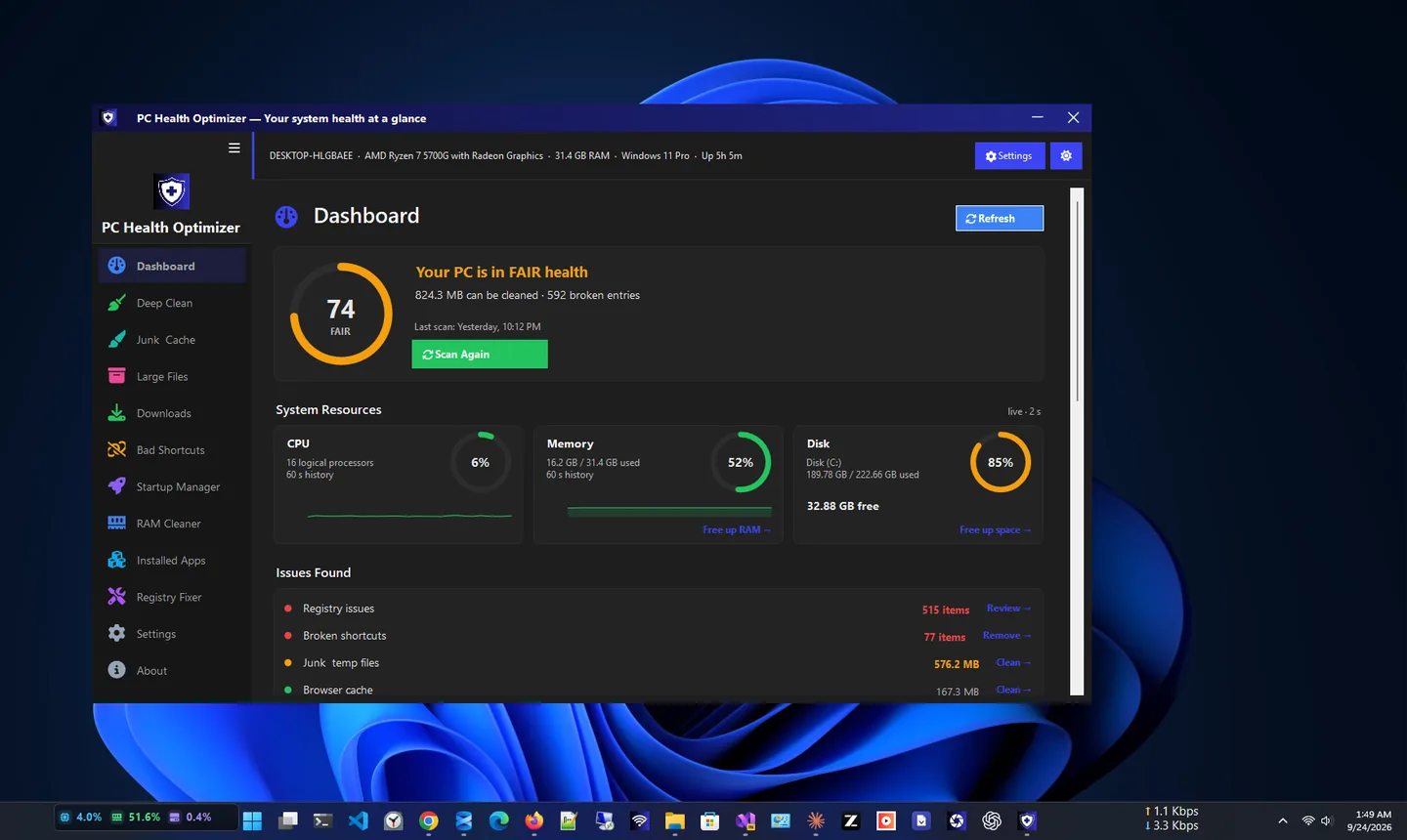
Windows covers the basics, but caches, logs, leftover update files, broken shortcuts and old downloads are spread across many folders. PC Health Optimizer gives your PC a health score, runs a one-click Smart Scan, and cleans these areas with five dedicated tools. It also includes a Startup Manager, a RAM Cleaner and a Registry Fixer that backs up every change first. Deleted files go to the Recycle Bin by default, so nothing is lost by mistake.
Duplicate files are another hidden space-waster; our guide to finding and removing duplicate files covers them.
Tips
Skip "registry booster" tricks, disabling Windows services at random and tools that delete files permanently. They rarely help and can break Windows. Only change the registry with a backup.
- If a laptop is slow only on battery, check its power mode and battery health: see how to check battery health on Windows 11.
- An SSD makes the biggest hardware difference on an old PC with a hard disk.
- 8 GB of RAM is a comfortable minimum for Windows 11 with a browser and office apps.
Hardware Upgrades Worth Considering
Settings can only do so much on old hardware. If you have tried everything above, two upgrades give the most speed for the money: replacing a hard disk with an SSD, which makes start-up and app launches several times faster, and adding RAM if you regularly use most of it in Task Manager. Both are possible on many desktops and some laptops; check your model's specifications first.
FAQ
Why is my Windows 11 PC so slow?
The most common causes are too many startup apps, a nearly full drive, pending updates, outdated drivers and background software. The steps above address each one.
Is it safe to disable startup apps?
Yes. Disabling a startup app only stops it from opening automatically; you can still open it yourself. Leave security software and audio or touchpad drivers enabled.
Do PC cleaner apps really help?
They help when they remove real junk safely and manage startup apps. Choose one that sends files to the Recycle Bin and backs up registry changes, like PC Health Optimizer.
Should I reset Windows 11 to make it faster?
Only as a last resort. Try the steps in this guide first; a reset removes your apps and settings.
Conclusion
Most slow Windows 11 PCs need housekeeping, not a reinstall: restart, trim startup apps, free up space, update and pick the right power mode. For the cleanup Windows misses, a safe PC cleaner does the rest in one place. Explore more system utilities for Windows 11.