Network How-to
How to Check Data Usage on Windows 11 (and Set a Limit)
Check data usage on Windows 11 per network and per app, set a monthly data limit, and get warned before you go over your cap.
On this page
Open Settings, Network & internet, Advanced network settings, then Data usage. Windows 11 shows how much data each network and each app used in the last 30 days, and lets you enter a data limit. For live speed and alerts before you reach a cap, add a data usage meter app.
Time: 2 minutes · Cost: free · Works on: Windows 11 (Windows 10 steps below)
If you use mobile broadband, a phone hotspot or a capped home plan, you need to check data usage on Windows 11 before the bill arrives. Windows tracks it for you, but the page is buried several levels deep in Settings, and it does not warn you in real time.
This guide shows where to find the built-in numbers, how to set a limit, and how to get live warnings.
What You Need
- Windows 11 or Windows 10.
- Your plan's monthly data allowance and the day it resets (from your bill or provider app).
How to Check Data Usage on Windows 11 (Step by Step)
-
Open Data usage
Press Windows + I, select Network & internet, then Advanced network settings, then Data usage.
-
Pick the network
At the top right, choose the adapter you want, such as Wi-Fi or Ethernet. Windows shows the total for the last 30 days.
-
See usage per app
Scroll down to see each app and how much data it used. Big numbers usually come from browsers, game launchers, cloud sync and Windows Update.
-
Set a data limit
Select Enter limit, choose Monthly, set the reset date and your allowance. Windows shows how much is left and can mark the connection as metered.
On Windows 10, open Settings, Network & Internet, then Data usage. The same per-network totals and limit options are there.
Get Live Usage and Warnings
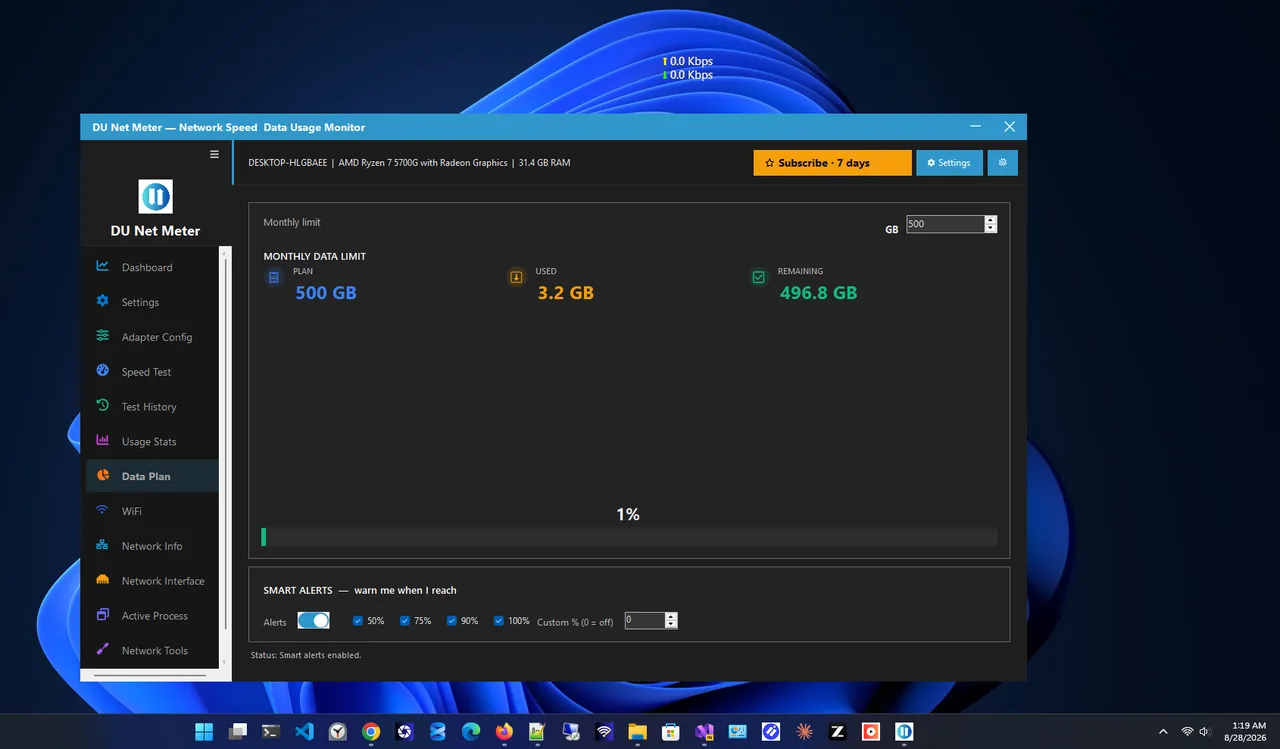
The Settings page is a good monthly summary, but it is not live and it only warns when you open it. A data usage meter keeps the numbers in front of you. DU Net Meter puts live download and upload speed on your desktop for free; with Premium, its data plan tracker adds up usage against your allowance and notifies you before you reach the limit.
Tips to Use Less Data
Turn on Metered connection for your hotspot or mobile network: Settings, Network & internet, Wi-Fi, select the network, then Metered connection. Windows then postpones most large updates.
- Pause cloud sync (OneDrive, Google Drive, Dropbox) while on a capped connection.
- Lower video quality in streaming apps; HD video uses several gigabytes per hour.
- Turn off automatic updates in game launchers on metered networks.
- Find the apps that use the most data live with our guide to seeing which apps use the internet.
Confused by the units in these numbers? Our guide to Mbps vs MB/s explains bits and bytes.
How Much Data Do Common Activities Use?
Exact numbers depend on the app and quality settings, but these rough ranges help you plan a monthly allowance:
| Activity | Roughly uses |
|---|---|
| Web browsing and email | Tens of MB per hour |
| Music streaming | About 50 to 150 MB per hour |
| Video calls | Several hundred MB to over 1 GB per hour |
| HD video streaming | About 1 to 3 GB per hour |
| 4K video streaming | About 7 GB per hour or more |
| Game and Windows updates | From hundreds of MB to tens of GB each |
The biggest surprises usually come from updates and cloud sync, because they run without you noticing.
Using a Phone Hotspot on Windows 11
When you tether a laptop to a phone, Windows does not always know the connection is limited. Mark the hotspot network as metered, pause OneDrive, and set game launchers to update only when you start them. Check the Data usage page after a day to see which apps still use data, and keep a live meter on screen so a big download never surprises you.
FAQ
How do I check data usage per app in Windows 11?
Open Settings, Network & internet, Advanced network settings, Data usage, then pick your network. The list below the total shows each app's usage for the last 30 days.
Can I reset data usage statistics?
Yes. On the Data usage page, choose Reset usage stats for the selected network. Windows starts counting again from zero.
Does setting a data limit block my internet?
No. The Windows data limit only shows how much is left and helps you stay under it; it does not cut off your connection.
How do I get warned before I reach my data cap?
Use a data usage meter with alerts. DU Net Meter Premium tracks usage against your monthly allowance and notifies you before you reach it.
Conclusion
Windows 11 already tracks your data usage per network and per app; it is just hidden under Advanced network settings. Check it there, set a monthly limit and mark capped connections as metered. For live numbers and warnings before you go over, add a data usage meter. More tools are in our network apps for Windows.