Network How-to
How to Show Internet Speed on Taskbar in Windows 10
Show live download and upload speed on the Windows 10 taskbar for free, plus the Task Manager trick and how to test your internet speed on Windows 10.
On this page
Windows 10 cannot show internet speed on the taskbar by itself. Install the free Net Speed Meter app from the Microsoft Store, pick your Wi-Fi or Ethernet adapter, drag the always-on-top widget onto the taskbar and lock it. Your live download and upload speed then stays visible over every window.
Time: 2 minutes · Cost: free · Works on: Windows 10 version 1607 or later
Want to show internet speed on the taskbar in Windows 10? You are not alone: it is one of the most searched Windows 10 tweaks, because the taskbar shows the time, volume and Wi-Fi bars, but never how fast your connection is actually moving. The only built-in speed graph lives inside Task Manager, which you have to open and keep open.
This guide shows the quickest free way to put a live speed counter on the Windows 10 taskbar, a no-install Task Manager trick if you cannot add apps, why the old "taskbar toolbar" speed monitors no longer work well, and how to run a proper internet speed test on Windows 10 when you need your maximum speed rather than your live usage.
What You Need
- A PC running Windows 10 version 1607 or later. To check, press Win + R, type
winverand press Enter. - The Microsoft Store app, which is included with Windows 10.
- About two minutes. No admin rights, registry edits or command lines are needed.
How to Show Internet Speed on the Windows 10 Taskbar
-
Install Net Speed Meter from the Microsoft Store
Open the Net Speed Meter page and select the Microsoft Store button, or open the Store from the Start menu and search for "Net Speed Meter". Select Get. The live speed widget is free forever and needs no account.
-
Open the app once
Launch it from the Start menu. A small widget appears on the desktop with your current download and upload speed, and a speed icon is added to the notification area next to the clock.
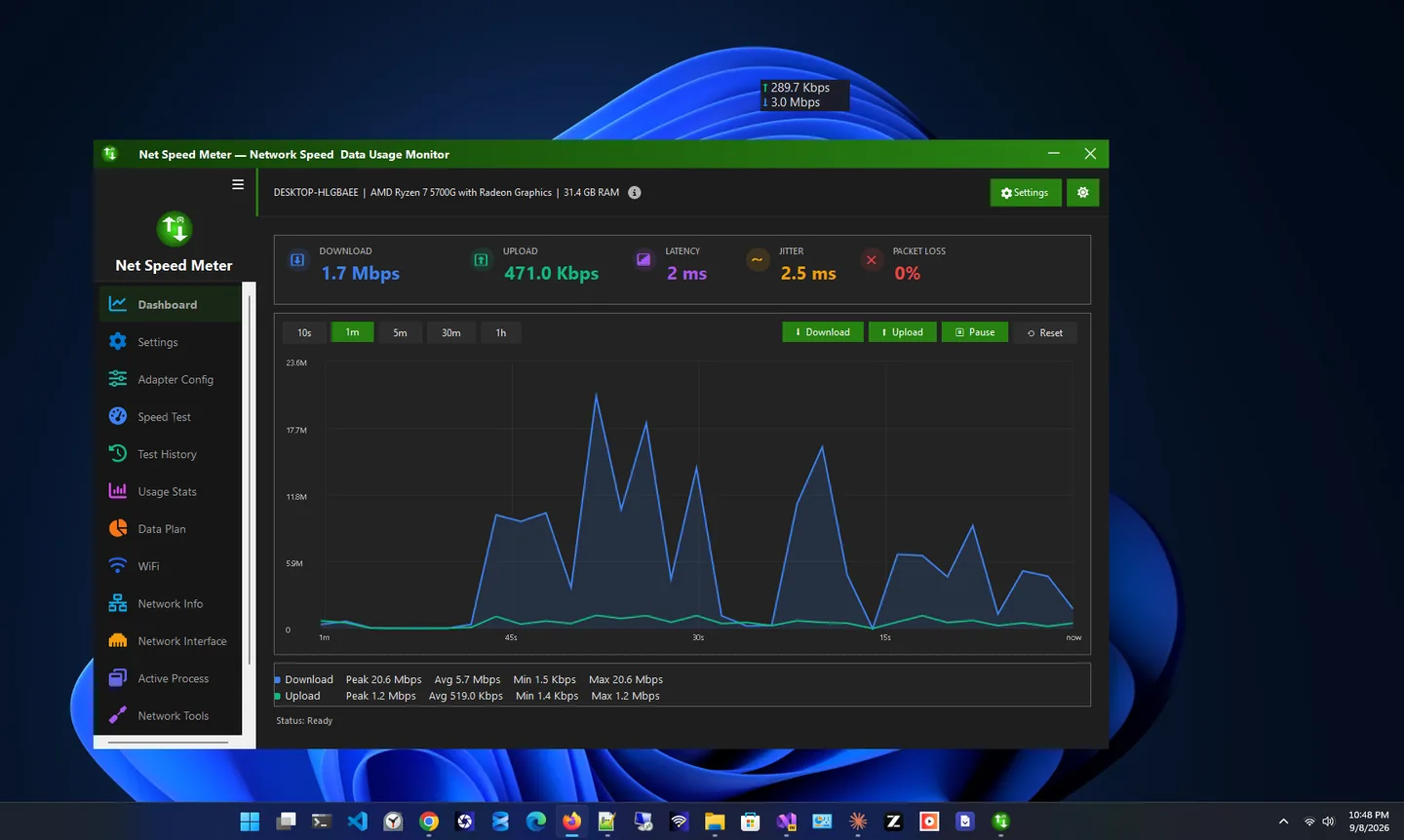
Net Speed Meter's main window. The compact widget shows the same live numbers on the taskbar. -
Select the adapter you use
In the app settings, choose the network adapter you are connected through: Wi-Fi, Ethernet or a VPN. Many Windows 10 PCs list several adapters (virtual ones from Hyper-V, VirtualBox or VPN software), so pick the one that matches your connection.
-
Drag the widget onto the taskbar
Move the widget onto an empty part of the taskbar, usually just left of the notification area. The widget stays on top, so it remains visible over the taskbar and over other windows. If your taskbar is on the side or the top of the screen, drop it there instead.
-
Lock it and turn on auto-start
Turn on Lock position so a stray click cannot move it, and turn on auto-start so the meter is back every time Windows 10 starts.
Using small taskbar buttons (right-click the taskbar, Taskbar settings, Use small taskbar buttons) makes the taskbar thinner. Leave a little free space for the widget, or place it just above the taskbar.
No-Install Option: Task Manager as a Mini Speed Meter
If you are on a work PC where you cannot install apps, Windows 10's Task Manager can act as a rough speed meter. It does not sit inside the taskbar, but it can float above your other windows:
- Press Ctrl + Shift + Esc to open Task Manager. Select More details if you only see a short app list.
- Open the Options menu and tick Always on top.
- Go to the Performance tab and select Wi-Fi or Ethernet on the left.
- Double-click the graph. Task Manager shrinks to a compact graph with live Send and Receive speeds.
- Resize the small window and park it just above the taskbar.
It works, but it is a full window with a title bar, it shows a graph rather than clear numbers, and it is easy to close by accident. A dedicated widget is cleaner for everyday use.
What About Old Taskbar Toolbar Speed Monitors?
Years ago, the classic way to show net speed on the taskbar was a toolbar (a "deskband") that docked inside the taskbar itself. Tools built that way were made for Windows XP and Windows 7, most are no longer maintained, and on Windows 10 they often need compatibility-mode workarounds or fail to show at all. Windows 11 removed taskbar toolbars completely, so anything that depends on them has no future.
An always-on-top widget avoids the problem. It does not hook into the taskbar, so Windows updates do not break it, and the same app keeps working if you later move to Windows 11. Our Windows 11 taskbar speed guide covers that setup.
How to Run an Internet Speed Test on Windows 10
A taskbar meter shows how much bandwidth you are using right now. That is different from your connection's maximum speed. Windows 10 has no built-in speed test, so to check what your plan really delivers:
- Use a speed test app. Test Net Speed is a free internet speed test app for Windows that measures download, upload, ping and jitter and keeps a history, so you can compare results over days.
- Test on a cable if you can. Wi-Fi results depend on distance and walls; Ethernet shows what reaches your home.
- Pause big downloads and cloud sync during the test, then watch the taskbar meter: it should be near zero before you start.
- Compare the right units. Speed tests report megabits (Mbps); download managers usually show megabytes (MB/s). See Mbps vs MB/s to convert.
If the test result is far below your plan, our guide on why your Wi-Fi is slow walks through the usual fixes.
Troubleshooting on Windows 10
- The widget shows 0 KB/s. The wrong adapter is selected. Pick the adapter you are connected through, and pick it again after switching between Wi-Fi, Ethernet and VPN.
- The widget hides when the taskbar auto-hides. With "Automatically hide the taskbar" on, place the widget just above the taskbar edge so it stays visible.
- It appears on the wrong screen. On multi-monitor setups, drag the widget to the display you want and lock it; it remembers the position after a restart.
- It does not start with Windows. Turn on auto-start in the app, then open Task Manager, Startup tab, and make sure it is Enabled.
- The Microsoft Store will not open or install. Install the latest Windows 10 updates in Settings, Update & Security, then sign in to the Store and try again.
Using a Speed Meter After Windows 10 End of Support
Microsoft ended support for Windows 10 on October 14, 2025. Your PC keeps working, and Store apps such as Net Speed Meter still install and run on Windows 10 version 1607 or later. A live speed meter is actually handy here: if the widget shows heavy upload or download while you are not doing anything, something in the background is using your connection and is worth a closer look. For more tools, browse all network apps for Windows.
FAQ
Does Windows 10 have a built-in internet speed meter on the taskbar?
No. Windows 10 shows live network speed only in Task Manager and Resource Monitor. To keep the speed visible on the taskbar you need a small widget such as Net Speed Meter.
Is there a free net speed meter for Windows 10?
Yes. Net Speed Meter is free in the Microsoft Store. The live speed widget, tray icon, adapter selection and auto-start never cost anything; Premium is optional.
How do I test my internet speed on Windows 10?
Windows 10 has no built-in speed test. Use a speed test app such as Test Net Speed, ideally on a cable connection with downloads paused, and compare the result in Mbps with your plan.
Will a taskbar speed meter slow down Windows 10?
No. It only reads the traffic counters Windows already keeps for each adapter, which uses almost no CPU or memory.
Will it keep working if I upgrade to Windows 11?
Yes. Net Speed Meter runs on both Windows 10 and Windows 11, and the setup is the same on both.
Conclusion
Windows 10 will not show internet speed on the taskbar on its own, but you can add it for free in two minutes: install Net Speed Meter, choose your adapter, drag the widget onto the taskbar and lock it. Keep Task Manager's compact graph as a backup on PCs where you cannot install apps, and run a speed test when you need to know your maximum speed.