Network How-to
How to See Which Apps Use Internet on Windows 11
See which apps use internet on Windows 11 and 10 right now: Task Manager, Resource Monitor, data usage in Settings, and a live per-app monitor.
On this page
Open Task Manager (Ctrl + Shift + Esc), go to Processes and sort by the Network column to see which apps use internet right now. For exact per-app speeds, open Resource Monitor's Network tab. For totals over 30 days, use Settings data usage. A per-app bandwidth monitor shows all of this live in one place.
When your connection suddenly feels slow, the question is rarely "how fast is my internet?" but "what is using it?". Windows gives you several ways to see which apps use internet, each with a different level of detail. This guide covers all of them, from the quickest glance to a live per-app monitor.
What You Need
- Windows 11 or Windows 10. Every built-in method below works on both.
- A minute while the slowdown is happening: live tools only show what is going on right now.
How to See Which Apps Use Internet (Step by Step)
-
Check Task Manager first
Press Ctrl + Shift + Esc, open Processes, and select the Network column header to sort. The apps at the top are using your connection right now.
-
Get exact speeds in Resource Monitor
Type
resmonin Start and open Resource Monitor. On the Network tab, Processes with Network Activity lists each program with bytes sent and received per second. -
See 30-day totals in Settings
Go to Settings, Network & internet, Advanced network settings, Data usage. This shows how much each app used over the last 30 days, which is useful on capped plans.
-
Stop or pause the busy app
Pause the download, sync or update in the app itself. Ending a task in Task Manager works too, but may lose unsaved work.
Watch Every App Live
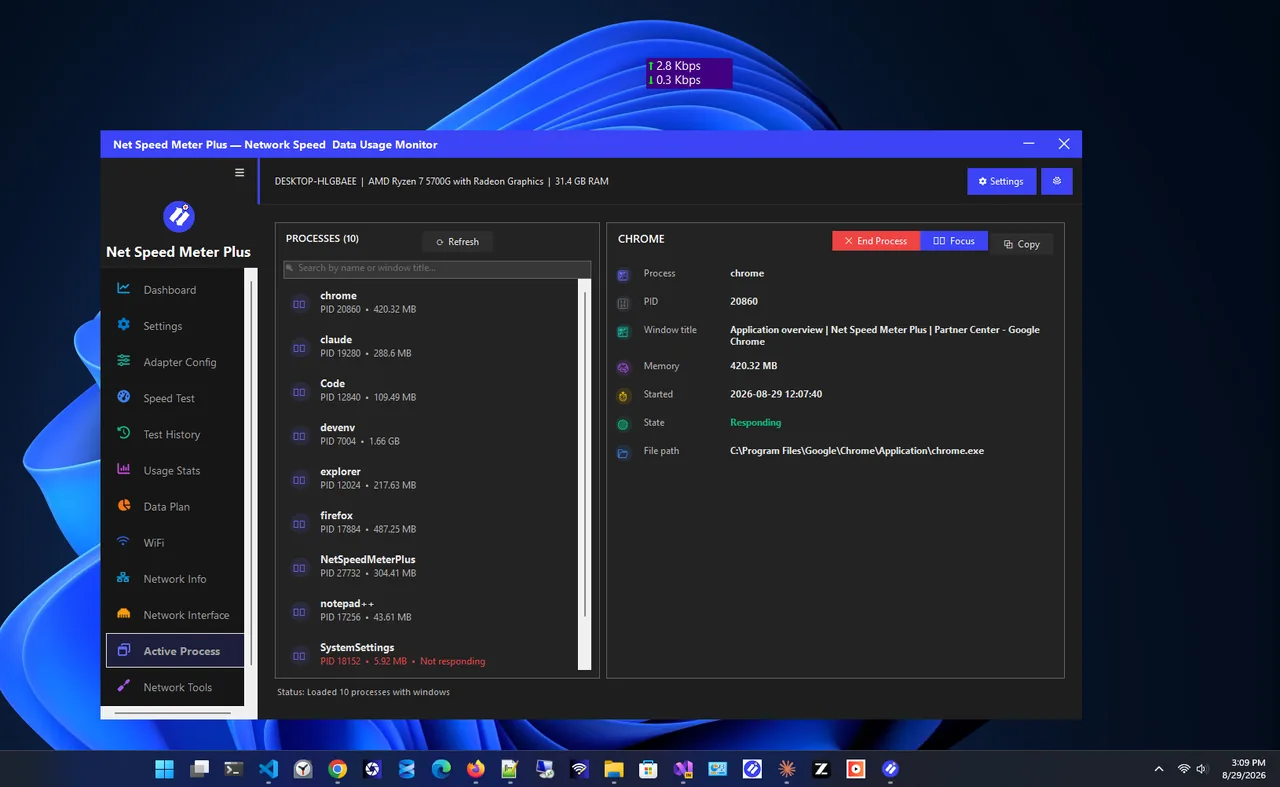
The built-in tools are spread over three windows and none of them stays open while you work. A per-app bandwidth monitor keeps the list in one place next to a live speed widget. Net Speed Meter Plus includes an active process monitor that shows exactly which apps are using your network and how much bandwidth each one takes.
The Usual Bandwidth Hogs
- Cloud sync: OneDrive, Google Drive and Dropbox, especially after you add photos or videos.
- Windows Update and Delivery Optimization: large downloads, sometimes shared with other PCs.
- Game launchers: Steam, Epic, Xbox and Battle.net updating games in the background.
- Browsers: video tabs left playing and large downloads.
- Backup software: uploads that can saturate your upload speed and slow everything else.
Tips
Check upload as well as download. A cloud backup uploading at full speed can make browsing and calls slow, even though downloads look quiet.
If you are on a capped plan, combine this with our guide to checking data usage on Windows 11. If no app is busy and everything is still slow, the problem is likely your connection: see why your Wi-Fi is slow.
Getting More From Resource Monitor
Resource Monitor shows far more than Task Manager, if you know where to look on its Network tab:
- Processes with Network Activity: each program with send and receive speed in bytes per second. Select a checkbox to filter the other panels to that app.
- Network Activity: the remote addresses each app is talking to, which helps identify updates and cloud services.
- TCP Connections: every open connection with its latency, useful when one app is slow but others are fine.
Limit Windows Update Bandwidth
-
Open Delivery Optimization
Go to Settings, Windows Update, Advanced options, Delivery Optimization, then Advanced options.
-
Set limits
Limit the bandwidth used for downloading updates in the background and in the foreground, as a percentage or an absolute speed.
-
Turn off sharing if you like
Back on the Delivery Optimization page, switch off Allow downloads from other PCs to stop Windows uploading updates to other computers.
FAQ
How do I see which app is using my internet in Windows 11?
Open Task Manager with Ctrl + Shift + Esc, go to Processes and sort by the Network column. For per-app speeds, use Resource Monitor's Network tab.
Why is Windows using internet in the background?
Windows Update, Microsoft Store updates, cloud sync and telemetry all use the network in the background. Marking a connection as metered reduces most of it.
Can I limit an app's bandwidth?
Windows lets you limit bandwidth for Windows Update in Delivery Optimization settings. Many apps, such as Steam and OneDrive, also have their own speed limit settings.
Is there an app that shows per-app internet usage live?
Yes. Net Speed Meter Plus includes an active process monitor that shows which apps are using your network in real time, next to a live speed widget.
Conclusion
Task Manager answers "what is using my internet right now?" in seconds, Resource Monitor gives exact per-app speeds, and Settings shows 30-day totals. For a single live view of every app, use a per-app bandwidth monitor. Find more tools in our network apps for Windows.