System How-to
How to Check Battery Health on Windows 11 Laptops
Check battery health on Windows 11: create a battery report, read design vs full charge capacity and cycle count, and keep your battery healthy.
On this page
Open Terminal or Command Prompt and run powercfg /batteryreport. Open the battery-report.html file it creates and compare Full charge capacity with Design capacity: the percentage is your battery health. The report also shows the cycle count. For a live view and tips, use a free battery health app.
Time: 2 minutes · Cost: free · Works on: Windows 11 and Windows 10 laptops
Laptop batteries wear out slowly, so you often notice only when the laptop that used to last all day suddenly needs a charger by lunchtime. You can check battery health on Windows 11 in two minutes with a built-in report, and keep an eye on it over time with a free app.
What You Need
- A Windows 11 or Windows 10 laptop or tablet with a battery.
- Access to Terminal or Command Prompt. No administrator rights are needed for the report.
How to Check Battery Health on Windows 11 (Step by Step)
-
Open Terminal
Right-click Start and choose Terminal, or search for Command Prompt.
-
Create the battery report
Type the command below and press Enter. Windows saves the report in your user folder and prints its path.
Commandpowercfg /batteryreport -
Open the report
Open the battery-report.html file from the path shown, usually C:\Users\YourName\battery-report.html. It opens in your browser.
-
Read design vs full charge capacity
Under Installed batteries, divide Full charge capacity by Design capacity. For example, 42,000 mWh out of 50,000 mWh means about 84 percent health. Cycle count is listed there too.
What the Numbers Mean
| Health (full / design) | What it means |
|---|---|
| 90% or more | Healthy, close to new. |
| 80 to 90% | Normal wear; runtime is a little shorter than new. |
| 60 to 80% | Noticeable wear; plan your charging and consider a replacement in time. |
| Below 60% | Heavily worn; a replacement will bring back most of the runtime. |
These are rules of thumb; check your laptop maker's guidance for its own replacement threshold.
Track Battery Health Without the Command Line
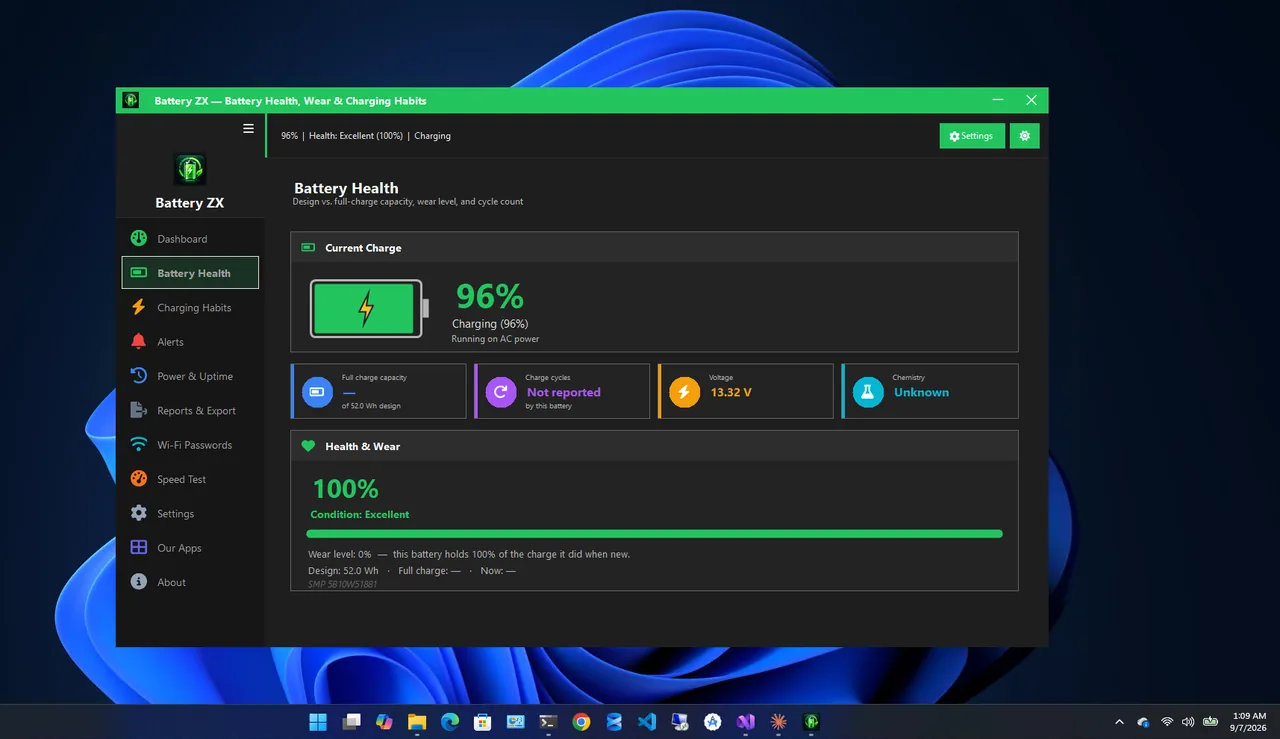
The report is a snapshot. Battery ZX keeps the same numbers on screen: health and wear percentage, design vs full-charge capacity, cycle count and estimated time remaining, plus a Battery Longevity Score from 0 to 100 with tips based on how you charge. It also tracks charging habits, sends low-battery and unplug alerts, and can export a readable battery report. It is completely free.
Tips to Keep Your Battery Healthy
Batteries age fastest when they sit at 100 percent and when they get hot. If your laptop has a charge limit setting, use it when you work plugged in.
- Avoid running the battery down to 0 percent regularly.
- Keep the laptop on a hard surface so it can cool itself.
- Use the Balanced power mode on battery; see our guide to speeding up Windows 11 for power settings.
- Free up disk space too: a full drive makes Windows work harder. See how to remove duplicate files.
Reading the Rest of the Battery Report
The battery report has more than the capacity numbers. A few sections are worth a look:
- Recent usage: when the laptop was on battery or charging over the last three days, and the charge level at each point.
- Battery usage: a chart of how fast the battery drained, which helps spot heavy days or a misbehaving app.
- Battery capacity history: full charge capacity over time. A steady decline is normal; a sudden drop can point to a fault.
- Battery life estimates: how long a full charge lasted in practice, compared with when the battery was new.
When Should You Replace the Battery?
Replace it when the runtime no longer fits your day, when health falls well below 60 percent, or when the laptop shuts down unexpectedly at a reported charge above zero. A swollen battery that lifts the keyboard or case needs attention straight away: stop using the laptop on battery and contact the manufacturer or a repair shop. Use an original or approved replacement battery for your exact model.
FAQ
What is a good battery health percentage?
Above 80 percent is generally good for a laptop that is a few years old. Below 60 percent, a replacement usually brings back most of the runtime.
Where is the battery report saved?
In your user folder, usually C:\Users\YourName\battery-report.html. The command prints the exact path.
What is a battery cycle?
One cycle is using 100 percent of the battery's capacity in total, for example two days of using 50 percent each. Batteries are rated for a certain number of cycles before they wear noticeably.
Can I improve battery health?
Lost capacity does not come back, but good habits slow further wear: avoid heat, long periods at 100 percent and frequent deep discharges.
Conclusion
Run powercfg /batteryreport and compare full charge capacity with design capacity to see your battery's
real health. To track it over time, with alerts and charging tips, use a free battery app. Explore more
system utilities for Windows 11.