System How-to
How to Find and Remove Duplicate Files on Windows
Find and remove duplicate files on Windows 11 and 10 safely: why File Explorer is not enough, how to scan, review and remove copies to the Recycle Bin.
On this page
Windows has no built-in duplicate file finder. Use a free tool such as Duplicate Finder ZX: choose folders like Pictures and Downloads, run an exact scan, review the groups sorted by wasted space, keep one copy of each and remove the rest. Removed files go to the Recycle Bin, so you can restore anything by mistake.
Time: 5 to 15 minutes · Cost: free · Works on: Windows 11 and Windows 10
Duplicate files pile up quietly: photos imported twice from your phone, the same installer downloaded three times, copies of project folders "just in case". Together they can waste many gigabytes. This guide shows how to find and remove duplicate files on Windows safely, without deleting anything you still need.
What You Need
- Windows 11 or Windows 10.
- A recent backup of important photos and documents, which is always wise before a cleanup.
- Some free space on the drive for the Recycle Bin until you empty it.
Why File Explorer Is Not Enough
You can sort a folder by name or size in File Explorer and spot obvious copies such as "photo (1).jpg". But real duplicates often have different names and live in different folders, and two files with the same name can have different content. The only reliable test is comparing the content itself, which a duplicate finder does by computing a hash of each file.
How to Find and Remove Duplicate Files (Step by Step)
-
Install Duplicate Finder ZX
Get Duplicate Finder ZX from the Microsoft Store. Scanning and cleaning are free, with no limits and no account.
-
Choose what to scan
Use a quick scan for Pictures, Downloads or Documents, or add your own folders and drives. Filter by file type and size if you only want photos or large files.
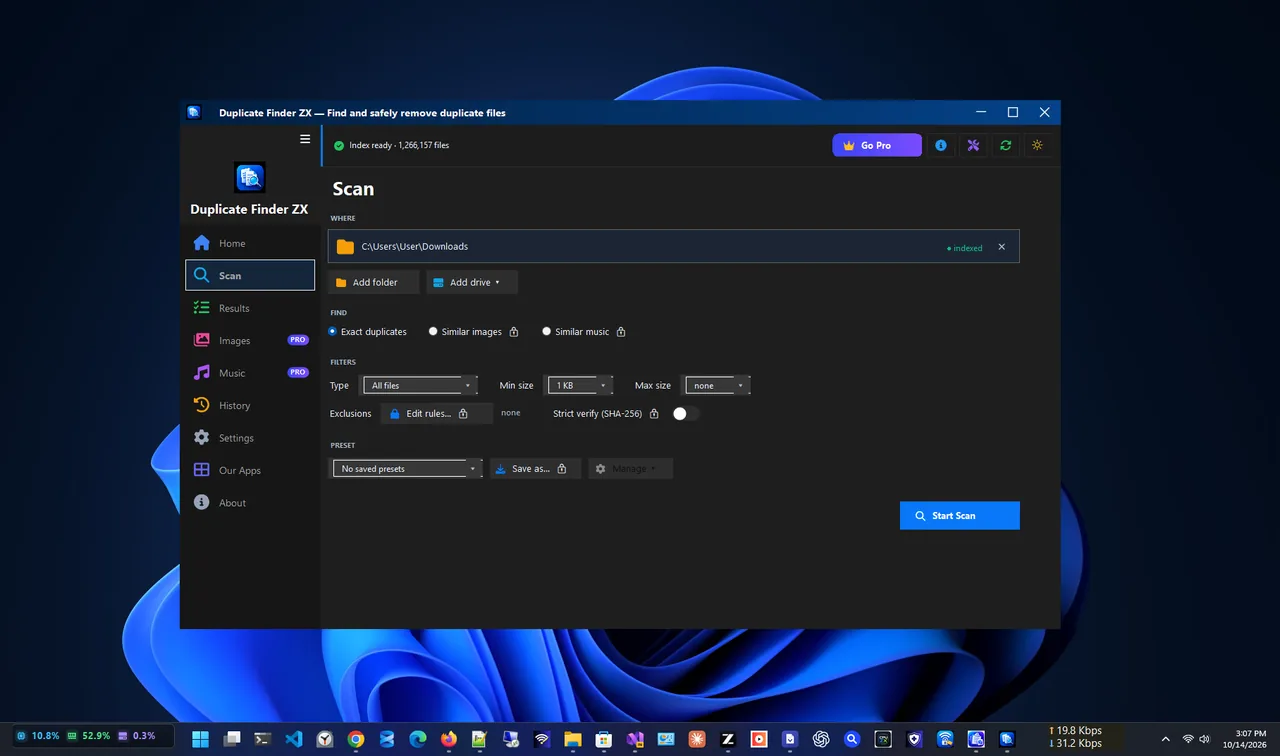
Scan setup: pick folders, file types and size limits. -
Run the scan
The scan groups files by size, compares a quick partial hash and confirms matches with a full hash, so results are exact. You can pause, resume or cancel at any time.
-
Review the biggest groups first
Results are sorted by wasted space. Use the preview to check what each file is, then select the copies to remove. The app always keeps at least one file in every group.
-
Remove to the Recycle Bin
Remove the selected copies. They go to the Recycle Bin, never permanently, and every action is logged. Empty the Recycle Bin only once you are sure.
Tips for a Safe Cleanup
Program folders, Windows folders and app data. Some apps keep identical files on purpose. Stick to your own folders, such as Pictures, Documents, Downloads and Videos.
- Start with Downloads and Pictures: they hold most duplicates on a typical PC.
- When choosing which copy to keep, keep the one in the folder you actually use.
- Near-identical photos (bursts, edits) are not exact duplicates; the optional Go Pro upgrade adds similar image detection for those.
- For junk files and caches, see our guide to speeding up Windows 11.
- Cleaning up a laptop? Check its battery health while you are at it.
Where Duplicates Come From
- Phone imports: importing the same photos twice, or syncing them through more than one app.
- Downloads: installers and attachments downloaded again because the first copy was hard to find.
- Manual backups: "backup" or "old" copies of folders that never got cleaned up.
- Cloud sync conflicts: files saved with a computer name or "(1)" added when two devices edited at once.
- Email and chat apps: the same attachment saved from several messages.
How to Prevent New Duplicates
Keep one place for each kind of file, for example one Pictures folder for all photo imports, and let one cloud service sync it rather than two. Clear the Downloads folder every few weeks, and use a single backup tool instead of manual copies. A quick duplicate scan every few months then takes only minutes, because a hash cache makes repeat scans fast.
FAQ
Does Windows 11 have a duplicate file finder?
No. Windows 11 has no built-in tool to find duplicate files by content. You need a duplicate finder app.
Is it safe to delete duplicate files?
Yes, in your own folders, as long as you keep one copy and review before removing. Avoid system and program folders. Sending removals to the Recycle Bin adds a safety net.
How do duplicate finders know two files are the same?
They compare file content, usually by computing a hash of each file. Files with the same hash and size are exact copies, whatever their names.
Can I find similar photos, not just exact copies?
Yes. Duplicate Finder ZX's optional Go Pro upgrade adds similar image detection at strict, normal or loose sensitivity.
Conclusion
Windows cannot find duplicate files on its own, but a free duplicate finder can, safely. Scan Pictures and Downloads first, review the biggest groups, keep one copy and send the rest to the Recycle Bin. Explore more system utilities for Windows 11.