Business How-to
How to Make an Invoice: What to Include + Free Template
How to make an invoice step by step: what every invoice must include, numbering, tax, payment terms and layout, plus free offline ways to create one.
On this page
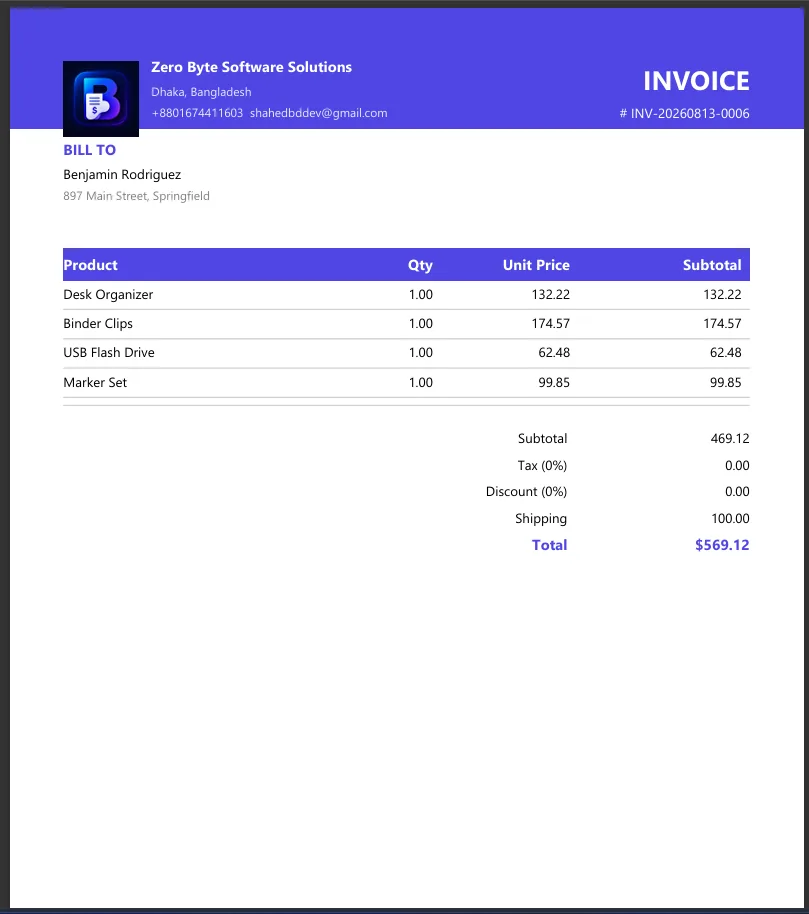
To make an invoice, include the word "Invoice", a unique invoice number, the invoice date and due date, your business details, the client's details, an itemised list (description, quantity, rate, amount), subtotal, tax, any discount, the total due, payment terms and how to pay. Create it in a template or invoice app, save it as a PDF and send it to the client.
Whether you are a freelancer sending your first bill or a small shop tired of handwritten receipts, a clear invoice gets you paid faster and keeps your records and taxes in order. This guide explains how to make an invoice step by step: what it must include, a simple layout you can copy, and free ways to create one on Windows.
What Every Invoice Must Include
| Part | Example |
|---|---|
| The word "Invoice" | Clearly at the top (or "Tax Invoice" where required) |
| Invoice number | INV-2026-014, unique and in sequence |
| Invoice date and due date | 18 Oct 2026, due 17 Nov 2026 |
| Your details | Business name, address, email, phone, tax or VAT number |
| Client details | Name or company, address, contact person |
| Line items | Description, quantity or hours, rate, line amount |
| Totals | Subtotal, discount, tax rate and amount, total due |
| Payment terms and methods | Net 30; bank transfer details, card or cash |
Tax invoice requirements (VAT, GST, sales tax) differ by country. If you are registered for tax, check what your tax office requires on each invoice, such as your tax number and the tax amount per item.
How to Make an Invoice, Step by Step
-
Choose a tool
A Word or Excel template works for a few invoices a month. If you invoice regularly, an invoice app saves time, numbers invoices automatically and tracks who has paid.
-
Add your branding and details
Your logo, business name, address and contact details at the top, plus your tax number if you have one.
-
Add the client and invoice number
Use a consistent numbering format, such as INV-2026-001, and never reuse a number. Add the invoice date and the due date.
-
List the work or products
One line per item: a clear description the client will recognise ("Website homepage design, 12 hours"), quantity, rate and amount.
-
Calculate totals
Subtotal, minus any discount, plus tax, equals the total due. Double-check the maths, or let the app do it.
-
Add payment terms
State when payment is due (for example, Net 14 or Net 30), how to pay, and any late fee policy. Bank details go here.
-
Save as PDF and send
Send a PDF, never an editable file. Use a clear file name such as "INV-2026-014 Your Business.pdf" and a short, polite email.
-
Track payment
Mark the invoice as paid, partly paid or overdue, and send a friendly reminder a few days after the due date.
Make Invoices Offline with Invoice Gen
Invoice Gen (listed in the Microsoft Store as Billora) is a free, offline invoicing app for small businesses. It numbers invoices automatically, handles multiple items, tax and discounts, and exports PDFs in Classic, Modern or Minimal layouts with your logo. It also tracks payments (draft, unpaid, partial, paid), keeps a customer list and product stock, and builds sales, dues and cash-flow reports you can export to PDF or Excel. Your data stays on your PC, with automatic backups.
Tips to Get Paid Faster
- Invoice immediately when the work is delivered, not at the end of the month.
- Shorter terms: Net 14 gets paid sooner than Net 30.
- Make paying easy: list every payment option and the exact reference to use.
- Be specific: clear descriptions prevent questions that delay payment.
- Agree terms up front, in your quote or contract, so the invoice holds no surprises.
- Keep copies of every invoice for your accounts and taxes.
PDF Tips for Invoices
Sending an invoice with receipts or a timesheet? Combine them into one file with how to merge PDF files offline. If attachments are too large for email, see how to compress a PDF without losing quality.
FAQ
What is the difference between an invoice and a receipt?
An invoice asks for payment; a receipt confirms payment was received. Many businesses send both.
How should I number invoices?
Use a unique, sequential number, for example INV-2026-001, INV-2026-002. Do not skip or reuse numbers.
Can I make an invoice in Word or Excel?
Yes. Both include invoice templates (File, New, search "invoice"). Save the finished invoice as a PDF before sending.
What does Net 30 mean?
Payment is due 30 days after the invoice date. Net 14 means 14 days; "Due on receipt" means immediately.
Conclusion
A good invoice is clear, complete and easy to pay: number, dates, both parties' details, itemised lines, totals, tax and payment terms. Send it as a PDF and track it until it is paid. For more tools, see all business apps for Windows.