Productivity How-to
How to Compress a PDF Without Losing Quality
Compress a PDF without losing quality on Windows: why PDFs get big, which settings keep text sharp, and 4 offline ways to shrink files for email.
On this page
To compress a PDF without losing quality, reduce the size of the images inside it, not the text. Use a PDF compressor with a medium or "balanced" preset that downsamples images to about 150 DPI for screen or 300 DPI for print and keeps text as text. Text, links and vector graphics stay perfectly sharp; only oversized photos shrink.
Time: 2 minutes · Works on: Windows 11 and Windows 10
"Attachment too large." A 30 MB PDF will not go through email, an upload form rejects it, or it takes ages to open on a phone. The usual advice is an online compressor, but that means uploading contracts, payslips and IDs to a stranger's server. This guide explains how to compress a PDF without losing quality, offline on your own PC, and which settings keep it looking sharp.
Why Is My PDF So Big?
- Photos and scans. A scanned page or phone photo can be 2–5 MB on its own. This is the cause of most huge PDFs.
- High-resolution images placed at full size, even when they print at a few centimetres wide.
- Embedded fonts, especially many full font files.
- Leftover data: editing history, hidden layers, thumbnails and metadata.
Text itself is tiny. A 100-page text-only PDF is often under 1 MB. So shrinking images is where the savings are.
Lossless vs Lossy Compression
| Lossless | Lossy (balanced) | Lossy (strong) | |
|---|---|---|---|
| What it does | Removes unused data, optimises structure | Downsamples images to 150–300 DPI | Low DPI, heavy JPEG compression |
| Typical saving | 5–20% | 40–80% | 80–95% |
| Visible change | None | None on screen; fine in print | Blurry photos |
| Use for | Text documents | Most PDFs, email, uploads | Only when a strict size limit applies |
"Without losing quality" in practice means the balanced option: images shrink to the resolution you can actually see, and text stays untouched.
Method 1: Compress with PDF HQ (Offline)
-
Open Compress PDF
Install PDF HQ from the Microsoft Store, open it and select Compress PDF in the sidebar.
-
Add your files
Drop in one PDF or a whole batch.
-
Pick a quality preset
Start with a medium or balanced preset. The app shows the saving for each file, so you can try a stronger preset if it is still too big.
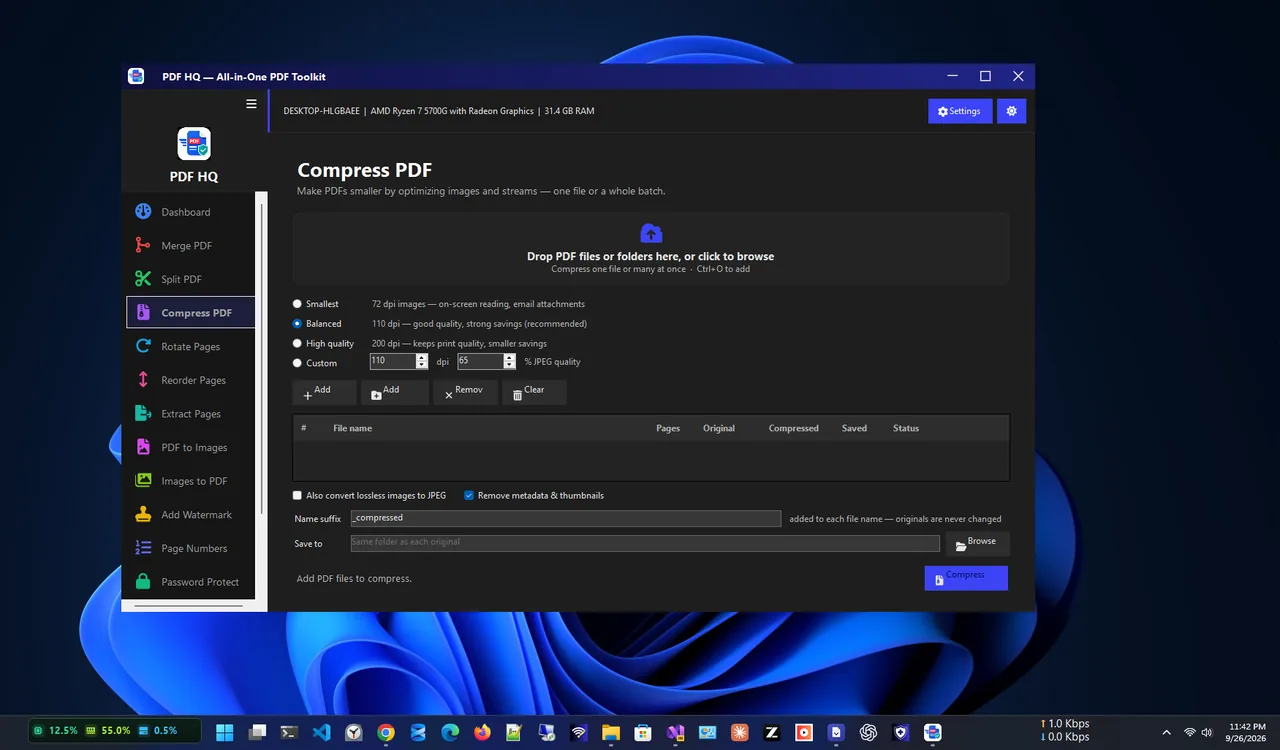
Choose a preset and see how much each file shrinks. -
Check the result
Open the new file and zoom to 100% on a photo page. If it looks right, you are done. Everything runs on your PC; nothing is uploaded.
Method 2: Export a Smaller PDF from Word
If you created the document in Word, go back to the source. Select File, Save As, choose PDF, then Minimum size (publishing online). Before that, in File, Options, Advanced, set Default resolution to 150 ppi and make sure "Do not compress images in file" is unticked. This keeps text crisp and images reasonable.
Method 3: Shrink the Images Before Making the PDF
For PDFs made from photos or scans, resize the images first: 1600–2000 pixels on the long side is plenty for an A4 page on screen. Our guide to resizing multiple images at once shows how. When scanning, choose 200–300 DPI and grayscale for text documents instead of 600 DPI colour.
Method 4: Microsoft Print to PDF (Last Resort)
Opening a PDF and printing it to "Microsoft Print to PDF" sometimes makes it smaller, but it can turn text into images, remove links and bookmarks, and make it larger instead. Use it only for simple documents, and check the result.
Common Size Limits
- Gmail: 25 MB per email, including all attachments.
- Outlook.com: 20 MB; work accounts are often 10–25 MB.
- Job and government portals: often 2–5 MB per file.
Email encoding adds about a third to the size, so aim for a PDF well under the limit.
Tips for Small, Sharp PDFs
- Compress a copy and keep the original for printing.
- Split very long PDFs instead of crushing the quality. PDF HQ can split by page ranges or bookmarks. To combine files instead, see how to merge PDF files offline.
- Remove pages nobody needs, such as blank scans and duplicate cover pages.
- Avoid compressing a PDF twice; each lossy pass makes photos worse.
- Keep text documents as real text, not scans, whenever you can.
- Sending invoices as PDFs? See how to make an invoice for what to include.
Copying file names and paths between apps while you work? Clipboard history saves time.
FAQ
Can you really compress a PDF without losing any quality?
Lossless compression changes nothing visible but saves only 5–20%. Balanced compression shrinks images to what the eye can see, so on screen it looks the same while the file gets much smaller.
Is it safe to use online PDF compressors?
For public documents, usually. For contracts, IDs, bank statements or medical files, use an offline tool so the file never leaves your PC.
Why did my PDF get bigger after compressing?
It was already optimised, or the tool converted text to images. Keep the original and try a different preset or method.
What DPI should I use?
150 DPI for screen and email, 300 DPI for print. Above 300 DPI rarely makes a visible difference.
Conclusion
Big PDFs are almost always big images. Compress with a balanced preset that downsamples photos and keeps text as text, check the result at 100%, and keep the original. Doing it offline keeps private documents private. For more tools, see all productivity apps for Windows.