Productivity How-to
How to Merge PDF Files Offline on Windows (Free)
Merge PDF files offline on Windows 11 and 10 without uploading them: combine PDFs in any order, pick page ranges and keep bookmarks. Free, step by step.
On this page
Windows cannot merge PDF files by itself, so you need a desktop tool. To merge PDF files offline, install a free PDF app such as PDF HQ from the Microsoft Store, open Merge PDF, drop in your files, drag them into order, optionally choose page ranges, and save. Nothing is uploaded, which matters for contracts, statements and IDs.
Time: 2 minutes · Cost: free · Works on: Windows 11 and Windows 10
You have a cover letter, a CV and three certificates as separate PDFs, and the form allows one upload. The first search result is an online merger, which means sending personal documents to someone else's server. This guide shows how to merge PDF files offline on Windows, keeping everything on your own PC, plus a free command-line option for power users.
Why Merge Offline?
- Privacy: bank statements, medical records, contracts and IDs never leave your PC.
- No limits: online tools often cap file size or the number of files, or add watermarks.
- Speed: no uploading and downloading large files.
- Works without internet, on a plane or a work PC with restricted access.
- Company policy: many employers forbid uploading work documents to third-party websites; an offline tool keeps you compliant.
Method 1: PDF HQ Merge PDF
-
Open Merge PDF
Install PDF HQ from the Microsoft Store, open it and select Merge PDF in the sidebar.
-
Add the files
Drag your PDFs into the list, or browse for them.
-
Put them in order
Drag files up or down. For each file you can set a page range (for example 1–3) to include only the pages you need, and choose whether to keep bookmarks.
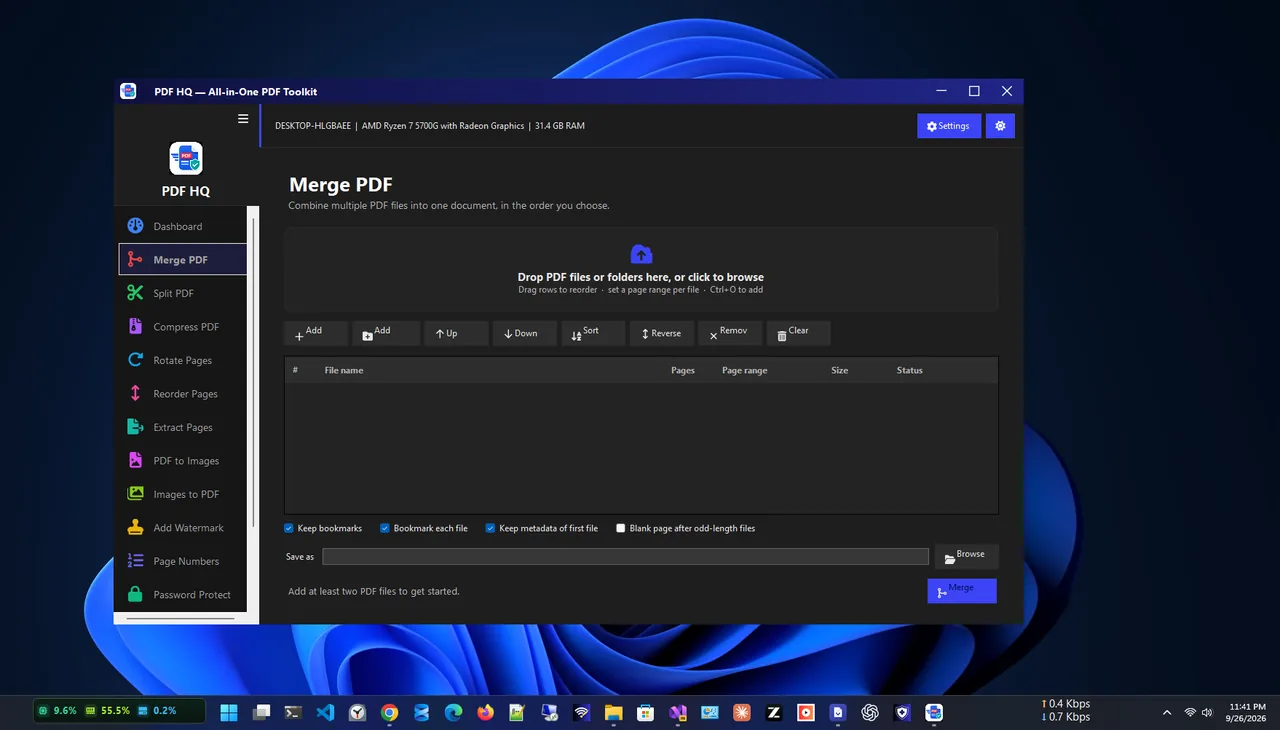
Drag files into order and pick page ranges per file. -
Merge and save
Select Merge, choose where to save, and open the result to check the order.
Need to fine-tune? PDF HQ's Reorder Pages tool lets you move, duplicate or delete individual pages afterwards, with undo.
Method 2: Command Line with qpdf
qpdf is a free, open-source command-line PDF tool. Install it with winget install QPDF.QPDF, open a new Terminal window, then run:
qpdf --empty --pages cover.pdf cv.pdf certificates.pdf -- combined.pdfFiles are merged in the order listed. Add page ranges after a file name, for example cv.pdf 1-2.
Methods to Avoid
- Microsoft Print to PDF cannot combine existing PDFs; it prints one document at a time.
- Opening PDFs in Word converts them to editable text and often breaks the layout.
- Unknown free online sites for anything personal.
Methods Compared
| Method | Offline | Page ranges | Ease |
|---|---|---|---|
| PDF HQ | Yes | Yes | Drag and drop |
| qpdf | Yes | Yes | Commands |
| Online mergers | No | Sometimes | Easy, but uploads files |
Tips
- Billing a client? Merge your invoice with receipts or a timesheet; see how to make an invoice.
- Name files in order (01-cover, 02-cv) so they sort correctly before merging.
- Turn photos into PDF first: see how to convert JPG to PDF.
- Check the final size. If the merged file is too large for email or a portal, see how to compress a PDF without losing quality.
- Password-protected PDFs must be unlocked first (you need the password); PDF HQ can remove a password you know.
Getting the Order Right
Most merge mistakes are pages in the wrong order. Before merging, decide the final sequence (for example cover letter, CV, references, certificates) and name the files 01, 02, 03 so they sort correctly everywhere. After merging, scroll through the result once from start to finish. If a scanned page is sideways, use a rotate tool rather than re-scanning; PDF HQ rotates pages losslessly. If a portal limits the number of pages, use page ranges to leave out blank or repeated pages instead of compressing the quality.
The Reverse: Splitting a PDF
Need only part of a large PDF? Split it by page range, by a fixed number of pages, or by bookmarks, then merge just the pages you need. PDF HQ's Split PDF tool shows a preview of every output file before saving.
Keep the separate original files after merging. If one document changes, such as an updated CV, you can replace just that part and merge again in seconds instead of rebuilding the whole file.
FAQ
Can Windows 11 merge PDFs without software?
No. Windows can create PDFs but not combine them. You need a PDF app or a command-line tool.
Does merging reduce quality?
No. Merging copies pages as they are; text, images and links stay the same.
Can I merge only some pages?
Yes. Set a page range per file in PDF HQ, or list ranges after each file name in qpdf.
Are online PDF mergers safe?
Reputable ones delete files after a while, but your documents still pass through their servers. For private files, merge offline.
Conclusion
Windows needs a little help to merge PDFs, but you do not need to upload anything. A free offline PDF app merges files in seconds with page ranges and bookmarks, and qpdf does the same from the command line. For more tools, see all productivity apps for Windows.