Network How-to
Best Wi-Fi Channel for 2.4 GHz and 5 GHz (How to Choose)
Find the best Wi-Fi channel for 2.4 GHz and 5 GHz: see which channels your neighbours use from Windows, pick the quietest one and change it on your router.

On this page
On 2.4 GHz, the best Wi-Fi channel is 1, 6 or 11, whichever your neighbours use least, with 20 MHz width. On 5 GHz, use a non-DFS channel from 36–48 or 149–165 with 80 MHz width; DFS channels (52–144) are often emptier but can switch suddenly. Scan nearby networks from Windows, pick the quietest channel, and set it in your router.
Time: 10 minutes · Cost: free · Works on: any router, scan from Windows 11 or 10
In an apartment, your Wi-Fi competes with dozens of neighbouring networks. When they all crowd onto the same channel, everyone's speed drops and connections stutter. Moving to a quieter channel is free and can double your real speed. This guide shows how to find the best Wi-Fi channel for your home, using only your Windows PC and your router's settings.
What You Need
- A Windows 11 or Windows 10 laptop, to scan nearby networks.
- Your router's admin login (often printed on the router).
- Ten minutes, and a speed test before and after.
Wi-Fi Channels in 30 Seconds
| Band | Best channels | Width | Notes |
|---|---|---|---|
| 2.4 GHz | 1, 6, 11 | 20 MHz | Only three channels do not overlap; never use 40 MHz in busy areas |
| 5 GHz (non-DFS) | 36–48, 149–165 | 80 MHz | Stable, supported by every 5 GHz device |
| 5 GHz (DFS) | 52–144 | 80 MHz | Often empty, but the router must leave if it detects radar |
| 6 GHz | Auto | 160 MHz | Plenty of room; let the router choose |
Not sure which band you are on? Our guide to 2.4 GHz vs 5 GHz Wi-Fi explains the difference and how to check.
Step 1: See Which Channels Are Crowded
With a command
Open Terminal and run:
netsh wlan show networks mode=bssidFor every nearby network, Windows lists Signal, Band and Channel. Count how many strong networks (above about 40% signal) sit on each channel. Weak ones matter less.
With a Wi-Fi analyzer
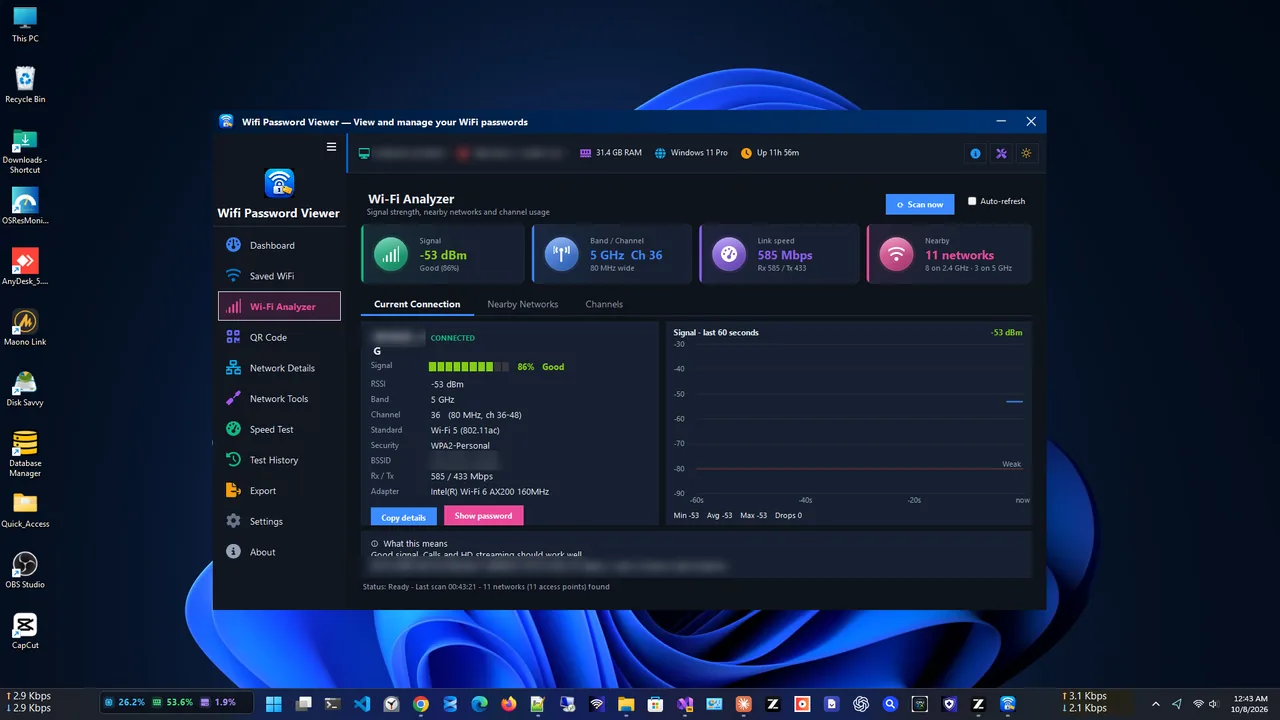
Reading a long command list is tedious. WiFi Password Viewer includes a Wi-Fi analyzer that shows nearby networks with their signal strength, so crowded channels stand out at a glance. It is free and also shows saved passwords and network details.
Step 2: Choose the Best Channel
- 2.4 GHz: pick whichever of 1, 6 or 11 has the fewest strong networks. Sharing channel 6 with two networks is better than using channel 4, which overlaps with both 1 and 6.
- 5 GHz: pick a channel group (36, 40, 44, 48 or 149–161) where no strong network sits. Try a DFS channel only if both groups are crowded and you do not live near an airport or weather radar.
- Check from where you use Wi-Fi, not next to the router. Scan from the desk or sofa.
Step 3: Change the Channel on Your Router
-
Open the router admin page
Type your router's address, the Default Gateway from
ipconfig, into a browser and sign in. -
Find the wireless settings
Look for Wireless, Wi-Fi or WLAN settings, then the 2.4 GHz and 5 GHz sections. If "Smart Connect" combines the bands, turn it off to set channels separately.
-
Set channel and width
Change Channel from Auto to the one you picked, set the width (20 MHz for 2.4 GHz, 80 MHz for 5 GHz), and save. Devices reconnect within a minute.
-
Test again
Run a speed test from the same spot as before. Keep the new channel if it is faster and steadier; if not, try the next quietest.
Auto or Manual?
Modern routers' Auto mode works well in quiet areas and adapts when neighbours change. In crowded apartments, Auto may pick channels at boot and never move, so a manual choice is often better. Re-check every few months, or whenever Wi-Fi suddenly slows down.
Still Slow After Changing Channel?
Channel is one cause among several. Distance, walls, old drivers and busy devices matter too: work through why is my Wi-Fi slow for the other fixes.
FAQ
Is channel 1, 6 or 11 best?
None is better by itself. The best one is the one your neighbours use least where you sit.
What is the best 5 GHz channel?
Usually 36–48 or 149–161 if they are free. They are supported by all devices and never have to switch for radar.
Why can't my laptop see my network after changing channel?
Some older devices do not support channels 12–13 on 2.4 GHz, DFS channels, or 149–165 in some regions. Choose a channel between 1–11 or 36–48.
Does changing the channel affect range?
Not noticeably within a band. Less interference can make the edges of coverage more usable, though.
Conclusion
Scan nearby networks from Windows, choose the quietest of 1, 6 and 11 on 2.4 GHz and a free non-DFS group on 5 GHz, set it in the router and test again. Ten minutes for a faster, steadier connection. For more tools, see all network apps for Windows.