Network Fix
Connected but No Internet on Windows 11? 11 Fixes
Wi-Fi says connected but no internet on Windows 11? Find out if it is the PC, router or ISP, then fix DNS, IP, proxy and driver problems. 11 fixes.

On this page
When Windows 11 says connected but no internet, your PC reaches the router but not the internet. If every device is offline, restart the modem and router or contact your ISP. If only the PC is affected, renew the IP address and flush DNS (ipconfig /release, ipconfig /renew, ipconfig /flushdns), turn off any VPN or proxy, and switch to a public DNS server such as 1.1.1.1.
The Wi-Fi icon shows a small globe, the network says "No internet, secured", and nothing loads, yet the PC insists it is connected. When you are connected but have no internet on Windows 11, the link between PC and router works; something after it does not. The fixes below find where, then repair it, easiest first.
Symptoms
- "No internet, secured" or "No internet access" under the Wi-Fi network name.
- A globe icon instead of Wi-Fi bars in the taskbar.
- Browsers show DNS_PROBE_FINISHED or "Hmm, we can't reach this page".
- Some apps work while websites do not, or the reverse.
First, Find Where the Problem Is
- Phones and other devices are offline too: the modem, router or ISP. Start with fixes 1 and 2.
- Only this PC is offline: Windows settings. Go to fixes 3 to 11.
- Hotel, airport or café Wi-Fi: you probably need to sign in. See fix 3.
Common Causes
- The router lost its connection to the ISP, or the ISP has an outage.
- Windows did not get a valid IP address (it shows 169.254.x.x).
- DNS is broken: the internet works, but names like google.com do not resolve.
- A VPN, proxy or security app is blocking traffic.
- A stale network driver or corrupted network settings.
Fix 1: Restart the Modem and Router
Unplug both for 60 seconds. Plug in the modem first, wait until its internet light is stable, then the router. If the router has an "Internet" or "WAN" light that is red or off, the problem is the line: check the ISP's status page on your phone's mobile data or call them.
Fix 2: Restart the PC and Toggle Airplane Mode
Press Win + A, turn Airplane mode on for 10 seconds, then off. If that fails, use Start, Power, Restart (not Shut down).
Fix 3: Open the Sign-In Page on Public Wi-Fi
Public networks block the internet until you accept their terms. Open your browser and visit any normal website starting with http; the sign-in page should appear. If not, select the network in Wi-Fi settings and choose Open browser.
Fix 4: Renew the IP Address and Flush DNS
Open Terminal as administrator and run these one by one:
ipconfig /release
ipconfig /renew
ipconfig /flushdns
Then run ipconfig. If the IPv4 address starts with 169.254, the router did not give the PC an address; restart the router again or try a cable. More on DNS in our guide to flushing DNS on Windows 11.
Fix 5: Test If It Is a DNS Problem
ping 1.1.1.1
ping google.com
If the first works and the second fails, the internet is fine and DNS is broken. Go to fix 6.
Fix 6: Switch to a Public DNS Server
Your ISP's DNS servers sometimes fail. Set Cloudflare (1.1.1.1 and 1.0.0.1) or Google (8.8.8.8 and 8.8.4.4) in your network's DNS settings. Step-by-step instructions are in how to change DNS server on Windows 11.
Fix 7: Turn Off VPN and Proxy
Disconnect or quit your VPN app. Then open Settings, Network & internet, Proxy: turn off "Use a proxy server" unless your workplace requires it, and leave "Automatically detect settings" on. Malware and old software sometimes leave a proxy set.
Fix 8: Check the Date and Time
A wrong clock breaks secure websites, which looks like no internet. In Settings, Time & language, Date & time, turn on Set time automatically and select Sync now.
Fix 9: Update or Reinstall the Network Driver
In Device Manager, expand Network adapters, right-click your Wi-Fi or Ethernet adapter and choose Update driver. If that does not help, choose Uninstall device and restart; Windows reinstalls it automatically.
Fix 10: Reset the Network Stack
Run netsh winsock reset and netsh int ip reset in Terminal as administrator, then restart. If that fails, use Settings, Network & internet, Advanced network settings, Network reset, which reinstalls every adapter.
Fix 11: Check Security Software
Third-party firewalls and antivirus web filters can block all traffic after an update. Temporarily disable the web protection or firewall module; if the internet returns, update or reinstall the security app.
Watch for It Happening Again
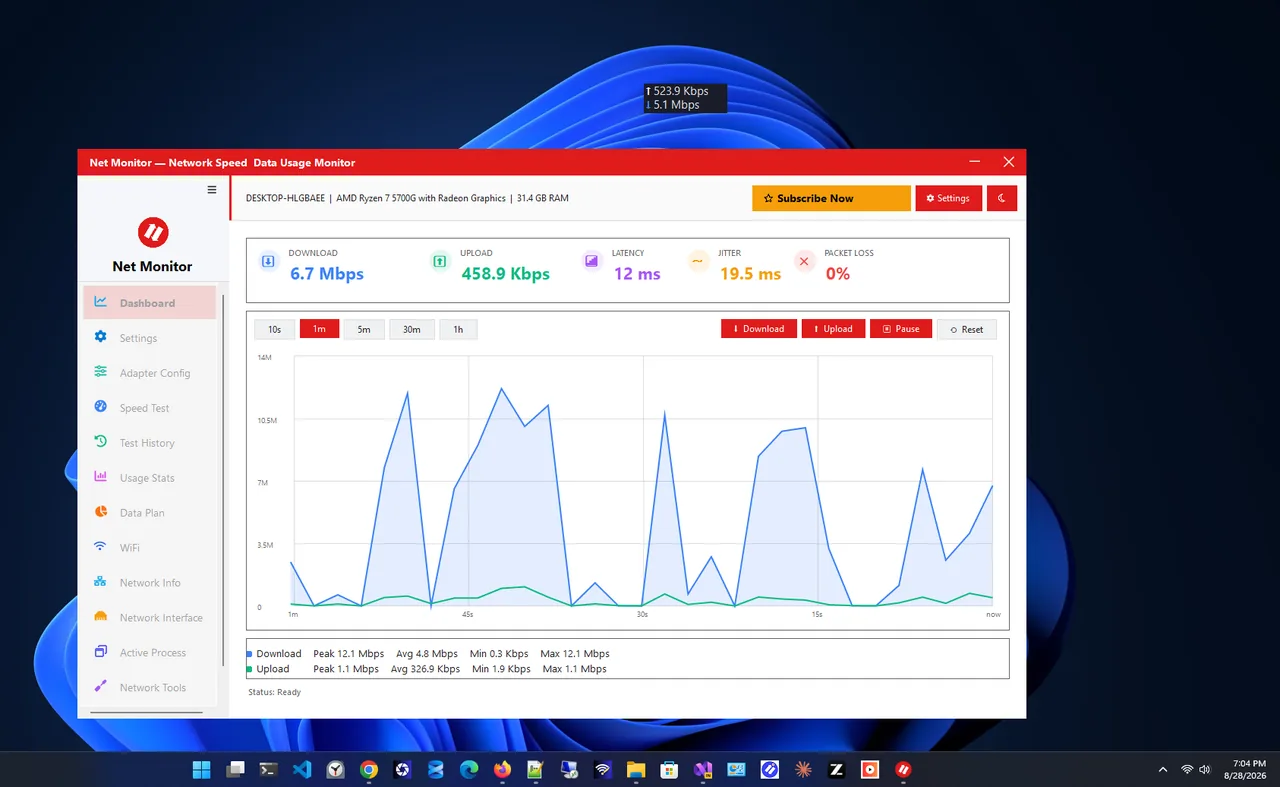
If the internet drops now and then, keep Net Monitor running. Its live widget shows the moment traffic stops, its tray notifications flag network events, and its speed test history gives you dates and times to show your ISP.
Still Broken?
Plug the PC directly into the modem with a cable. If that works, the router is at fault (try a factory reset or firmware update). If it fails too, the ISP line is down.
On a wired connection, also work through Ethernet not working on Windows 11.
FAQ
What does "No internet, secured" mean?
Your PC is connected to an encrypted Wi-Fi network, but Windows cannot reach the internet through it. "Secured" refers to the Wi-Fi password, not the internet.
Why does my phone have internet but my PC does not?
The problem is on the PC: usually its IP address, DNS, a VPN or proxy, or the driver. Fixes 4 to 10 cover these.
Why does Windows say no internet when the internet works?
Windows checks a Microsoft test address. Firewalls, some VPNs and custom DNS filters can block that check, causing a false warning. If pages load, it is safe to ignore.
Can a bad Ethernet cable cause "no internet"?
Usually a bad cable shows "Network cable unplugged" instead, but a damaged cable can connect at very low quality. Try another cable.
Conclusion
Work out whether every device or just the PC is offline. For the whole home, restart the modem and router or call the ISP. For just the PC, renew the IP, flush DNS, try a public DNS server, and remove VPN or proxy settings. For more tools, see all network apps for Windows.