Network How-to
How to Boost Wi-Fi Signal: 11 Ways That Work
How to boost Wi-Fi signal at home: move the router, pick the right band and channel, update firmware, or add mesh. 11 tested ways, most of them free.
On this page
To boost Wi-Fi signal, put the router in a central, high, open spot away from walls, metal and the microwave, and point its antennas in different directions (one up, one sideways). Then use the least crowded channel, update the router firmware and use 5 GHz near the router and 2.4 GHz farther away. If rooms are still weak, add a mesh system or run a cable to a second access point.
Time: 15–60 minutes · Cost: free for most steps · Works with: any router
One bar in the bedroom, buffering in the garden, full speed only next to the router. Weak Wi-Fi is usually a placement and interference problem, not a broken router. This guide shows how to boost Wi-Fi signal with eleven changes, starting with free ones. Measure your speed before and after each change, so you keep what helps and undo what does not.
Before You Start: Measure
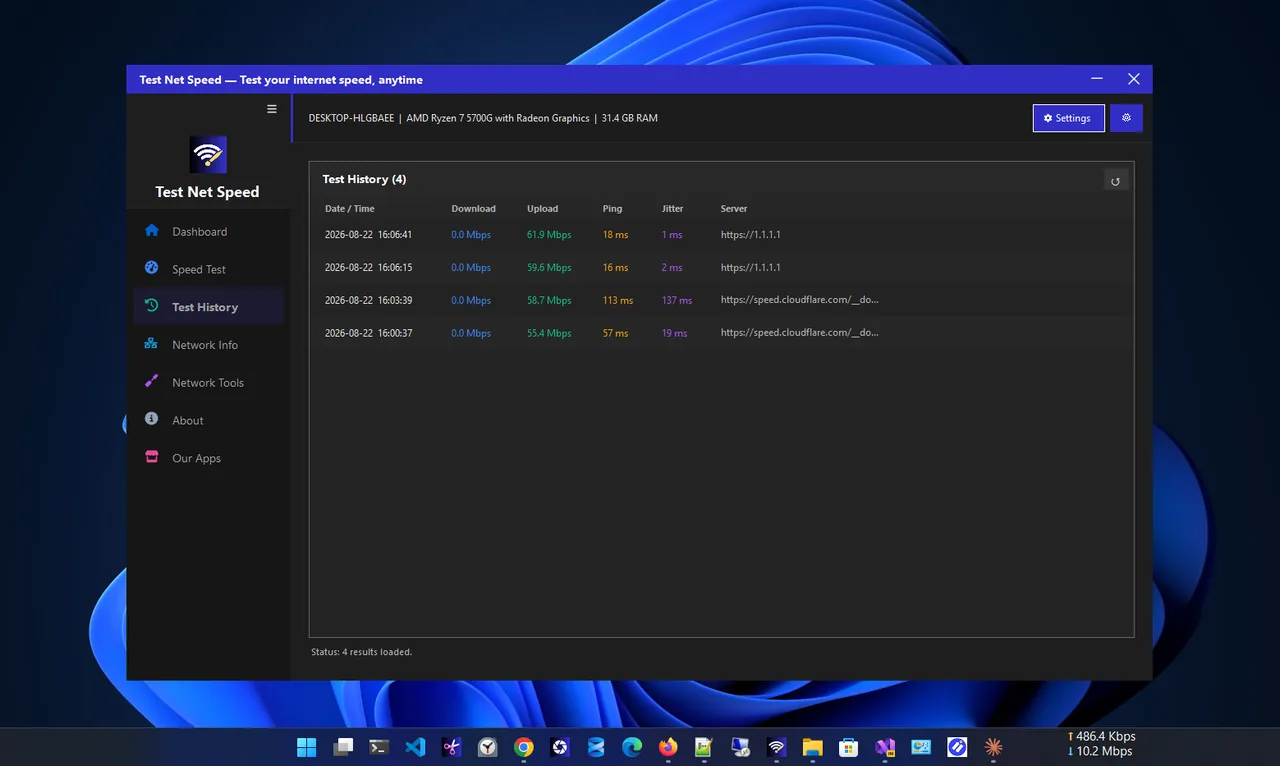
Run a speed test in the weak room and next to the router. Test Net Speed saves every result with ping and jitter, so after each change you can compare the same spot instead of relying on how many bars Windows shows. If speed is slow even next to the router, the problem is your plan or the router itself; see why is my Wi-Fi slow.
11 Ways to Boost Wi-Fi Signal
-
Move the router to a central, high spot
Wi-Fi spreads out in all directions, and it gets weaker through each wall and floor. A router in a cupboard at one end of the house wastes half its signal outside. Put it in the middle of the home, on a shelf at chest height or higher, out in the open.
-
Keep it away from blockers
Metal, mirrors, fish tanks, concrete and brick block or absorb Wi-Fi. Microwaves, baby monitors and some Bluetooth devices interfere with 2.4 GHz. Even a TV in front of the router can cost a room its signal.
-
Angle the antennas
For a router with external antennas, set one vertical and one horizontal. Laptops and phones hold their antennas at different angles, and mixed antenna directions reach both. For a multi-floor home, sideways antennas send more signal up and down.
-
Pick a better channel
In flats, dozens of networks share the same channels. On 2.4 GHz use 1, 6 or 11; on 5 GHz choose a channel your neighbours are not using. Our guide on the best Wi-Fi channel shows how to scan and choose.
-
Use the right band
5 GHz is much faster but weaker through walls; 2.4 GHz reaches farther but is slower and more crowded. Use 5 GHz in the same or next room, 2.4 GHz at the far end. Explained in 2.4 GHz vs 5 GHz Wi-Fi.
-
Update the router firmware
Log in to the router (the address is on its label) or use its app and check for updates. Firmware updates fix bugs that cause drops and weak performance, and close security holes.
-
Check transmit power and channel width
Some routers have a transmit power setting; make sure it is High or 100%. On 2.4 GHz, a 20 MHz channel width is more reliable in crowded areas than 40 MHz.
-
Remove devices you do not use
Every connected device takes airtime, and old 2.4 GHz-only gadgets slow everyone down. Remove unknown devices and change the Wi-Fi password if strangers might be on your network.
-
Update the PC's Wi-Fi driver and power setting
On Windows, a new Wi-Fi driver from the laptop maker can improve range. In Device Manager > your Wi-Fi adapter > Advanced, set Roaming Aggressiveness to Medium or Lowest if the laptop keeps jumping between access points. On battery, Windows may lower Wi-Fi power; plug in to test.
-
Add mesh Wi-Fi or an extender
For large or multi-floor homes, a mesh system with two or three units covers far better than one router. A cheap extender works too, but place it halfway, where the signal is still good, not in the dead zone; it can only repeat what it receives.
-
Use a cable for the backbone
The best fix of all: run an Ethernet cable to a second access point or a mesh node (wired backhaul). Where you cannot run cable, powerline adapters send data over your home's electrical wiring.
Check Signal Strength on Windows
Bars are rough. For an exact number, open Terminal and run:
netsh wlan show interfaces| Signal | Quality | Good for |
|---|---|---|
| 80–100% | Excellent | Everything, including 4K and gaming |
| 60–80% | Good | Streaming and video calls |
| 40–60% | Fair | Browsing; calls may stutter |
| Under 40% | Weak | Drops and slow speed likely |
The Receive rate and Transmit rate lines show the link speed the adapter has negotiated. Walk around with a laptop and note the Signal value to map your dead zones.
What Does Not Help
- Foil reflectors and "signal booster" apps. Apps cannot increase radio power; reflectors only move signal from one room to another.
- A faster internet plan. It does not change how far Wi-Fi reaches inside your home.
FAQ
Do Wi-Fi extenders really work?
Yes, if placed where the signal is still good. They roughly halve speed on single-band models. Mesh systems or wired access points work better.
Does putting the router higher help?
Yes. Radio waves spread best with fewer obstacles. A high shelf clears furniture and people, which often adds a bar or two.
Should I buy a new router?
If yours is more than five years old or only supports Wi-Fi 4 (802.11n), a Wi-Fi 6 router gives better range and handles many devices more efficiently.
Why is Wi-Fi weak in one room only?
Usually a wall, floor, bathroom or kitchen appliance in the path. Move the router or add a mesh node closer to that room.
Conclusion
Router placement does more than any setting: central, high and in the open. Add a clear channel, the right band and updated firmware, and most homes get full coverage for free. For large homes, mesh or a wired access point is the lasting fix. Browse more network apps for Windows.