Network Fix
DNS Server Not Responding on Windows 11? 10 Fixes
DNS server not responding on Windows 11 or 10? Find out if it is the PC, router or ISP, then fix it in minutes with flush DNS, a new DNS server and more.

On this page
"DNS server not responding" means your PC cannot get an answer from the server that turns website names into IP addresses. Restart the router, then open Terminal (Admin) and run ipconfig /flushdns, ipconfig /release and ipconfig /renew. If it comes back, switch to a public DNS server such as 1.1.1.1 or 8.8.8.8, and turn off any VPN or proxy.
Time: 5–15 minutes · Cost: free · Works on: Windows 11 and Windows 10
You open a website and nothing loads. Windows Network Diagnostics says "Your computer appears to be correctly configured, but the device or resource (DNS server) is not responding." The connection icon may even show you are online. The DNS server not responding error is one of the most common internet problems on Windows, and in most cases one of the ten fixes below solves it in a few minutes. Start at the top: the fixes are ordered from fastest to most thorough.
What "DNS Server Not Responding" Means
Every time you type a name like netspeedm.com, Windows asks a DNS server for the matching IP address. Usually that server is your router, which passes the question to your internet provider (ISP). If no answer comes back in time, the browser has nowhere to connect, and Windows reports that the DNS server is not responding. Your connection itself may be fine: apps that connect by IP address, or that already have the answer cached, can still work.
The usual causes are:
- The router or modem has hung and stopped forwarding DNS requests.
- Your ISP's DNS servers are down or overloaded.
- A corrupted DNS cache or IP lease on the PC.
- A VPN, proxy, antivirus or firewall blocking DNS traffic.
- An outdated or misbehaving network adapter driver.
First: Is It the PC, the Router or the ISP?
Two minutes of checking saves you from trying fixes in the wrong place:
| What you see | Where the problem is | Start with |
|---|---|---|
| Every device on the network fails | Router or ISP | Fix 1, then Fix 5 |
| Only this PC fails, phones on the same Wi-Fi work | The PC | Fix 2, 3, 4 |
ping 1.1.1.1 works but ping google.com fails | DNS only | Fix 5 |
ping 1.1.1.1 also fails | No internet at all | Fix 1, then no internet fixes |
The ping test is the most useful: it tells you whether the connection works and only name lookups fail.
ping 1.1.1.1
ping google.com
10 Fixes for DNS Server Not Responding
-
Restart the router and modem
Unplug both for 30 seconds, plug the modem in first, wait until its lights settle, then plug in the router. This clears a hung DNS forwarder, which is the single most common cause. Restart the PC too.
-
Flush DNS and renew the IP address
Right-click Start, choose Terminal (Admin) and run:
Commandsipconfig /flushdns ipconfig /release ipconfig /renewThis clears stale lookups and asks the router for a fresh address. More detail in how to flush DNS on Windows 11.
-
Turn off VPN, proxy and third-party firewall
Disconnect any VPN. Open Settings > Network & internet > Proxy and turn off Use a proxy server. If you use a third-party antivirus with a web shield or firewall, pause it for a minute and test again. If the error disappears, add an exception or update that program.
-
Run the network troubleshooter
Open Settings > System > Troubleshoot > Other troubleshooters and run Network and Internet. It resets the adapter and can repair simple configuration problems on its own.
-
Switch to a public DNS server
If your ISP's servers are unreliable, use a public one. Open Settings > Network & internet > Wi-Fi (or Ethernet) > your network > DNS server assignment > Edit > Manual, turn on IPv4 and enter:
- Cloudflare: 1.1.1.1 and 1.0.0.1
- Google: 8.8.8.8 and 8.8.4.4
- Quad9: 9.9.9.9 and 149.112.112.112
This fixes the error for most people when the ISP is the problem. Step-by-step screens: change DNS server on Windows 11.
-
Reset Winsock and the TCP/IP stack
Commandsnetsh winsock reset netsh int ip resetRestart the PC afterwards. This repairs network settings that other software may have changed.
-
Restart the DNS Client service the safe way
On Windows 11 the DNS Client (Dnscache) service cannot be stopped from Services, and you should not disable it. A full restart of the PC restarts it. If the service shows as stopped in
services.msc, system files may be damaged: runsfc /scannowin Terminal (Admin). -
Update or reinstall the network adapter driver
Right-click Start > Device Manager > Network adapters. Right-click your Wi-Fi or Ethernet adapter and choose Update driver. If that finds nothing, choose Uninstall device and restart; Windows reinstalls the driver. The newest drivers usually come from the laptop or motherboard maker's website.
-
Turn off IPv6 for a test
Some routers handle IPv6 DNS badly. Press Win+R, type
ncpa.cpl, right-click your adapter > Properties and untick Internet Protocol Version 6 (TCP/IPv6). If the error stops, update the router firmware and turn IPv6 back on later. Microsoft does not recommend leaving IPv6 off for good. -
Network reset
The last step on the PC: Settings > Network & internet > Advanced network settings > Network reset. It reinstalls every adapter and removes saved Wi-Fi networks and VPN adapters, so have your Wi-Fi password ready. See reset network settings on Windows 11.
Check Which DNS Server You Are Using
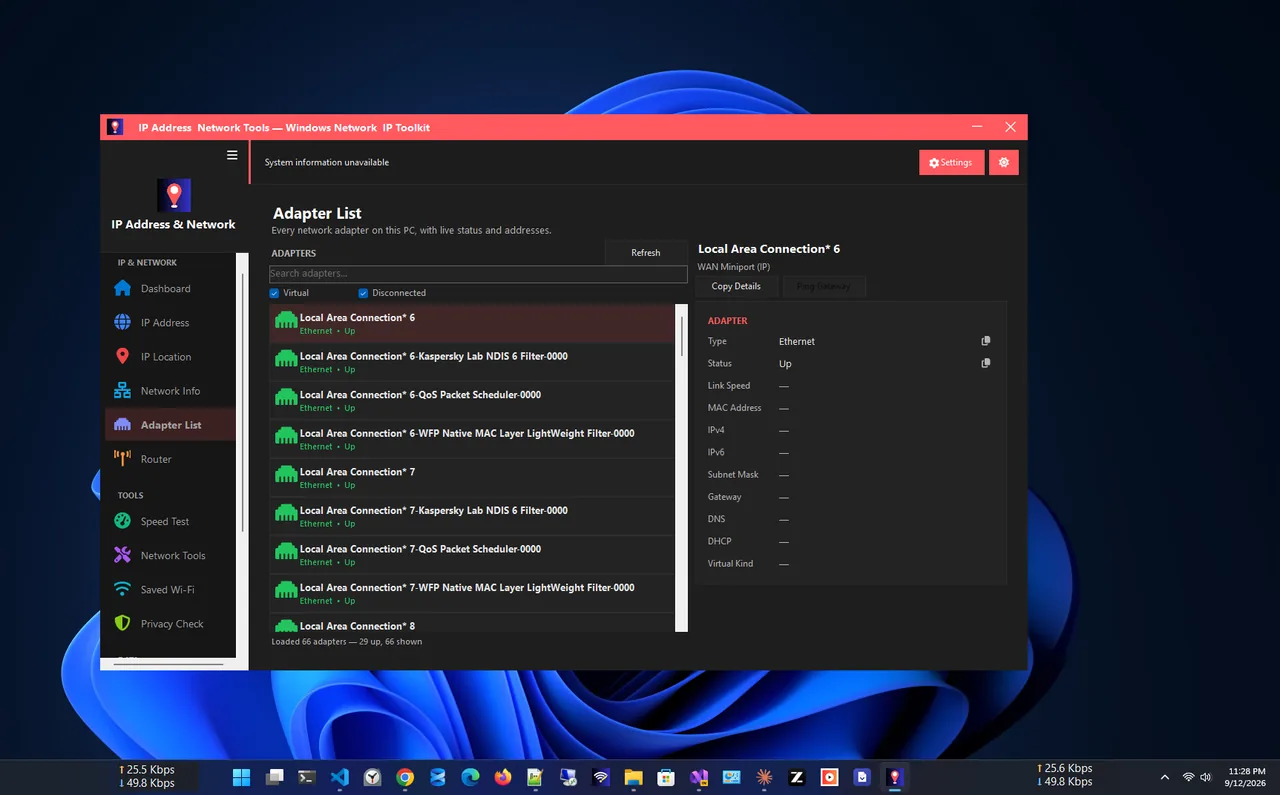
Run ipconfig /all and look for DNS Servers under your active adapter. If it shows your
router (often 192.168.0.1 or 192.168.1.1), the router forwards to your ISP. To check from one screen, open
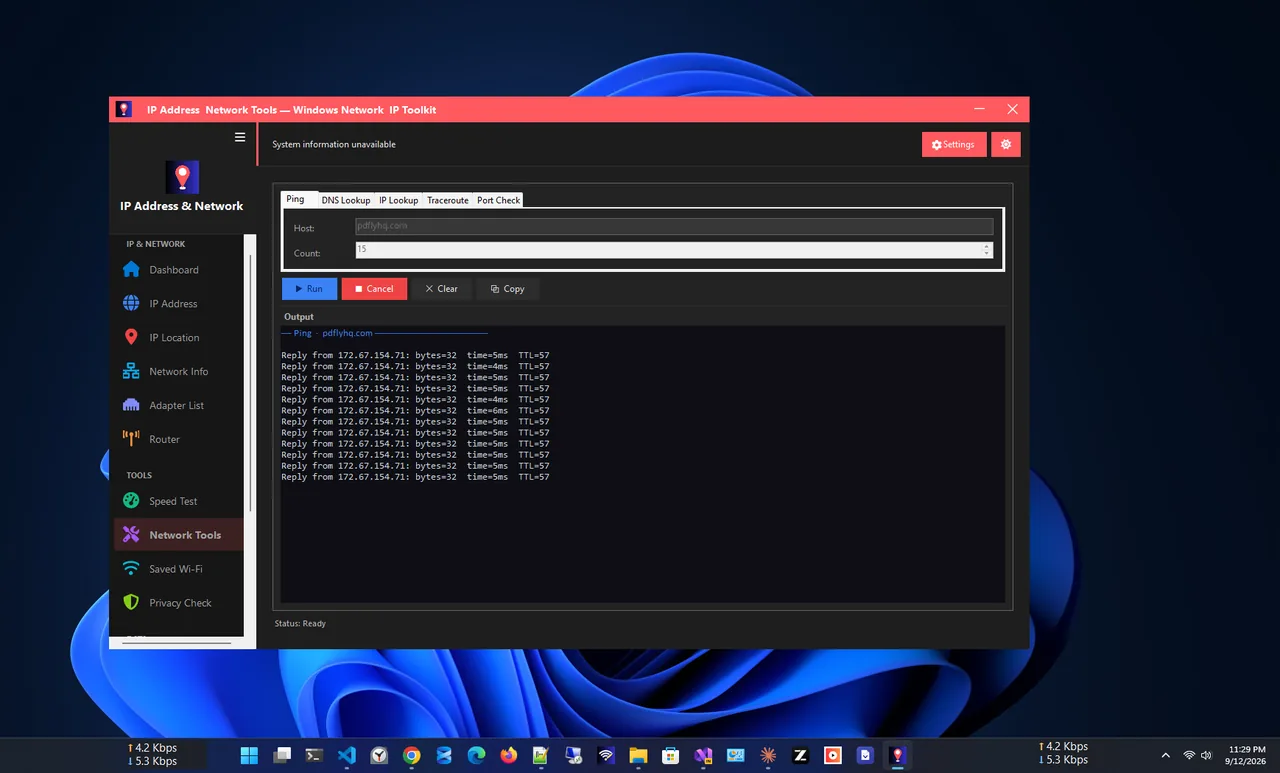
IP Address App: the adapter list shows your IP, gateway and DNS servers, and its DNS Lookup
tool tests whether a domain resolves, so you can confirm the fix worked without guessing.
If Every Device Has the Problem
When phones, TVs and PCs all fail, the PC is not the problem. Try these on the router:
- Set public DNS on the router instead of each device. Log in to the router (the address is on its label) and look for DNS under WAN or Internet settings.
- Update the router firmware. Old firmware is a common cause of DNS drops.
- Check for an ISP outage on your provider's status page or social media, using mobile data.
Related DNS Errors
In Chrome and Edge the same problem often shows as DNS_PROBE_FINISHED_NXDOMAIN or DNS_PROBE_FINISHED_NO_INTERNET. The fixes overlap, but NXDOMAIN can also mean the site name does not exist; see how to fix DNS_PROBE_FINISHED_NXDOMAIN.
FAQ
Why does my DNS server keep not responding?
If the error keeps coming back, your ISP's DNS servers or the router are the usual cause. Set a public DNS server such as 1.1.1.1 on the PC or router, and update the router firmware.
Is it safe to change my DNS server?
Yes. Cloudflare, Google and Quad9 are free, fast and widely used. You can switch back to automatic at any time in the same settings screen.
Can a VPN cause DNS server not responding?
Yes. A VPN sends DNS requests through its own servers. If the VPN drops or its DNS fails, websites stop loading. Disconnect the VPN to test.
Does this error mean my internet is down?
Not always. If ping 1.1.1.1 works, the internet is up and only name lookups fail. Changing the DNS server usually fixes it.
Do these fixes work on Windows 10?
Yes. The commands are identical. Only the Settings menus look slightly different on Windows 10.
Conclusion
Most "DNS server not responding" errors clear after a router restart and ipconfig /flushdns. If the error
returns, the ISP's DNS servers are the likely culprit, and switching to 1.1.1.1 or 8.8.8.8 fixes it for good. Keep a
tool that shows your DNS settings at hand, and explore more network apps for Windows.