Media How-to
How to Take a Screenshot on Windows 11 (7 Ways)
How to take a screenshot on Windows 11: Print Screen, Win + Shift + S, Snipping Tool, Game Bar and more, where screenshots are saved, and how to edit them.
On this page
To take a screenshot on Windows 11, press Win + Shift + S and drag over the area you want; it is copied to the clipboard. Press Win + PrtScn to save the whole screen straight to Pictures\Screenshots, or Alt + PrtScn to copy just the active window.
Time: 2 seconds · Cost: free · Works on: Windows 11 (most also on Windows 10)
Screenshots are the quickest way to share an error, save a receipt or show someone exactly what you see. Windows 11 has several built-in shortcuts, each for a different job. This guide shows how to take a screenshot on Windows 11 seven ways, where each one is saved, and how to edit and share them.
All Screenshot Shortcuts at a Glance
| Shortcut | Captures | Saved to |
|---|---|---|
| Win + Shift + S | Region, window or full screen | Clipboard (and Screenshots folder if auto-save is on) |
| PrtScn | Opens the snip bar on Windows 11 (or copies full screen) | Clipboard |
| Win + PrtScn | Full screen | Pictures\Screenshots |
| Alt + PrtScn | Active window | Clipboard |
| Win + Alt + PrtScn | Active game or app (Game Bar) | Videos\Captures |
On many laptops the Print Screen key shares a key with another function; add Fn if nothing happens. On Surface tablets, press Power + Volume up.
Method 1: Win + Shift + S (Snip a Region)
-
Press the shortcut
Press Win + Shift + S. The screen dims and a small bar appears at the top.
-
Pick a mode and capture
Choose Rectangle, Free-form, Window or Full screen, then drag or click.
-
Paste or edit
Paste with Ctrl + V into a chat, email or document, or click the notification to annotate, crop and save.
Method 2: Print Screen
On current Windows 11, Print Screen opens the same snip bar as Win + Shift + S. To make it copy the full screen instead, turn off Settings, Accessibility, Keyboard, "Use the Print screen key to open screen capture".
Method 3: Win + PrtScn (Save Full Screen Automatically)
The screen flashes briefly and the image is saved as a PNG in Pictures\Screenshots, numbered in order. Best for taking many screenshots in a row without pasting each one.
Method 4: Alt + PrtScn (Active Window)
Captures only the window you are using, without the rest of the desktop, and copies it to the clipboard. Ideal for sharing a single dialog or app.
Method 5: Snipping Tool App (Delay and Video)
Open Snipping Tool from Start for extra options: a 3, 5 or 10 second delay to capture menus and tooltips, and screen recording to make a short video. Its settings let you turn on automatic saving of every snip.
Method 6: Xbox Game Bar
Press Win + G in a game and use the Capture widget, or press Win + Alt + PrtScn. Screenshots are saved to Videos\Captures. It works in full-screen games where other methods may show a black image.
Method 7: A Screenshot App
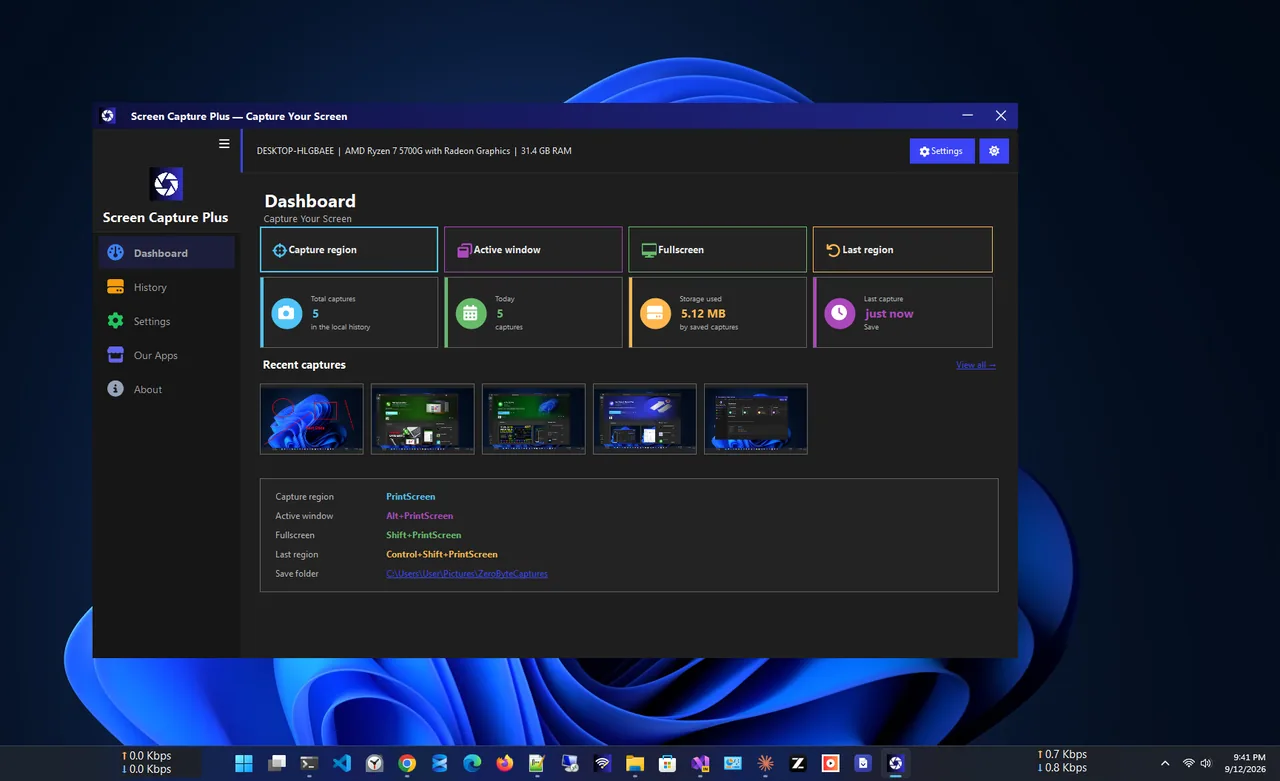
For tutorials, bug reports and support tickets, a dedicated tool saves steps. Screen Capture Plus captures regions, windows or all monitors with Print Screen, then lets you add arrows, text, highlights and numbered steps, blur passwords and emails, and copy text with on-device OCR. Every capture is saved to a searchable local history, and it uses very little memory in the tray.
Where Are Screenshots Saved?
- Win + PrtScn and auto-saved snips: C:\Users\YourName\Pictures\Screenshots.
- Game Bar: C:\Users\YourName\Videos\Captures.
- Win + Shift + S, PrtScn, Alt + PrtScn: the clipboard only, unless auto-save is on. Press Win + V to find earlier ones if clipboard history is enabled.
- OneDrive: if OneDrive backs up screenshots, they go to OneDrive\Pictures\Screenshots.
Tips
- Blur or crop personal details before sharing.
- Recording tutorials? Clean up the audio with how to remove background noise from video.
- Need the text from a screenshot? See how to copy text from an image.
- Shortcut not working? See Snipping Tool not working on Windows 11.
Edit and Share Screenshots
Click the snip notification to open it in Snipping Tool, where you can crop, draw, highlight and use Text actions. Paint and Photos also crop and annotate. To share, paste straight into Teams, Outlook or WhatsApp, or select Share in Snipping Tool. PNG keeps text sharp; save as JPG only for photos.
FAQ
How do I screenshot without the Print Screen key?
Press Win + Shift + S, or open Snipping Tool from Start and select New.
How do I take a scrolling screenshot?
Windows has no built-in scrolling capture. In Edge, use Screenshot (Ctrl + Shift + S) and choose Capture full page for web pages.
Why is my screenshot black?
Protected video (streaming services) and some full-screen games block capture. For games, try Game Bar.
How do I screenshot one monitor only?
Use Win + Shift + S and drag over that monitor, or use Window mode on a maximised app.
Conclusion
Remember three shortcuts: Win + Shift + S for a region, Win + PrtScn to save the full screen, and Alt + PrtScn for one window. For annotated screenshots every day, a dedicated capture tool is faster. For more tools, see all media apps for Windows.