Media Fix
Snipping Tool Not Working on Windows 11? 10 Fixes
Snipping Tool not working on Windows 11, or Win + Shift + S does nothing? Restart, repair or reset it, and fix notifications and the Print Screen key.
On this page
If Snipping Tool is not working on Windows 11, end it in Task Manager and open it again, then check that Snipping Tool notifications are on (snips you take with Win + Shift + S appear as a notification). If it still fails, go to Settings, Apps, Installed apps, Snipping Tool, Advanced options and select Repair, then Reset. Update it in the Microsoft Store.
You press Win + Shift + S and nothing happens. Or the screen dims but the snip vanishes. Or Snipping Tool opens and immediately closes. When the Snipping Tool is not working on Windows 11, it is almost always the app, its notifications or a keyboard setting. Here are ten fixes, quickest first.
Symptoms
- Win + Shift + S or Print Screen does nothing.
- The snip bar appears, but no preview or notification shows afterwards.
- Snipping Tool crashes, freezes or shows "This app can't open".
- Snips are not copied to the clipboard.
Fix 1: Restart Snipping Tool
Open Task Manager (Ctrl + Shift + Esc), find Snipping Tool under Processes, choose End task, then open it again from Start. If the screen overlay is stuck, also restart Windows Explorer from Task Manager.
Fix 2: Restart the PC
Use Start, Power, Restart. It clears stuck app states and finishes pending updates that may have replaced Snipping Tool.
Fix 3: Turn On Snipping Tool Notifications
A snip with Win + Shift + S is copied to the clipboard and announced with a notification you click to edit. If notifications are off, it looks like nothing happened. Go to Settings, System, Notifications, make sure Notifications is on and Snipping Tool is allowed. Turn off Do not disturb, or allow Snipping Tool through it.
Fix 4: Check the Print Screen Key Setting
In Settings, Accessibility, Keyboard, turn on Use the Print screen key to open screen capture. If another app such as OneDrive, Dropbox or a game overlay has claimed the Print Screen key, turn that option off in the other app's settings.
Fix 5: Repair or Reset the App
-
Open the app's settings
Go to Settings, Apps, Installed apps, find Snipping Tool, select the three dots and choose Advanced options.
-
Repair first
Select Repair. It keeps your settings. Test the tool.
-
Then Reset
If it still fails, select Reset. Settings return to default; your saved screenshots are not deleted.
Fix 6: Update Snipping Tool and Windows
Open the Microsoft Store, go to Library and select Get updates. Then install all updates in Settings, Windows Update. Snipping Tool is updated through the Store, separate from Windows.
Fix 7: Check Date and Time
A wrong system clock can stop Store apps from opening. In Settings, Time & language, Date & time, turn on Set time automatically and select Sync now.
Fix 8: Turn On Clipboard History
If snips do not paste, press Win + V to see whether they were copied. Turn on clipboard history so you can recover earlier snips; see clipboard history on Windows 11.
Fix 9: Reinstall Snipping Tool
Uninstall it in Settings, Apps, Installed apps, restart, then install Snipping Tool again from the Microsoft Store.
Fix 10: Repair System Files
If several built-in apps fail, run these in Terminal as administrator and restart:
sfc /scannow
DISM /Online /Cleanup-Image /RestoreHealth
Need Screenshots Right Now?
Use the keys that do not depend on Snipping Tool: Win + PrtScn saves the full screen to Pictures\Screenshots, and Alt + PrtScn copies the active window. Our guide on how to take a screenshot on Windows 11 covers every method.
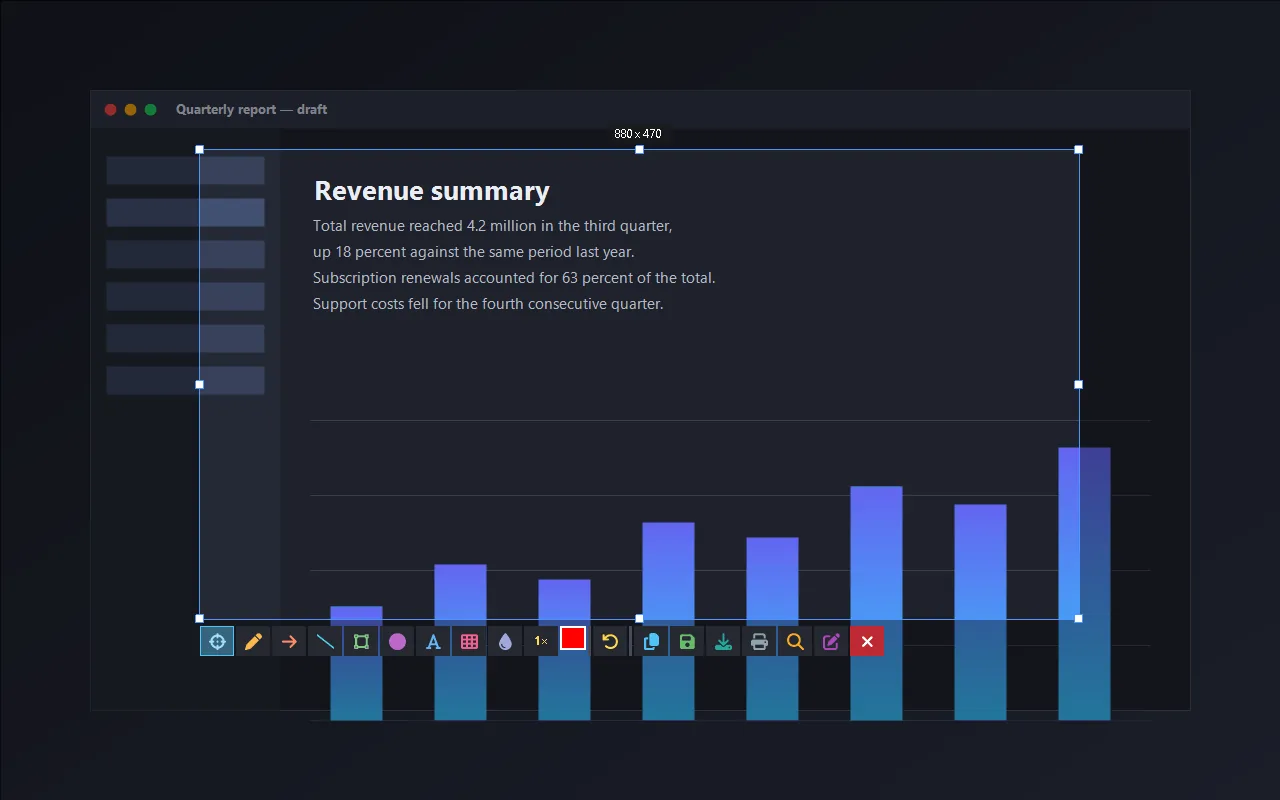
Or switch to Screen Capture Plus, a free, lightweight screenshot tool: press Print Screen, drag a region, then annotate, blur sensitive details or copy text with on-device OCR. Every capture is saved to a searchable local history, and every hotkey can be remapped.
Check Snipping Tool's Own Settings
Open Snipping Tool and select the three dots, then Settings. Make sure Automatically save screenshots is on if you expect files in Pictures\Screenshots, and check the save location. Turn on Ask to save edited screenshots if edits seem to disappear. If the overlay shows on the wrong monitor, move the Snipping Tool window to your main display and try again.
FAQ
Why does Win + Shift + S not work?
Usually Snipping Tool is stuck, its notifications are off, or another app has taken the shortcut. Fixes 1, 3 and 4 solve most cases.
Where do snips go?
To the clipboard, and on recent versions also to Pictures\Screenshots if automatic saving is on in Snipping Tool's settings.
Will resetting Snipping Tool delete my screenshots?
No. Reset clears the app's settings, not image files you saved.
Is Snipping Tool the same as Snip & Sketch?
On Windows 11 they were merged into one Snipping Tool app.
Conclusion
Restart Snipping Tool, turn its notifications on and check the Print Screen setting; then repair, reset or reinstall it. If you take screenshots all day, a dedicated capture tool with annotation and OCR saves time. For more tools, see all media apps for Windows.