Media How-to
How to Copy Text from an Image on Windows 11 (OCR)
Copy text from an image or screenshot on Windows 11 with built-in OCR: Snipping Tool Text actions, PowerToys Text Extractor, OneNote or an offline app.
On this page
To copy text from an image on Windows 11, take a snip with Win + Shift + S, open it in Snipping Tool, select Text actions and choose Copy all text. Or install Microsoft PowerToys and press Win + Shift + T to copy text from any part of the screen. Both use on-device OCR and work offline.
Time: 30 seconds · Cost: free · Works on: Windows 11 (PowerToys also on Windows 10)
Text inside a screenshot, a scanned page, a video frame or an error dialog cannot be selected, so people retype it by hand. You do not have to. Windows 11 can read text from images with OCR (optical character recognition). This guide shows four ways to copy text from an image on Windows 11, all free and most fully offline.
Method 1: Snipping Tool Text Actions
-
Capture or open the image
Press Win + Shift + S and drag around the text, then click the notification to open it. For a saved image, open Snipping Tool and use Open file (Ctrl + O).
-
Select Text actions
Select the Text actions button in the toolbar. Windows highlights all detected text.
-
Copy
Choose Copy all text, or highlight part of it and press Ctrl + C. Quick redact can hide emails and phone numbers before you share the image.
If you do not see Text actions, update Snipping Tool in the Microsoft Store.
Method 2: PowerToys Text Extractor
Install Microsoft PowerToys from the Microsoft Store and turn on Text Extractor. Then press Win + Shift + T anywhere, drag over the text, and it is copied to the clipboard. No screenshot file needed. It is the fastest option for text in videos, apps and dialogs.
Method 3: OneNote
Paste or insert an image into a OneNote page, right-click it and choose Copy Text from Picture. Useful for multi-page scans you keep in notes anyway.
Method 4: Screen Capture Plus OCR
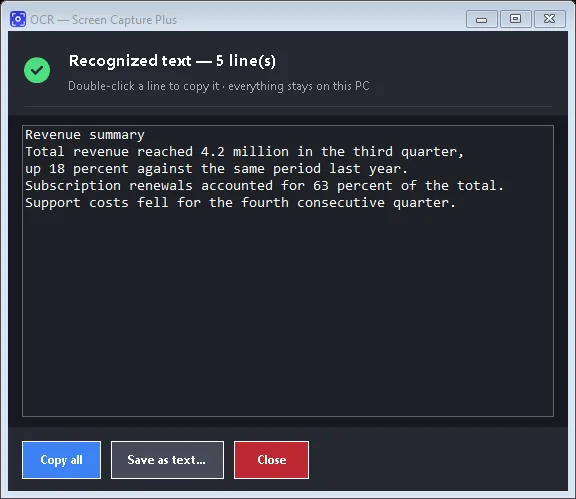
Screen Capture Plus combines capturing and OCR: select a region with text and copy it straight to the clipboard, using Windows' built-in OCR engine, fully offline. The same tool takes region, window and full-screen captures, annotates them, blurs private details and keeps a searchable history.
Which Method Should You Use?
| Method | Fastest for | Offline |
|---|---|---|
| Snipping Tool Text actions | Screenshots you also want to keep | Yes |
| PowerToys Text Extractor | Text anywhere on screen, one shortcut | Yes |
| OneNote | Scans kept in notes | Mostly |
| Screen Capture Plus | Capture, annotate and OCR in one tool | Yes |
Tips for Better Accuracy
- Zoom in before capturing. Larger text is recognised far more reliably.
- Capture only the text, not icons and backgrounds around it.
- Use good contrast: dark text on a light background works best.
- Scan straight: tilted or curved pages lower accuracy. Use 300 DPI for paper scans.
- Check numbers and symbols: 0 and O, 1 and l are the most common mix-ups.
- Install the language: OCR uses the languages installed in Settings, Time & language, Language & region.
Handy Uses
- Copy an error message from a dialog to search for it.
- Grab a Wi-Fi password or serial number from a photo of a label.
- Pull quotes from a scanned document or slide.
- Copy code from a video tutorial.
Collecting several pieces of text? Turn on clipboard history so each copy is kept. New to screenshots? See how to take a screenshot on Windows 11.
Other Languages and Tables
Windows OCR recognises the languages you have installed, so add a language in Settings, Time & language, Language & region if you need to read text in it, then restart the app. Tables come out as lines of text separated by spaces; paste them into Excel and use Data, Text to Columns to split them back into cells. For long multi-page documents, scanning to PDF and using a dedicated OCR feature in a PDF or note app is faster than snipping page by page.
Privacy tip: because all four methods run on your PC, they are safe for screenshots that contain account numbers, addresses or work documents. Avoid online OCR websites for anything sensitive.
FAQ
Does Windows 11 have built-in OCR?
Yes. Snipping Tool's Text actions use the OCR engine built into Windows, and PowerToys Text Extractor uses it too.
Can I copy text from a PDF that is a scan?
Yes. Open the page, take a snip of it and use Text actions, or OCR it in OneNote.
Does it work with handwriting?
Clear, printed-style handwriting often works; joined-up writing is unreliable.
Is my image uploaded?
Not with Snipping Tool, PowerToys or Screen Capture Plus; recognition runs on your PC.
Conclusion
Snip, select Text actions, copy: that is all it takes on Windows 11. For text anywhere on screen, PowerToys Text Extractor is one shortcut away, and a capture tool with OCR does both in one place. For more tools, see all media apps for Windows.