Network How-to
How to Change DNS Server on Windows 11 (Step by Step)
Change DNS server on Windows 11 to Cloudflare, Google or Quad9 for faster, more reliable browsing: Settings steps, encrypted DNS and how to test it.
On this page
To change DNS server on Windows 11, open Settings, Network & internet, select Wi-Fi or Ethernet, then Hardware properties. Next to DNS server assignment select Edit, choose Manual, turn on IPv4 and enter a Preferred DNS such as 1.1.1.1 and an Alternate DNS such as 1.0.0.1. Turn on DNS over HTTPS for encryption, select Save, then flush DNS.
Time: 2 minutes · Cost: free · Works on: Windows 11 (Windows 10 steps below)
By default, your PC uses your internet provider's DNS servers. They work, but they can be slow, unreliable during outages, and they see every site you visit. Switching to a public DNS service is one of the easiest network upgrades there is. This guide shows how to change DNS server on Windows 11, which provider to pick, and how to check it worked.
Which DNS Server Should You Use?
| Provider | Preferred (IPv4) | Alternate (IPv4) | Best for |
|---|---|---|---|
| Cloudflare | 1.1.1.1 | 1.0.0.1 | Speed and privacy |
| 8.8.8.8 | 8.8.4.4 | Reliability | |
| Quad9 | 9.9.9.9 | 149.112.112.112 | Blocking known malicious sites |
| Cloudflare for Families | 1.1.1.3 | 1.0.0.3 | Blocking malware and adult content |
IPv6 equivalents: Cloudflare 2606:4700:4700::1111 and 2606:4700:4700::1001; Google 2001:4860:4860::8888 and 2001:4860:4860::8844.
Method 1: Change DNS in Settings
-
Open your connection
Press Win + I, go to Network & internet, and select Wi-Fi (then your network's properties) or Ethernet.
-
Edit DNS server assignment
For Wi-Fi, open Hardware properties. Next to DNS server assignment, select Edit and change Automatic (DHCP) to Manual.
-
Enter the servers
Turn on IPv4. Enter
1.1.1.1as Preferred DNS and1.0.0.1as Alternate DNS. Repeat under IPv6 with the IPv6 addresses if your connection uses IPv6. -
Turn on encryption (optional)
Set DNS over HTTPS to On (automatic template). Your lookups are then encrypted, so the network cannot read them. Select Save.
-
Flush the cache
Run
ipconfig /flushdnsin Terminal so Windows forgets answers from the old server. See how to flush DNS.
Method 2: Control Panel (Windows 10 and 11)
Press Win + R, type ncpa.cpl and press Enter. Right-click your adapter, choose Properties, select Internet Protocol Version 4 (TCP/IPv4), then Properties. Choose "Use the following DNS server addresses", enter the two addresses and select OK. This is the method for Windows 10.
Method 3: PowerShell
In Terminal as administrator, replace "Wi-Fi" with your adapter name from Get-NetAdapter:
Set-DnsClientServerAddress -InterfaceAlias "Wi-Fi" -ServerAddresses 1.1.1.1,1.0.0.1To go back to your ISP's DNS: Set-DnsClientServerAddress -InterfaceAlias "Wi-Fi" -ResetServerAddresses.
Change DNS for the Whole Home
To switch every device at once, sign in to your router's admin page (its address is the Default Gateway in ipconfig) and enter the DNS servers in its WAN or DHCP settings. Phones, TVs and consoles then use them automatically.
Check That It Worked
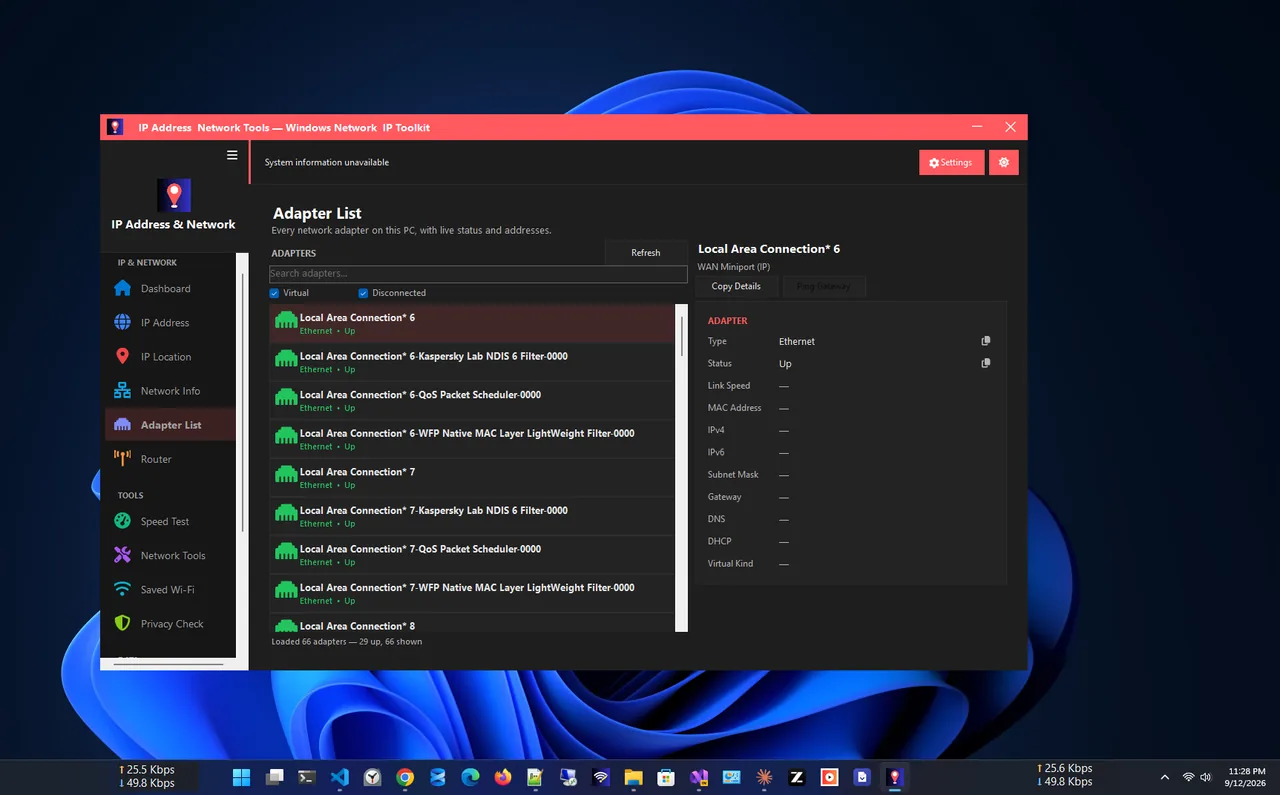
nslookup netspeedm.comThe first lines show the server that answered, for example one.one.one.one (1.1.1.1). IP Address App shows your active DNS servers on its dashboard and includes a privacy check that verifies which DNS resolver you are really using, which is handy if a VPN or router overrides your settings.
Why Your DNS Server Matters
Every time you open a website, your PC first asks a DNS server for the site's IP address. A page with images, fonts and ads from several domains may need a dozen lookups before it finishes loading. A slow or overloaded DNS server adds a small delay to each one, and when it fails, sites stop loading entirely even though the connection is fine. Public resolvers such as Cloudflare and Google run servers in hundreds of cities, so the nearest one usually answers in a few milliseconds. Unencrypted DNS also reveals the names of every site you visit to anyone on the network, which is why the DNS over HTTPS option is worth turning on, especially on public Wi-Fi.
What Changing DNS Does and Does Not Do
- Does: speed up the first connection to sites, fix DNS errors from a flaky ISP, add encryption, and optionally block malware sites.
- Does not: increase download speed, lower game ping, or hide your IP address. For those, see network fixes or use a VPN.
Troubleshooting
- No internet after changing DNS. Check for typos, or set DNS back to Automatic (DHCP).
- Work network stops working. Company networks use internal DNS. Use Automatic on work Wi-Fi.
- Settings revert. A VPN app or management software can override DNS. Check its settings.
Changing DNS is the usual fix when Windows reports that the DNS server is not responding.
FAQ
Is 1.1.1.1 or 8.8.8.8 better?
Both are fast and reliable. Cloudflare is often slightly faster and has a strict privacy policy; Google is equally dependable. Test both with your own connection.
Is it safe to change DNS servers?
Yes, with a well-known provider. You can switch back to Automatic at any time.
Will changing DNS make my internet faster?
It can make pages start loading a little sooner, but it does not change your download speed.
Do I need to change DNS on each network?
In Windows 11 the setting is per connection. Ethernet and each Wi-Fi adapter have their own setting; changing it on the router covers all devices on that network.
Conclusion
Set a public DNS server in your connection's Hardware properties, turn on DNS over HTTPS, flush the cache and confirm
with nslookup. It takes two minutes and makes browsing more reliable and private. For more tools, see all
network apps for Windows.