Network How-to
How to Flush DNS on Windows 11 (ipconfig /flushdns)
Flush DNS on Windows 11 with one command to fix sites that will not load and DNS errors. Plus PowerShell, browser DNS cache, and when flushing helps.
On this page
To flush DNS on Windows 11, right-click Start, choose Terminal (Admin), type ipconfig /flushdns and press Enter. Windows replies "Successfully flushed the DNS Resolver Cache". In PowerShell, Clear-DnsClientCache does the same. Restart your browser afterwards, since browsers keep their own DNS cache.
Time: 30 seconds · Cost: free · Works on: Windows 11 and Windows 10
A website works on your phone but not your PC. A site moved to a new server and you still land on the old one. Your browser shows DNS_PROBE_FINISHED_NXDOMAIN. Often the cause is an outdated entry in Windows' DNS cache, and the fix takes one command. This guide shows how to flush DNS on Windows 11, what it does, and what to try when it is not enough.
What Is the DNS Cache?
DNS turns names like netspeedm.com into IP addresses. To save time, Windows remembers recent answers in the DNS resolver cache. Usually that makes browsing faster. But if a site changes its address, or a wrong answer gets cached during an outage, Windows keeps using the bad entry until it expires. Flushing deletes the cache, so Windows asks again and gets a fresh answer.
Method 1: Command Prompt or Terminal
-
Open Terminal as administrator
Right-click Start and choose Terminal (Admin). Command Prompt works too.
-
Run the command
Commandipconfig /flushdnsYou should see "Successfully flushed the DNS Resolver Cache."
-
Restart the browser
Close every browser window and open it again, then reload the site.
Method 2: PowerShell
Clear-DnsClientCacheIt prints nothing when it succeeds. To see what is in the cache first, run Get-DnsClientCache, or ipconfig /displaydns in Command Prompt.
Method 3: Flush the Browser's DNS Cache
Chrome and Edge keep their own cache. Type chrome://net-internals/#dns (or edge://net-internals/#dns) in the address bar and select Clear host cache. Firefox clears its cache when you restart it.
Full Refresh: Flush, Release and Renew
If flushing alone does not help, refresh the whole connection. In Terminal as administrator:
ipconfig /flushdns
ipconfig /release
ipconfig /renew
netsh winsock reset
Restart the PC after netsh winsock reset.
When Flushing DNS Helps (and When It Does Not)
| Helps | Does not help |
|---|---|
| A site moved servers and still shows the old one | Slow internet speed |
| DNS_PROBE or NXDOMAIN errors for one site | No internet on every device |
| After changing DNS servers or editing the hosts file | Wi-Fi that keeps disconnecting |
| A site works on other devices but not this PC | A website that is down for everyone |
If websites fail across the board, see connected but no internet on Windows 11. If DNS keeps failing, your ISP's DNS servers may be unreliable: change your DNS server to a public one.
DNS Cache vs Hosts File vs Router Cache
Three places can hold a stale address, and flushing Windows only clears one of them:
- Windows DNS cache: cleared by
ipconfig /flushdns. Entries expire on their own after minutes to hours, depending on the site's settings. - The hosts file (C:\Windows\System32\drivers\etc\hosts): manual entries here always win over DNS. Developers and some software add lines to it; open it in Notepad as administrator and remove any line that points the problem site to the wrong address.
- The router's cache: many routers cache DNS for every device. If several devices see the old address, restart the router.
Browsers add a fourth layer, covered in Method 3. Clearing all four guarantees a fresh lookup.
Check Which DNS Server You Use
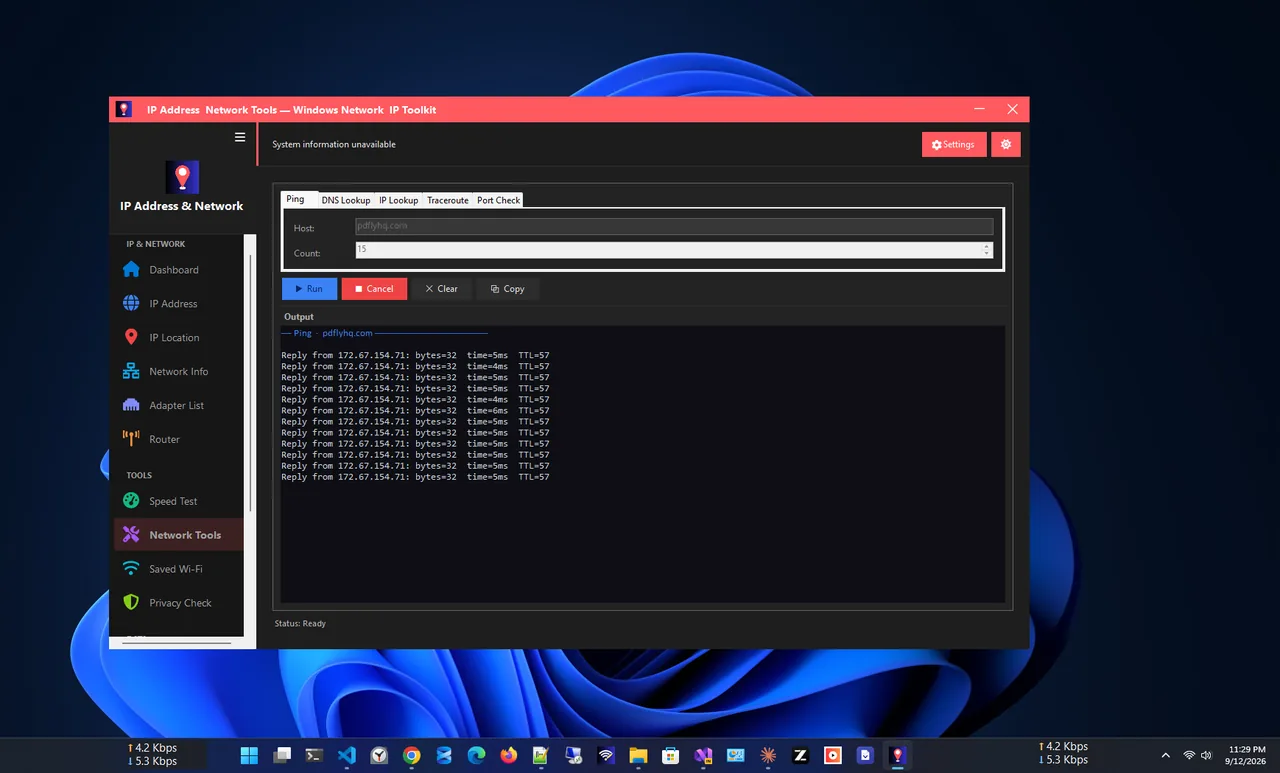
Run ipconfig /all and look for DNS Servers under your adapter. Or open IP Address
App: its dashboard shows your DNS servers, gateway and IP, and its DNS Lookup tool queries any domain over
DNS-over-HTTPS so you can see whether the name resolves correctly.
Troubleshooting
- "The requested operation requires elevation." Open Terminal as administrator.
- "Could not flush the DNS Resolver Cache: Function failed during execution." The DNS Client service is not running. Restart the PC.
- The site still does not load. Clear the browser cache too, try another browser, and check that the site works on mobile data.
- The problem returns. The router may cache bad entries. Restart it, or set a public DNS server.
Still seeing errors after flushing? See DNS server not responding and how to fix DNS_PROBE_FINISHED_NXDOMAIN.
FAQ
Is it safe to flush DNS?
Yes. It only deletes cached lookups. Windows rebuilds the cache as you browse, and the first visit to each site may take a few milliseconds longer.
How often should I flush DNS?
Only when you have a problem. Flushing regularly does not speed anything up.
Does flushing DNS clear browsing history?
No. History, cookies and the browser cache stay. It only clears the list of name-to-address lookups.
Does it work on Windows 10?
Yes. ipconfig /flushdns works the same on Windows 10, 8 and 7.
Conclusion
One command, ipconfig /flushdns, clears Windows' DNS cache and fixes most "works everywhere but here"
website problems. Restart the browser after, clear its own cache if needed, and switch DNS servers if the problem keeps
coming back. For more tools, see all network apps for Windows.