System How-to
How to Check PC Specs on Windows 11 (CPU, RAM, GPU)
Check your PC specs on Windows 11 in seconds: processor, RAM, graphics card, storage and motherboard, using Settings, Task Manager, commands or one app.
On this page
To check PC specs on Windows 11, open Settings, System, About: it lists your processor, installed RAM, system type and Windows version. For the graphics card, RAM speed and disk type, open Task Manager (Ctrl + Shift + Esc) and select the Performance tab. For the motherboard and BIOS, run msinfo32.
Time: 1 minute · Cost: free · Works on: Windows 11 and Windows 10
Before you buy a game, upgrade RAM, sell a laptop or ask for tech support, someone will ask: "What are your specs?" Windows 11 knows every detail of your hardware, but it spreads the answers across several screens. This guide shows how to check PC specs on Windows 11 quickly, which tool shows which part, and how to see everything on one screen.
Which Tool Shows What
| Spec | Fastest place to look |
|---|---|
| Processor (CPU) | Settings, System, About |
| RAM size | Settings, System, About |
| RAM speed and slots | Task Manager, Performance, Memory |
| Graphics card (GPU) | Task Manager, Performance, GPU |
| Storage type (SSD or HDD) | Task Manager, Performance, Disk |
| Motherboard and BIOS | System Information (msinfo32) |
| Windows edition and build | Settings, System, About |
Method 1: Settings (the Basics)
-
Open About
Press Win + I, go to System, then scroll down and select About. Shortcut: right-click Start and choose System.
-
Read Device specifications
You see the device name, Processor, Installed RAM and System type (64-bit or ARM). Select Copy to paste them into a support chat.
-
Read Windows specifications
Below that are the Windows edition (Home or Pro), version (for example 24H2) and OS build. Games and apps often list a minimum version.
Method 2: Task Manager (GPU, RAM Speed, Disk Type)
Press Ctrl + Shift + Esc and open the Performance tab. Each item on the left shows a different part:
- CPU: exact model, base speed, cores, logical processors and cache.
- Memory: total RAM, speed (MT/s), slots used (for example 2 of 4) and form factor. Free slots mean you can add RAM.
- Disk: each drive with its model and type, SSD or HDD.
- GPU: graphics card model, dedicated memory (VRAM) and driver version. Laptops often show two: integrated and dedicated.
Method 3: System Information (Motherboard and BIOS)
Press Win + R, type msinfo32 and press Enter. System Summary lists the motherboard (BaseBoard Manufacturer and Product), BIOS version and date, and installed memory. Expand Components, Display for the graphics card. Use File, Export to save a full text report for a technician.
Method 4: Commands
For a full text summary, open Terminal and run:
systeminfoIt lists the Windows build, processor, BIOS version, total memory, installed updates and network adapters. To get the graphics card name in PowerShell:
Get-CimInstance Win32_VideoController | Select-Object Name, DriverVersionFor DirectX and display details, run dxdiag; the Display tab shows the GPU and its memory.
Method 5: See All Specs in One App
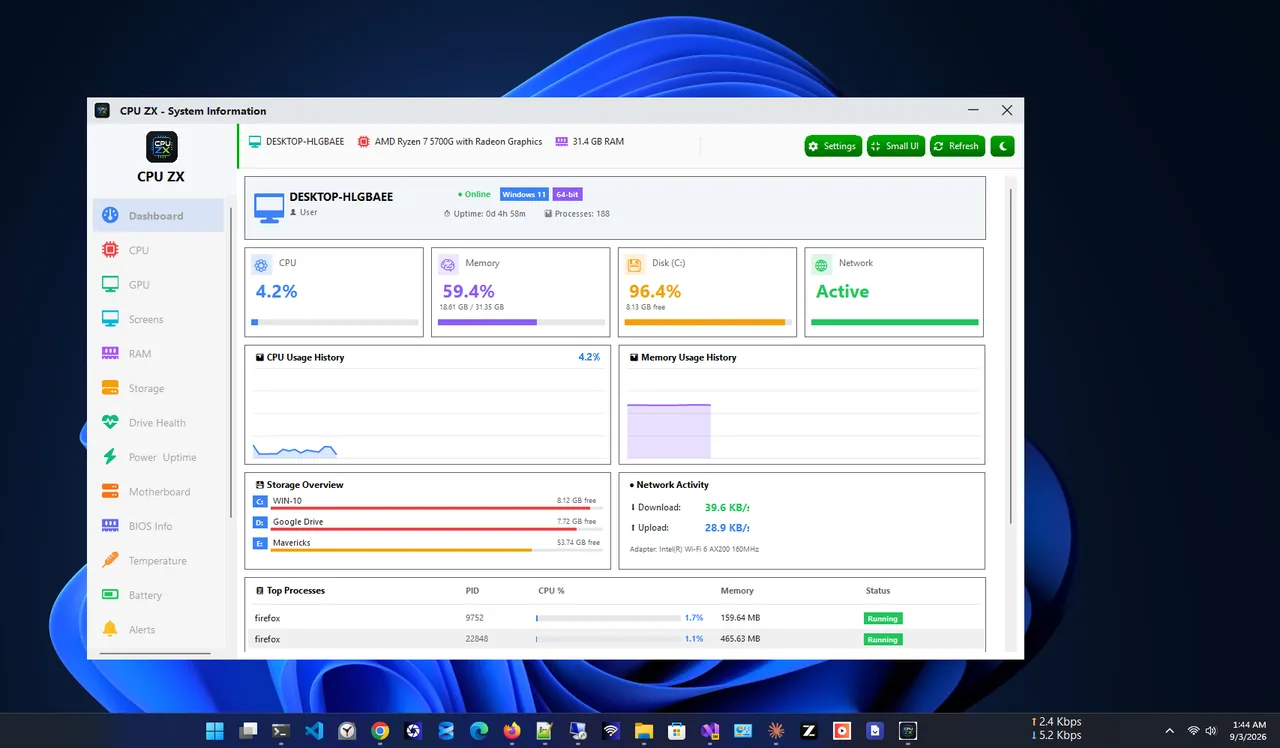
CPU ZX puts every part on one screen: CPU with per-core usage, RAM, storage, motherboard and a full system page, plus a live dashboard for CPU, memory, disk and network use. A small always-on-top widget shows live usage while you game or work. The core app is free.
How to Read Your Specs
- CPU: for Intel, Core i5 and i7 (or Core Ultra 5 and 7) suit most people; for AMD, Ryzen 5 and 7. The generation number matters as much as the tier: a new i5 often beats an old i7.
- RAM: 8 GB is the minimum for Windows 11, 16 GB is the sweet spot, and 32 GB helps for video editing and heavy gaming. See how much RAM you need.
- Storage: an SSD, especially NVMe, makes the PC feel much faster than an HDD.
- GPU: "Intel UHD", "Iris Xe" or "Radeon Graphics" means integrated graphics, fine for office and video. Gaming needs a dedicated card such as NVIDIA GeForce RTX or AMD Radeon RX.
Can My PC Run This Game or App?
Compare your specs with the "minimum" and "recommended" list on the game's store page:
- Check the CPU tier and generation, not just the GHz number.
- Match the RAM, and the GPU's VRAM for games.
- Check free disk space, and whether an SSD is required.
- Check the Windows version and that the system type is 64-bit.
If your PC meets the specs but still feels slow, our guide to speeding up Windows 11 covers the common fixes. If it slows down only under load, it may be overheating: see how to check CPU temperature.
FAQ
How do I check my graphics card on Windows 11?
Open Task Manager, Performance, then GPU. The model name is at the top right. Device Manager, Display adapters also lists it.
How do I check how much RAM I have?
Settings, System, About shows Installed RAM. Task Manager, Performance, Memory adds the speed and how many slots are free.
How do I know if I have an SSD or HDD?
Task Manager, Performance, Disk shows the type under the drive name. You can also open Defragment and Optimize Drives, which lists Media type.
How do I find my motherboard model?
Run msinfo32 and read BaseBoard Manufacturer and BaseBoard Product in System Summary.
Is it the same on Windows 10?
Yes. Settings, System, About, Task Manager, msinfo32 and systeminfo all work the same on Windows 10.
Conclusion
Settings, System, About gives you the basics in one click; Task Manager adds the graphics card, RAM speed and disk type;
and msinfo32 covers the motherboard and BIOS. If you want everything on one screen with live usage, CPU ZX
does it for free. For more tools, see all system apps for Windows.