System How-to
How to Check CPU Temperature on Windows 11
Check CPU temperature on Windows 11: why Task Manager does not show it, how to read it in the BIOS or an app, and what a normal CPU temperature is.
On this page
Windows 11 does not show CPU temperature anywhere built in; Task Manager shows only the GPU temperature. To check CPU temperature, use a hardware monitor app that reads the CPU's sensors, or restart into the BIOS/UEFI, where it appears on the main screen. A normal CPU runs at 30–50 °C idle and 60–85 °C under load.
Time: 2 minutes · Works on: Windows 11 and Windows 10
Fans roaring, the laptop too hot to touch, games stuttering after ten minutes: all signs your processor may be running hot. The surprise is that Windows 11 has no CPU temperature reading at all. This guide shows how to check CPU temperature on Windows 11, what the numbers mean and how to cool things down.
What You Need
- A Windows 11 or Windows 10 PC or laptop.
- A hardware monitor app, or a few minutes to restart into the BIOS.
- Optional: a demanding game or task, to see the temperature under load.
Why Task Manager Does Not Show CPU Temperature
Open Task Manager, Performance and you will find a temperature only under GPU, and only for a dedicated graphics card (see how to check GPU temperature). Windows reads GPU temperature through the graphics driver, but CPU sensors are read differently on every chipset, so Microsoft never added them. That is why every method below either uses an app or the BIOS.
PowerShell commands that read MSAcpi_ThermalZoneTemperature are often shared online. They read a motherboard "thermal zone", not the CPU cores, and on many PCs return a fixed or wrong value. Do not rely on them.
Method 1: Use a Hardware Monitor App
The easiest and most accurate way, because you can watch the temperature live while you work or play.
-
Install CPU ZX Pro
Get CPU ZX Pro from the Microsoft Store. It reads the temperature sensors of the CPU and its cores, plus the GPU.
-
Open the temperature page
You see the package temperature and each core, with a history chart that shows how hot it got over time.
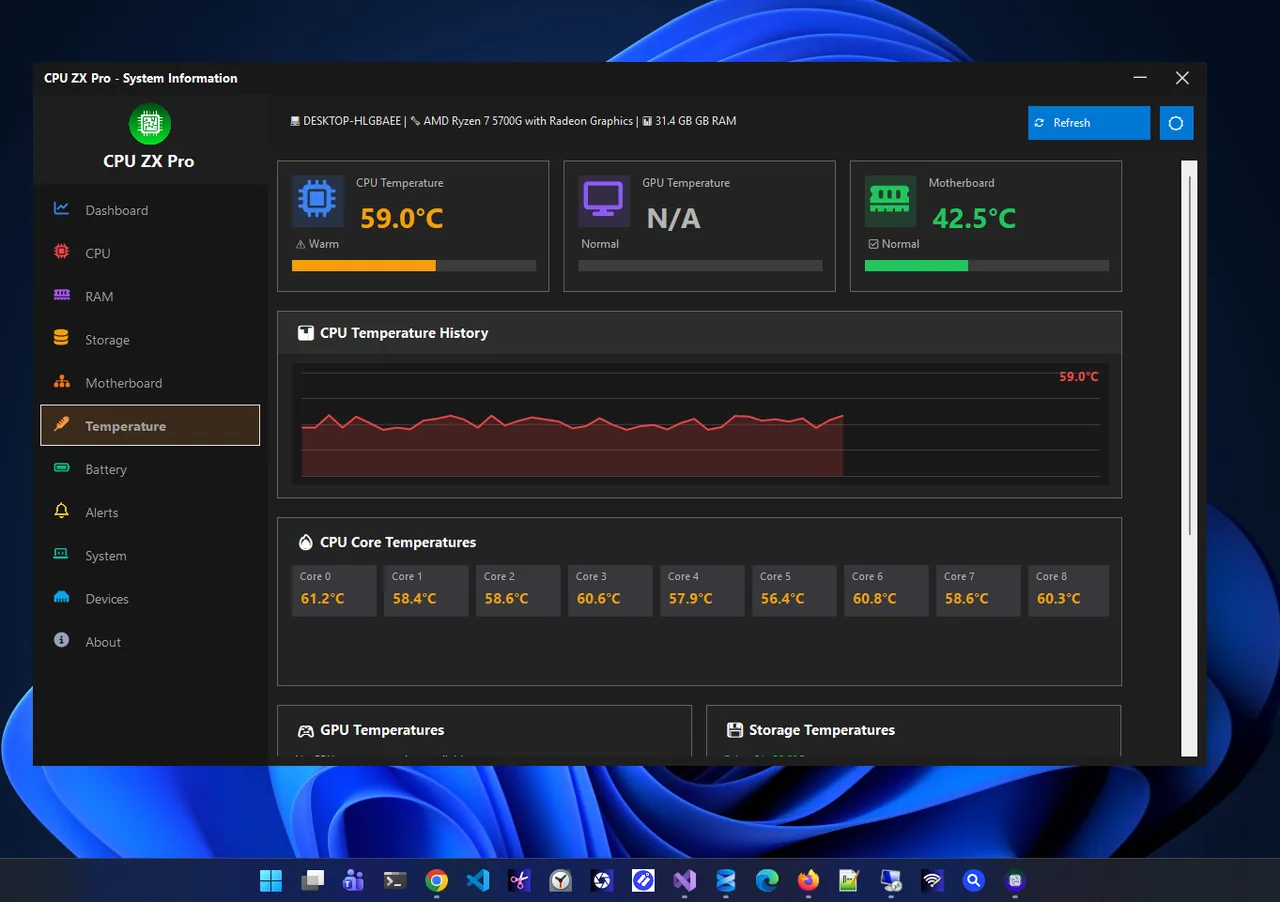
Live core temperatures and a history chart. -
Test under load
Note the idle reading, then start a game or video export for 10 minutes and check again. The load temperature is the one that matters.
-
Set an alert
Turn on a high-usage alert so you get notified when the CPU is pushed hard, instead of watching the numbers all the time.
Method 2: Check in the BIOS/UEFI
-
Restart to UEFI settings
Go to Settings, System, Recovery, and next to Advanced startup select Restart now. Then choose Troubleshoot, Advanced options, UEFI Firmware Settings, Restart.
-
Find the hardware monitor
Most desktop BIOS screens show CPU temperature on the main page or under a tab called Hardware Monitor, PC Health or H/W Monitor. Many laptops do not show it at all.
The BIOS only shows the idle temperature, because nothing is running. Use it to check that the cooler works, not to diagnose overheating in games.
What Is a Normal CPU Temperature?
| State | Desktop | Laptop | Meaning |
|---|---|---|---|
| Idle | 30–50 °C | 35–55 °C | Normal |
| Gaming / heavy load | 60–80 °C | 70–90 °C | Normal |
| Hot | 85–95 °C | 90–95 °C | Improve cooling |
| Too hot | Over 95 °C | Over 95 °C | The CPU slows itself down (throttles) |
Modern CPUs protect themselves: near their limit (often 95–105 °C) they cut speed, and at the limit the PC shuts down. Some laptop chips are designed to run at 95 °C under load, so check your exact model's limit if you see high numbers.
How to Lower CPU Temperature
- Clean the dust. Blow out fans and vents with compressed air. This alone often drops load temperatures by 10 °C or more.
- Give it air. Use laptops on a hard surface, not a bed or lap, and keep desktop intakes clear.
- Stop background load. An app stuck at high CPU use keeps the chip hot. Check Task Manager, sort by CPU, and see our guide to speeding up Windows 11.
- Pick Balanced power mode in Settings, System, Power & battery when you do not need full speed.
- Use a cooling pad for a gaming laptop. More in laptop overheating fixes.
- Replace the thermal paste on a PC that is several years old, or upgrade the desktop cooler.
Troubleshooting
- The app shows no temperature. Some PCs block sensor access. Run the app as administrator and make sure the latest chipset drivers are installed.
- Temperatures jump up and down quickly. That is normal: CPUs heat and cool in seconds. Look at the average under load, not single spikes.
- The PC shuts down by itself under load. That is a heat protection shutdown. Clean the cooling before using the PC hard again.
- You do not know which CPU you have. See our guide to checking PC specs on Windows 11.
FAQ
Can I check CPU temperature without software?
Only in the BIOS/UEFI, and only at idle. Windows itself has no CPU temperature reading.
Is 90 °C too hot for a CPU?
For a desktop under load, it is high and worth improving. For many laptops it is within design limits, but cleaning the vents usually lowers it.
Why is my CPU hot when idle?
Something is still using it, the fans are clogged, or the cooler is not seated well. Check Task Manager for busy apps first.
Does high temperature damage the CPU?
Rarely, because the CPU throttles and shuts down to protect itself. But constant heat makes the PC slower and noisier, and can shorten the life of other parts.
Conclusion
Windows 11 hides CPU temperature, so use a hardware monitor app for live readings or the BIOS for a quick idle check. Up to about 85 °C under load is fine; above that, clean the dust, improve airflow and stop background load. For more tools, see all system apps for Windows.