System How-to
How to Check GPU Temperature on Windows 11
Check GPU temperature on Windows 11 in Task Manager, NVIDIA or AMD software, or an app, and learn what a normal GPU temperature is while gaming and idle.
On this page
To check GPU temperature on Windows 11, open Task Manager (Ctrl + Shift + Esc), select Performance, then GPU: the temperature appears at the bottom for dedicated graphics cards. NVIDIA and AMD software and hardware monitor apps show it too, with history. A normal GPU runs at 30–50 °C idle and 65–85 °C while gaming.
Time: 30 seconds · Cost: free · Works on: Windows 11 and Windows 10
A graphics card that runs too hot gets louder, slows itself down mid-game, and can crash the PC. Unlike CPU temperature, GPU temperature is actually built into Windows, if you know where to look. This guide shows how to check GPU temperature on Windows 11 four ways, what the numbers mean, and how to cool a hot card.
Method 1: Task Manager
-
Open Task Manager
Press Ctrl + Shift + Esc and select Performance.
-
Select the GPU
Select GPU 0 or GPU 1 on the left. Laptops often list two: integrated (Intel or AMD Radeon Graphics) and dedicated (NVIDIA GeForce or AMD Radeon RX).
-
Read GPU temperature
The temperature appears in the bottom details. Integrated graphics usually show no temperature; check CPU temperature for them instead.
Tip: right-click the graph and choose Summary view, or keep Task Manager small on a second screen while gaming.
Method 2: NVIDIA or AMD Software
- NVIDIA: the NVIDIA app's in-game overlay (Alt + Z) has a performance panel with GPU temperature, clock and usage.
- AMD: AMD Software: Adrenalin Edition shows temperature under Performance, Metrics, and its overlay (Ctrl + Shift + O) shows it in games.
Method 3: A Hardware Monitor App
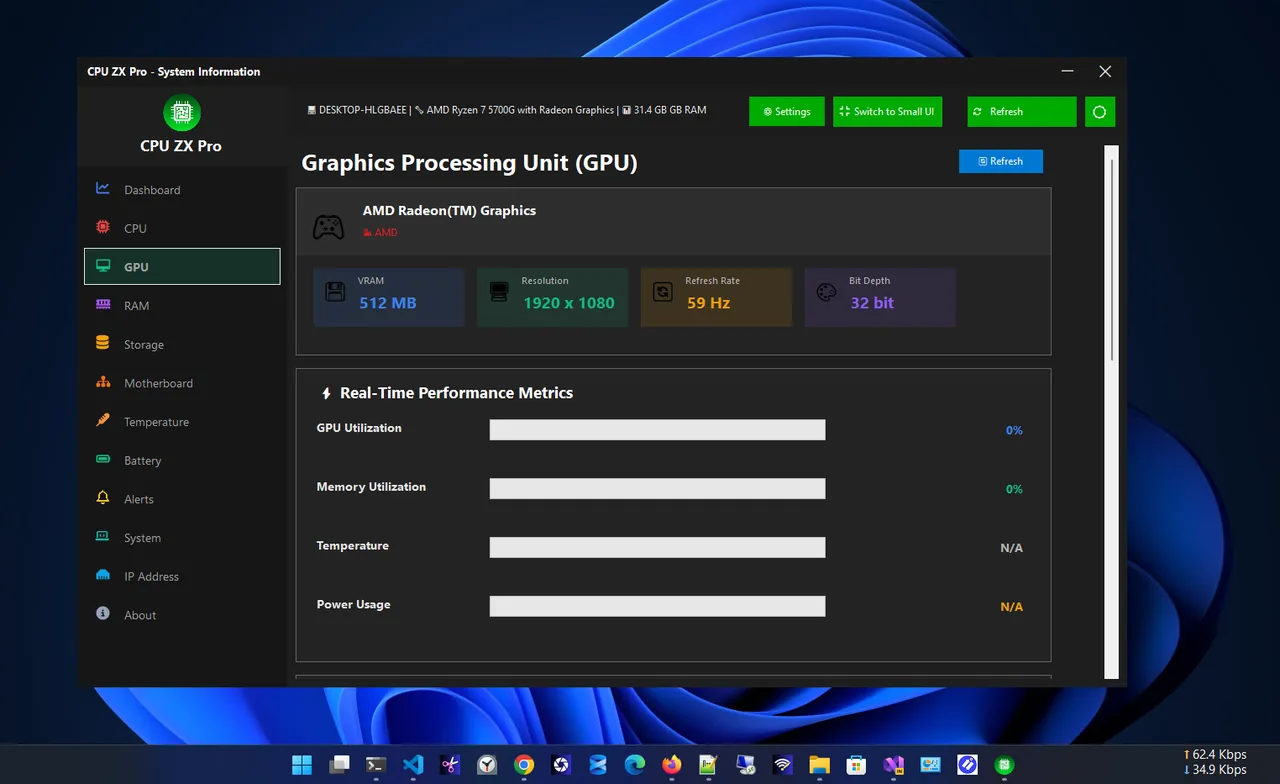
CPU ZX Pro shows the graphics card's details and real-time GPU metrics next to CPU core temperatures and history, so you can see both chips heat up during a game in one place, and set alerts for high load.
Method 4: Command Line for NVIDIA Cards
NVIDIA drivers include a command-line tool. Open Terminal and run:
nvidia-smiThe Temp column shows the current temperature. Add -l 2 to refresh every two seconds.
What Is a Normal GPU Temperature?
| State | Temperature | Meaning |
|---|---|---|
| Idle / desktop | 30–50 °C | Normal (fans may stop below 50 °C) |
| Gaming | 65–85 °C | Normal |
| Hot | 85–90 °C | Improve airflow |
| Too hot | Over 90 °C | The GPU throttles to protect itself |
AMD cards also report a "hotspot" or junction temperature, which normally runs 10–20 °C higher than the edge temperature; up to about 100–110 °C hotspot is within AMD's design limits.
How to Lower GPU Temperature
- Clean dust from the card's fans and the case filters.
- Improve case airflow: front intake, rear and top exhaust, cables tidied away.
- Cap the frame rate to your monitor's refresh rate with V-Sync or a frame limiter.
- Use a custom fan curve in the GPU software so fans ramp up earlier.
- Lower the power limit or undervolt slightly; it often cuts heat a lot with little FPS loss.
- Laptops: see laptop overheating fixes, since CPU and GPU share one cooler.
Troubleshooting
- No temperature in Task Manager. Only dedicated GPUs with recent drivers show it. Update the graphics driver from NVIDIA, AMD or Intel.
- Fans not spinning at idle. Normal for many cards: zero-RPM mode keeps fans off until about 50–60 °C.
- Temperature fine but the game stutters. Check CPU temperature too; see how to check CPU temperature.
Why GPU Temperature Matters
Modern graphics cards boost their clock speed as long as they stay cool. As the temperature climbs toward the limit, the card steps down its clocks to protect itself, which shows up as falling frame rates after 10–20 minutes of play. Heat also makes the fans louder and, over years, dries out thermal paste and pads faster. Checking temperature while gaming tells you whether a stutter is caused by heat, by the CPU, or by the game itself, and whether cleaning or a better fan curve will help before you spend money on a new card.
Laptop GPUs
In gaming laptops, the CPU and GPU share one cooling system, so a hot CPU heats the GPU too. Use the maker's performance mode only when plugged in, keep the vents clear, and expect higher numbers than on a desktop: 75–87 °C while gaming is common and within design limits.
FAQ
Is 80 °C safe for a GPU?
Yes. Most GPUs are designed to run at 80–85 °C under gaming load.
Can Windows show GPU temperature without software?
Yes, Task Manager shows it for dedicated GPUs on Performance, GPU.
Why is my GPU hot while idle?
Zero-RPM fan mode, a high-refresh or multi-monitor setup keeping memory clocks up, or a background app using the GPU. Check GPU usage in Task Manager.
Does high GPU temperature lower FPS?
Yes, once it reaches its limit the card lowers its clock speed, which shows as dropping FPS.
Conclusion
Task Manager shows GPU temperature in seconds; NVIDIA, AMD and monitor apps add overlays and history. Up to about 85 °C while gaming is normal. If it runs hotter, clean the dust, improve airflow and cap frame rates. For more tools, see all system apps for Windows.