System Fix
100% Disk Usage on Windows 11? 10 Fixes
100% disk usage on Windows 11 freezing your PC? Find the process, then fix SysMain, Search, updates, paging and drive problems. 10 fixes, easiest first.

On this page
100% disk usage on Windows 11 is most common on hard drives (HDDs). Open Task Manager, sort by Disk and find the process. Usually it is Windows Update, Defender, Search indexing or SysMain, which settle after a while. If it never stops, restart, let updates finish, check the drive's health and free up RAM. The lasting fix is replacing the HDD with an SSD.
The PC takes minutes to boot, windows open slowly, and Task Manager shows Disk at 100% while CPU and memory are low. When you see 100% disk usage on Windows 11, the drive simply cannot keep up with what Windows asks of it. Here is how to find what is hammering it and ten fixes, easiest first.
Symptoms
- Task Manager shows Disk at 99–100% for minutes at a time.
- Slow boot, slow app launches and long freezes, often right after starting the PC.
- The hard drive light stays on, or an HDD clicks and churns constantly.
First, Find What Is Using the Disk
-
Sort Task Manager by Disk
Press Ctrl + Shift + Esc, open Processes and click the Disk column.
-
Check the drive type
On the Performance tab, select the disk. If it says HDD, slow disk performance is expected, and most of the fixes below only help a little.
-
Dig deeper with Resource Monitor
Type
resmonin Start, open the Disk tab and sort by Total (B/sec). It shows exactly which files are being read and written.
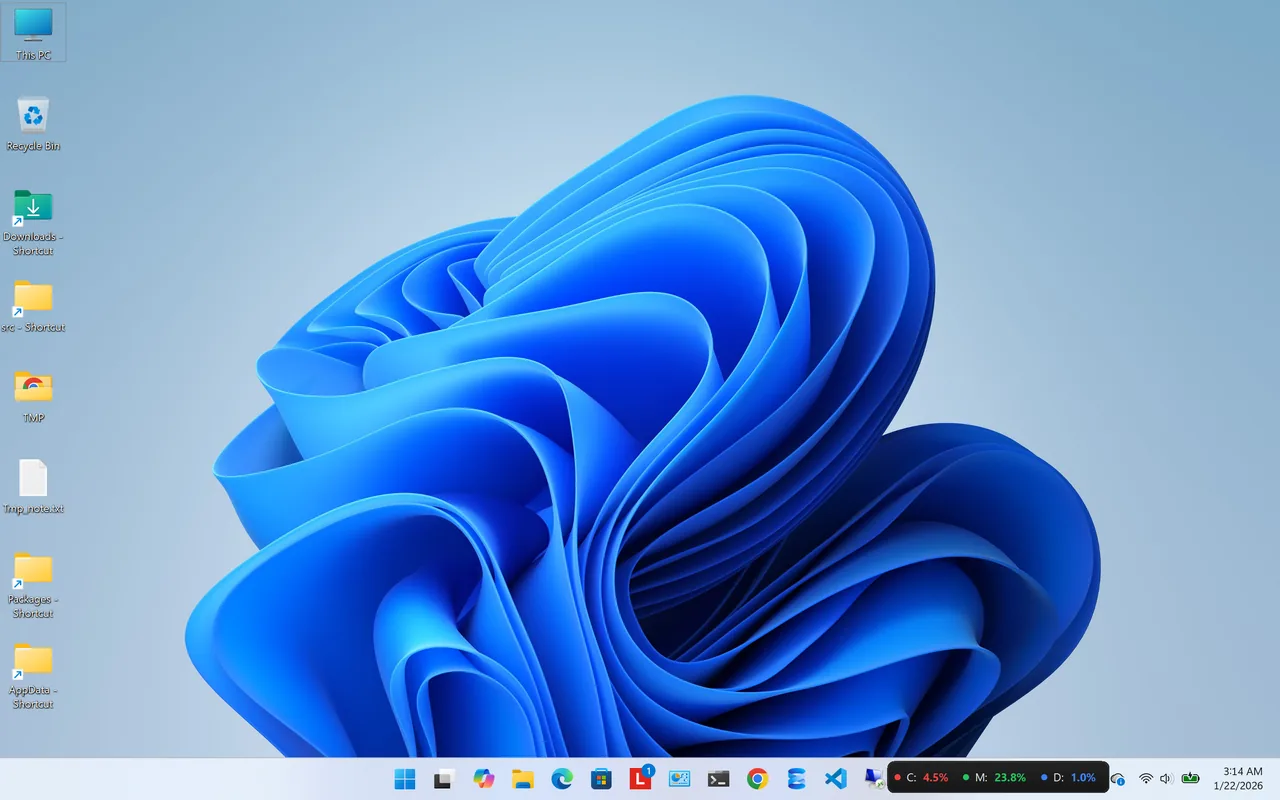
Resource Monitors keeps a small always-on-top widget with live CPU, RAM and disk use, so you can see the moment the disk gets busy and match it to what you were doing. It also lists each drive's model, type and live read and write activity.
Common Causes
- Windows Update, Defender scans and Search indexing after boot or a big update.
- SysMain (formerly Superfetch) preloading apps into memory.
- Too little RAM, so Windows pages memory to the disk constantly.
- OneDrive or other cloud sync scanning large folders.
- A failing drive, or a slow HDD that cannot keep up with Windows 11.
Fix 1: Restart and Wait 15 Minutes
After a restart Windows runs maintenance. Leave it idle and plugged in for 15 minutes. If disk use drops to normal, it was background work, not a fault.
Fix 2: Finish Pending Updates
Go to Settings, Windows Update, install everything and restart. Half-installed updates keep the disk busy at every boot.
Fix 3: Pause SysMain (Test)
Press Win + R, type services.msc, find SysMain, choose Stop and set Startup type to Manual. Use the PC for a day. If disk use improves on an HDD, leave it; on an SSD, turn it back on, since it helps performance there.
Fix 4: Calm Windows Search
If SearchIndexer is the top process for hours, rebuild the index in Settings, Privacy & security, Searching Windows, Advanced indexing options. Choosing Classic instead of Enhanced indexes fewer folders.
Fix 5: Schedule Defender Scans
Antimalware Service Executable reading every file is normal during scans. Let it finish once; it is lighter afterwards. Do not disable Defender without another antivirus.
Fix 6: Pause Cloud Sync
Pause OneDrive, Google Drive or Dropbox from the tray icon and see if the disk calms down. Exclude huge folders from sync if needed.
Fix 7: Check Memory Use
On Task Manager's Performance tab, if Memory is constantly above 85%, Windows pages to disk. Close heavy apps and browser tabs, disable startup apps, or add RAM.
Fix 8: Check the Drive's Health
A failing drive retries reads and stays at 100%. Run Get-PhysicalDisk in PowerShell and check HealthStatus, or follow our guide to checking hard drive health. Back up immediately if anything looks wrong.
Fix 9: Free Up Space and Check for Errors
A nearly full drive is slower. Free at least 15% of C:, then run chkdsk C: /scan in Terminal as administrator to find file system errors.
Fix 10: Upgrade to an SSD
Windows 11 is designed for SSDs. An HDD manages about 100–150 random operations a second; an SSD manages tens of thousands. Swapping the system drive for an SSD is the single biggest upgrade an old PC can get. Our guide to SSD vs HDD explains the difference and what to buy.
Still Broken?
If the CPU is also maxed out, the two problems may share a cause; see high CPU usage on Windows 11. If nothing helps on an HDD, it is the drive itself.
FAQ
Is 100% disk usage bad?
Short bursts are normal. Constant 100% makes the PC slow and, if caused by a failing drive, can be a sign to back up now.
Why is my disk at 100% right after startup?
Windows loads startup apps, checks for updates and indexes files at boot. On an HDD that can take 10–15 minutes.
Should I disable SysMain?
Only on HDD PCs where it clearly causes the problem. On SSDs it helps apps start faster.
Can an SSD show 100% disk usage?
Yes, during large copies or updates, but only briefly. Constant 100% on an SSD suggests a driver or health problem.
Conclusion
Find the busy process, let Windows maintenance finish, then pause SysMain, calm Search, add RAM if memory is full and check the drive's health. On an old HDD, an SSD upgrade is the real cure. For more tools, see all system apps for Windows.