System Fix
High CPU Usage on Windows 11? 10 Fixes That Work
High CPU usage on Windows 11 slowing your PC? Find the process in Task Manager, then fix Defender scans, updates, indexing, browsers and drivers. 10 fixes.

On this page
To fix high CPU usage on Windows 11, open Task Manager (Ctrl + Shift + Esc), sort Processes by CPU and see what is at the top. Short spikes from Windows Update, Defender or Search are normal and settle down. If one app stays high, end it, update it or remove it; then restart, update drivers and scan for malware.
Fans spin up, the mouse stutters and every click takes a second. Task Manager shows the CPU at 90 or 100 percent while you are barely doing anything. High CPU usage on Windows 11 usually has one clear culprit, and finding it takes a minute. This guide shows how to identify it, which processes are normal, and ten fixes in order.
Symptoms
- Task Manager shows CPU above 80% for minutes while you are idle.
- Loud fans, a hot laptop and a draining battery.
- Apps freeze, typing lags and videos stutter.
First, Find the Process
-
Open Task Manager
Press Ctrl + Shift + Esc and open Processes.
-
Sort by CPU
Click the CPU column header. The busiest processes move to the top. Watch for 30 seconds; a process that stays high is your suspect.
-
Look closer if needed
Right-click a process and choose Search online or Open file location. For services hidden inside "Service Host", expand it to see which service is busy.
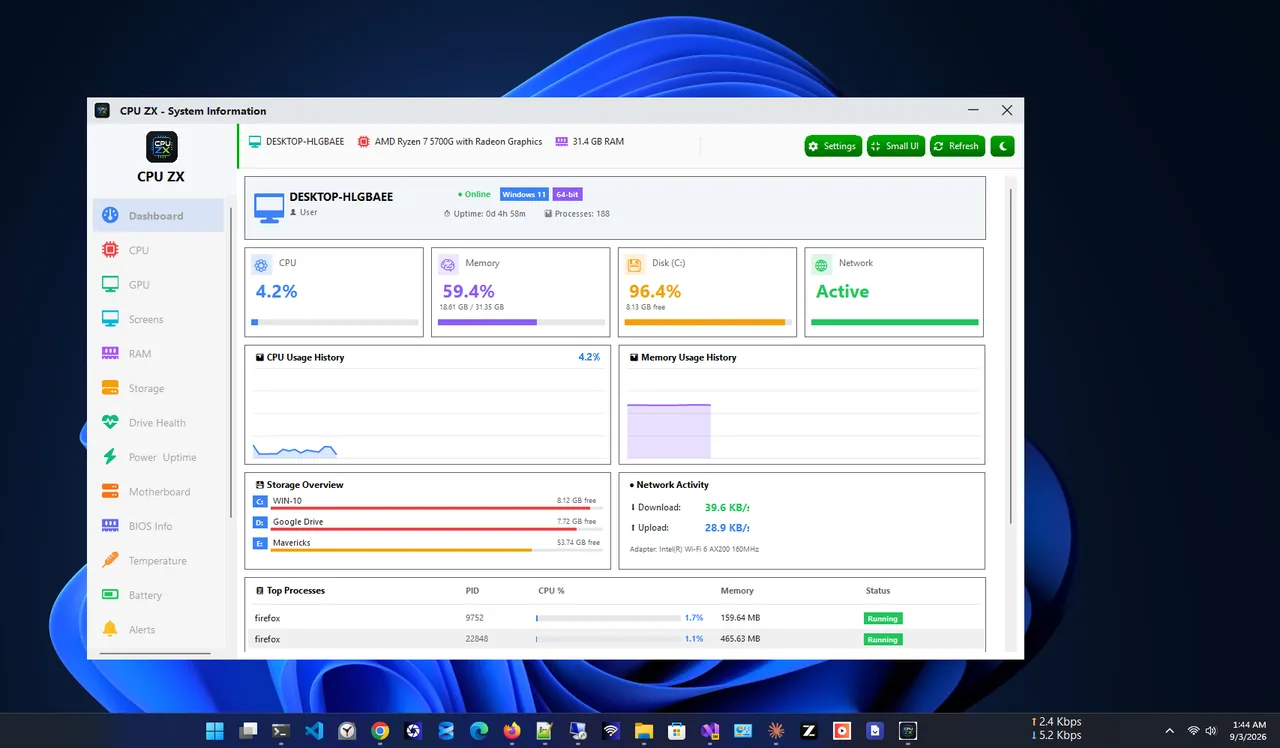
To spot a pattern over time instead of only in the moment, keep CPU ZX open: its dashboard shows live CPU, memory, disk and network use, and its small always-on-top widget shows load while you work or game.
Common High-CPU Processes
| Process | What it is | What to do |
|---|---|---|
| Antimalware Service Executable | Microsoft Defender scanning | Let the scan finish; schedule scans for idle time |
| Windows Modules Installer Worker | Windows Update installing | Wait and restart when asked |
| SearchIndexer / Windows Search | Building the search index | Wait; rebuild the index if it never stops |
| WMI Provider Host | System info for apps | Restart; find the app querying it |
| System interrupts | Hardware and drivers | Update drivers, unplug USB devices one by one |
| Browser (Chrome, Edge) | Tabs, videos and extensions | Close tabs, disable extensions |
Fix 1: Restart the PC
Use Start, Power, Restart. It clears stuck processes and finishes pending updates, which alone fixes many cases.
Fix 2: End the Runaway App
In Task Manager, right-click the process and choose End task. If it returns at once, update the app or reinstall it. Never end processes you do not recognise that belong to Windows; search the name first.
Fix 3: Let Windows Update and Defender Finish
After a big update or on first boot of the day, Windows installs updates, scans files and rebuilds caches. Leave the PC plugged in and idle for 20–30 minutes. If it happens every day at a bad time, change Active hours in Windows Update settings.
Fix 4: Tame the Browser
Open the browser's own task manager (Shift + Esc in Chrome and Edge) to see which tab or extension is heavy. Close it, remove extensions you do not use, and turn on sleeping tabs or Efficiency mode.
Fix 5: Disable Startup Apps
Many background apps add constant CPU load. Go to Settings, Apps, Startup and switch off what you do not need when Windows starts.
Fix 6: Scan for Malware
Hidden cryptominers keep the CPU near 100%. Run Windows Security, Virus & threat protection, Scan options, Full scan, and then a Microsoft Defender Offline scan if anything looks suspicious.
Fix 7: Update Drivers and BIOS
High "System interrupts" or "System" CPU points to a driver. Install Optional driver updates in Windows Update, and chipset, graphics and BIOS updates from your PC maker.
Fix 8: Check the Power Mode
On a laptop, Best power efficiency can make normal work push the CPU to 100% at low speed. In Settings, System, Power & battery, set Power mode to Balanced when plugged in.
Fix 9: Rebuild a Stuck Search Index
If SearchIndexer never calms down, go to Settings, Privacy & security, Searching Windows, Advanced indexing options, Advanced, Rebuild.
Fix 10: Check for Heat Throttling
A hot CPU slows itself down, so normal tasks show as 100% load. Check temperatures and clean the vents; our guide to laptop overheating covers the fixes.
Still Broken?
If the disk is at 100% too, the CPU may be waiting on a slow drive: see 100% disk usage on Windows 11. If an old PC is always at 100% doing simple tasks, it may simply need more RAM or an upgrade.
FAQ
What is normal CPU usage when idle?
Usually 1–10%. Short spikes to 30–50% when apps open or Windows works in the background are normal.
Is 100% CPU usage bad for my PC?
It will not damage it; the CPU is designed for full load and protects itself from heat. But constant 100% makes the PC slow, hot and loud.
Why is CPU usage high when nothing is open?
Background tasks: updates, Defender scans, indexing, sync apps, or malware. Task Manager's Processes tab shows which.
Can I disable Antimalware Service Executable?
Do not disable it unless another antivirus is installed. Schedule scans for when the PC is idle instead.
Conclusion
Sort Task Manager by CPU and the culprit usually shows itself. Let Windows maintenance finish, end or update runaway apps, trim startup items, scan for malware and update drivers. For more tools, see all system apps for Windows.