System Explainer
How Much RAM Do I Need? 8 GB vs 16 GB vs 32 GB
How much RAM do you need for Windows 11, gaming, office work and video editing? 8 GB vs 16 GB vs 32 GB explained, plus how to check if you need more.
On this page
How much RAM do you need? For Windows 11, 16 GB of RAM is the sweet spot: smooth multitasking, gaming and many browser tabs. 8 GB works for light use (browsing, email, documents) but slows down quickly. Choose 32 GB for video editing, streaming while gaming, virtual machines or heavy creative work, and 64 GB only for professional workloads.
RAM is one of the main reasons a PC feels fast or slow, and one of the cheapest upgrades when it is not enough. But more is not always better: past a point, extra memory sits unused. This guide answers how much RAM you need for each kind of use, how to check whether you are running short, and what to know before upgrading.
What RAM Does
RAM (memory) is your PC's short-term workspace. Every open app, browser tab and file you are editing lives there while you use it. When RAM fills up, Windows moves data to the much slower drive (the page file), and everything starts to stutter. Storage (SSD) is where files are kept; RAM is where they are worked on.
How Much RAM for Each Use
| Use | Minimum | Recommended |
|---|---|---|
| Browsing, email, documents | 8 GB | 16 GB |
| Office work with many tabs and Teams | 16 GB | 16–32 GB |
| Gaming | 16 GB | 32 GB for new AAA games |
| Photo editing | 16 GB | 32 GB |
| 4K video editing, 3D | 32 GB | 64 GB |
| Programming, virtual machines | 16 GB | 32–64 GB |
Windows 11's official minimum is 4 GB, but in practice it is unpleasant below 8 GB.
8 GB vs 16 GB vs 32 GB
- 8 GB: fine for one or two apps at a time. Windows, a browser with 15 tabs and Teams can fill it, and the PC starts swapping to disk.
- 16 GB: comfortable for nearly everyone: dozens of tabs, office apps, music and most games at once.
- 32 GB: headroom for editing, streaming while gaming, big spreadsheets and future-proofing a new PC you will keep for years.
- 64 GB and more: professional video, 3D rendering, data science and several virtual machines.
How to Check If You Need More RAM
-
Open Task Manager
Press Ctrl + Shift + Esc, open Performance, then Memory.
-
Work normally
Open everything you usually use at once: browser, apps, game.
-
Read In use and Committed
If In use stays above 80–85% of the total, or Committed is larger than your physical RAM, you would benefit from more memory.
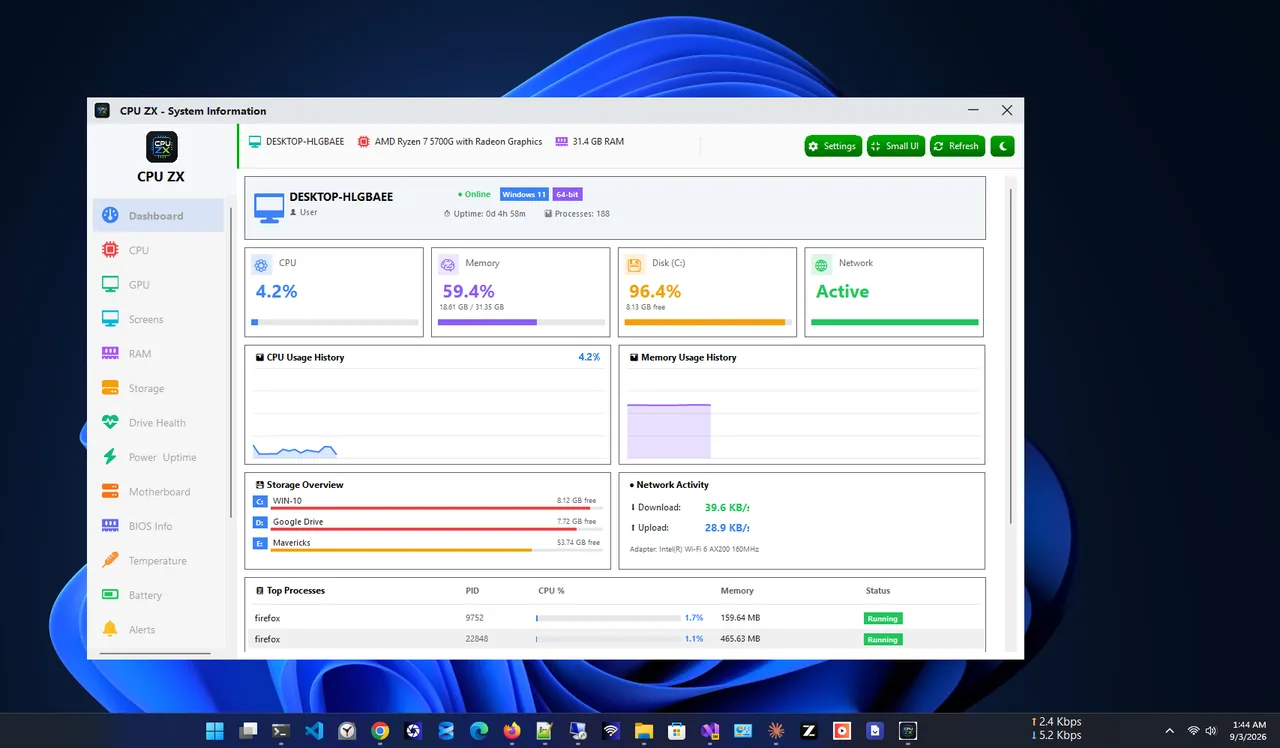
The same page shows the RAM speed, the slots used (for example 2 of 2) and the form factor. CPU ZX shows memory capacity, usage and module information next to live CPU and disk use, so you can watch memory while you work. For the full list of your hardware, see how to check PC specs.
Signs You Do Not Have Enough RAM
- Switching between apps takes seconds, and tabs reload when you return to them.
- The disk is busy and the PC stutters when many things are open.
- Games hitch even though the GPU is not fully used.
- "Your computer is low on memory" warnings.
If the CPU, not memory, is maxed out, the fix is different: see high CPU usage on Windows 11.
Before You Upgrade
- Type: match DDR4 or DDR5; they are not interchangeable. Task Manager and CPU ZX show your type and speed.
- Slots: two matching sticks (dual channel) are faster than one. Check how many slots are free.
- Laptops: many thin laptops have soldered RAM that cannot be upgraded. Check the maker's specs first.
- Speed: buy the speed your motherboard supports; faster RAM runs at the board's maximum anyway.
Common Myths
- "Unused RAM is wasted, so Windows using a lot is bad." Windows caches files in free RAM on purpose and releases it when apps need it.
- "RAM cleaner apps speed up the PC." They free memory for a moment, then Windows refills it. Closing heavy apps is what helps.
- "More RAM always means more FPS." Only up to the point where games stop running out. Beyond 32 GB, gaming gains are tiny.
FAQ
Is 8 GB RAM enough for Windows 11?
For light use, yes. With many tabs, Teams or games it fills quickly. 16 GB is the comfortable choice.
Is 16 GB RAM enough for gaming?
For most games, yes. Some new AAA games and streaming while playing benefit from 32 GB.
Can I mix RAM sizes?
Usually yes, for example 8 GB plus 16 GB, but matching pairs run more reliably in dual channel.
Does more RAM make the PC faster?
Only if you were running out. If Task Manager shows plenty free, more RAM will not change anything.
Conclusion
16 GB is the right amount for most Windows 11 PCs, 8 GB only for light use, and 32 GB for creators, heavy gamers and anyone keeping a new PC for many years. Check Task Manager under your normal load before you buy. For more tools, see all system apps for Windows.