Productivity How-to
How to Use Clipboard History on Windows 11 (Win + V)
Turn on and use clipboard history on Windows 11 with Win + V: pin items, sync across devices, clear it, and fix it when clipboard history is not working.
On this page
Press Win + V to open clipboard history on Windows 11. The first time, select Turn on. From then on, Windows keeps your last 25 copied items (text, links and images); click any item to paste it. Pin items you reuse so they survive a restart, which clears everything else.
Time: 1 minute · Cost: free · Works on: Windows 11 and Windows 10
Normally, every time you copy something, the previous item is gone. Clipboard history fixes that: Windows remembers what you copied, so you can paste something from ten minutes ago. It is one of the most useful hidden features in Windows. This guide shows how to turn on and use clipboard history on Windows 11, its limits, and what to do when you need more.
How to Turn On Clipboard History
-
Press Win + V
A small panel opens. If history is off, it shows a Turn on button. Select it.
-
Or use Settings
Go to Settings, System, Clipboard and switch on Clipboard history.
-
Copy as usual
Use Ctrl + C as normal. Items you copy from now on appear in the list.
How to Use It
- Paste an older item: put the cursor where you want it, press Win + V and click the item. Use the arrow keys and Enter if you prefer the keyboard.
- Paste as plain text: select the three dots on an item and choose the plain text option, if your Windows version shows it, to drop formatting.
- Pin an item: select the pin icon. Pinned items stay after a restart and when you clear history.
- Delete one item: select the three dots, then the bin icon.
- Emoji, GIFs and symbols: the same panel has tabs for emoji, kaomoji and symbols.
Sync Across Your Devices
In Settings, System, Clipboard, turn on Clipboard across your devices and sign in with the same Microsoft account on each PC. You can sync automatically, or only items you choose. On Android, Microsoft SwiftKey can share the clipboard with Windows as well.
Synced items pass through Microsoft's cloud. If you copy passwords or private data, keep sync off, or use "only sync text that I copy manually".
How to Clear Clipboard History
Press Win + V and select Clear all, or go to Settings, System, Clipboard, Clear clipboard data. Pinned items stay until you unpin them. Turning clipboard history off also clears the list.
Limits of Windows Clipboard History
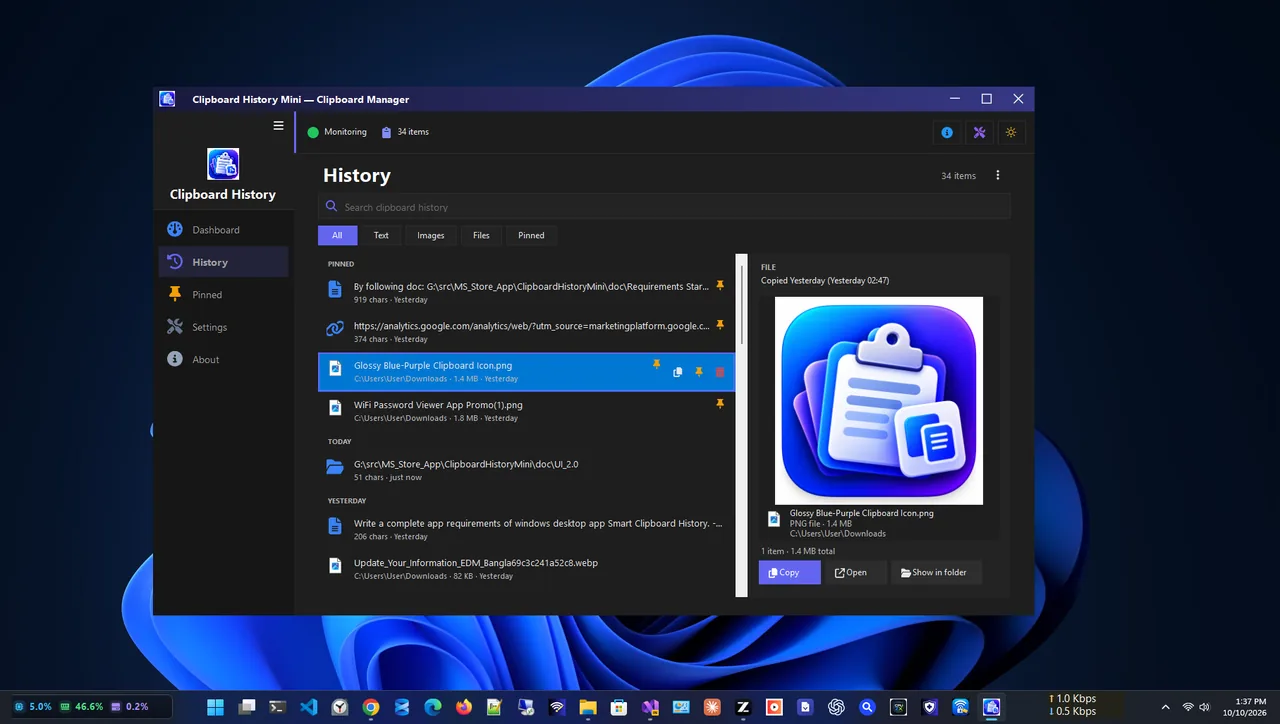
| Win + V | Clipboard History Mini | |
|---|---|---|
| Items kept | Last 25 | Full scrollable history |
| After restart | Only pinned items stay | History kept in the app |
| Search | No | Search by keyword, filter by text or image |
| Pinned snippets | Yes | Yes |
| Cloud | Optional sync | Offline only, nothing leaves the PC |
If you copy a lot, for code, writing, support replies or research, the 25-item limit fills up fast. Clipboard History Mini is a free clipboard manager that saves text and images to a searchable list, lets you pin snippets, and runs quietly from the system tray. Everything stays on your PC.
Clipboard History Not Working?
- Win + V does nothing. Check that Clipboard history is on in Settings. On a work PC, it may be turned off by your organisation's policy.
- Items disappear. Windows clears unpinned items when you restart. Pin what you need, or use a clipboard manager.
- A large image is missing. Windows skips items larger than 4 MB.
- Copy and paste stopped working entirely. Restart Windows Explorer from Task Manager (right-click Windows Explorer, Restart), or restart the PC.
Copy and Paste Shortcuts Worth Knowing
| Shortcut | What it does |
|---|---|
| Ctrl + C / Ctrl + X | Copy / cut the selection |
| Ctrl + V | Paste the latest item |
| Win + V | Open clipboard history and paste an older item |
| Ctrl + Shift + V | Paste as plain text in many apps (browsers, Teams, Google Docs) |
| Win + Shift + S | Take a screenshot straight to the clipboard (all screenshot methods) |
Time-Saving Tips
- Pin your email address, home address and common replies to paste them in two keystrokes.
- Copy several items in a row, then paste them in any order from Win + V.
- Pair it with fast file search: see how to fix Windows search not finding files.
- Working with documents? Our guide to compressing PDFs without losing quality helps with email attachments.
FAQ
How do I see my clipboard history on Windows 11?
Press Win + V. Turn it on the first time; after that, the panel lists everything you copy.
How many items does clipboard history keep?
The last 25 items. Older ones drop off, except pinned items.
Can I recover something I copied before turning it on?
No. Clipboard history only saves items copied after it is turned on.
Does it work on Windows 10?
Yes, since the October 2018 update. Press Win + V or go to Settings, System, Clipboard.
Conclusion
Turn on clipboard history once, then press Win + V whenever you need something you copied earlier. Pin what you reuse. If 25 items and losing history at restart are not enough, a clipboard manager keeps a searchable history for you. For more tools, see all productivity apps for Windows.