Productivity How-to
How to Convert JPG to PDF on Windows (Free, Offline)
Convert JPG to PDF on Windows 11 and 10 for free, without uploading: Microsoft Print to PDF, Photos, Word, or an app that turns many images into one PDF.
On this page
To convert JPG to PDF on Windows, select the images in File Explorer, right-click and choose Print (under Show more options on Windows 11). Pick Microsoft Print to PDF as the printer, choose Full page photo, tick Fit picture to frame, and select Print. Windows asks where to save the PDF. Several images become one multi-page PDF.
Time: 1 minute · Cost: free · Works on: Windows 11 and Windows 10
Job portals, banks and government forms often want documents as one PDF, but you have photos of the pages. Online converters work, but they mean uploading your ID, payslips or contracts to an unknown server. Windows can convert JPG to PDF by itself, offline, in about a minute. Here are four ways, from built-in to best quality.
Method 1: Microsoft Print to PDF (Built In)
-
Select the images
In File Explorer, select one or more JPG or PNG files. They appear in the PDF in the order they are sorted, so rename them 01, 02, 03 first if order matters.
-
Open Print
Right-click and choose Print. On Windows 11, select Show more options first.
-
Choose the settings
Printer: Microsoft Print to PDF. Paper size: A4 or Letter. Layout: Full page photo. Fit picture to frame: ticked fills the page but may crop edges; unticked keeps the whole image.
-
Save
Select Print, choose a folder and file name, and save.
Method 2: Photos App (One Image)
Open the image in Photos, press Ctrl + P, choose Microsoft Print to PDF and select Print. Good for a single photo; use Method 1 or 4 for several.
Method 3: Word (With Text and Layout)
Insert the images into a Word document (Insert, Pictures), add headings or notes if you like, then File, Save As, PDF. Best when you want captions or a cover page.
Method 4: PDF HQ Images to PDF
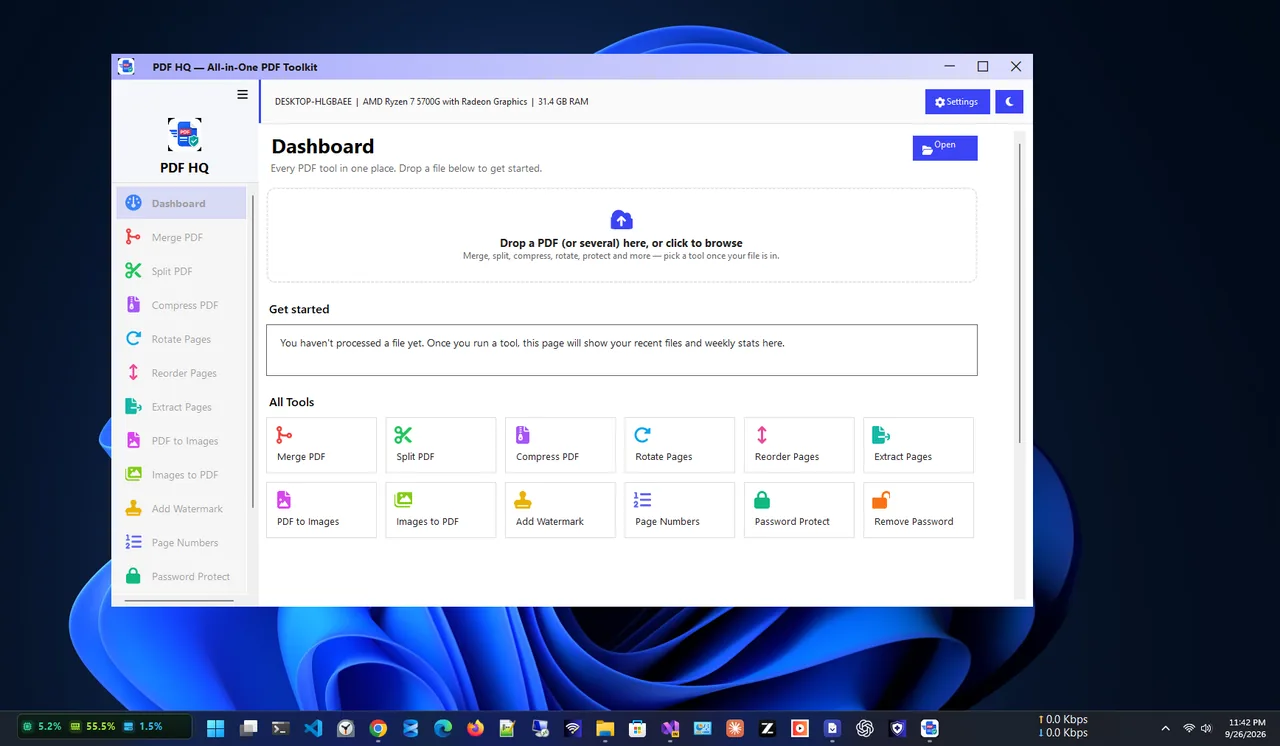
PDF HQ has an Images to PDF tool that turns photos, scans and screenshots into a single PDF with automatic rotation and size optimisation, so phone photos come out upright and the file is not enormous. Drag to reorder pages, then save. It runs entirely offline and is free.
Which Method to Use
| Method | Many images | Auto-rotate | Best for |
|---|---|---|---|
| Microsoft Print to PDF | Yes | No | Quick, nothing to install |
| Photos app | No | No | One photo |
| Word | Yes | Manual | Adding text and captions |
| PDF HQ | Yes | Yes | Phone photos and scans, smaller files |
Tips for a Clean PDF
- Crop and straighten photos of paper first; the Photos app's Edit tool does this.
- Shoot in good light without shadows, and hold the phone parallel to the page.
- Keep file size down: resize large photos first, see how to resize multiple images at once, or compress the PDF afterwards with our guide to compressing a PDF without losing quality.
- Already have several PDFs? Combine them into one with how to merge PDF files offline.
Troubleshooting
- Microsoft Print to PDF is missing. Search Start for "Turn Windows features on or off" and tick Microsoft Print to PDF.
- Pages are in the wrong order. Rename files with numbers, sort by name, then select them again.
- Images are cut off. Untick Fit picture to frame.
- The PDF is huge. Phone photos are large; resize or compress them.
Scanning Paper with Your Phone
For the best results from paper, use a scanning mode rather than the normal camera: the Microsoft Lens or OneDrive scan feature on Android and iPhone, or the iPhone Notes app's document scanner. They detect page edges, straighten the page and boost contrast, so text comes out crisp and the file stays small. Send the images to your PC, then combine them into one PDF with any method above. Scan each page flat, in daylight, and avoid flash, which creates glare.
Naming tip: give the final PDF a clear name, such as "Passport scan - Jane Doe.pdf", so the person receiving it knows what it is without opening it.
FAQ
Can I convert several JPGs into one PDF?
Yes. Select them all in File Explorer and print to Microsoft Print to PDF; each image becomes a page.
Does this work with PNG and other formats?
Yes. PNG, BMP, GIF and TIFF work the same way.
Will the text in the image become searchable?
No. The PDF contains pictures of the text. To copy text from an image, use OCR; see how to copy text from an image.
Is it safe to use online JPG to PDF converters?
For harmless images, usually. For IDs, contracts or bank documents, convert offline so the files never leave your PC.
Conclusion
Select the images, print to Microsoft Print to PDF, and you have a PDF in a minute, with no upload. For phone photos and scans, an Images to PDF tool fixes rotation and keeps the file small. For more tools, see all productivity apps for Windows.