Productivity Fix
Windows Search Not Finding Files? 10 Fixes for Windows 11
Windows search not finding files? Restart the search service, add folders to the index, rebuild it and fix Explorer search. 10 fixes for Windows 11 and 10.

On this page
When Windows search is not finding files, the folder is usually not in the search index, or the index is broken. Go to Settings, Privacy & security, Searching Windows and choose Enhanced or add the folder, then rebuild the index in Advanced indexing options. If the search box itself does nothing, restart the Windows Search service or the PC.
You know the file is there. You typed its name. Windows says "No results". When Windows search is not finding files, it is almost always the search index: Windows only searches quickly in folders it has indexed, and the index can get stuck or corrupted. Here are ten fixes, easiest first.
Symptoms
- Start menu search finds apps but not your documents.
- Files you just saved do not show up for hours.
- File Explorer search runs forever, or finds nothing in a folder you are looking at.
- The search box will not open, or you cannot type in it.
Common Causes
- The folder is not included in the search index (Classic mode indexes only libraries and the desktop).
- Indexing is still running, paused, or the index is corrupted.
- The Windows Search service or SearchHost process is stuck.
- The file is online-only in OneDrive, on an external drive, or excluded.
- The search looks at file names, but you typed text from inside the file.
Fix 1: Restart the PC
Use Start, Power, Restart. It restarts the search service and Explorer and solves many stuck searches.
Fix 2: Switch to Enhanced Search
Go to Settings, Privacy & security, Searching Windows. Under Find my files, choose Enhanced to index the whole PC. Classic only indexes your libraries and desktop. The first full index can take an hour or more; leave the PC on and plugged in.
Fix 3: Add the Folder to the Index
If you prefer Classic, select Customize search locations on the same page and add the folder you search often, such as D:\Projects. Also check Exclude folders from enhanced search and remove anything that should be searchable.
Fix 4: Rebuild the Search Index
-
Open Indexing Options
On the Searching Windows page, select Advanced indexing options.
-
Rebuild
Select Advanced, then Rebuild, and confirm. Search results stay incomplete until the rebuild finishes, which can take a while on a big drive.
Fix 5: Restart the Windows Search Service
Press Win + R, type services.msc and press Enter. Find Windows Search, right-click it and choose Restart. Make sure Startup type is Automatic (Delayed Start). If the search box itself is frozen, open Task Manager, find Search under Processes, and choose End task; it restarts by itself.
Fix 6: Search File Contents, Not Just Names
By default, Windows indexes the text inside common files but only the name of others, including Markdown notes (see how to open MD files). In Indexing Options, select Advanced, File Types, pick the extension (for example .md or .log) and choose Index Properties and File Contents. In File Explorer, you can also search inside files with content:"your words".
Fix 7: Search the Right Way in File Explorer
- Open the folder or drive first, then search; File Explorer searches the current folder and its subfolders.
- Use wildcards:
*.pdffinds every PDF,report*finds names starting with "report". - Filter with
datemodified:this week,kind:documentorsize:large. - Non-indexed folders are searched slowly but still searched, so wait for the green bar to finish.
Fix 8: Check OneDrive and External Drives
Online-only OneDrive files are indexed by name only after OneDrive has synced the list. External drives are not indexed by default; add them in Customize search locations, or search them directly in File Explorer.
Fix 9: Repair System Files
If search is broken in several places, open Terminal as administrator and run these, then restart:
sfc /scannow
DISM /Online /Cleanup-Image /RestoreHealth
Fix 10: Use a Faster File Search App
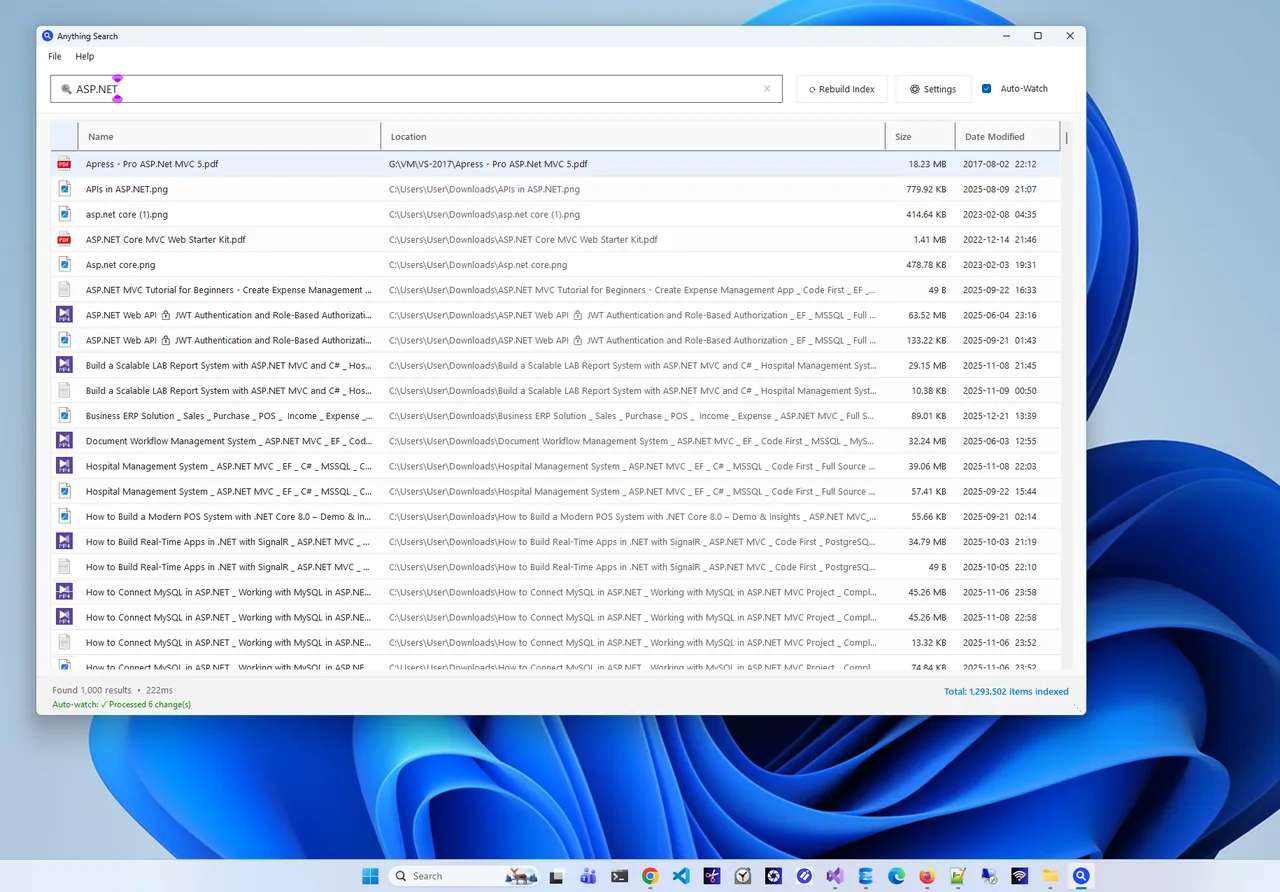
If you search for files many times a day, a dedicated search tool is simply faster. Anything Search builds its own local index in a couple of minutes, shows results as you type, and keeps up automatically as files are added, renamed or deleted. Right-click a result to open it, show it in Explorer or copy its path. It runs fully offline and is free.
Still Broken?
Create a new local user account and test search there. If it works, your user profile's search settings are damaged; if not, an in-place repair (Settings, System, Recovery, Fix problems using Windows Update) reinstalls Windows while keeping your files and apps.
FAQ
Why can't Windows find a file I know exists?
Its folder is not in the search index, or the index is out of date. Add the folder or switch to Enhanced search, then rebuild the index.
How long does rebuilding the index take?
From minutes to a few hours, depending on how many files you have. Indexing pauses when you use the PC heavily or run on battery.
Does Enhanced search slow down my PC?
Only during the first full index. After that it updates quietly in the background with little impact.
Why does search find duplicate files?
You may really have several copies. Our guide to finding and removing duplicate files helps you clean them up.
Conclusion
Most search problems come down to the index: include the right folders, rebuild it and restart the search service. If you live in File Explorer all day, a dedicated file search app saves seconds on every search. Copying lots of paths and names? Clipboard history helps too. For more tools, see all productivity apps for Windows.