System Fix
Laptop Overheating? 10 Fixes to Cool It Down
Laptop overheating, loud fans or shutting down? Check temperatures, clean the vents, limit background load and processor power, and know when to repair it.
On this page
To fix laptop overheating, use it on a hard, flat surface, blow the dust out of the vents with compressed air, and close apps that keep the CPU busy. In Windows, choose Balanced power mode and, if needed, set Maximum processor state to 90–99% in Power Options to stop turbo boost. A cooling pad helps for gaming; old thermal paste may need replacing.
A hot keyboard, fans that never stop, games that start fast and then stutter, or a laptop that shuts down by itself: all signs of laptop overheating. Laptops pack powerful chips into thin cases, so cooling is always on the edge. The good news is that most overheating comes from a few fixable causes. Here are ten fixes, cheapest and easiest first.
Symptoms
- Fans run loudly even with light work.
- The bottom or keyboard is too hot to touch comfortably.
- Performance drops after a few minutes (thermal throttling).
- The laptop shuts down suddenly under load.
First, Check the Temperatures
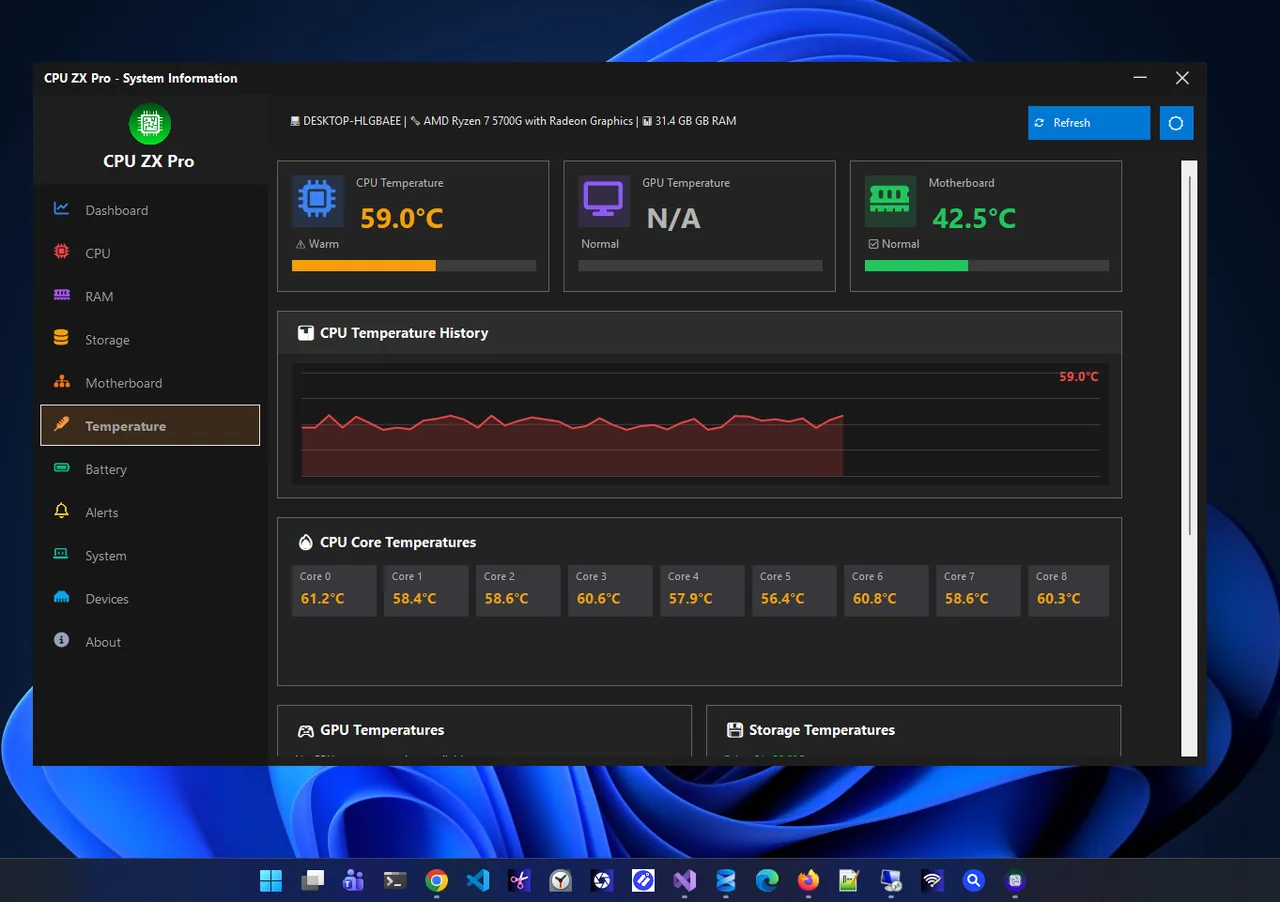
Windows does not show CPU temperature, so use an app. CPU ZX Pro shows live CPU core and GPU temperatures with a history chart, so you can see how hot it gets during your normal work. Under load, 70–90 °C is normal for most laptops; constant readings above 95 °C mean the cooling needs help. Our guide to checking CPU temperature on Windows 11 explains the numbers.
Common Causes
- Dust blocking the fans and heatsink: the most common cause on laptops older than a year.
- Blocked vents on beds, sofas or laps.
- Background apps keeping the CPU busy.
- Dried-out thermal paste on older laptops.
- Hot rooms and demanding games.
Fix 1: Use a Hard, Flat Surface
Most laptops pull air in from the bottom. Soft surfaces block it completely. Use a desk, a tray or a laptop stand that raises the back.
Fix 2: Clean the Vents and Fans
Shut down and unplug. Blow short bursts of compressed air into the intake and out of the exhaust vents, holding the fan still with a toothpick so it does not over-spin. This alone often drops load temperatures by 10 °C or more.
Fix 3: Stop Background CPU Load
Open Task Manager and sort by CPU. An app stuck at high load keeps the laptop hot all day. See high CPU usage on Windows 11 for common culprits.
Fix 4: Choose Balanced Power Mode
In Settings, System, Power & battery, set Power mode to Balanced, or Best power efficiency on battery. Best performance runs the chip hotter for small gains.
Fix 5: Limit Maximum Processor State
-
Open advanced power settings
Press Win + R, type
powercfg.cpl, select Change plan settings, then Change advanced power settings. -
Lower the maximum
Expand Processor power management, Maximum processor state, and set it to 99% for both On battery and Plugged in. This disables turbo boost, which often cuts temperatures dramatically with a modest speed loss. Some laptops hide this option.
Fix 6: Use the Maker's Cooling Mode
Lenovo Vantage, MyASUS, Dell Optimizer, HP Command Center and gaming laptop apps have Quiet, Balanced and Performance thermal modes. Quiet or Balanced keeps temperatures in check.
Fix 7: Use a Cooling Pad
A pad with fans pushes extra air into the intakes. It helps most with gaming laptops that pull air from underneath.
Fix 8: Cap Frame Rates in Games
Running a game at 200 FPS on a 60 Hz screen wastes power as heat. Turn on V-Sync or set a frame limit in the game or GPU control panel.
Fix 9: Update BIOS and Drivers
Makers often improve fan curves and power limits in BIOS updates. Install them from your laptop maker's support app, along with chipset and graphics drivers.
Fix 10: Replace Thermal Paste or Get It Serviced
On laptops three or more years old, the paste between chip and heatsink dries out. A repair shop can replace it and clean the fans. If the laptop is under warranty, use that first; opening it yourself may void it.
Still Overheating?
A swollen battery, a bulging case or a burning smell are not normal overheating. Stop using the laptop, unplug it and get it checked; a damaged battery can be dangerous.
FAQ
How hot is too hot for a laptop?
CPU temperatures constantly above 95 °C under load, or a case too hot to touch, mean the cooling needs attention.
Can overheating damage a laptop?
The CPU protects itself by slowing down and shutting off, but constant heat ages the battery and other parts faster.
Why does my laptop overheat when charging?
Charging adds heat from the battery, and laptops often run at full power when plugged in. Use Balanced mode and keep the vents clear.
Do cooling pads really work?
They usually lower temperatures a few degrees, more on laptops with bottom intakes. Cleaning the fans helps more.
Conclusion
Give the laptop air, clean the dust, stop background load and use Balanced power. Limiting the maximum processor state is a powerful free fix when it still runs hot. For more tools, see all system apps for Windows.