Productivity How-to
How to Split a PDF on Windows (Free and Offline)
Split a PDF on Windows 11 for free: extract pages, split by range or into single pages offline, or use Microsoft Print to PDF. No upload, no watermark.
On this page
To split a PDF on Windows, open it in an offline PDF tool, choose Split, and pick how to split: a page range (for example 3–7), every N pages, or every page into its own file. Without extra software, open the PDF in Edge or Chrome, press Ctrl+P, choose Microsoft Print to PDF, enter the pages you want under Pages, and save. That creates a new PDF with only those pages.
Time: 1–3 minutes · Cost: free · Works on: Windows 11 and Windows 10
You need to send only the signed page of a contract, one chapter of a manual, or each invoice from a bundled statement as its own file. Splitting a PDF is quick on Windows, and there is no need to upload private documents to a website. This guide shows how to split a PDF offline in three ways and which to use for each job.
Ways to Split a PDF
| Split type | Example | Good for |
|---|---|---|
| Extract a range | Pages 4–9 into one file | One chapter or section |
| Extract selected pages | Pages 1, 3, 12 | Signed pages, specific forms |
| Every N pages | Every 2 pages | Bundled two-page invoices or statements |
| Every page | Page 1 → file 1, page 2 → file 2 | Scans, certificates, slides |
Method 1: PDF HQ (All Split Types, Offline)
-
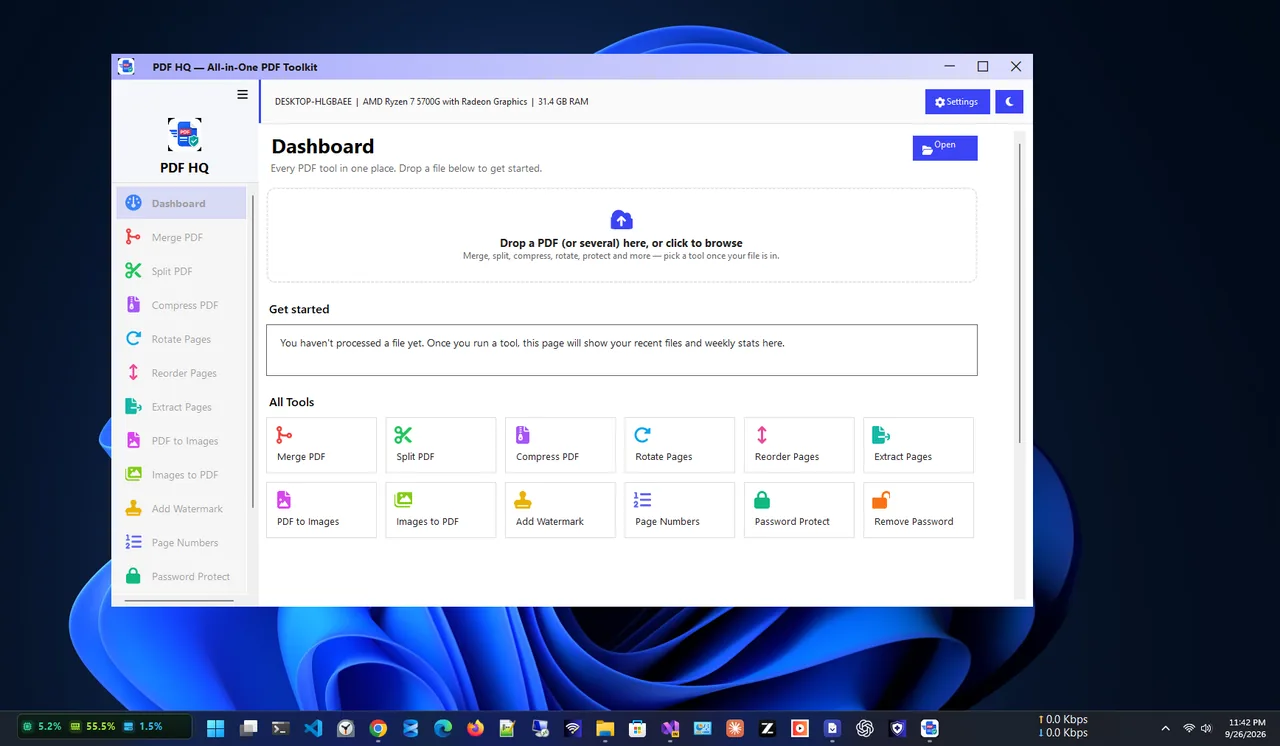
Open Split
Open PDF HQ and choose the split option on the dashboard.
-
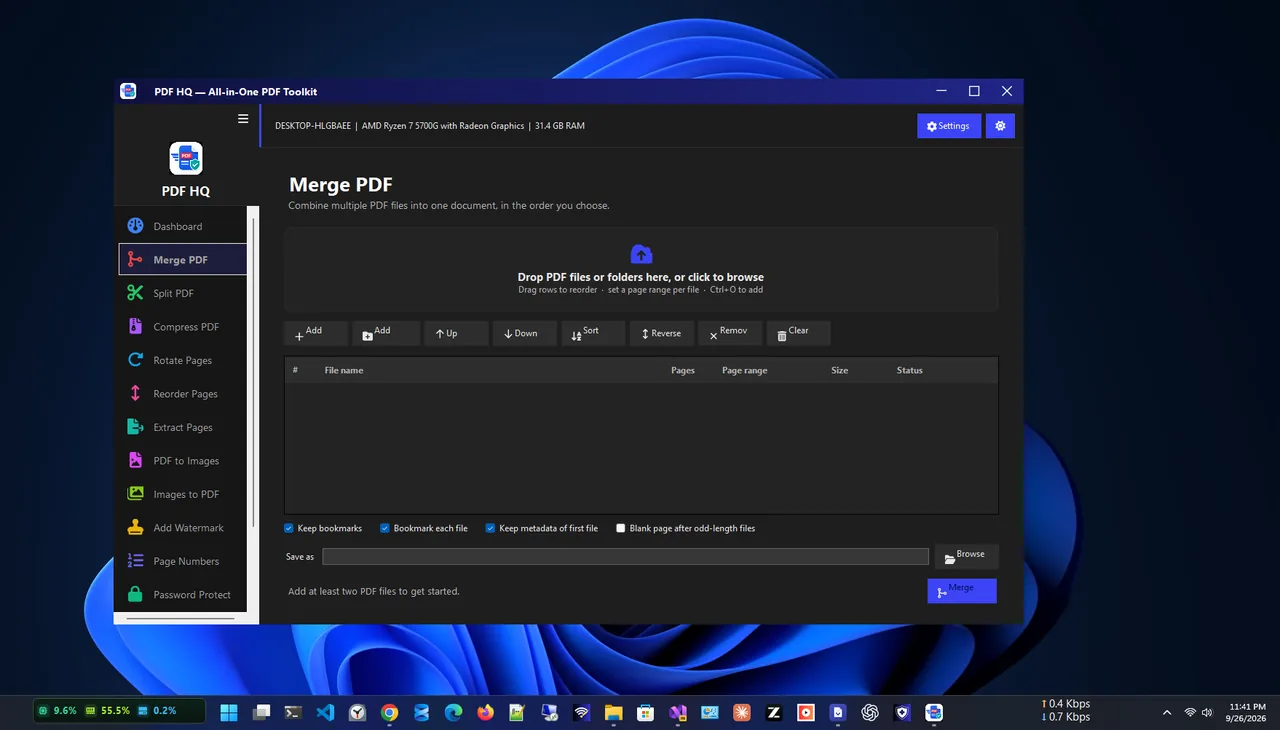
Add the PDF and choose ranges
Select the file and enter the pages or ranges you want, or choose to split into single pages.
-
Save the output
Pick a folder and save. The original file stays unchanged, and nothing is uploaded.
Method 2: Microsoft Print to PDF (Built In)
-
Open the PDF in a browser
Right-click the PDF > Open with > Microsoft Edge (or Chrome).
-
Print selected pages
Press Ctrl+P. Set Printer to Microsoft Print to PDF (in Chrome: Save as PDF). Under Pages, choose Custom and type, for example,
3-7or1,4,9. -
Save the new file
Click Print or Save and choose a file name. Repeat for each part you need.
Limitations: one output file at a time, and printing can drop bookmarks, links and form fields, and may enlarge scanned files. For many files or to keep links, use a PDF tool.
Method 3: Re-save From the Source
If you have the original Word or PowerPoint file, File > Save As > PDF > Options lets you choose a page range and keeps links and bookmarks intact.
Tips
- Check page numbers. Use the PDF's actual page positions, not printed page numbers, which often differ.
- Name files clearly, for example Contract-signed-page.pdf, so recipients know what they have.
- Protect sensitive parts after splitting; see password protect a PDF.
- Shrink large scans before emailing; see compress PDF without losing quality.
- Reassemble later with merge PDF files offline.
Split a PDF: Common Real-World Jobs
- Scanned bundle: a 30-page scan of several letters split into one file per letter, named by date and sender.
- Bank statement: extract just the pages a landlord or lender needs, so you do not share every transaction.
- Contract: send only the signature pages for signing, then merge the signed pages back into the full document.
- Manual or e-book: extract one chapter to read on a phone or print.
- Email size limits: split a large report into parts under 20–25 MB each.
Check the Result
Open each output file and scroll through it before sending. Make sure the page count is right, pages are not rotated, and form fields or signatures still appear. If a scanned page looks blurry after Print to PDF, use a PDF tool's split function instead, which copies pages without re-rendering them.
Split a PDF by File Size
When an upload form accepts only files under, say, 10 MB, splitting by page range alone may not be enough if some pages are large scans. Compress first, then split into parts of a few pages each and check each file's size in File Explorer. Name the parts clearly, for example Report-part1-of-3.pdf, so the recipient can put them back in order.
Put Split Pages Back Together
After someone signs or edits a split section, merge it back into the full document in the right order and check page numbers and bookmarks once more before filing it. Keep the original, unsplit file in your archive as well, so you always have a complete version to return to if a part goes missing or a page needs replacing later.
FAQ
Can I split a PDF without Adobe Acrobat?
Yes. Use Microsoft Print to PDF for simple page ranges, or a free offline PDF tool for all split types.
How do I split a PDF into single pages?
Use a PDF tool's "split every page" option. Doing it with Print to PDF means one print per page.
Is it safe to split PDFs online?
For public documents, fine. For contracts, bank or medical files, use an offline tool so the file never leaves your PC.
Can I split a password-protected PDF?
You need the password to open it first. Then save the pages you need and protect the new file again if required.
Conclusion
To split a PDF on Windows, use an offline PDF tool for ranges, single pages and batches, or Microsoft Print to PDF for a quick page range with no install. Keep originals and protect sensitive pages after splitting. Explore more productivity apps for Windows 11.