Productivity Fix
Copy Paste Not Working on Windows 11? 10 Fixes
Copy paste not working on Windows 11? Restart Explorer, clear the clipboard, check Ctrl+C and Ctrl+V, fix Remote Desktop and stop apps locking it.
On this page
If copy and paste is not working on Windows 11, first restart Windows Explorer (Task Manager > Windows Explorer > Restart) or the PC. Then clear the clipboard (Win+V > Clear all, or run cmd /c "echo off | clip"), test Ctrl+C and Ctrl+V in Notepad and with the right-click menu, and close apps that hook the clipboard such as remote desktop tools, password managers and clipboard utilities. If it fails in only one app, update or repair that app.
Time: 5–15 minutes · Cost: free · Works on: Windows 11 and Windows 10
You press Ctrl+C, then Ctrl+V, and nothing appears, or the old item pastes instead. Copy and paste is so basic that when it breaks, everything slows down. Copy paste not working on Windows 11 is usually caused by a stuck clipboard, an app that has locked it, or a keyboard problem. These fixes are ordered from quickest to most thorough.
First, Narrow It Down
| Symptom | Likely cause | Go to |
|---|---|---|
| Right-click Copy/Paste works, Ctrl+C/V do not | Keyboard or a hotkey app | Fix 4 |
| Fails in every app | Stuck clipboard or Explorer | Fix 1–3 |
| Fails in one app only | That app | Fix 7 |
| Fails between PC and remote session or VM | Clipboard redirection | Fix 6 |
| Pastes an old item | Another app holds the clipboard | Fix 5 |
10 Fixes for Copy Paste Not Working
-
Restart Windows Explorer
Press Ctrl+Shift+Esc, find Windows Explorer in Processes, right-click > Restart. The taskbar disappears for a moment and comes back. This fixes most cases.
-
Clear the clipboard
Press Win+V and choose Clear all, or Settings > System > Clipboard > Clear. From Terminal:
Commandcmd /c "echo off | clip" -
Restart the PC
A full restart (not shut down) resets the clipboard service and any app that locked it.
-
Check the keyboard
Test the Ctrl keys with the On-Screen Keyboard (Win+Ctrl+O) or another keyboard. Clean stuck keys, check Sticky Keys and Filter Keys are off (Settings > Accessibility > Keyboard), and close macro or hotkey tools that may capture Ctrl+C.
-
Close apps that hook the clipboard
Remote desktop tools (TeamViewer, AnyDesk), password managers, screenshot tools, translation apps and clipboard managers all watch the clipboard. Close them one by one to find a conflict, then update it.
-
Fix Remote Desktop and VM clipboard
Remote Desktop: in the connection's Local Resources tab, tick Clipboard. If it stops mid-session, end
rdpclip.exein the remote PC's Task Manager and start it again from Run. In VirtualBox or VMware, enable shared clipboard and install guest tools. -
Repair the problem app
If only Word, Excel or a browser fails, update it, disable add-ins or extensions, or use Settings > Apps > Installed apps > app > Modify / Repair. In Excel, paste fails while cells are in edit mode; press Esc first.
-
Turn clipboard history off and on
Settings > System > Clipboard > Clipboard history off, restart, and turn it back on. Learn more in clipboard history on Windows 11.
-
Scan for malware and repair system files
Run a full Windows Security scan (clipboard-hijacking malware exists), then
sfc /scannowin Terminal (Admin). -
Try a clean boot
Run
msconfig> Services > Hide all Microsoft services > Disable all, and disable startup apps in Task Manager. Restart and test. If copy paste works, enable items in groups to find the culprit.
Never Lose a Copied Item Again
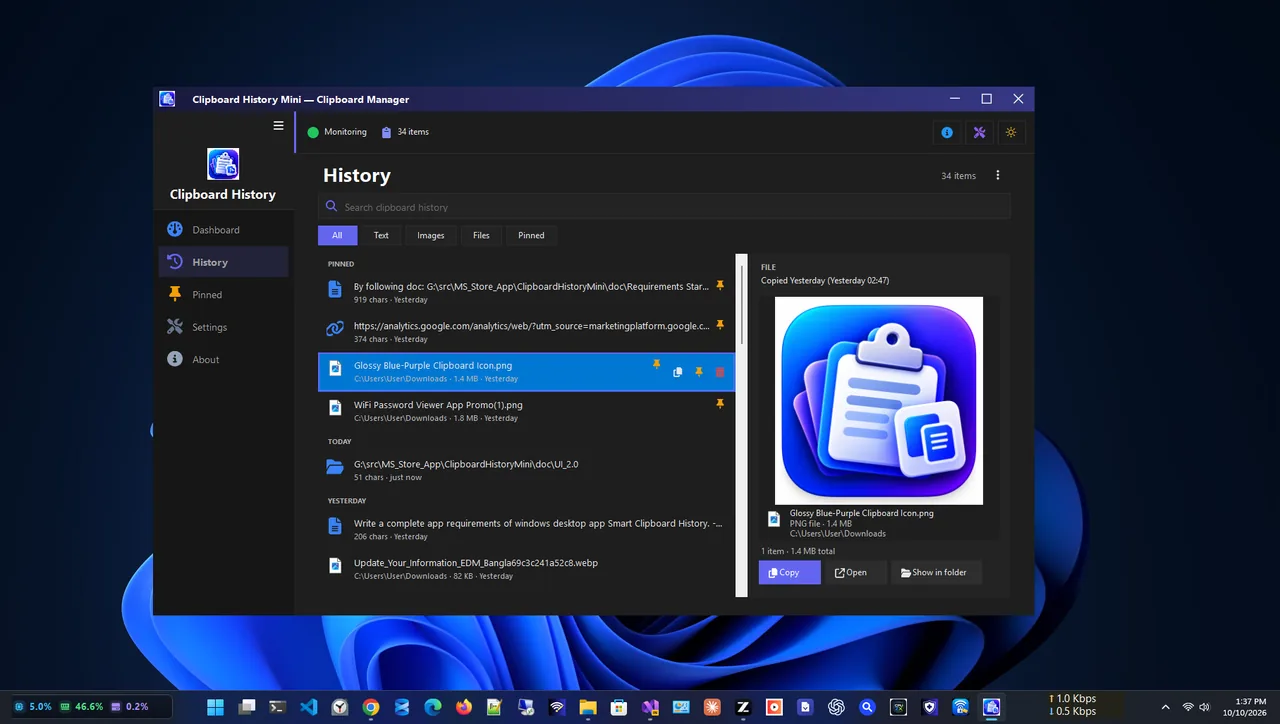
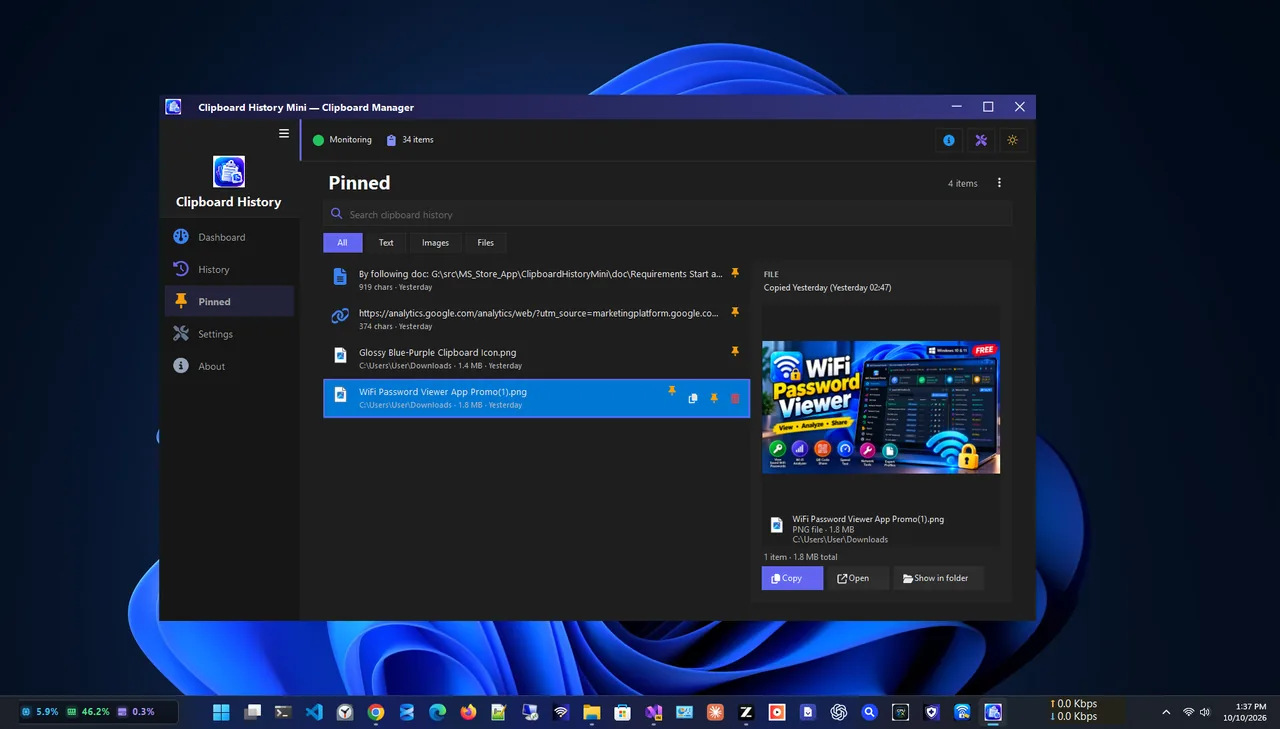
A clipboard manager keeps everything you copy, so if one paste goes wrong you can pick the item from history. Clipboard History Mini saves text, images and files you copy, lets you pin items you reuse, and pastes any of them with one click. If you mostly copy text out of screenshots, see copy text from an image on Windows 11.
Copy Paste Shortcuts Worth Knowing
| Shortcut | Action |
|---|---|
| Ctrl+C / Ctrl+X / Ctrl+V | Copy / cut / paste |
| Ctrl+Shift+V | Paste as plain text in many apps |
| Win+V | Open clipboard history |
| Ctrl+Insert / Shift+Insert | Alternative copy / paste, useful when Ctrl+C is captured by an app |
Copy Paste Not Working in Excel or Word
- Excel: press Esc to leave cell edit mode, check the sheet is not protected (Review > Unprotect Sheet), and try pasting into a new workbook to rule out file damage.
- Word: start Word in safe mode (hold Ctrl while opening) to disable add-ins; if paste works there, disable add-ins one by one.
- Large copies: copying huge ranges or images can take time; wait for the status bar to finish before pasting.
FAQ
Why did copy and paste suddenly stop working?
Usually an app locked the clipboard or Explorer hung. Restarting Windows Explorer or the PC fixes it in most cases.
How do I reset the clipboard in Windows 11?
Win+V > Clear all, or Settings > System > Clipboard > Clear. A restart resets it completely.
Can a clipboard manager cause copy paste problems?
Two clipboard tools running at once can conflict. Use one at a time and keep it updated.
Why does paste work with right-click but not Ctrl+V?
The keyboard, Sticky Keys or a hotkey app is intercepting Ctrl. Test with the On-Screen Keyboard.
Conclusion
When copy paste stops working on Windows 11, restart Windows Explorer, clear the clipboard, and look for an app or keyboard problem. Remote sessions need clipboard redirection, and single-app failures need that app repaired. A clipboard manager adds a safety net. Explore more productivity apps for Windows 11.