Productivity How-to
How to Password Protect a PDF on Windows (Free)
Password protect a PDF on Windows 11 offline: add an open password with AES encryption, restrict printing and editing, and never upload private files.
On this page
To password protect a PDF on Windows, open it in an offline PDF tool that supports encryption, choose Protect or Encrypt, set an open password (and optionally a permissions password that blocks printing or editing), pick AES-256 if offered, and save a new copy. Microsoft Word can also do it: open the PDF or source document, File > Save As > PDF > Options > Encrypt the document with a password. Share the password separately from the file.
Time: 2 minutes · Cost: free · Works on: Windows 11 and Windows 10
Payslips, contracts, medical reports and tax documents should not travel as open PDFs. Adding a password means only people who know it can read the file, even if the email is forwarded or a USB stick is lost. This guide shows how to password protect a PDF on Windows without uploading it to a website, and explains the difference between open passwords and permission passwords.
Two Kinds of PDF Password
| Open (user) password | Permissions (owner) password | |
|---|---|---|
| What it does | Needed to open and read the file | Limits printing, copying and editing |
| Encrypts content | Yes | Restrictions only; content readable without a password if no open password |
| Strength | Strong with AES-256 and a long password | Weak; many tools ignore restrictions |
| Use for | Confidential documents | Discouraging edits on shared forms |
For real privacy, always set an open password.
Method 1: PDF HQ (Offline)
-
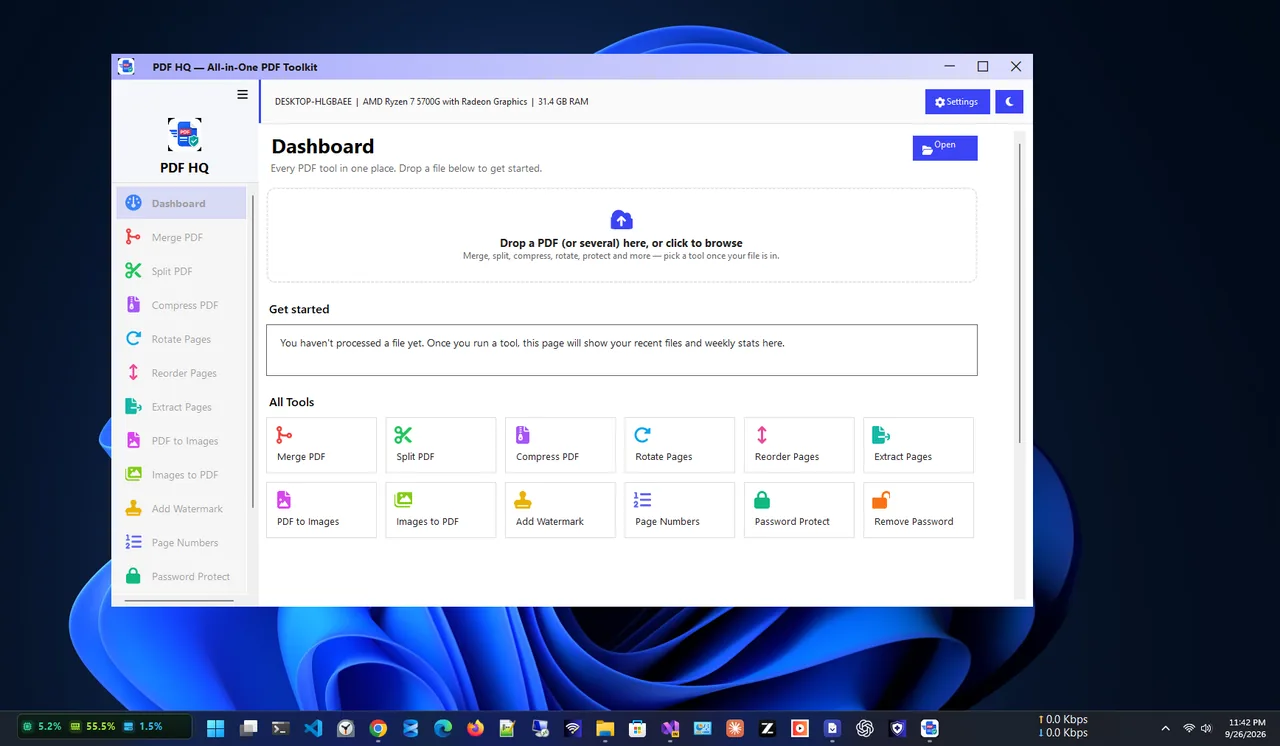
Open the Protect tool
Open PDF HQ and choose the protect option from the dashboard.
-
Add the PDF and set a password
Select the file, type a strong password twice, and choose any permission restrictions you want.
-
Save a protected copy
Save it under a new name, then open it to confirm it asks for the password. Keep the unprotected original in a safe place or delete it if you no longer need it.
Everything runs on your PC, so confidential files never leave it.
Method 2: Microsoft Word
-
Open the document
Open the original Word file, or open the PDF in Word (Word converts it; complex layouts may shift).
-
Save as PDF with encryption
File > Save As > choose PDF > Options > tick Encrypt the document with a password > OK. Enter the password twice and save.
What About Online PDF Tools?
Online "protect PDF" sites work, but you upload the unprotected document to someone else's server, which defeats the purpose for sensitive files. Use an offline tool for anything confidential.
Choosing a Strong PDF Password
- Use at least 12 characters; a passphrase of four random words is strong and easy to share by phone.
- Do not reuse your email or bank password.
- Send the password through a different channel than the file, such as a text message or call.
- Store it in a password manager. A lost open password on an AES-256 PDF cannot be recovered.
Combine With Other PDF Tasks
Protect the file as the last step. Merge pages first (merge PDF files offline), remove pages you do not want to share (split PDF pages), and shrink it for email (compress PDF without losing quality). Many tools cannot edit an encrypted PDF without removing the password first.
Opening a Password-Protected PDF
Recipients can open the file in any modern PDF reader, including Microsoft Edge, Chrome, Adobe Acrobat Reader and phone apps, and type the password when asked. Very old readers may not support AES-256; if someone cannot open it, check that their reader is up to date before lowering the encryption level.
Password Protect Several PDFs
For monthly payslips or client reports, protect each file with its own password rather than one shared password for everyone. A common, easy-to-communicate pattern is a password the recipient already knows, such as a date of birth plus the last digits of an account number, as long as your organisation's policy allows it. Merge files first if they go to the same person, so they need only one password.
Common Mistakes
- Sending the password in the same email as the file.
- Using a permissions password only and assuming the content is encrypted.
- Keeping the unprotected original in a shared folder.
- Choosing a short password that can be guessed by cracking tools.
Open Protected PDFs on Phones
iPhone (Files app, Books) and Android (Google Drive, most PDF readers) open AES-encrypted PDFs and ask for the password. Tell recipients to expect the prompt, so they do not think the file is broken.
FAQ
Can Windows 11 password protect a PDF without extra software?
Not with the built-in Microsoft Print to PDF. Word can encrypt PDFs it saves; otherwise use an offline PDF tool.
How secure is a password-protected PDF?
With AES-256 and a long, unique password, very secure. Short passwords can be guessed by cracking tools.
How do I remove a password from a PDF?
Open it with the password in a PDF tool and save a copy without protection. You must know the password.
Does a password stop people printing my PDF?
A permissions password asks readers to block printing, but not all apps respect it. Only an open password truly protects content.
Conclusion
To password protect a PDF, set an open password with AES encryption in an offline tool or Word, save a new copy, and send the password separately. Permission passwords are only a light deterrent. Explore more productivity apps for Windows 11.