Productivity How-to
How to Find Large Files on Windows 11 (4 Ways)
Find large files on Windows 11 with File Explorer size filters, Storage settings, PowerShell or a fast search app, then delete or move them safely.

On this page
To find large files on Windows 11, open File Explorer, select This PC or the C: drive, and type size:>1GB (or size:gigantic for files over 4 GB) in the search box. Switch to Details view and sort by Size. Settings > System > Storage also shows the biggest categories, and PowerShell can list the 20 largest files on a drive in one command.
Time: 2–10 minutes · Cost: free · Works on: Windows 11 and Windows 10
Your drive is almost full and you need to know what is taking the space. A handful of big files, such as old videos, ISO images, virtual machines or forgotten game installs, usually accounts for most of it. This guide shows how to find large files on Windows 11 four ways, from File Explorer to PowerShell, and how to decide what is safe to remove.
Method 1: File Explorer Size Search
-
Choose where to search
Open File Explorer (Win+E) and select This PC, a drive, or a folder like Downloads.
-
Type a size filter
In the search box, type
size:>500MBorsize:>1GB. You can also use the built-in names below. -
Sort by size
Choose View > Details, then click the Size column header. Right-click a result > Open file location to see where it lives.
| Filter | Size range |
|---|---|
size:large | 128 MB – 1 GB |
size:huge | 1 – 4 GB |
size:gigantic | Over 4 GB |
size:>2GB ext:.mp4 | Videos over 2 GB |
Searching a whole drive that is not indexed can be slow. If results are missing, see Windows search not finding files.
Method 2: Storage Settings
Settings > System > Storage shows which categories use the most space. Click a category, such as Other, Documents or Videos, to see its largest folders. "Cleanup recommendations" lists large or unused files and apps you can remove. If much of the space is hidden system data, read C drive full on Windows 11.
Method 3: PowerShell (Top 20 Largest Files)
Get-ChildItem C:\Users -Recurse -File -ErrorAction SilentlyContinue |
  Sort-Object Length -Descending |
  Select-Object -First 20 FullName, @{n='GB';e={[math]::Round($_.Length/1GB,2)}}
Change C:\Users to C:\ to scan the whole drive (slower, and some folders need admin rights). This finds files that File Explorer search can miss in unindexed locations.
Method 4: Anything Search
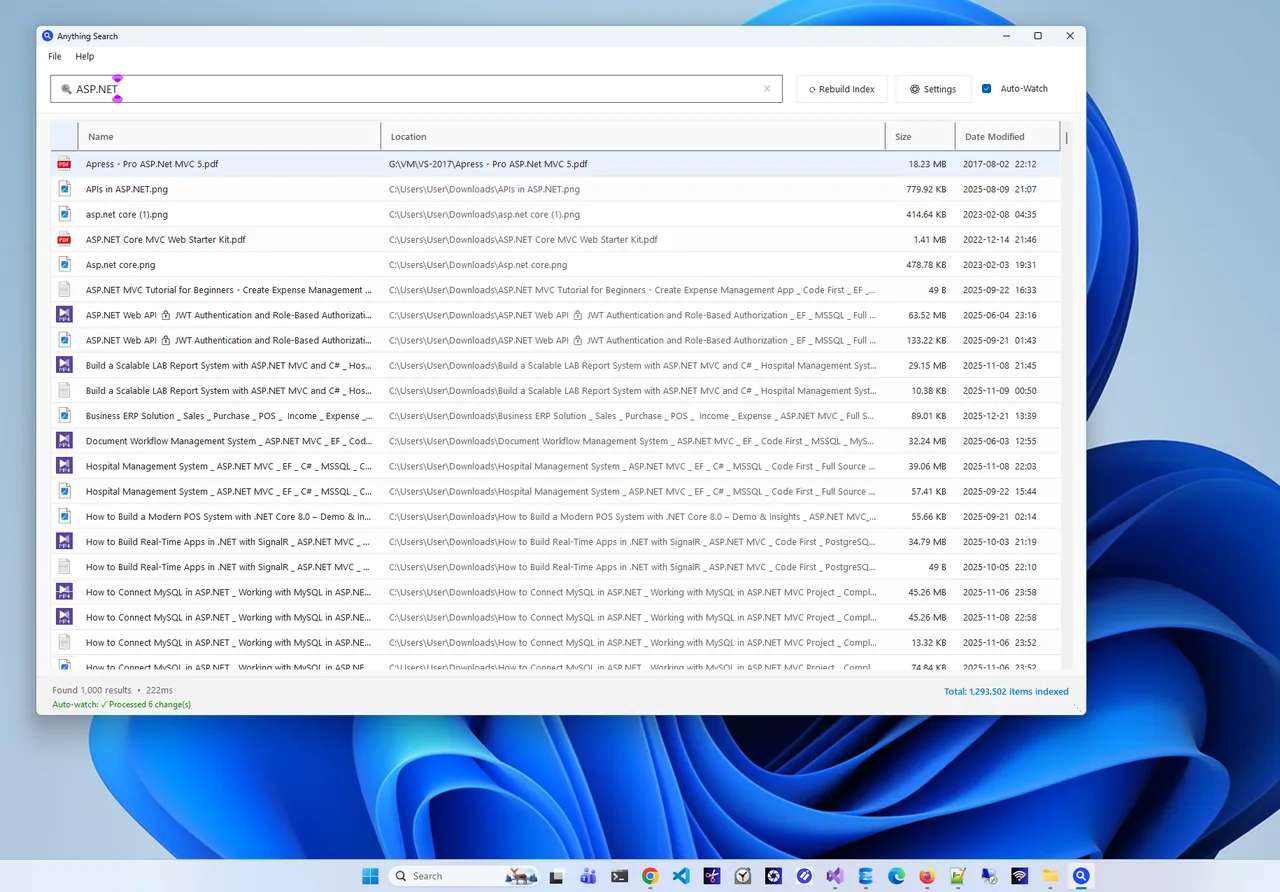
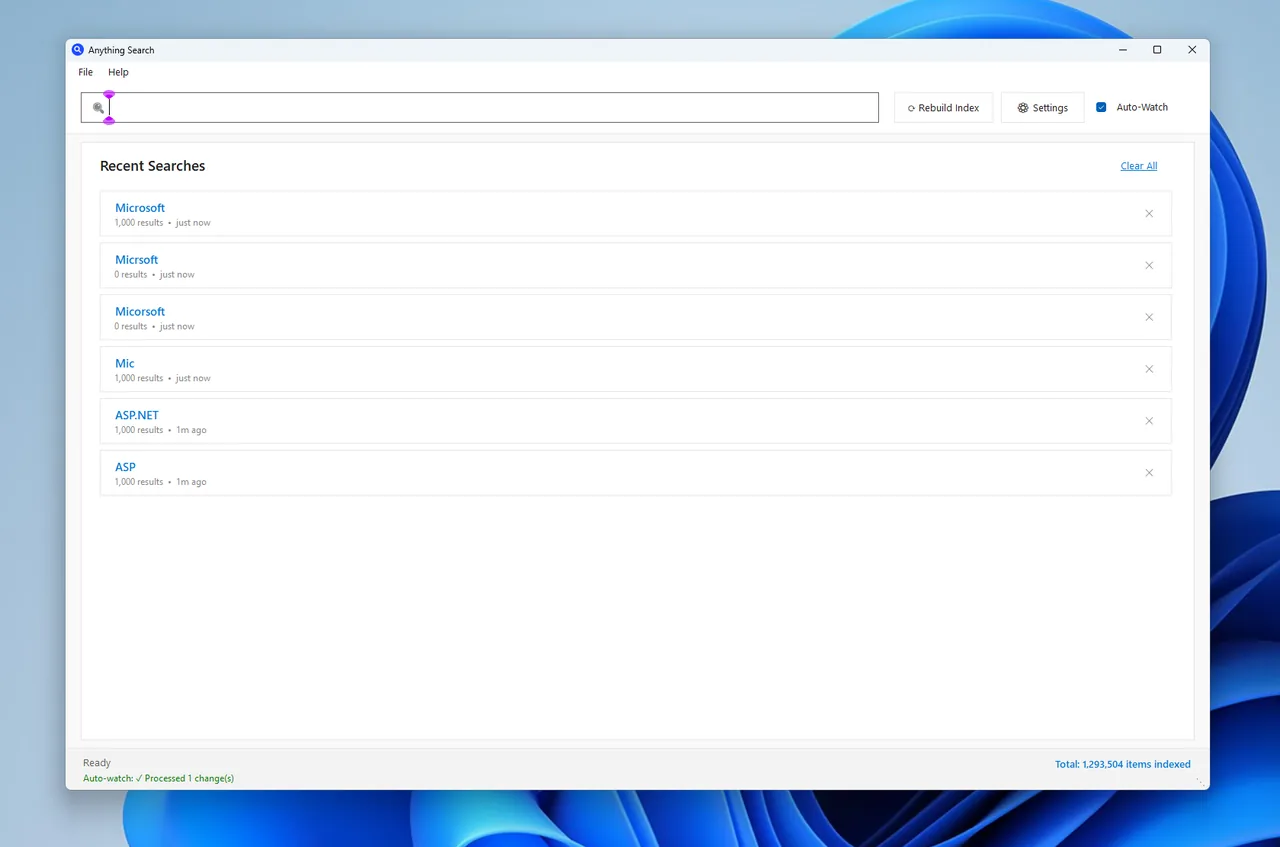
Anything Search finds any file on your PC in milliseconds as you type and shows folder
path, size and date for each result. Type a file type such as .iso, .mp4 or .vhdx
and you instantly see every match with its size, without waiting for a full-drive Explorer search.
Where Large Files Usually Hide
- Downloads: installers, ISO images and zipped files you no longer need.
- Videos and phone backups: screen recordings and camera imports, often duplicated.
- Virtual machines: .vhdx and .vmdk files of 20–100 GB.
- Game folders: Steam, Epic and Xbox libraries; uninstall from the launcher, not Explorer.
- AppData: caches from browsers, Teams, Adobe and others (C:\Users\Name\AppData is hidden).
What Is Safe to Delete?
Your own files (videos, downloads, archives, old backups) are safe to delete or move once you no longer need them. Do not delete pagefile.sys, hiberfil.sys or anything in C:\Windows or Program Files by hand; use the clean-up tools in free up disk space on Windows 11. Uninstall apps and games through Settings or their launcher.
Tips to Find Large Files on Windows 11 Faster
- Start with Downloads and Videos. Most space hogs live there, and searching one folder is much quicker than a whole drive.
- Search by type.
ext:.iso OR ext:.zip OR ext:.mp4finds installers, archives and videos in one go. - Combine filters.
size:>1GB datemodified:<2025shows big files you have not touched in a long time, which are usually safe to archive. - Check other user accounts. Large files in another user's folders need admin rights to see.
- Look at OneDrive. Files set to "Always keep on this device" take local space; set them to free up space.
Once you have found them, move archives and videos to an external drive or cloud storage instead of deleting them if you might need them again.
Find Large Files on External Drives
The same Explorer search works on USB drives and network shares, but they are not indexed, so it is slower. Search one
folder at a time, or run the PowerShell command with the drive letter, for example Get-ChildItem E:\ -Recurse
-File, to list the biggest files.
FAQ
How do I sort all files by size in Windows 11?
Search * or size:>100MB in File Explorer on the drive, switch to Details view and click the Size column.
Why does File Explorer not show folder sizes?
Explorer only shows file sizes in the list. Right-click a folder > Properties for its size, or use Storage settings for an overview.
Can I find large hidden files?
Turn on View > Show > Hidden items in File Explorer, or use the PowerShell command with -Force to include hidden files.
What is the fastest way to search a whole drive?
An indexed search app is fastest. Explorer is fast in indexed folders but slow elsewhere.
Conclusion
To find large files on Windows 11, search size:>1GB in File Explorer and sort by size, check Storage
settings for big categories, or list the top files with PowerShell. Then delete or move what you do not need. Explore more
productivity apps for Windows 11.