Network Explainer
What Is Ping and Jitter? Good Values for Gaming & Calls
What is ping and jitter, and what is a good ping? Plain-English guide with target values for gaming, video calls and streaming, and how to lower both.
On this page
Ping is the time, in milliseconds (ms), that data takes to travel to a server and back. Jitter is how much that time changes from one moment to the next. Lower is better for both: under 50 ms ping and under 10 ms jitter feel smooth for gaming and video calls. Speed (Mbps) is a different thing.
Every speed test shows two numbers that many people skip: ping and jitter. Yet when a game feels laggy or a video call keeps freezing, these two matter more than your download speed. This guide explains what ping and jitter are in plain English, what good values look like, and how to bring them down.
What Is Ping?
Ping, also called latency, is the round-trip time for a small packet of data to go from your PC to a server and come back, measured in milliseconds. A ping of 20 ms means a reply arrives one fiftieth of a second after you send something. In a game, that is the delay between pressing a key and the server seeing it.
The name comes from the ping command, which sends exactly this kind of test packet.
What Is Jitter?
Jitter is the variation in ping. If five pings come back at 20, 21, 19, 20 and 22 ms, jitter is low, about 1 ms. If they come back at 20, 85, 18, 140 and 25 ms, jitter is high, and real-time apps suffer: voices sound robotic, video stutters and game characters "teleport".
A steady 60 ms ping often feels better than a ping that jumps between 15 and 120 ms. Consistency matters as much as the number.
Ping vs Jitter vs Speed
| Measure | Unit | What it tells you | Matters most for |
|---|---|---|---|
| Ping (latency) | ms, lower is better | How quickly data makes a round trip | Gaming, calls, remote desktop |
| Jitter | ms, lower is better | How stable that delay is | Video and voice calls, live streams |
| Download / upload | Mbps, higher is better | How much data moves per second | Streaming, downloads, backups |
| Packet loss | %, 0 is best | How much data never arrives | Everything real-time |
Think of a motorway: speed is how many lanes it has, ping is how long the drive takes, and jitter is how unpredictable the traffic is. For more on the speed numbers, see upload vs download speed.
What Is a Good Ping and Jitter?
| Rating | Ping | Jitter | How it feels |
|---|---|---|---|
| Excellent | Under 20 ms | Under 5 ms | Competitive gaming feels instant |
| Good | 20–50 ms | 5–10 ms | Smooth games and calls |
| Fair | 50–100 ms | 10–30 ms | Fine for calls; noticeable lag in fast games |
| Poor | Over 100 ms | Over 30 ms | Delays, robotic audio, rubber-banding |
- Competitive gaming (shooters, fighting games): aim for under 30 ms ping and under 5 ms jitter.
- Video calls (Teams, Zoom, Meet): under 100 ms ping and under 30 ms jitter, with no packet loss.
- Streaming and browsing: ping hardly matters; buffering is about speed.
How to Test Ping and Jitter on Windows
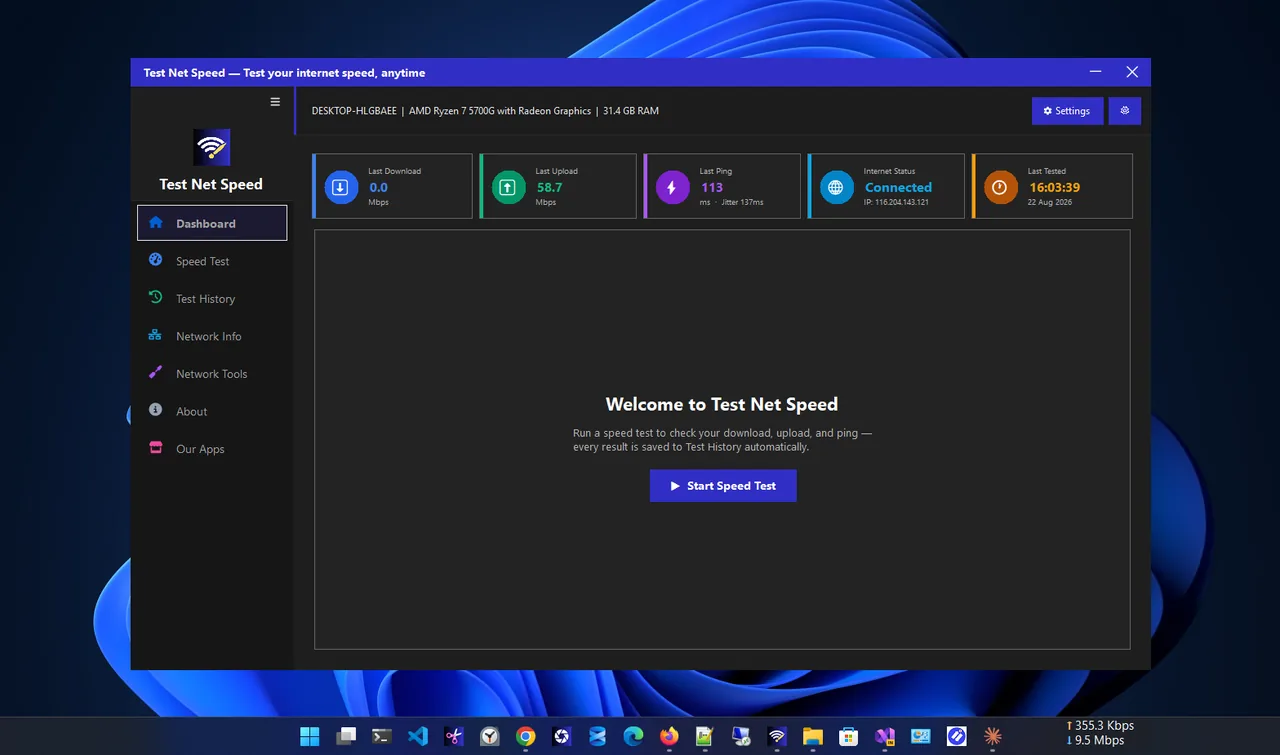
The easiest way is a speed test that reports both. Test Net Speed shows download, upload, ping and jitter in one run and saves every result, so you can compare evenings with mornings or Wi-Fi with a cable.
You can also test ping to any server from Terminal. This sends 20 pings to Google's DNS server:
ping 8.8.8.8 -n 20Read the Average at the bottom for ping. If the individual times jump around a lot, jitter is high. "Request timed out" lines mean packet loss, explained in what is packet loss.
What Causes High Ping and Jitter
- Wi-Fi. Walls, distance and interference add delay and make it uneven. A cable is the biggest single improvement; see Ethernet vs Wi-Fi.
- A busy connection. A large upload or download fills the line and queues everything else. This is called bufferbloat.
- Distance to the server. Data cannot beat physics; a server on another continent adds 100 ms or more.
- Your ISP and connection type. Fibre is lowest, cable and DSL are higher, and mobile and satellite vary the most.
- VPNs. They add an extra hop, often to a distant server.
How to Lower Ping and Jitter
- Use an Ethernet cable for gaming and important calls.
- If you must use Wi-Fi, connect to 5 GHz and sit close to the router.
- Pause cloud backups, game updates and large downloads on every device during calls and matches.
- Pick the nearest game server or region in the game settings.
- Turn on QoS or SQM (bufferbloat control) in your router if it has it.
- Turn off the VPN, or pick a VPN server close to you.
- Restart the router; if ping is always high, ask your ISP or consider fibre.
Common Myths
- "A faster plan lowers ping." Not much. Going from 100 to 1000 Mbps rarely changes ping; a cable or a closer server does.
- "Low ping means fast internet." No. You can have 10 ms ping on a 10 Mbps line that buffers 4K video.
- "Jitter only matters to gamers." Video and voice calls suffer from jitter even more than games do.
- "Ping boosters fix lag." Most do nothing that the steps above do not do for free.
FAQ
Is 100 ms ping bad?
For video calls and browsing it is acceptable. For fast online games it is noticeable lag; aim for under 50 ms.
What is a good jitter for Zoom or Teams?
Under 30 ms works, and under 10 ms is ideal. Above that, audio can break up even when ping looks fine.
Why is my ping high only on Wi-Fi?
Wi-Fi shares the air with other devices and networks, so packets wait and retry. Move closer, use 5 GHz or plug in a cable.
Is latency the same as ping?
In everyday use, yes. Strictly, latency is the delay and ping is the tool and test that measures the round trip.
Conclusion
Ping is how long a round trip takes; jitter is how steady it is. Keep ping under 50 ms and jitter under 10 ms and games and calls feel smooth. Test both, use a cable when it matters and stop big transfers during calls. To check whether your plan's speed is enough as well, read how much internet speed you need.