Network How-to
How to Check Ethernet Speed on Windows 11
Check Ethernet speed on Windows 11 in Settings, Control Panel or PowerShell. See your link speed (100 Mbps, 1 Gbps or 2.5 Gbps) and fix a slow wired link.
On this page
To check Ethernet speed on Windows 11, open Settings > Network & internet > Ethernet and look at Link speed (Receive/Transmit), for example 1000/1000 (Mbps). In PowerShell, Get-NetAdapter | Select Name, LinkSpeed shows the same. Link speed is the maximum between your PC and the router; to see your real internet speed, run a speed test.
Time: 1 minute · Cost: free · Works on: Windows 11 and Windows 10
You paid for gigabit internet but downloads top out at 94 Mbps. Or you want to know whether your new 2.5 Gb port is actually running at 2.5 Gb. The first thing to check is the Ethernet speed on Windows 11: the link speed your network adapter has agreed with the router. This guide shows four ways to see it, explains what the number means, and tells you what to do when it is lower than it should be.
Link Speed vs Internet Speed
Two different numbers often get mixed up:
- Link speed is the connection between your PC and the router or switch, such as 100 Mbps, 1 Gbps or 2.5 Gbps. It is a ceiling.
- Internet speed is what you actually get from your provider, measured with a speed test. It can never be higher than the link speed.
So a 1 Gbps link with a 300 Mbps plan is normal. A 100 Mbps link with a 500 Mbps plan is a bottleneck you can fix.
Method 1: Check Ethernet Speed in Windows Settings
-
Open Ethernet settings
Press Win+I and go to Network & internet > Ethernet.
-
Read the link speed
Scroll down to the properties list. Link speed (Receive/Transmit) shows the speed in Mbps, for example 1000/1000 for gigabit or 2500/2500 for 2.5 Gb.
The same list shows your IPv4 address, DNS servers and the adapter's MAC address.
Method 2: Control Panel
Press Win+R, type ncpa.cpl and press Enter. Double-click your Ethernet adapter. The Status window shows Speed (for example 1.0 Gbps) and how long it has been connected.
Method 3: PowerShell or Terminal
Get-NetAdapter | Select-Object Name, InterfaceDescription, Status, LinkSpeedThis lists every adapter with its link speed in one table, which is handy on PCs with several ports, docks or USB adapters. For Wi-Fi, netsh wlan show interfaces shows Receive and Transmit rate instead.
Method 4: Measure Real Throughput
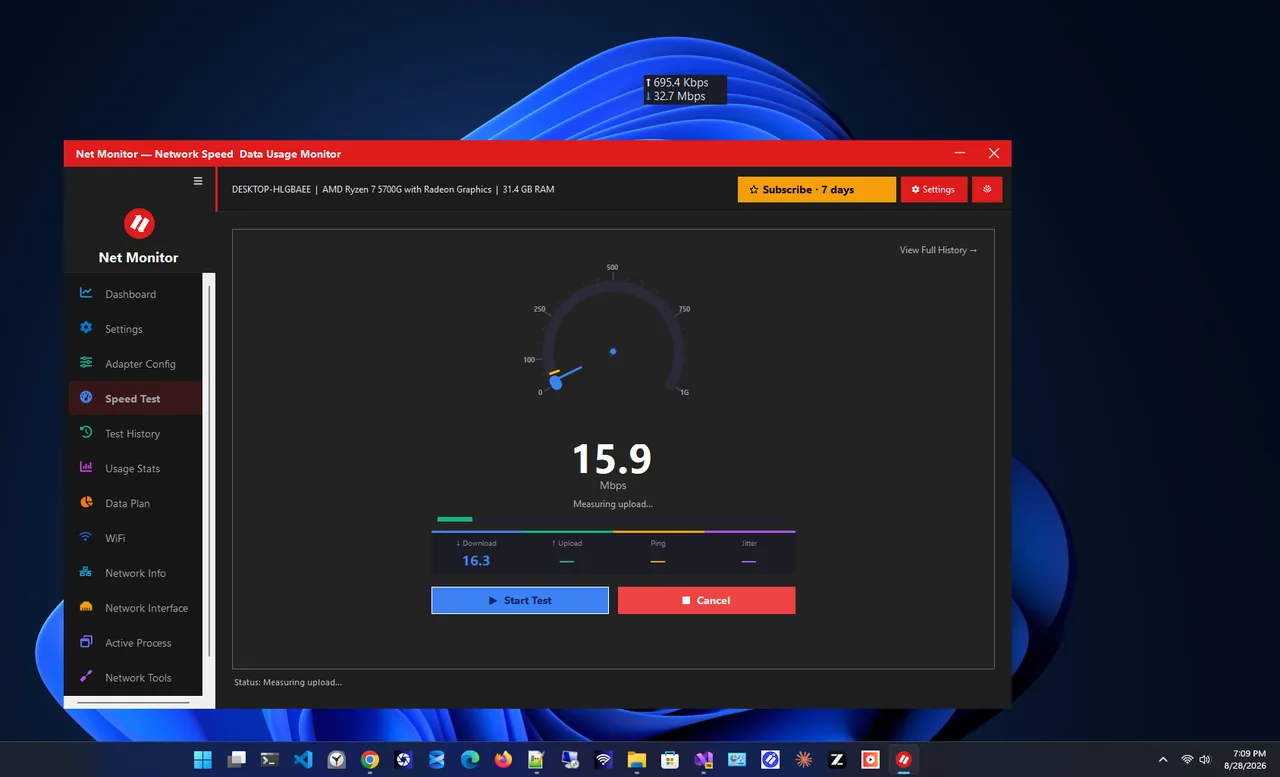
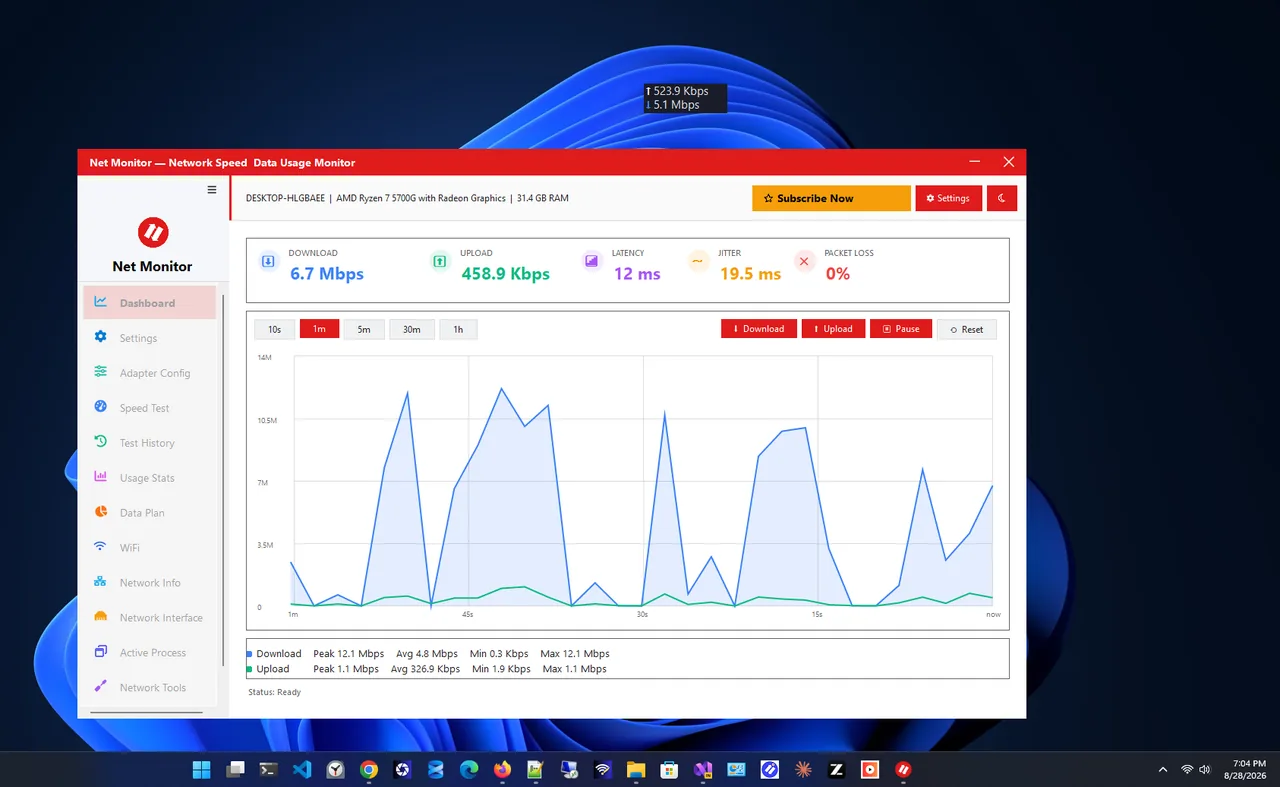
Link speed tells you the limit; a live meter tells you what you actually get. Net Monitor shows live download and upload speed and runs a built-in speed test, so you can compare your real speed against the link speed and your plan. Remember that 1 Gbps is about 125 MB/s at most in a download window; see Mbps vs MB/s for the conversion.
What the Numbers Mean
| Link speed | Name | Real-world max | Cable needed |
|---|---|---|---|
| 10 Mbps | Ethernet | about 9 Mbps | Faulty link, fix it |
| 100 Mbps | Fast Ethernet | about 94 Mbps | Cat5 or a damaged cable |
| 1000 Mbps | Gigabit | about 940 Mbps | Cat5e or better |
| 2500 Mbps | 2.5 GbE | about 2.35 Gbps | Cat5e (short) or Cat6 |
| 10000 Mbps | 10 GbE | about 9.4 Gbps | Cat6a or better |
Stuck at 100 Mbps? Fix It
-
Replace the cable
Gigabit needs all four wire pairs; 100 Mbps uses only two. A cable with one broken pair, a crushed section or a cheap flat cable drops to 100 Mbps. Try a known-good Cat5e or Cat6 cable, and check the print on the cable jacket.
-
Try another router port
Some routers have a mix of gigabit and 100 Mbps ports, and a faulty port can negotiate low. Older switches in between may also be 100 Mbps only.
-
Set Speed & Duplex to Auto
Device Manager > Network adapters > your Ethernet adapter > Advanced > Speed & Duplex = Auto Negotiation. Disable Energy-Efficient Ethernet or Green Ethernet if it is on.
-
Update the driver
Install the latest driver from the PC or motherboard maker. If the link still drops or reconnects often, follow Ethernet not working on Windows 11.
Other Bottlenecks Between You and Your Plan
A gigabit link on the PC does not guarantee gigabit internet. Check every hop on the way:
- The router's WAN port. Some older or ISP-supplied routers have a 100 Mbps internet port. The router's status page shows the WAN link speed.
- Switches and wall sockets. A cheap 10/100 switch or a poorly wired wall socket caps everything behind it. Plug the PC straight into the router to test.
- USB adapters and docks. A USB 2.0 Ethernet adapter tops out around 300 Mbps even when it reports a 1 Gbps link. Use a USB 3 port and a USB 3 adapter.
- The speed test server. Distant or busy servers under-report fast plans. Try two or three servers before blaming your connection.
When the link speed is right but downloads stay slow, compare a wired speed test with one on Wi-Fi at the same time; if both are equally slow, the limit is the plan or the ISP, not your cable.
Is Ethernet Faster Than Your Wi-Fi?
Usually yes, and with lower ping and fewer spikes. If Wi-Fi beats your wired speed, the cable or port is almost certainly the problem. More in Ethernet vs Wi-Fi.
FAQ
Why does my Ethernet only show 100 Mbps?
Most often a damaged or old cable, a 100 Mbps router port or switch, or the adapter set to a fixed speed. Replace the cable first.
Why do I get 940 Mbps on a 1 Gbps link?
Network protocols use about 6% of the bandwidth for headers. Around 940 Mbps is the practical maximum on gigabit.
Can I see Ethernet speed in Task Manager?
Task Manager > Performance > Ethernet shows current send and receive throughput, not the link speed. Use Settings or PowerShell for that.
Does Cat6 make my internet faster?
Only if your current cable is the bottleneck or you need more than 1 Gbps. For gigabit, a good Cat5e cable is enough.
Conclusion
Settings > Network & internet > Ethernet shows your link speed in seconds. It should be at least as high as your internet plan; if it says 100 Mbps on a faster plan, swap the cable and port. Then measure real throughput with a speed test. Find more network apps for Windows.