Network Fix
Ethernet Not Working on Windows 11? 10 Fixes
Ethernet not working on Windows 11? Fix 'unidentified network', 'network cable unplugged' and no internet on a wired connection with these 10 checks.
On this page
If Ethernet is not working on Windows 11, first reseat the cable at both ends and try another router port and cable, and check that the port lights blink. Then make sure the Ethernet adapter is enabled in ncpa.cpl, run ipconfig /release, ipconfig /renew and netsh winsock reset, and reinstall the adapter driver from Device Manager. Turn Wi-Fi off while testing so you know which connection is in use.
Time: 5–20 minutes · Cost: free (a spare cable helps) · Works on: Windows 11 and Windows 10
A wired connection should be the most reliable link your PC has. So when Ethernet is not working on Windows 11, it is frustrating: the icon shows a globe with a red X, the adapter says "Network cable unplugged", or it connects as "Unidentified network" with no internet. The good news is that wired problems are easier to narrow down than Wi-Fi ones. Work through the checks below in order.
What the Error Tells You
| What Windows shows | Likely cause | Start with |
|---|---|---|
| Network cable unplugged / no lights on the port | Cable, port or router | Fix 1–2 |
| No Ethernet adapter in Settings | Adapter disabled or driver missing | Fix 3, 7 |
| Unidentified network, 169.254.x.x address | No IP from the router (DHCP) | Fix 4–5 |
| Connected, no internet | DNS, proxy or ISP | Fix 5–6 |
| Works but slow (100 Mbps) | Damaged cable or bad link | Fix 9 |
10 Fixes for Ethernet Not Working
-
Check the cable and port lights
Unplug the cable at both ends and push it back until it clicks. The port on the PC and router should show a light; no light means no physical link. Try a different router port and, if you can, a different cable. Cables with a broken clip or a sharp bend fail often.
-
Restart the router and PC
Unplug the router for 30 seconds. While it restarts, restart the PC. If other wired devices also fail, the router or modem is the problem, not Windows.
-
Enable the Ethernet adapter
Press Win+R, type
ncpa.cpl. If Ethernet is greyed out, right-click > Enable. If it is enabled, right-click > Disable, wait five seconds, and Enable again to restart it. -
Renew the IP address
An address that starts with 169.254 means the PC got no address from the router. In Terminal (Admin):
Commandsipconfig /release ipconfig /renewIf renew times out, check that the adapter is set to get an IP automatically (Settings > Network & internet > Ethernet > IP assignment > Automatic DHCP), unless you set a static IP on purpose.
-
Reset Winsock, TCP/IP and DNS
Commandsnetsh winsock reset netsh int ip reset ipconfig /flushdnsRestart the PC afterwards. If you still have "connected, no internet", follow connected but no internet on Windows 11.
-
Turn off VPN and proxy
Disconnect any VPN, and in Settings > Network & internet > Proxy turn off manual proxy settings. Uninstall VPN software you no longer use; leftover virtual adapters can take over the default route.
-
Update, reinstall or roll back the driver
Device Manager > Network adapters. Common Ethernet adapters are Realtek PCIe GbE, Intel Ethernet Connection and Killer E-series. Right-click > Uninstall device, then restart; Windows reinstalls the driver. If Ethernet broke after an update, use Roll Back Driver on the Driver tab instead.
-
Turn off power saving for the adapter
In the adapter's Properties, Power Management tab, untick Allow the computer to turn off this device to save power. On the Advanced tab, set Energy-Efficient Ethernet (or Green Ethernet) to Disabled. These features cause dropouts on some routers.
-
Fix the link speed
If Ethernet works but is stuck at 100 Mbps or keeps reconnecting, the cable usually has a damaged wire pair. Replace it with a Cat5e or Cat6 cable. On the Advanced tab, Speed & Duplex should be Auto Negotiation. See how to check Ethernet speed on Windows 11.
-
Network reset
Settings > Network & internet > Advanced network settings > Network reset. Windows reinstalls all adapters and resets network settings after a restart.
USB Adapters, Docks and Laptops
USB-C docks and USB Ethernet adapters add another driver and another cable to check. Plug the adapter directly into the laptop instead of through a hub, install the dock maker's driver or firmware update, and try another USB port. If the dock's Ethernet works on another laptop, the problem is the driver on this one.
Confirm You Are Really on Ethernet
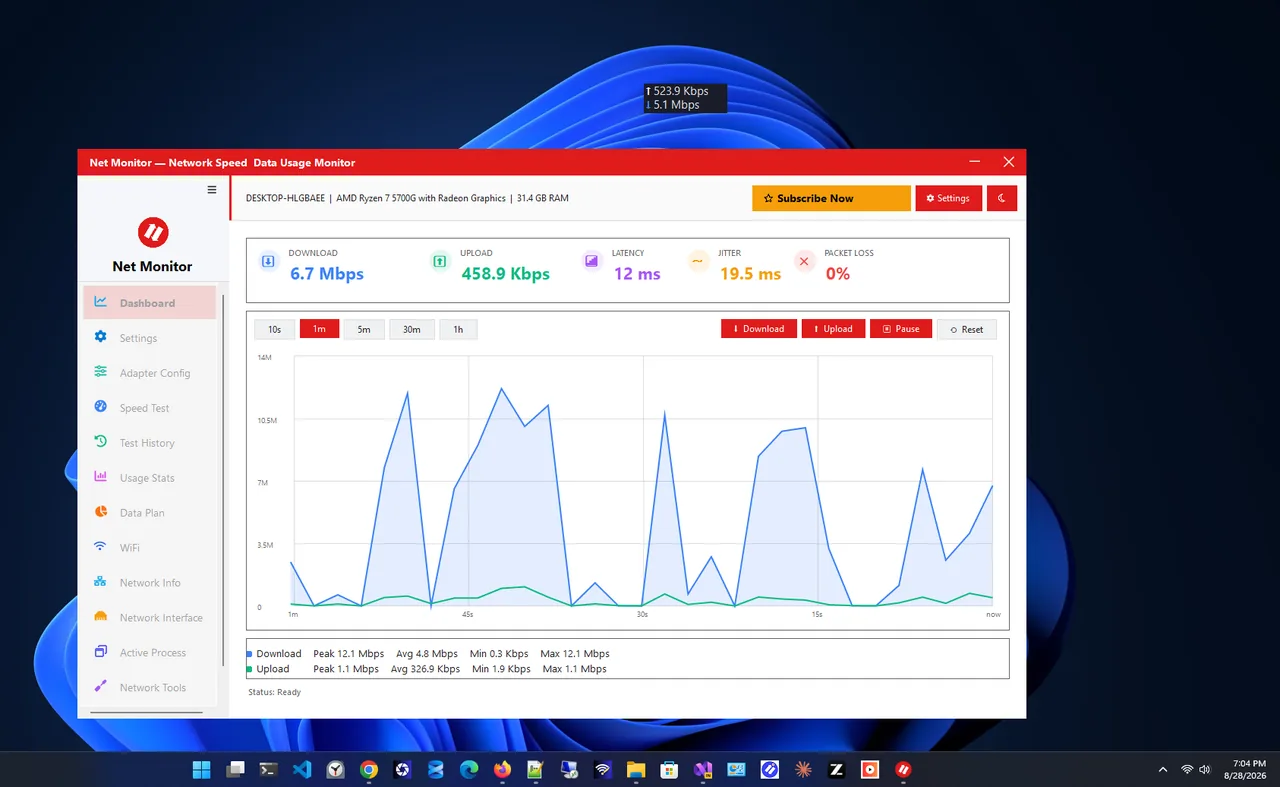
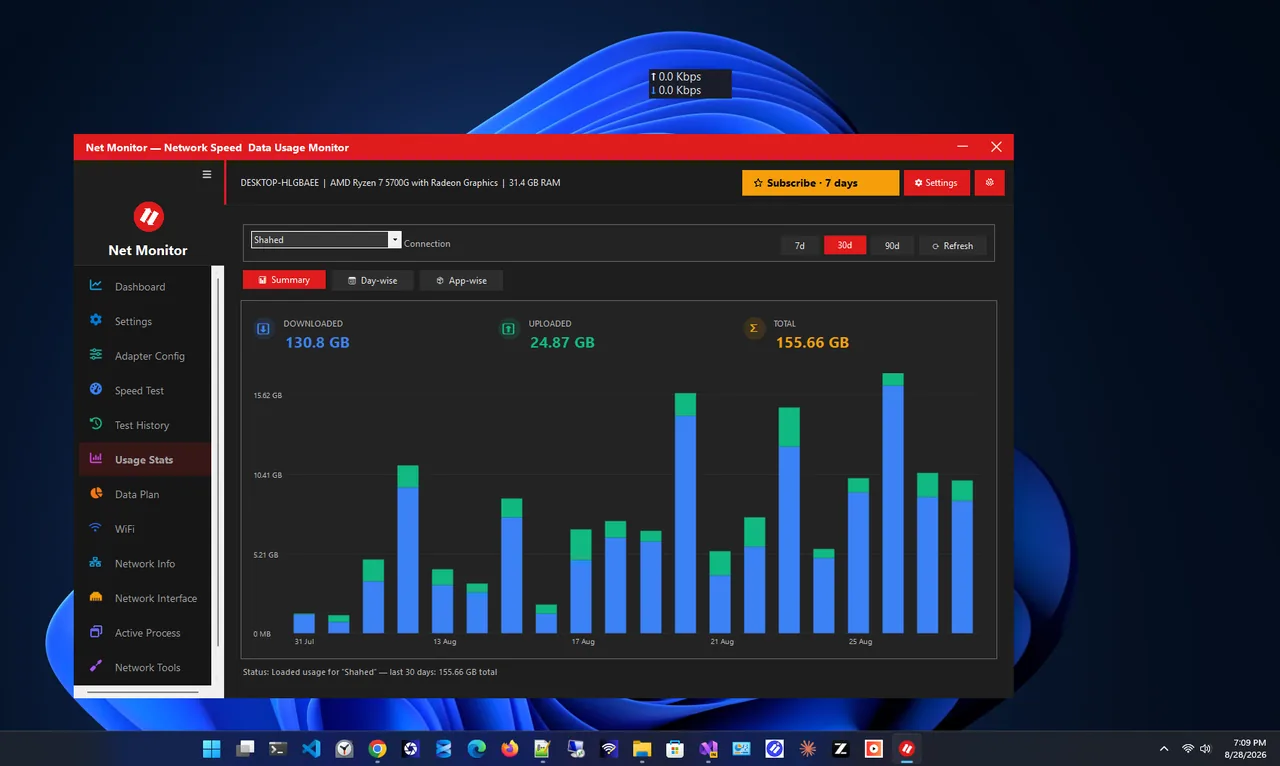
Windows prefers Ethernet when both are connected, but turning Wi-Fi off while testing removes all doubt. Then check the speed. Net Monitor shows live download and upload speed and keeps a history of each session, so you can see whether the wired link holds steady or drops out. A healthy wired link should beat your Wi-Fi; if it does not, see Ethernet vs Wi-Fi for what to expect.
FAQ
Why does Ethernet say unidentified network?
The PC has a physical link but did not get a valid IP address from the router. Renew the IP, restart the router and check that DHCP is set to automatic.
Why does Windows say the network cable is unplugged when it is plugged in?
No electrical link is detected. The cable, the PC port or the router port is faulty. Try another cable and port; if nothing works, the adapter or its driver has failed.
Ethernet works on another PC but not mine. What now?
The cable and router are fine, so focus on this PC: enable the adapter, reinstall the driver, reset Winsock and remove VPN software.
Can I use Wi-Fi and Ethernet at the same time?
Yes. Windows uses the faster, wired connection for internet traffic and keeps Wi-Fi as a backup.
Conclusion
Most Ethernet problems on Windows 11 are physical: a loose or damaged cable or a bad port. Rule those out first, then enable the adapter, renew the IP and reinstall the driver. Network reset is the last software step. For more ways to watch your connection, see our network apps for Windows.