Network How-to
How to Use Mobile Hotspot on Windows 11
Turn on mobile hotspot on Windows 11 to share your PC internet over Wi-Fi or Bluetooth. Change name, password and band, and fix a hotspot not working.
On this page
To turn on mobile hotspot on Windows 11, open Settings > Network & internet > Mobile hotspot, choose which connection to share and whether to share over Wi-Fi or Bluetooth, then switch Mobile hotspot on. Click Edit under Properties to see or change the network name, password and band. Up to 8 devices can connect. You can also toggle it from Quick Settings (Win+A).
Time: 2 minutes · Cost: free · Works on: Windows 11 with a Wi-Fi adapter
Your laptop is on hotel Ethernet but your phone has no Wi-Fi. Or the PC has a cellular connection and a tablet needs internet. Mobile hotspot on Windows 11 turns your PC into a Wi-Fi access point and shares its connection with other devices. This guide shows how to set it up, keep it secure, avoid surprise data use, and fix the most common problems.
How to Turn On Mobile Hotspot
-
Open Mobile hotspot settings
Press Win+I > Network & internet > Mobile hotspot.
-
Choose what to share
Under Share my internet connection from, pick the connection with internet: Ethernet, Wi-Fi or Cellular. Under Share over, choose Wi-Fi (fast, recommended) or Bluetooth (slow, but uses less power).
-
Set the name, password and band
Under Properties, click Edit. Change the network name, set a password of at least 8 characters (longer is better) and choose the band: 5 GHz is faster, 2.4 GHz works with older devices and reaches farther; "Any available" lets Windows decide. See 2.4 GHz vs 5 GHz Wi-Fi.
-
Switch it on and connect
Turn on Mobile hotspot. On the other device, choose the network name and enter the password. Connected devices appear in the Mobile hotspot page with their name, IP and MAC address.
After the first setup, the Mobile hotspot tile in Quick Settings (Win+A) turns it on and off in one click. If the tile is missing, click the pencil icon in Quick Settings and add it.
Can You Share Wi-Fi Over Wi-Fi?
Yes, on most modern adapters. Windows can stay connected to a Wi-Fi network and broadcast a hotspot at the same time, which is handy in hotels that charge per device. The hotspot usually has to use the same band and channel as the Wi-Fi you are connected to, so speeds are lower than sharing an Ethernet connection.
Watch Your Data
If the PC is on a cellular or tethered connection, every connected phone and tablet uses your allowance, and phones treat a Windows hotspot as normal Wi-Fi, so they may start backups and app updates. Ways to keep it under control:
- On iPhone, turn on Low Data Mode for the hotspot network. On Android, mark the network as metered.
- Stop Windows itself from downloading updates on the shared connection; see stop Windows Update using data.
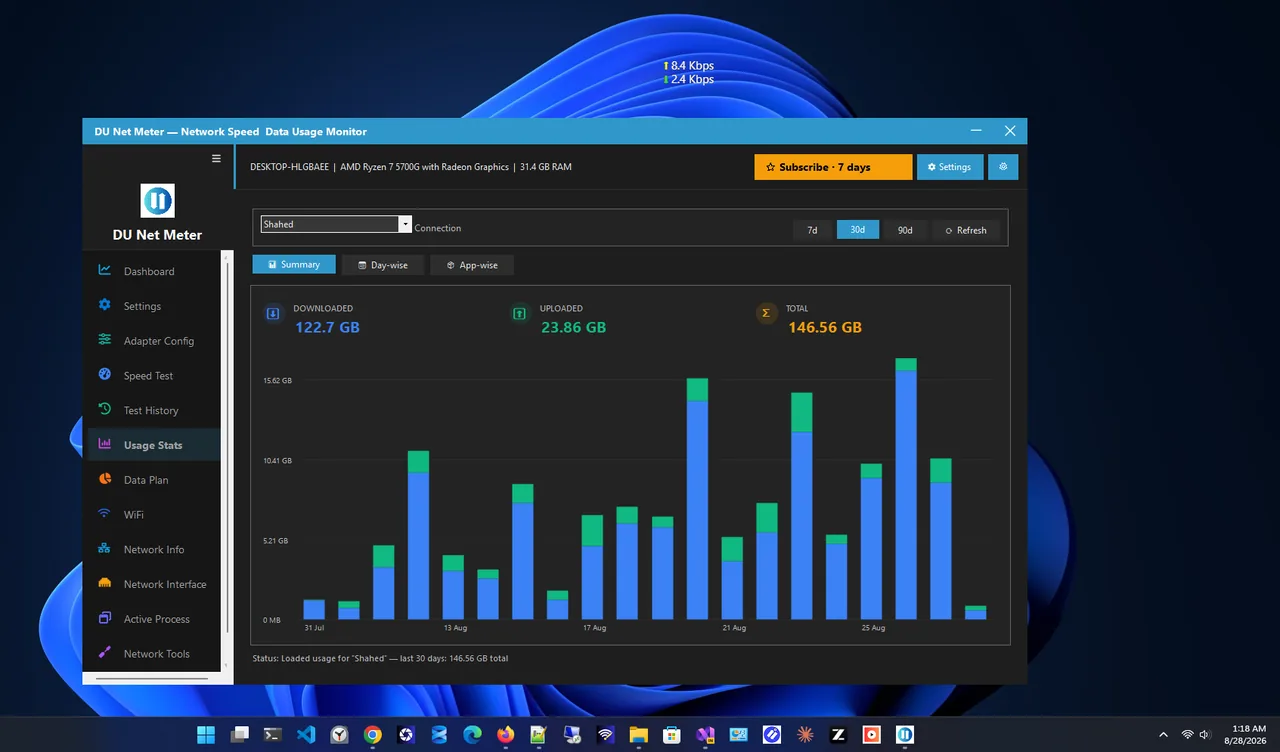
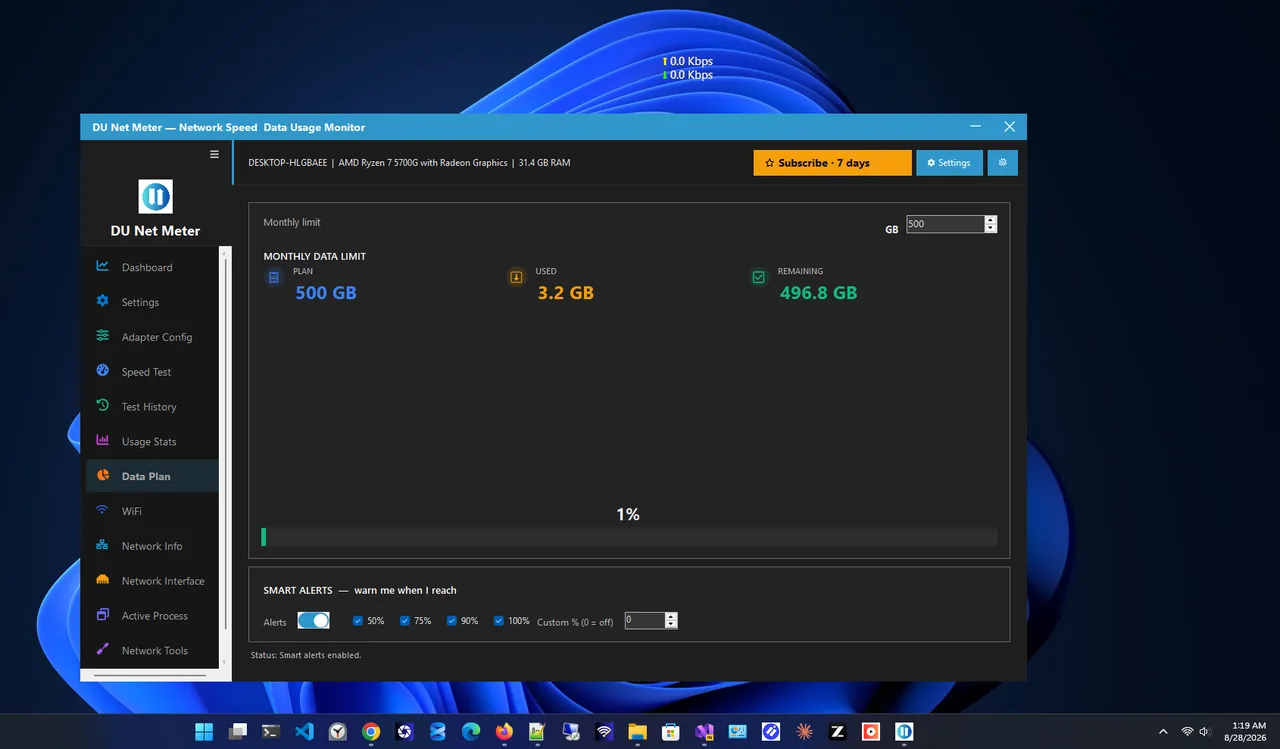
- Track usage live. DU Net Meter shows current speed in a small widget, logs daily usage and tracks your monthly plan, so you notice a phone backup the moment it starts.
The built-in per-app view is explained in check data usage on Windows 11.
Power Saving and Remote Turn-On
- Power saving: when on, Windows turns the hotspot off after a few minutes with no connected devices. Turn it off if devices keep losing the network.
- Turn on remotely: some PCs let a paired phone switch the hotspot on over Bluetooth. Both devices need Bluetooth on and paired.
Mobile Hotspot Not Working? Fixes
-
"We can't set up mobile hotspot"
Make sure Wi-Fi is on and airplane mode is off. Restart the PC. Run Settings > System > Troubleshoot > Other troubleshooters > Network and Internet.
-
Devices connect but get no internet
Check that the right connection is selected under "Share my internet connection from". Disconnect VPNs, which often block sharing. Turn the hotspot off and on.
-
Phone cannot see the hotspot
Switch the band to 2.4 GHz; some older phones do not support the 5 GHz channel Windows picked.
-
Update the Wi-Fi driver
Device Manager > Network adapters > Wi-Fi adapter > Update driver, or install the latest from the laptop maker. Hotspot relies on driver support for Wi-Fi Direct.
-
Check required services
In
services.msc, make sure Windows Mobile Hotspot Service and Internet Connection Sharing (ICS) are not disabled.
Keep Your Windows 11 Mobile Hotspot Secure
- Use a long password of 12+ characters; the default one Windows generates is fine but change it if you have shared it widely.
- Turn the hotspot off when you are done, especially in public places like airports and cafés.
- Check connected devices on the Mobile hotspot page; if you see one you do not recognise, change the password.
- Pick a neutral network name that does not include your name or PC model.
FAQ
How many devices can connect to a Windows 11 hotspot?
Up to 8 devices at the same time.
Does mobile hotspot slow down my PC's internet?
The connection is shared, so heavy use on a connected device slows the PC too. Light browsing on a phone has little effect.
Where do I find the hotspot password?
Settings > Network & internet > Mobile hotspot > Properties shows the network name and password.
Does a desktop PC need Wi-Fi for hotspot?
Yes. Sharing over Wi-Fi needs a Wi-Fi adapter. A cheap USB Wi-Fi adapter works if the driver supports hotspot.
Conclusion
Mobile hotspot on Windows 11 shares your PC's connection in two minutes: pick the connection, set a strong password and switch it on. On metered connections, mark the hotspot as metered on phones and keep an eye on usage. Find more network apps for Windows.