Network How-to
How to Stop Windows Update Using Data
Stop Windows Update using data on Windows 11: set a metered connection, pause updates, limit Delivery Optimization bandwidth and turn off peer sharing.
On this page
To stop Windows Update using your data on Windows 11, mark the connection as metered (Settings > Network & internet > your connection > Metered connection on) and make sure "Download updates over metered connections" is off under Windows Update > Advanced options. Then pause updates if needed, and in Delivery Optimization turn off downloads from other PCs and set bandwidth limits.
Time: 5 minutes · Cost: free · Works on: Windows 11 (Windows 10 is similar)
You tether your laptop to your phone for an hour and half your monthly data disappears. The usual culprit is Windows Update: a cumulative update can be several hundred megabytes, and a feature update several gigabytes. This guide shows how to stop Windows Update using data on capped and mobile connections, without turning off updates completely, which would leave your PC unprotected.
How Much Data Windows Update Uses
| Update type | Typical size | How often |
|---|---|---|
| Monthly cumulative update | 200 MB – 1 GB | Monthly (plus optional previews) |
| Defender security intelligence | a few MB to 100+ MB | Several times a day |
| Microsoft Store app updates | varies, can be GBs | Continuous |
| Feature update (new version) | 3–5 GB | Yearly |
| Driver updates | 10 MB – 1 GB (graphics) | Irregular |
How to Stop Windows Update Using Data
-
Set the connection as metered
Open Settings > Network & internet > Wi-Fi > your network's properties (or Ethernet, or Cellular) and turn on Metered connection. Windows then holds back most updates, pauses OneDrive sync and stops Store app updates on that network. Full walkthrough: metered connection on Windows 11.
-
Block updates over metered connections
Settings > Windows Update > Advanced options. Turn off "Download updates over metered connections". Also turn off "Receive updates for other Microsoft products" if you do not need Office updates on the road.
-
Pause updates
Settings > Windows Update > Pause updates for 1–5 weeks. Use this when travelling, then resume when you are back on unlimited internet so security fixes install.
-
Turn off peer-to-peer upload
Settings > Windows Update > Advanced options > Delivery Optimization. Turn off "Allow downloads from other devices", or set it to devices on my local network only. This stops your PC uploading updates to other people over the internet.
-
Limit update bandwidth
In Delivery Optimization > Advanced options, set an absolute or percentage limit for background and foreground downloads, and a monthly upload limit. Updates still arrive, but slower, without filling your connection.
-
Stop Store and app auto-updates
Microsoft Store > profile icon > Settings > turn off App updates. Also pause game launchers (Steam, Xbox app, Epic), which download large patches in the background.
What Not to Do
- Do not disable the Windows Update service. It breaks security updates, Defender definitions and the Store, and Windows often re-enables it anyway.
- Do not use "update blocker" tools from unknown sources. Metered connection and pause do the job safely.
Using a Phone Hotspot?
Windows usually detects phone hotspots and marks them metered automatically, but not always, especially with USB tethering or a travel router. Check the setting each time you connect to a new hotspot. If you share your PC's internet the other way round, see mobile hotspot on Windows 11.
See What Is Using Your Data
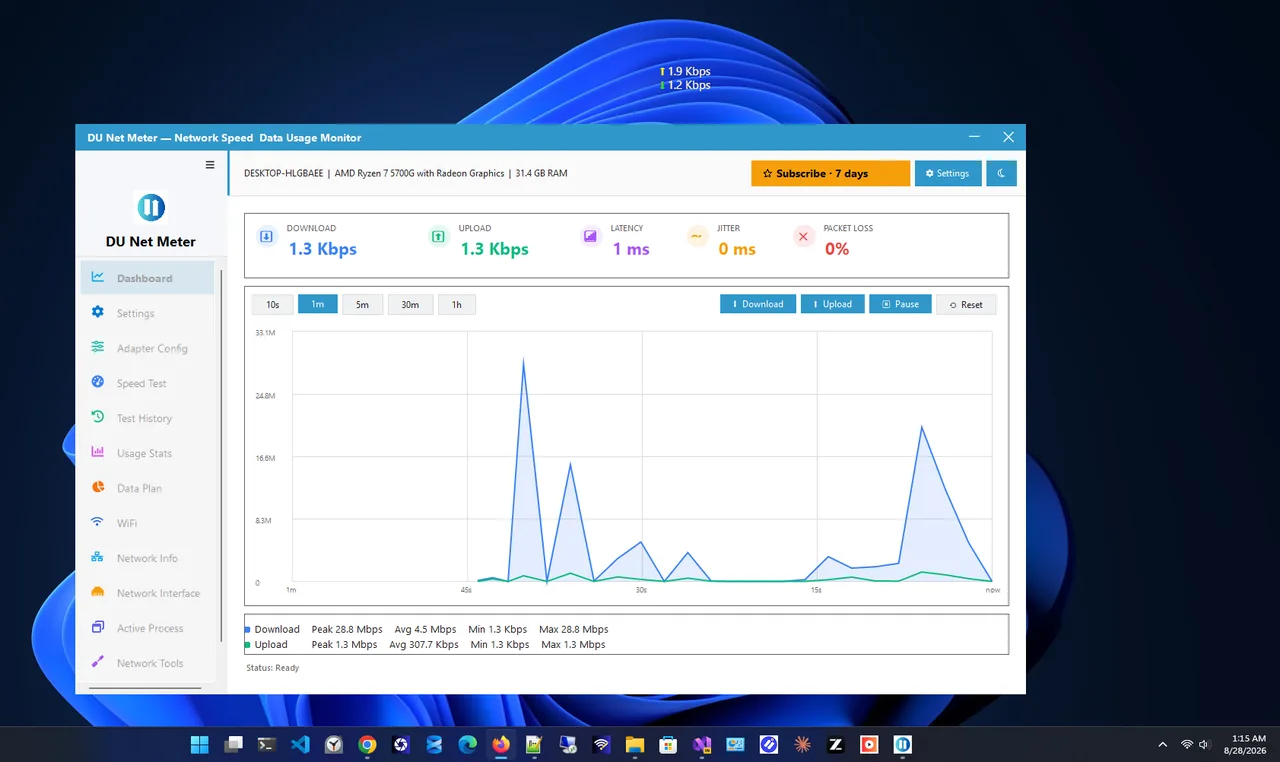
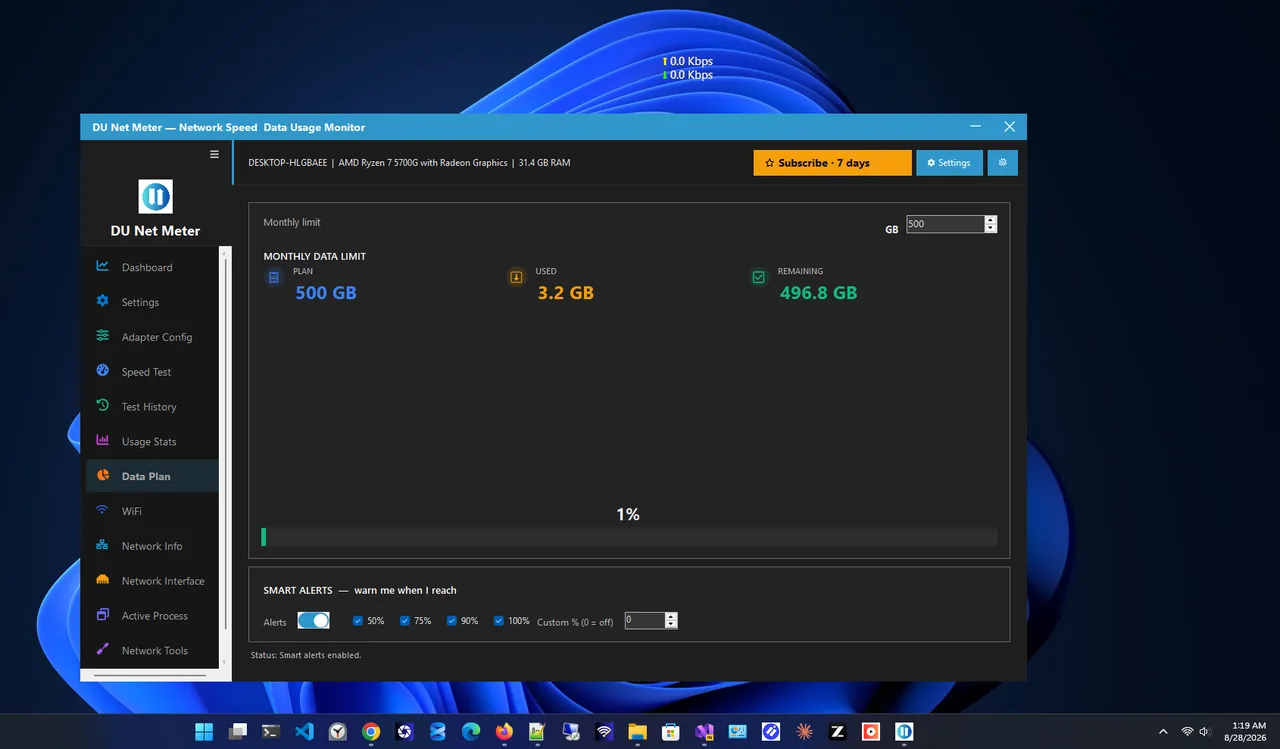
Settings > Network & internet > Advanced network settings > Data usage lists usage per app over 30 days; "System" and "Windows Update" are often near the top. For a live view and a cap warning, use DU Net Meter: it shows current speed in a small widget, logs daily usage and tracks a monthly data plan. More in check data usage on Windows 11.
Check That Windows Update Stopped Using Data
After changing the settings, confirm they work before your next trip:
-
Look at Windows Update status
On a metered connection, Settings > Windows Update should show updates as "Pending download" or ask you to download manually instead of downloading on its own.
-
Watch Delivery Optimization activity
Settings > Windows Update > Advanced options > Delivery Optimization > Activity monitor shows how much was downloaded and uploaded this month and from where.
-
Compare daily usage
Check the per-app list in Data usage the next day. "System" or "Windows Update" should be close to zero on the metered network.
Remember that settings are per network: a new hotel Wi-Fi or a new phone hotspot starts unmetered unless Windows detects it, so set it again when you connect.
Catching Up on Updates Later
When you are back on unlimited internet, resume updates in Settings > Windows Update and click Check for updates. Install everything, restart, and check again; cumulative updates often arrive in two rounds. Leaving a PC months behind on security updates is riskier than the data they cost, so plan a catch-up after every long trip.
FAQ
Does a metered connection stop all Windows updates?
Most of them. Small critical updates and Defender definitions can still download, which is intentional and uses little data.
Is it safe to pause Windows updates?
For a few weeks, yes. Resume once you are on unlimited internet so security fixes are not delayed for long.
Why is my PC uploading a lot of data?
Delivery Optimization may be sharing updates with other PCs, or OneDrive is syncing. Turn off downloads from other devices and pause sync.
Does this work on Windows 10?
Yes. The same options exist in Settings > Update & Security and Network & Internet, with slightly different menus.
Conclusion
Metered connection, no updates over metered connections, and Delivery Optimization limits stop Windows Update from eating your data, while still keeping the PC up to date when you are back on unlimited internet. Watch usage with a data meter to catch anything else. Browse more network apps for Windows.