Media Fix
Print Screen Not Working on Windows 11? 10 Fixes
Print Screen not working on Windows 11? Try Fn+PrtScn and Win+PrtScn, check the PrtScn setting, stop OneDrive taking over the key, or use a new hotkey.
On this page
If Print Screen is not working on Windows 11, first try Fn+PrtScn (laptops often need Fn) and Win+PrtScn, which saves straight to Pictures\Screenshots. Then check Settings > Accessibility > Keyboard > Use the Print screen key to open screen capture, close apps that take over the key (OneDrive, Dropbox, game overlays, other screenshot tools), and restart. Win+Shift+S always works as a backup.
Time: 5–10 minutes · Cost: free · Works on: Windows 11 and Windows 10
You press PrtScn and nothing happens: no flash, no Snipping Tool, nothing to paste. Often the screenshot actually worked and went to the clipboard silently, or another app grabbed the key. Print Screen not working on Windows 11 almost always comes down to the Fn key, a setting, or a conflicting app. Here is how to find out which.
What Print Screen Does on Windows 11
| Keys | Result |
|---|---|
| PrtScn | Opens Snipping Tool's capture bar (default on Windows 11), or copies the full screen to the clipboard if that setting is off |
| Win+PrtScn | Saves the full screen to Pictures\Screenshots (screen dims briefly) |
| Alt+PrtScn | Copies the active window to the clipboard |
| Win+Shift+S | Opens the capture bar (region, window, full screen) |
If PrtScn only copies to the clipboard, nothing visible happens: open Paint and press Ctrl+V to check. Every method is covered in how to take a screenshot on Windows 11.
10 Fixes for Print Screen Not Working
-
Use Fn+PrtScn
On many laptops PrtScn shares a key with another function (Insert, End or a function key). Hold Fn and press it. Some keyboards need Fn Lock turned on or off.
-
Check the F Lock key
Some desktop keyboards have an F Lock key that switches the top row between functions. Toggle it and try again.
-
Check the Print screen setting
Settings > Accessibility > Keyboard > Use the Print screen key to open screen capture. Turn it on to open Snipping Tool, or off to copy the full screen to the clipboard. Restart after changing it.
-
Stop OneDrive or Dropbox taking over
OneDrive: Settings > Sync and back up > Advanced > turn off "Save screenshots I capture to OneDrive". Dropbox: Preferences > Backups > Screenshots off. They can intercept the key and save files somewhere unexpected.
-
Close conflicting screenshot and overlay apps
Other screenshot tools, Xbox Game Bar, NVIDIA or AMD overlays, Steam and some keyboard utilities register PrtScn. Quit them from the system tray and test.
-
Check that Snipping Tool works
If PrtScn should open Snipping Tool but does not, the app may be broken. Repair or reset it; see Snipping Tool not working on Windows 11.
-
Check the Screenshots folder
Win+PrtScn saves to Pictures\Screenshots. If the Pictures folder was moved to OneDrive or another drive, look there. Right-click the Screenshots folder > Properties > Location to restore the default.
-
Update the keyboard driver
Device Manager > Keyboards > right-click > Update driver, or uninstall and restart. Test with another keyboard to rule out a hardware fault.
-
Restart Windows Explorer
Task Manager > Windows Explorer > Restart. This resets hotkey handling without a full reboot.
-
Use a different hotkey
Win+Shift+S works even when PrtScn does not. Or use a screenshot app with its own customizable shortcut.
A Reliable Alternative With Custom Hotkeys
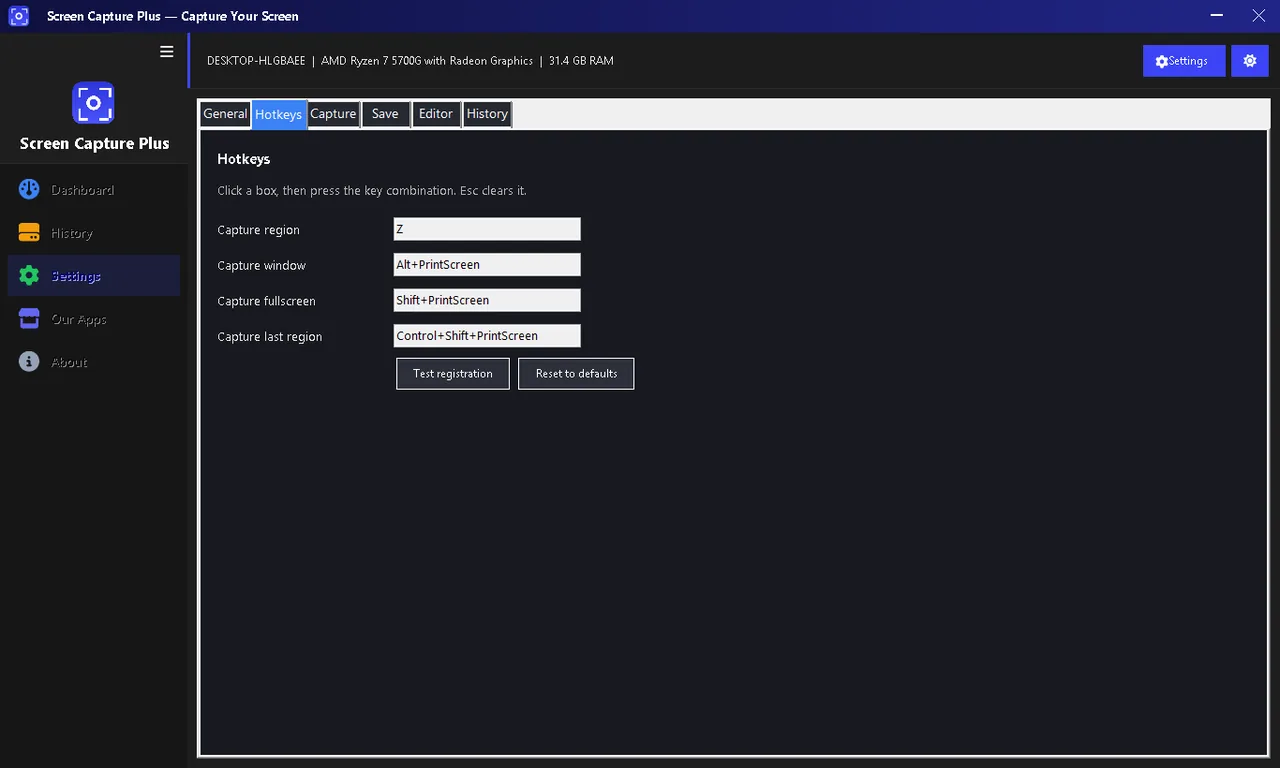
Screen Capture Plus lets you set your own capture hotkeys, so you are not dependent on a PrtScn key that is missing or awkward on a laptop. It captures a region, window or full screen, adds annotations and blur, and reads text with on-device OCR. To hide personal details before sharing, see how to blur part of a screenshot.
Test Whether the Print Screen Key Itself Works
Open the On-Screen Keyboard (Win+Ctrl+O) and click its PrtScn key. If that captures a screenshot, Windows is fine and the physical key or keyboard driver is the problem. If the on-screen key also does nothing, the issue is a setting or an app intercepting the key, so focus on fixes 3 to 5.
Print Screen Not Working in Games
Full-screen games often take exclusive control of the display. Use Win+Alt+PrtScn (Xbox Game Bar), the game's own screenshot key, or the NVIDIA (Alt+F1) or AMD (Ctrl+Shift+I) overlay shortcut. Switching the game to borderless windowed mode also lets normal screenshot tools capture it.
Print Screen Not Working in Remote Desktop
In a Remote Desktop session, PrtScn captures your local PC. Use Ctrl+Alt+Plus (numeric keypad) to capture the remote desktop to the clipboard, or Ctrl+Alt+Minus for the active remote window, then paste on your PC.
FAQ
Where do Print Screen screenshots go?
PrtScn and Alt+PrtScn copy to the clipboard. Win+PrtScn saves to Pictures\Screenshots. Snipping Tool also auto-saves to that folder by default.
Why does Print Screen open Snipping Tool?
It is the default on Windows 11. Turn off "Use the Print screen key to open screen capture" to go back to the clipboard behaviour.
My laptop has no Print Screen key. What now?
Use Win+Shift+S, Fn plus the key with "PrtSc" printed in small letters, or a screenshot app with a custom hotkey.
Why is my screenshot black in games or videos?
Protected video and some full-screen games block capture. Use windowed mode or the game's own screenshot feature.
Conclusion
Print Screen problems on Windows 11 usually come from the Fn key, the PrtScn setting, or an app that took over the key. Try Fn+PrtScn and Win+PrtScn, check the setting, close OneDrive and overlays, and keep Win+Shift+S as your fallback. Explore more media apps for Windows 11.