Media How-to
How to Remove Wind Noise From Video on Windows
Remove wind noise from video on Windows: cut low rumble with a high-pass filter, reduce noise without robotic voices, and prevent wind noise next time.

On this page
To remove wind noise from a video, first apply a high-pass filter at about 80–150 Hz to cut the low rumble, then use noise reduction at a moderate strength to clean up what is left, and keep the original picture untouched. Preview with headphones and stop before voices sound thin or robotic. Strong gusts that clip the microphone cannot be fully repaired, so for future recordings use a windscreen ("dead cat") and shield the mic from the wind.
Time: 5–15 minutes · Cost: free tools available · Works on: Windows 11 and Windows 10
You filmed at the beach, on a hike or at an outdoor event, and the audio is a roar of wind over every word. Wind noise is one of the hardest sounds to clean because it is loud, low and constantly changing. But you can usually make the clip watchable. This guide shows how to remove wind noise from video on Windows, step by step, and how to avoid it next time.
Why Wind Noise Is Different
- It is low-frequency: most wind energy sits below about 150–200 Hz, under the main range of the human voice.
- It comes in gusts: unlike steady hiss or hum, it changes every second, which confuses simple noise profiles.
- It can clip: strong gusts overload the microphone, creating distortion that no filter can undo.
That is why the best approach combines a high-pass filter (for rumble) with adaptive noise reduction (for the rest). Steady noise like fans and hiss is easier; see how to remove background noise from video.
How to Remove Wind Noise From Video
-
Work on a copy
Keep the original file. Save the cleaned version under a new name so you can compare and try again.
-
Cut the rumble with a high-pass filter
Set a high-pass (low-cut) filter around 80 Hz for deep male voices, 100–150 Hz for most speech. This removes much of the wind roar without touching voices.
-
Apply noise reduction gently
Start at a low-to-medium strength. Too much makes voices watery or robotic. If your tool lets you sample noise, choose a moment with only wind.
-
Preview with headphones
Listen to the loudest gusts and the quietest speech. Lower the strength if speech suffers; a little remaining wind sounds more natural than damaged voices.
-
Export without re-encoding the picture
Use a tool that replaces only the audio so the video quality stays exactly the same.
Using Video Noise Reducer
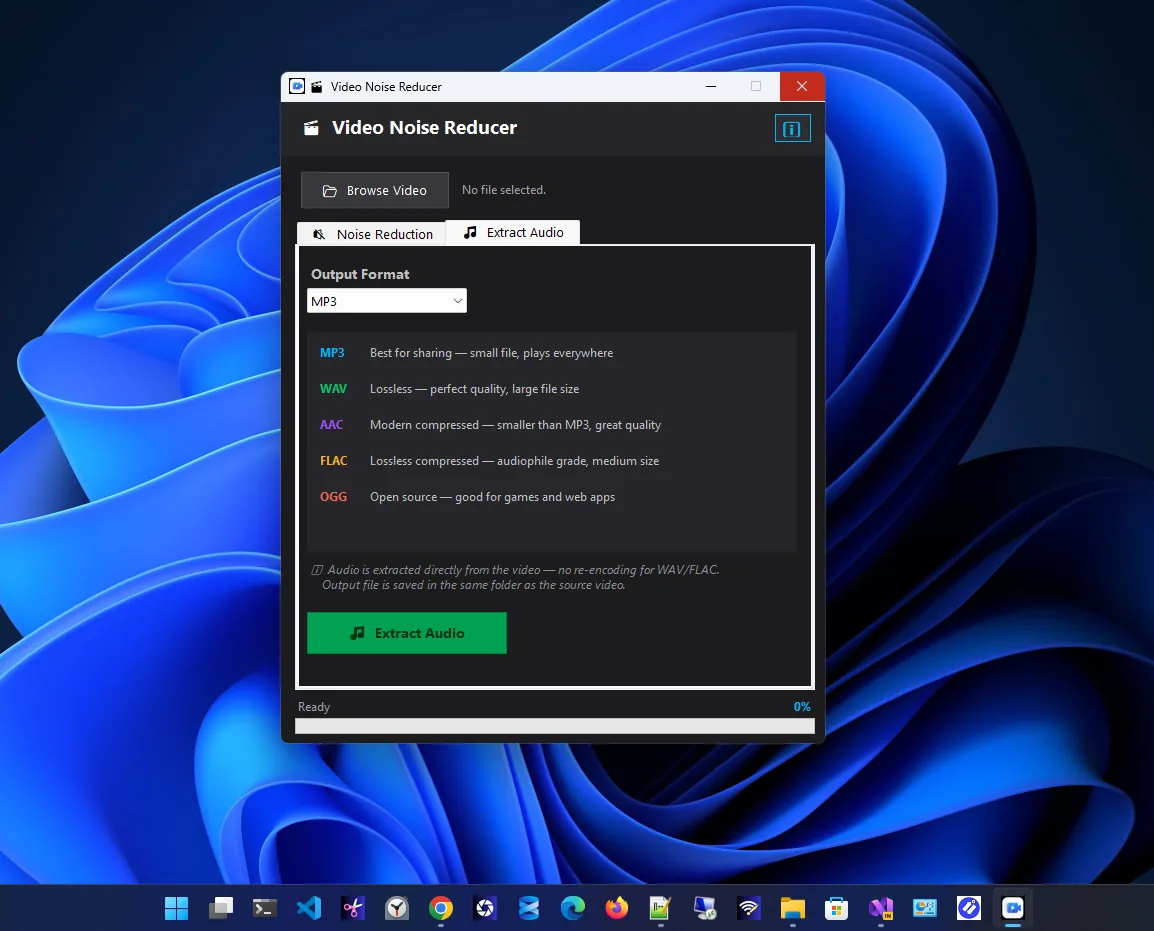
Video Noise Reducer removes hiss, hum and background noise from video on your PC without touching the picture. Its settings guide explains what each noise filter does, which helps when you are tuning for wind, and it can also extract the audio track in several formats if you want to edit the sound separately.

Other Free Options
- Audacity: extract the audio, apply Effect > EQ and Filters > High-Pass Filter, then Noise Reduction, and put the audio back in your editor.
- Video editors: DaVinci Resolve, Shotcut and Clipchamp include high-pass filters and noise reduction to varying degrees.
- FFmpeg:
ffmpeg -i in.mp4 -af "highpass=f=120,afftdn" -c:v copy out.mp4applies a 120 Hz high-pass and FFT noise reduction while copying the video unchanged.
What Cannot Be Fixed
| Problem | Fixable? |
|---|---|
| Low rumble under clear speech | Yes, high-pass filter |
| Steady breeze hiss | Mostly, noise reduction |
| Gusts louder than the voice | Partly; voice may stay muffled |
| Clipping and crackle from gusts | No; replace the audio or add music/captions |
If speech is lost, add captions or a voice-over. Mixing background music at a low level also hides leftover wind.
Prevent Wind Noise Next Time
- Use a windscreen. A furry "dead cat" cover on a camera or phone mic cuts wind noise dramatically.
- Use a lavalier mic under clothing, out of the wind.
- Turn your back to the wind or use a wall, car or tree as a shield.
- Turn on the camera's wind filter (many phones and cameras have one in audio settings).
- Record a few seconds of ambient sound for noise sampling later.
Remove Wind Noise From Phone Videos
Phone videos are the most common source of wind noise, because the tiny microphones sit at the edge of the case. Copy the clip to your PC first; editing on the PC gives you finer control than phone apps. Many phones also have an "Audio zoom" or "Wind noise reduction" setting in the camera; turn it on before filming outdoors. If you share clips online, a smaller, cleaner file uploads faster, just as with photos in reduce image size without losing quality.
FAQ
Can wind noise be completely removed?
Light and moderate wind, mostly yes. Strong gusts that overload the mic can only be reduced, not removed.
What frequency should I cut for wind noise?
Start with a high-pass filter at 80–150 Hz. Go higher only if voices still sound fine.
Will removing noise lower video quality?
Not if the tool processes only the audio and copies the video stream unchanged.
Why do voices sound robotic after noise reduction?
The strength is too high. Lower it and rely more on the high-pass filter.
Conclusion
To remove wind noise from video, cut the rumble with a high-pass filter, apply gentle noise reduction, preview with headphones and export without touching the picture. Use a windscreen next time to avoid the problem. Explore more media apps for Windows 11.