Network Fix
How to Reset Network Settings on Windows 11
Reset network settings on Windows 11 to fix Wi-Fi and internet problems: Network reset step by step, the command reset, and what you need to redo after.
On this page
To reset network settings on Windows 11, open Settings, Network & internet, Advanced network settings, Network reset, and select Reset now. Windows removes and reinstalls every network adapter, resets network components to their defaults and restarts after 5 minutes. Your files are safe, but you will need to re-enter Wi-Fi passwords and set up VPN apps again.
When Wi-Fi will not connect, the internet works on every device except your PC, or a VPN left your connection in a mess, a network reset is the "factory reset" for networking. It fixes problems that no single setting can. This guide shows how to reset network settings on Windows 11, what it removes, and the lighter fixes to try first.
When to Reset Network Settings
- Wi-Fi shows "Can't connect to this network" or "No internet" while other devices work.
- The network adapter is missing or keeps disabling itself.
- Problems started after installing or removing a VPN, firewall or antivirus.
- DNS errors or pages that will not load, even after restarting the router.
- Wi-Fi keeps dropping and the usual fixes did not help.
What a Network Reset Removes
| Removed or reset | Kept |
|---|---|
| All network adapters (reinstalled automatically) | Your files, photos and documents |
| Saved Wi-Fi networks and their passwords | Installed apps |
| VPN adapters and virtual switches | Windows settings unrelated to networking |
| Custom DNS, static IP and proxy settings | Your Microsoft account and sign-in |
| Winsock and TCP/IP settings (back to default) | Router settings |
Write down Wi-Fi passwords you might not remember. Our guide to seeing saved Wi-Fi passwords shows them in one minute. Also note any static IP or custom DNS you set on purpose.
Fix 1: Try the Quick Fixes First
- Restart the router and the PC (use Restart, not Shut down).
- Turn Airplane mode on and off from Quick Settings (Win + A).
- Forget the Wi-Fi network and reconnect.
- Disable and enable the adapter: Settings, Network & internet, Advanced network settings, then Disable and Enable next to the adapter.
Fix 2: Reset the Network Stack with Commands
A lighter reset that keeps your adapters and saved networks. Open Terminal as administrator and run:
ipconfig /release
ipconfig /flushdns
ipconfig /renew
netsh winsock reset
netsh int ip reset
Restart the PC afterwards. This clears the DNS cache, gets a fresh IP address and resets Winsock and TCP/IP, which fixes many "connected, no internet" problems.
Fix 3: Run Network Reset (Full Reset)
-
Save your work
The PC restarts automatically 5 minutes after the reset.
-
Open Advanced network settings
Press Win + I, go to Network & internet, then Advanced network settings.
-
Select Network reset
Under More settings, select Network reset, then Reset now and confirm with Yes.
-
Let Windows restart
Windows shows a message that it will sign you out. After the restart, adapters are reinstalled with default settings.
On Windows 10, the path is Settings, Network & Internet, Status, Network reset.
After the Reset
- Reconnect to Wi-Fi and enter the password again.
- Set the network profile: in the network's properties, choose Private for home so file and printer sharing work, or Public for cafés and hotels.
- Reinstall or repair VPN apps, which lose their virtual adapters.
- Re-enter custom DNS or a static IP if you used them.
- Update the network driver from your PC maker if problems come back.
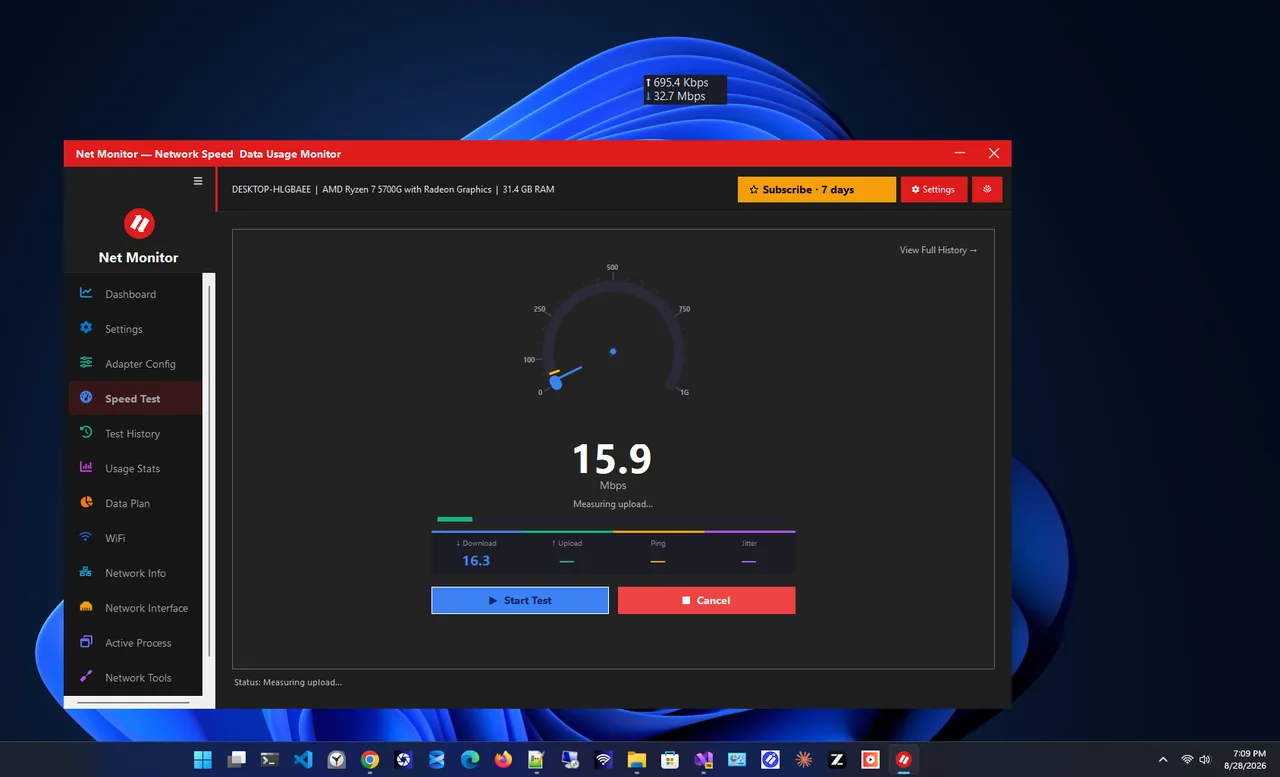
Then check that the connection is stable. Net Monitor keeps a live speed widget on screen and includes a speed test with saved history, so you can compare the connection before and after the reset and spot any new drops at a glance.
Still Broken?
If other devices also fail, the router or ISP is the problem. If only this PC fails even after a reset, try a network cable or a USB Wi-Fi adapter; a failing internal adapter is the likely cause. For connections that drop on and off, see Wi-Fi keeps disconnecting on Windows 11.
FAQ
Will resetting network settings delete my files?
No. It only affects network adapters and network settings. Files, apps and other settings stay as they are.
Is network reset safe?
Yes. The worst case is re-entering Wi-Fi passwords and reinstalling VPN software.
How long does a network reset take?
About 5 minutes until the automatic restart, plus a minute or two for Windows to reinstall the adapters.
What is the difference between netsh winsock reset and Network reset?
The commands reset the network software settings but keep adapters and saved networks. Network reset also removes and reinstalls every adapter and forgets saved Wi-Fi networks.
Conclusion
Try the quick fixes and the command-line reset first. If the problem stays, Network reset in Settings rebuilds networking from scratch in about five minutes, without touching your files. Reconnect, set the profile to Private at home and test the connection. For more tools, see all network apps for Windows.