Network Fix
Wi-Fi Keeps Disconnecting on Windows 11? 12 Fixes
Wi-Fi keeps disconnecting on Windows 11? Find out if it is the PC or the router, then fix power saving, drivers and roaming. 12 fixes, easiest first.
On this page
If Wi-Fi keeps disconnecting on Windows 11, the usual causes are adapter power saving, an outdated Wi-Fi driver, Windows switching to another saved network, or a weak signal. Restart the router, stop Windows turning off the adapter in Device Manager, update the driver, and remove saved networks you do not use. If every device drops, the router or ISP is the problem.
Few things are as annoying as a Wi-Fi connection that drops every few minutes: the video call freezes, the download fails and the Wi-Fi icon shows a globe again. When your Wi-Fi keeps disconnecting on Windows 11, the cause is usually on the PC, and most of the fixes take a minute or two.
Start with the quick check below. It tells you whether to fix the PC or the router, so you do not waste time on the wrong one. Then work through the fixes in order.
Symptoms
- The Wi-Fi icon switches to "No internet" or a globe, then comes back by itself.
- Windows connects, drops after a few minutes, and reconnects.
- The connection drops after the PC wakes from sleep.
- It happens only on battery, only in one room, or only on this PC.
First, Is It the PC or the Router?
- Other devices drop at the same time: the router or the internet line. Go to fixes 1, 11 and 12.
- Only this PC drops: a Windows or adapter problem. Fixes 2 to 10 are for you.
- Only far from the router: a weak signal. Start with fix 1, then see our guide on why Wi-Fi is slow, which covers signal and channels.
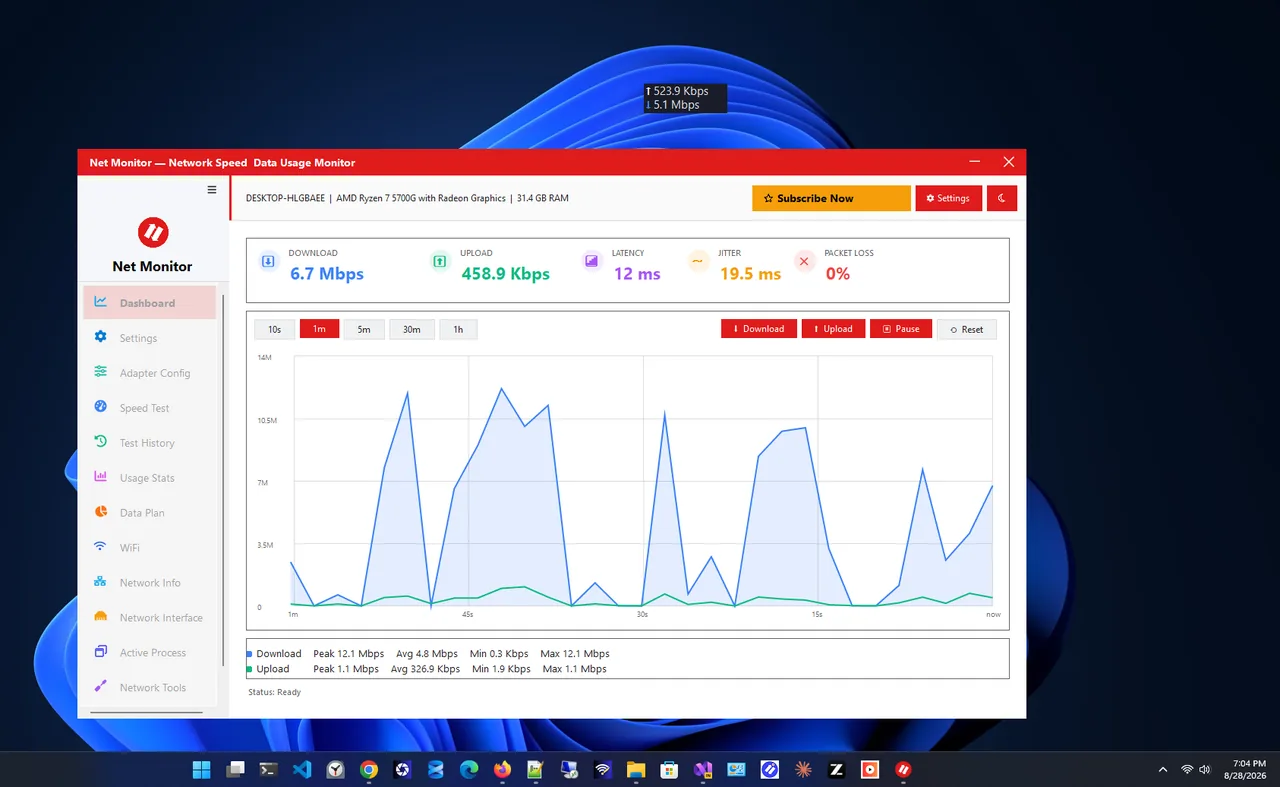
To know exactly when it drops, keep Net Monitor running. Its always-on-top widget shows live speed, so you see the moment traffic stops, and its tray notifications flag network events while you work. Matching the drops to what you were doing, such as waking from sleep or unplugging the charger, points straight to the right fix.
Common Causes
- Windows turns the Wi-Fi adapter off to save power, especially on laptops.
- An outdated or buggy Wi-Fi driver, often after a Windows update.
- Windows keeps jumping to another saved network with a stronger signal.
- A weak signal, interference, or a router that needs a restart or a firmware update.
- Corrupted network settings, VPN software or a security app filtering traffic.
Fix 1: Restart the Router and the PC
Unplug the router for 30 seconds, wait until its lights are stable, then restart Windows with Start, Power, Restart. Restart fully resets the network stack; Shut down does not, because of Fast Startup.
Fix 2: Stop Windows Turning Off the Wi-Fi Adapter
This is the most common cause on laptops, especially when drops happen after sleep or on battery.
-
Open Device Manager
Right-click Start and choose Device Manager, then expand Network adapters.
-
Open the adapter's properties
Right-click your Wi-Fi adapter (its name usually includes Wi-Fi, Wireless or 802.11) and choose Properties.
-
Turn off power saving
On the Power Management tab, untick Allow the computer to turn off this device to save power and select OK.
Fix 3: Set the Wireless Adapter to Maximum Performance
Press Win + R, type powercfg.cpl and press Enter. Select Change plan settings, then Change advanced power settings. Expand Wireless Adapter Settings, Power Saving Mode, and set both On battery and Plugged in to Maximum Performance. Some newer PCs hide this option; in that case Fix 2 is enough.
Fix 4: Update or Roll Back the Wi-Fi Driver
In Device Manager, right-click the Wi-Fi adapter and choose Update driver. If Windows finds nothing, download the latest driver from your laptop maker or from Intel, Realtek, MediaTek or Qualcomm. If the drops started right after an update, open the adapter's Properties, Driver tab, and choose Roll Back Driver instead.
Fix 5: Forget Saved Networks You Do Not Use
Windows may jump to a neighbour's open network, a phone hotspot or an old network with the same name. Go to Settings, Network & internet, Wi-Fi, Manage known networks and select Forget on networks you no longer need. Need a password before you forget a network? Here is how to see a saved Wi-Fi password.
Fix 6: Turn Off Random Hardware Addresses
Some routers drop or block devices whose MAC address changes. In Settings, Network & internet, Wi-Fi, set Random hardware addresses to Off, and check the same option inside your network's properties. Then reconnect.
Fix 7: Forget and Reconnect to Your Network
In Manage known networks, select your network, choose Forget, then connect again and re-enter the password. This clears a corrupted profile, a common cause after you changed the router's password or security type.
Fix 8: Adjust Roaming and Band Settings
In Device Manager, open the Wi-Fi adapter's Properties, Advanced tab. If you see Roaming Aggressiveness, set it to Lowest so the adapter stops hunting for other access points. If you see Preferred Band, choose 5 GHz when you sit near the router. Option names vary by adapter maker.
Fix 9: Reset the Network Stack with Commands
Open Terminal as administrator and run these one by one, then restart the PC:
netsh winsock reset
netsh int ip reset
ipconfig /release
ipconfig /renew
ipconfig /flushdns
Fix 10: Check VPN and Security Software
VPN clients and third-party firewalls install network filters that can break the connection. Disconnect or quit the VPN and test for an hour. If the drops stop, update the VPN or security app, or reinstall it.
Fix 11: Run Network Reset
As a last software fix, go to Settings, Network & internet, Advanced network settings, Network reset, then Reset now. Windows reinstalls all network adapters and restarts. You will need to reconnect to Wi-Fi and set up VPN apps again. Our guide to resetting network settings covers what it removes.
Fix 12: Update the Router and Change Its Channel
Sign in to the router's admin page and install any firmware update. If many neighbours' networks are nearby, set the 2.4 GHz channel to 1, 6 or 11, or let the router pick automatically. A router that is several years old and drops every device may simply need replacing.
Still Broken?
Test with a network cable or a cheap USB Wi-Fi adapter. If the cable is stable, the internal Wi-Fi card is failing. If the cable drops too, contact your ISP with the times the drops happened.
If your network does not appear in the list at all, follow Wi-Fi not showing up on Windows 11 instead.
FAQ
Why does my Wi-Fi keep disconnecting and reconnecting?
Most often Windows is saving power by turning the adapter off, the driver is outdated, or Windows is switching between saved networks. Fixes 2, 4 and 5 solve most cases.
Why does Wi-Fi disconnect after sleep on Windows 11?
The adapter does not wake up properly. Turn off "Allow the computer to turn off this device to save power" in Device Manager and update the Wi-Fi driver.
Why does only my laptop disconnect when other devices are fine?
That points to the laptop's adapter, driver or power settings, not the router. Work through fixes 2 to 10.
Will a network reset delete my files?
No. It only removes network adapters and saved network settings. You will need to re-enter Wi-Fi passwords and reconfigure VPNs.
Conclusion
Wi-Fi that keeps disconnecting is rarely a mystery: on a laptop it is usually power saving or the driver, and on any PC it can be Windows switching networks. Check whether other devices drop too, fix the PC side first, and keep a live speed widget running so you can see whether the drops have stopped. For more tools, see all network apps for Windows.