Network How-to
How to See Your Wi-Fi Password on Windows 11 (4 Ways)
See your Wi-Fi password on Windows 11 in under a minute: in Settings, Control Panel, with one netsh command, or with a free app that lists every network.
On this page
To see your Wi-Fi password on Windows 11, open Settings, Network & internet, Wi-Fi, select your network's properties and choose View next to "View Wi-Fi security key". For a network you are not connected to, run netsh wlan show profile name="NetworkName" key=clear in Terminal and read the Key Content line.
Time: 1 minute · Cost: free · Works on: Windows 11 and Windows 10
You need the Wi-Fi password for a new phone, a guest or a smart TV, and of course nobody remembers it. The good news: if your PC has ever connected to that network, Windows has saved the password, and you can see your Wi-Fi password on Windows 11 in less than a minute.
Below are four ways to do it, from the easiest to the most powerful. The first two work for the network you are on right now. The last two also show passwords for every network your PC has ever joined, such as your office, a friend's house or a hotel.
What You Need
- A Windows 11 or Windows 10 PC that has connected to the network at least once.
- An administrator account for the Control Panel and command methods. Standard accounts may not see the key.
- The exact network name (SSID) if you use the command method.
| Method | Current network | Old networks | Best for |
|---|---|---|---|
| 1. Settings | Yes | Yes, on recent builds | Quickest, no typing |
| 2. Control Panel | Yes | No | Older Windows 11 and Windows 10 |
| 3. netsh command | Yes | Yes | Any version, any saved network |
| 4. WiFi Password Viewer | Yes | Yes, all at once | Many networks, QR sharing, export |
Method 1: See the Wi-Fi Password in Settings
-
Open Wi-Fi settings
Press Win + I, then go to Network & internet, Wi-Fi.
-
Open the network's properties
Select your network's properties at the top. For a network you used before, choose Manage known networks and select it instead.
-
Show the security key
Next to View Wi-Fi security key, select View. A small box shows the password, ready to copy.
If you do not see "View Wi-Fi security key", your Windows 11 build is older. Install the latest updates in Settings, Windows Update, or use Method 2 or 3.
Method 2: Use Control Panel (Connected Network Only)
-
Open Network Connections
Press Win + R, type
ncpa.cpland press Enter. -
Open Wireless Properties
Right-click your Wi-Fi adapter, choose Status, then Wireless Properties.
-
Show characters
On the Security tab, tick Show characters. The password appears in the Network security key box.
Method 3: Find Any Saved Wi-Fi Password with netsh
This works on every version of Windows 11 and Windows 10, and it reaches every network your PC remembers.
-
Open Terminal as administrator
Right-click Start and choose Terminal (Admin). Command Prompt works too.
-
List saved networks
Run this command to see every saved Wi-Fi profile:
Commandnetsh wlan show profiles -
Show the password
Replace NetworkName with a name from the list. Keep the quotes if the name has spaces:
Commandnetsh wlan show profile name="NetworkName" key=clearScroll to Security settings. The password is the value next to Key Content.
No Key Content line? Terminal is not running as administrator, or the network uses a work login (802.1X) instead of a shared password. Work networks do not store a password you can view.
Method 4: See All Saved Wi-Fi Passwords at Once
If you want every password in one list, without commands, use WiFi Password Viewer. It is free in the Microsoft Store and reads the profiles Windows already keeps. Nothing is uploaded.
-
Install and open the app
Get WiFi Password Viewer from the Microsoft Store and open it from Start.
-
Pick a network
Your saved networks appear in a list with their passwords. Select one to copy the password.
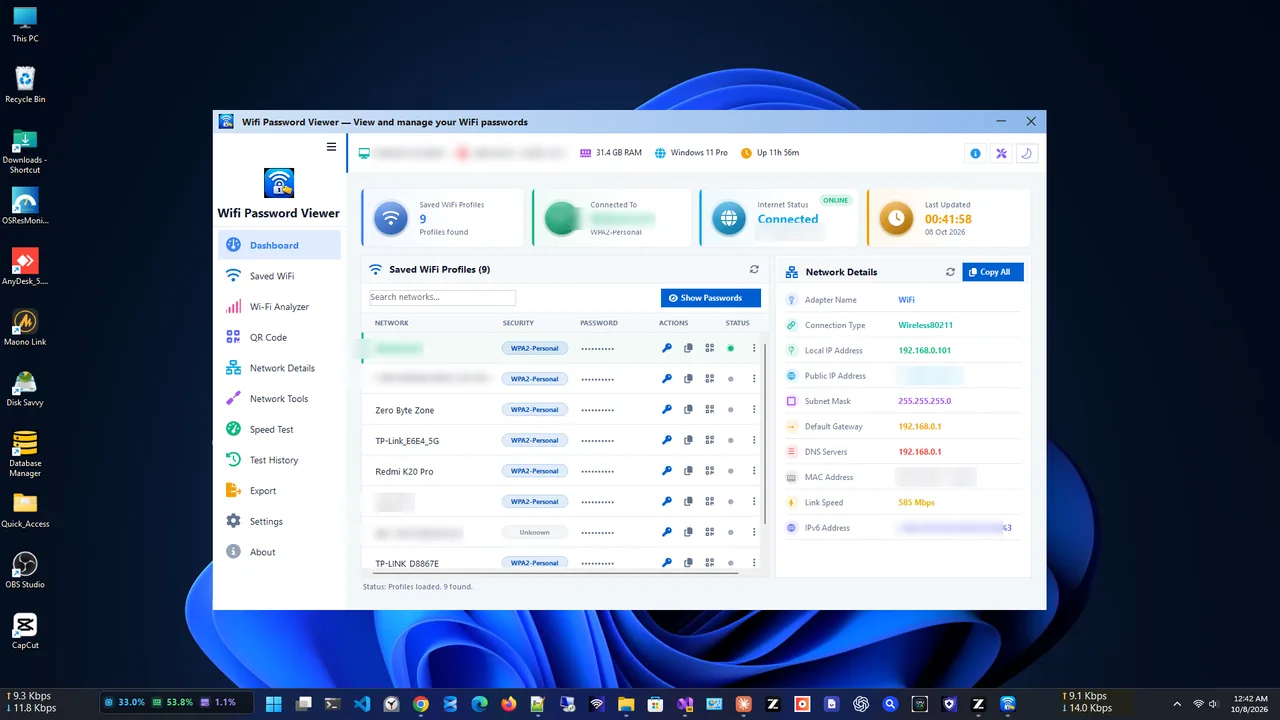
Every saved network and its password in one list. -
Share it with a QR code
Show the network's QR code and scan it with a phone camera. The phone joins without typing anything.
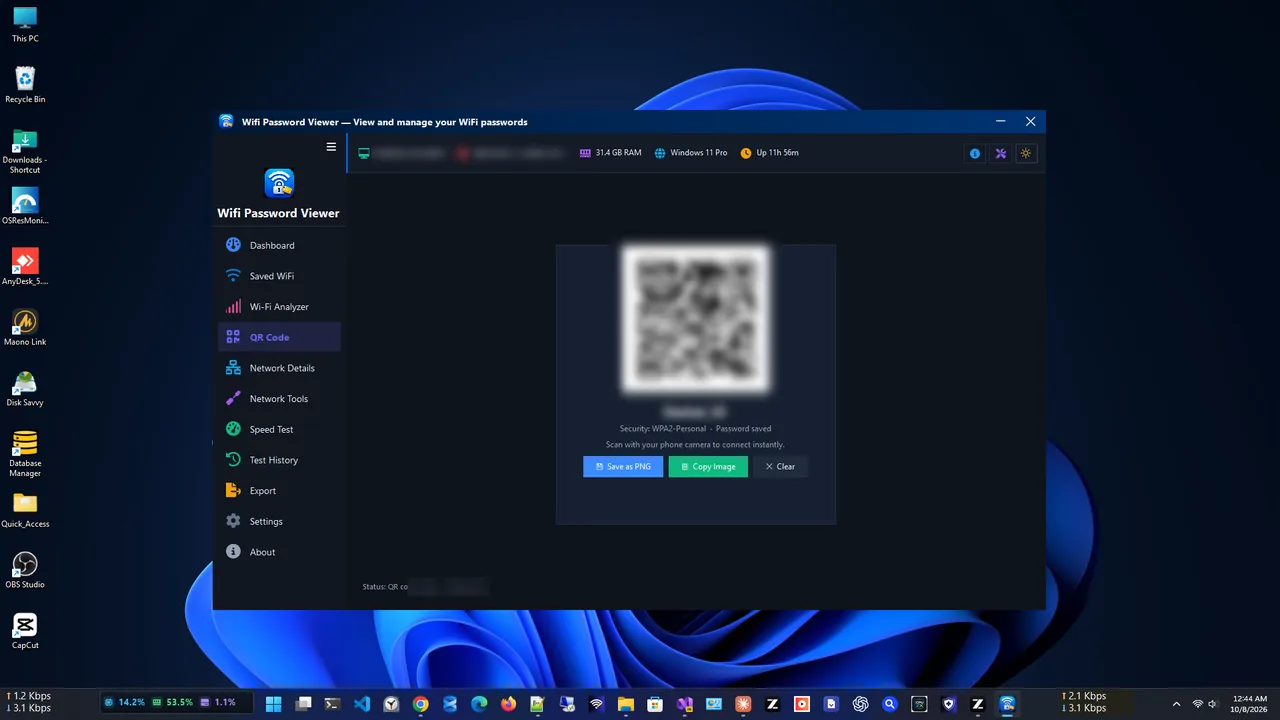
Scan the QR code to join from a phone or tablet.
You can also export all profiles to CSV, TXT or JSON as a backup before you reset or replace your PC.
How to Share Your Wi-Fi Without Saying the Password
- QR code: the fastest way for phones. iPhone and Android cameras both read Wi-Fi QR codes.
- Guest network: if visitors come often, turn on your router's guest network and share that password instead.
- Change it afterwards: if you shared it with someone you no longer trust, change the password in the router settings. All your devices then need the new one.
Troubleshooting
- "The Wireless AutoConfig Service is not running." Press Win + R, type
services.msc, find WLAN AutoConfig and choose Start. - The network is not in the list. This PC never connected to it, or the profile was deleted. Check the router label or the router's admin page instead.
- "Show characters" is greyed out. You are using a standard account. Sign in as an administrator, or ask the PC owner.
- The password works on the PC but not on the phone. Passwords are case-sensitive. Copy it exactly, or use the QR code.
- You are connected but the Wi-Fi keeps dropping. See our guide on Wi-Fi that keeps disconnecting on Windows 11.
To let guests join without typing, share the Wi-Fi password with a QR code.
To set a new password on the router, see how to change your Wi-Fi password.
FAQ
Can I see the Wi-Fi password without admin rights?
Usually not. Windows protects saved keys, so Control Panel and key=clear need an administrator account. On recent Windows 11 builds, Settings may ask for your PIN or password instead.
How do I see passwords for networks I am not connected to?
Use netsh wlan show profiles to list them, then netsh wlan show profile name="NetworkName" key=clear for each one, or open WiFi Password Viewer to see them all at once.
Is it legal to view saved Wi-Fi passwords?
Yes, on your own PC and for networks you were allowed to join. These methods only show passwords Windows already saved on that PC; they cannot crack other networks.
Does this work on Windows 10?
Yes. Methods 2, 3 and 4 work the same on Windows 10. In Windows 10 Settings there is no View button, so use Control Panel or netsh.
Where else can I find my Wi-Fi password?
Check the sticker on your router, or sign in to the router's admin page. Its address is often your default gateway, which you can find with our guide to finding your IP address on Windows 11.
Conclusion
Windows 11 keeps the password for every Wi-Fi network you have joined. For the current network, Settings shows it in
three clicks. For older networks, one netsh command reveals the key. If you want all of them in one list,
with QR sharing and export, WiFi Password Viewer does it for free. For more tools, see all
network apps for Windows.