Network How-to
How to Share Wi-Fi Password with a QR Code
Share your Wi-Fi password with a QR code from Windows, Android or iPhone. Guests scan and join without typing. Plus the Wi-Fi QR format and safety tips.
On this page
To share a Wi-Fi password with a QR code from a Windows PC, open WiFi Password Viewer, pick the network and show its QR code; your guest points their phone camera at it and taps Join. On Android 10 or later, open Settings > Wi-Fi, tap your network and tap Share. iPhones scan Wi-Fi QR codes with the Camera app and share with nearby Apple devices automatically.
Time: 1 minute · Cost: free · Works with: iPhone (iOS 11+) and Android cameras
Reading out a 16-character password with capital letters and symbols while a guest types it wrong three times is nobody's idea of fun. A Wi-Fi QR code fixes that: the guest scans it and the phone joins the network, no typing needed. This guide shows how to share a Wi-Fi password with a QR code from Windows, Android and iPhone, how to make a printable code, and how to keep your network safe while doing it.
Share Wi-Fi Password With a QR Code From a Windows PC
Windows can show a saved network's password (in Settings or with netsh), but it has no QR code button for
networks you are connected to. Two ways around that:
-
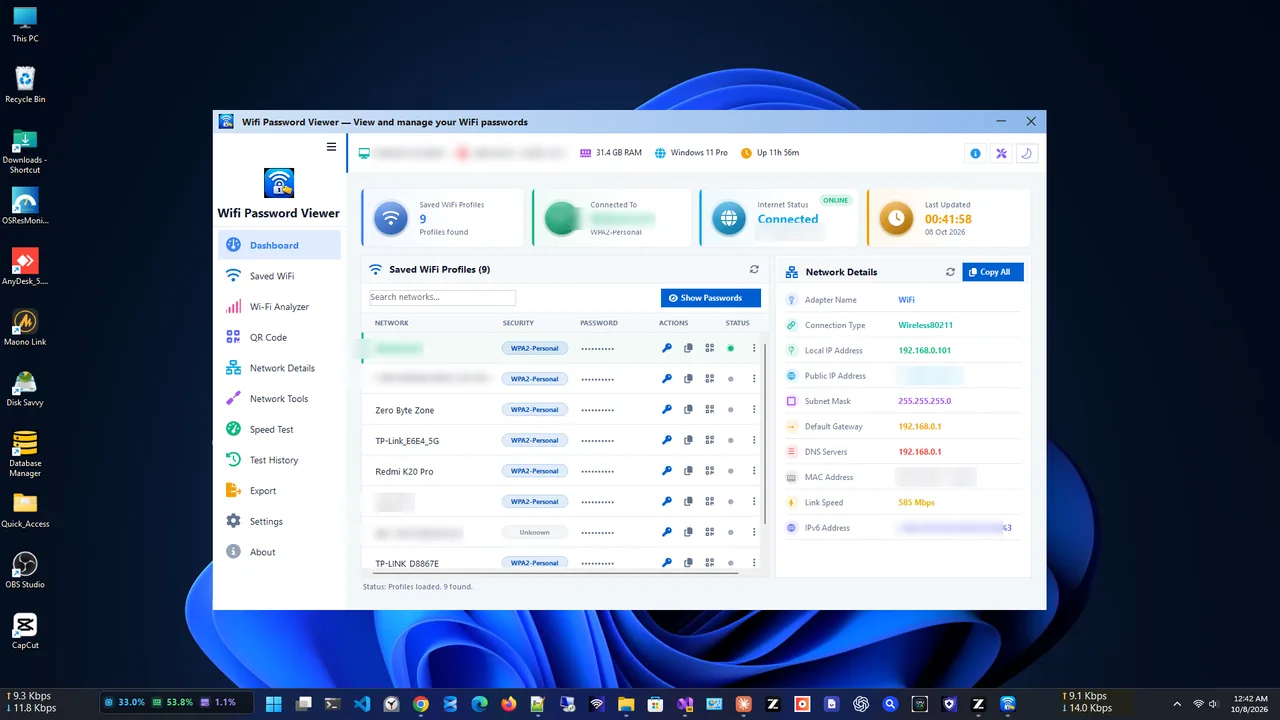
Open WiFi Password Viewer
WiFi Password Viewer lists every Wi-Fi network your PC has saved, with its password.
-
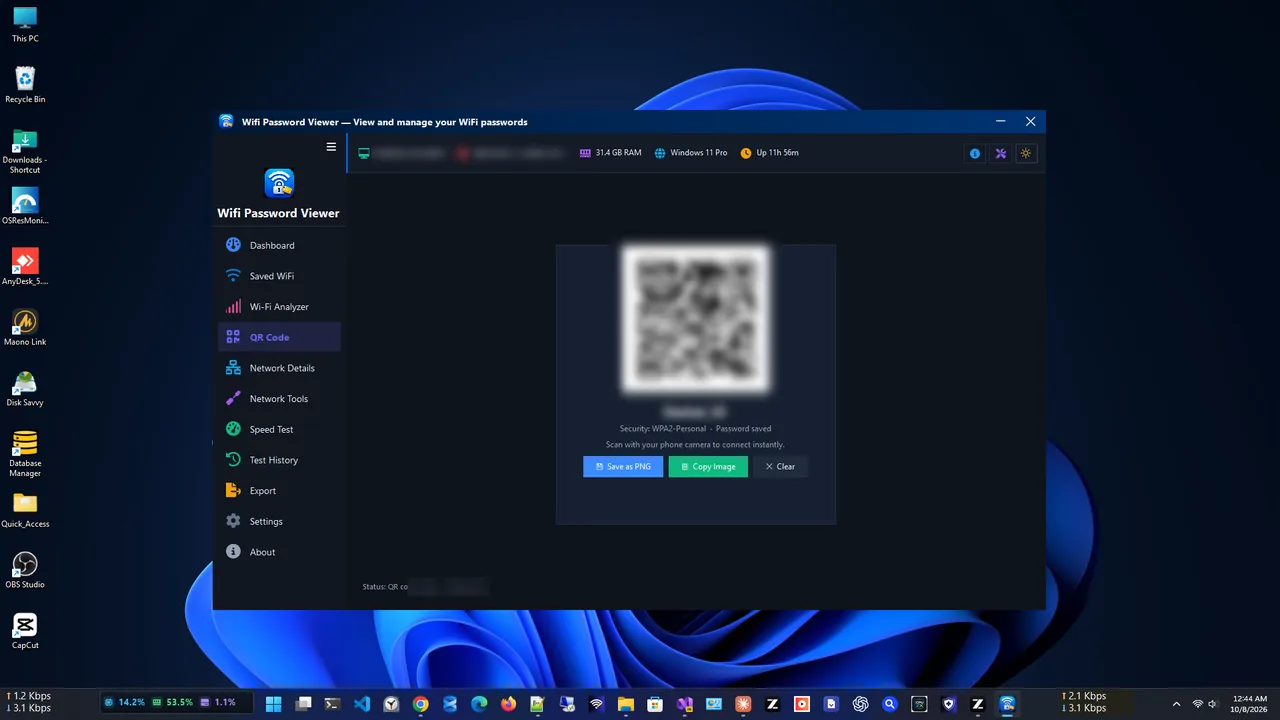
Choose the network and show the QR code
Select the network you want to share and open its QR code. The code contains the network name, security type and password.
-
Let your guest scan it
The guest opens the phone camera (or the QR scanner on some Android phones), points it at the screen and taps the "Join network" notification.
If you only need the password itself, see how to see a saved Wi-Fi password on Windows 11. If you share your PC's connection with Mobile hotspot instead, recent Windows 11 versions show the hotspot's name and password on the Mobile hotspot page, and some builds add a QR code there too.
From an Android Phone
-
Open Wi-Fi settings
Settings > Network & internet (or Connections) > Wi-Fi (Internet on Pixel phones).
-
Tap the network and Share
Tap the gear icon next to the connected network, then Share or the QR code icon. Confirm with your fingerprint, PIN or face. Samsung phones show a QR code button at the bottom of the network details.
-
Show the code
The QR code appears with the password written underneath. Many phones also offer Nearby Share or Quick Share to send it to nearby Android devices.
From an iPhone
iPhones do not show a Wi-Fi QR code by default, but they have two other options. If your guest also has an Apple device and is in your contacts, they select your network, and your iPhone shows a Share Password prompt: tap it. On iOS 16 and later you can also view and copy the password in Settings > Wi-Fi > (i) next to the network > Password. For non-Apple guests, use a QR code made on a PC or one of the methods below.
How Guests Scan a Wi-Fi QR Code
- iPhone: open the Camera app, point at the code, tap the "Join network" banner.
- Android: open the camera or Google Lens, or on the Wi-Fi screen tap the QR icon next to Add network.
- Windows laptop: laptops cannot join from a QR code; give them the password, or share it from the PC's saved list.
Make a Printable Wi-Fi QR Code
A Wi-Fi QR code is just text in a standard format. Any QR generator that supports Wi-Fi codes builds this string for you:
WIFI:T:WPA;S:MyHomeWiFi;P:my-secret-password;H:false;;Tis the security type: WPA (also used for WPA2 and WPA3), WEP or nopass.Sis the network name,Pthe password, andH:truemarks a hidden network.- If the name or password contains
\ ; , : ", put a backslash in front of that character.
Use an offline generator so your password is not sent to a website. Print the code for a guest room, a holiday rental or the office reception. Pair it with a strong signal in that room; see how to boost Wi-Fi signal.
Keep Your Network Safe
- Use a guest network for visitors and printed codes. It keeps them away from your PCs, NAS and smart devices. Many routers create one on both bands; see 2.4 GHz vs 5 GHz Wi-Fi.
- Do not post the code online or in photos. Anyone who scans it, even from a picture, gets the password.
- Change the password after a big event or when a tenant leaves, then print a new code.
FAQ
Is sharing Wi-Fi with a QR code safe?
It is as safe as telling someone the password, since the code contains it in plain text. Share it only with people you trust, ideally on a guest network.
Does the QR code still work if I change the password?
No. The code stores the old password. Make a new code after any change.
Can Windows 11 create a Wi-Fi QR code?
Not for saved networks out of the box. Use an app such as WiFi Password Viewer, or build the WIFI: string in an offline QR generator.
Why does my phone not react to the QR code?
Make sure QR scanning is on in the camera settings, hold the phone steady 20–30 cm away, and increase screen brightness on the device showing the code.
Conclusion
A Wi-Fi QR code lets guests join in seconds. On a Windows PC, show the code from WiFi Password Viewer; on Android, tap Share on the network; iPhones share with nearby Apple devices. For visitors, use a guest network and refresh the code when you change the password. Browse more network apps for Windows.